Many people love using Libby to read ebooks and listen to audiobooks on their phones, tablets, and computers. Libby makes it easy to borrow books from your local library and switch between devices. You can start reading on your phone at lunch, then pick up right where you left off on your tablet at home. But sometimes, things do not work as expected—Libby does not sync between devices. Pages do not match, bookmarks are lost, or you cannot see the same books on all your devices. These problems can be frustrating, especially when you are in the middle of a good book.
This article explains why Libby may not sync between devices, how syncing is supposed to work, and practical solutions to fix common problems. You will also learn about settings, device compatibility, and non-obvious mistakes that many users make. By the end, you will know how to keep your reading progress, notes, and books in sync on all your devices, and what to do if problems appear again.
How Libby Syncing Works
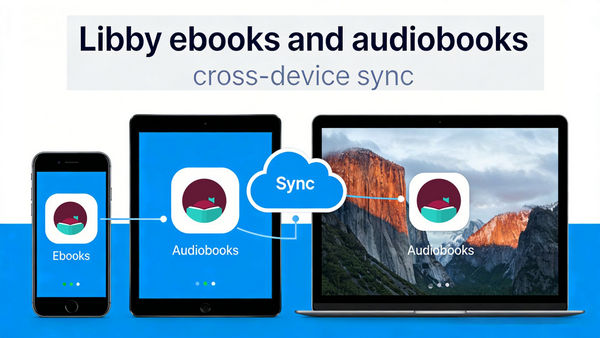
Libby is designed for readers who use more than one device. To make this possible, Libby stores your library loans, reading position, and notes in the cloud. When you open Libby on a different device, it should download your latest activity and let you continue right away.
What Syncs Across Devices
- Loans and Holds – Books you borrow or place on hold appear on all devices.
- Reading Progress – The page or minute you stopped at is remembered.
- Bookmarks and Notes – Highlights, notes, and bookmarks stay with your account.
- Tags – Custom tags for books follow your profile.
What Does Not Sync
- Downloaded Files – If you download a book for offline use, the file stays only on that device.
- Settings and Preferences – Font size, app color, and notification settings are device-specific.
A key detail many people miss is that you must use the same Libby account (linked to the same library card and email) on all devices for syncing to work.
Why Syncing Sometimes Fails
Syncing in Libby relies on a stable internet connection and the correct account setup. If you use different accounts, have poor internet, or use old versions of the app, syncing can break. Also, sometimes there are server problems or bugs within the app.
Common Reasons Libby Does Not Sync
Understanding why Libby is not syncing can save you hours of frustration. Here are some common causes:
1. Using Different Accounts
Many users accidentally sign into Libby with different library cards or emails on each device. This causes each device to act like a separate account, so progress and loans do not match.
2. Outdated App Version
If one device has an older version of Libby, syncing may not work correctly. Features and syncing methods can change with updates.
3. Internet Connection Issues
Libby needs a stable connection to send and receive syncing data. Weak Wi-Fi, airplane mode, or data-saving settings can block communication.
4. Device Compatibility
Older phones or tablets may not support the latest Libby features. Sometimes, the app works but cannot sync properly due to hardware limits.
5. Manual Download Mode
If you manually download books for offline reading, those files do not move to other devices. Progress tracked in a downloaded book may not sync until the device reconnects.
6. App Or Server Bugs
No app is perfect. Occasionally, bugs in Libby or temporary server outages can block syncing.
7. Permissions And Storage
If Libby cannot access storage or background data, it may not sync. App permissions or settings can block its normal function.
Credit: help.libbyapp.com
How To Check If Your Devices Are Syncing
Before you try to fix syncing, check if your devices are connected and using the same account. Here’s how:
Check Account Details
- Open Libby on each device.
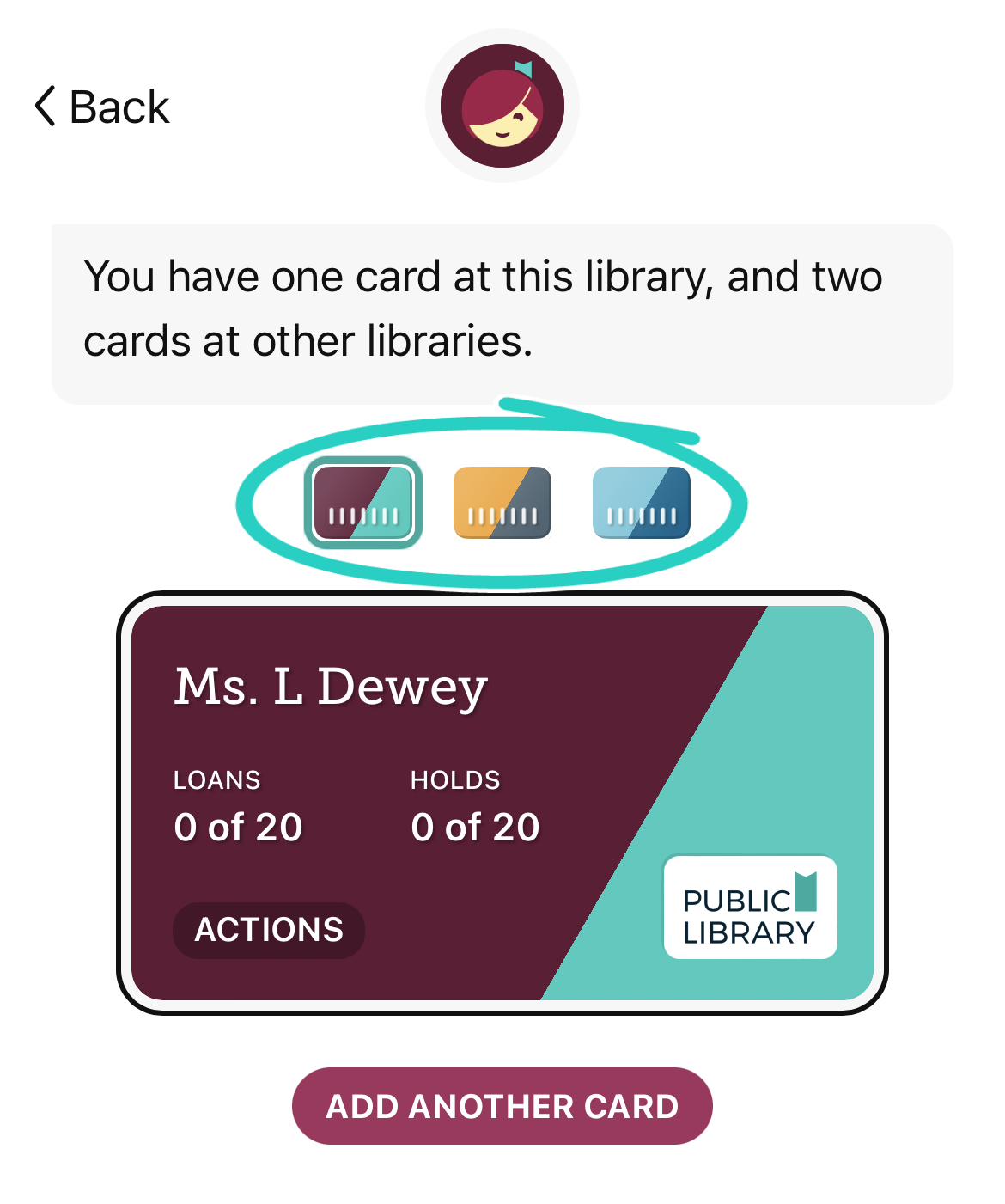
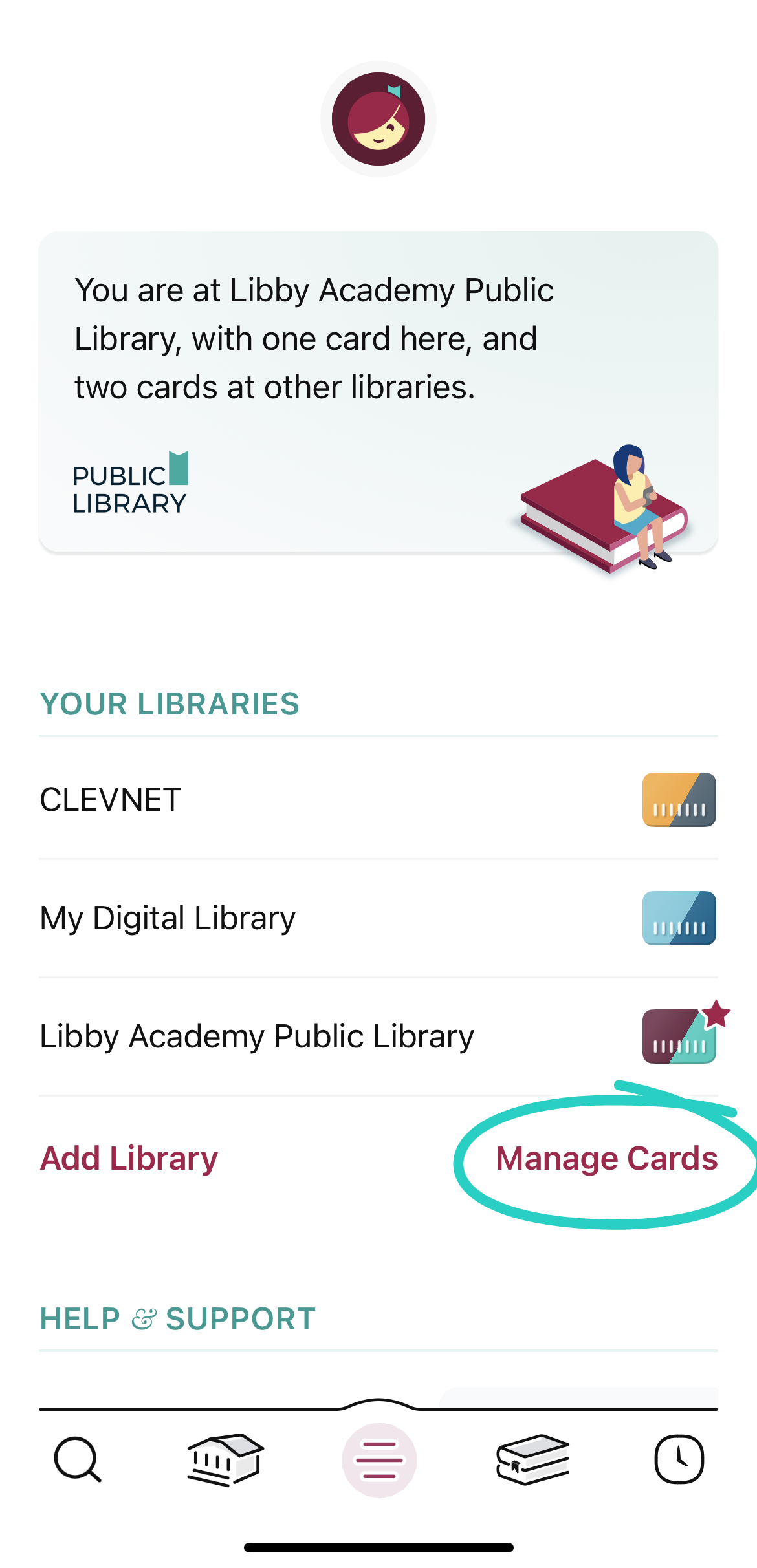
- Go to the Menu (☰) and select Manage Cards.
- Confirm the same library card number and email appear on all devices.
Compare Book Lists
- Check if your Loans and Holds lists match.
- Open a book on one device, read a few pages, then close it.
- Open the same book on another device. It should offer to sync to the latest position.
Check App Version
- In the Menu, scroll down and tap About.
- Compare the version numbers on each device.
If any of these steps show a mismatch, you have found a possible cause.
Step-by-step Solutions For Libby Not Syncing
Let’s solve the most common syncing problems one by one. Follow these steps to restore syncing between your devices.
1. Confirm You’re Using The Same Account
- Go to Menu > Manage Cards on all devices.
- If you see different cards or libraries, sign out and add the correct one.
- Use the Set Up Libby on Another Device feature to link devices:
- On your main device, go to Menu > Settings > Copy to Another Device.
- On your new device, tap Yes, Copy From My Other Device and scan the QR code or enter the setup code.
2. Update The Libby App
- Go to the App Store (iOS) or Google Play (Android).
- Search for Libby and tap Update if available.
- For Kindle Fire or other devices, download the latest APK from the official OverDrive site.
3. Check Internet Connection
- Connect to a reliable Wi-Fi network.
- Open your web browser and visit a website to test the connection.
- Restart your device if needed.
4. Restart The Libby App
- Close the Libby app completely (do not just minimize it).
- Reopen Libby and wait a few seconds for syncing.
5. Re-authorize Your Library Card
Sometimes a library card expires or loses permission.
- Go to Menu > Manage Cards.
- Remove and re-add your library card.
- Re-enter your PIN or password if required.
6. Enable App Permissions
- On iOS: Go to Settings > Libby. Make sure background app refresh and mobile data are allowed.
- On Android: Go to Settings > Apps > Libby > Permissions. Allow storage and background data use.
7. Remove And Re-add Your Account (last Resort)
If nothing works:
- In Libby, go to Menu > Settings > Get Some Help.
- Tap Reset Application (this removes all data from the device).
- Re-add your library card and log in again.
- Sync should start fresh.
Credit: www.any-ebook-converter.com
Device Compatibility And Limitations
Not all devices offer the same experience with Libby. Some limitations are not obvious until you run into trouble.
Supported Devices
- IOS: IPhone, iPad (iOS 10+)
- Android: Phones and tablets (Android 5.0+)
- Kindle Fire: Some models using APK install
- Web: Libbyapp.com in modern browsers
Old devices (e. g. , iPhone 6 or Android tablets from 2015) may run Libby but lack key features. If Libby is not syncing, check your device’s OS version and consider updating or switching to a newer device.
Offline Mode Caution
Libby lets you download books for offline use, but offline progress only syncs when you reconnect to the internet. If you read a lot without Wi-Fi, one device may get out of sync until it goes back online.
Web Vs. App
The Libby web app (libbyapp.com) can sync with mobile apps, but it does not download books for offline use. Syncing is usually seamless, but if you use “private” or “incognito” modes, data may not save as expected.
Syncing Scenarios: Practical Examples
Let’s look at some real-life situations to understand how Libby syncing works—and where it sometimes fails.
Example 1: Reading On Phone And Tablet
You start reading an ebook on your iPhone in the morning. At night, you switch to your iPad. When you open the book, Libby asks, “Would you like to sync to page 120, where you left off on your other device?
” If you say yes, progress syncs. If you say no, the devices are now out of sync until you manually correct them.
Insight: Always say yes to the sync prompt if you want all devices to match.
Example 2: Audiobook Progress Not Matching
You listen to an audiobook on your Android phone during your commute. Later, you play it on your Kindle Fire, but it starts from an earlier chapter. This happens if one device was offline or if you did not close the book before switching devices.
Tip: Stop playback and close the book before changing devices to help Libby save your position.
Example 3: Lost Notes Or Bookmarks
You highlight some favorite quotes on your tablet, but they do not appear on your phone. This can happen if one device has not synced recently, or if you made edits while offline.
Tip: Open Libby on all devices while connected to Wi-Fi to force a sync.
Advanced Tips For Reliable Syncing
Most syncing problems have simple fixes, but some require extra steps. Here are advanced tips to keep everything running smoothly.
- Clear App Cache (Android only): Go to Settings > Apps > Libby > Storage > Clear Cache. This can solve stubborn syncing problems.
- Check for Server Issues: Sometimes, Libby’s servers are down. Visit OverDrive’s status page to see if there are known issues.
- Sync Time and Date: Make sure your device uses automatic date and time. If the clock is wrong, syncing may fail.
- Avoid Switching Libraries Mid-Book: If you change libraries or cards while reading a book, syncing may break for that title.
- Limit Simultaneous Devices: Libby works best with two or three devices. Using many devices at once can confuse syncing.
Comparison Of Libby Syncing Features By Platform
Below is a quick comparison of how syncing works on different platforms:
| Platform | Loans & Holds Sync | Reading Progress Sync | Offline Downloads | Notes & Bookmarks Sync |
|---|---|---|---|---|
| iOS App | Yes | Yes | Yes | Yes |
| Android App | Yes | Yes | Yes | Yes |
| Web App (libbyapp.com) | Yes | Yes | No | Yes |
| Kindle Fire (via APK) | Yes | Yes | Yes | Yes |
Data Table: Most Common Syncing Errors And Fixes
Here’s a look at the most frequent Libby syncing issues and the best solutions:
| Syncing Problem | Likely Cause | Solution |
|---|---|---|
| Progress not matching | Different accounts or offline use | Link the same card and connect to Wi-Fi |
| Bookmarks missing | Outdated app | Update Libby on all devices |
| Loans not showing | Wrong library or card | Switch to the correct library account |
| App crashes when syncing | Device incompatibility or low storage | Free up space, clear cache, or reinstall app |
| Notes not updating | Device offline or server issue | Check connection, wait, or check OverDrive status |
Non-obvious Mistakes That Break Sync
Even experienced users sometimes make mistakes that are easy to overlook:
- Mixing up library cards: If you have multiple family members sharing one device, make sure the right card is chosen every time.
- Ignoring sync prompts: Always respond to Libby’s prompts asking if you want to sync positions. Saying “no” can cause confusion later.
- Private Browsing on Web: Using incognito mode in your browser can block syncing data.
- Never opening Libby on all devices: If you never open Libby on your phone again, it will not update with your reading progress from your tablet.
- Unstable Wi-Fi: Reading in places with weak Wi-Fi (like subways or basements) can cause progress to be saved incorrectly.
When To Contact Support
If you have tried all the steps in this guide and Libby is still not syncing, it may be time to get help. Here is what to do:
- Gather device info: List device models, OS versions, and Libby app versions.
- Take screenshots of the problem (e.g., different progress on each device).
- Visit the Help section in Libby: Menu > Help & Support > Get in Touch.
- Or, visit the official Libby Help Center for more resources.
Support can check your account and library card, and may find bugs or problems that are not public. Be patient—sometimes fixes take a few days.
How Libby’s Syncing Compares To Other Apps
Some users wonder if Libby is better or worse than other reading apps when it comes to syncing. Here’s a quick comparison:
| App | Syncs Reading Position | Syncs Notes | Offline Reading | Device Limit |
|---|---|---|---|---|
| Libby | Yes | Yes | Yes | Multiple (no hard limit) |
| Kindle | Yes | Yes | Yes | 6 devices |
| Apple Books | Yes | Yes (with iCloud) | Yes | 10 devices |
| Google Play Books | Yes | Yes | Yes | Multiple |
Libby’s syncing is competitive with other major ebook apps, but it relies more on your library card and internet connection.
Best Practices For Smooth Syncing
To avoid headaches in the future, follow these best practices:
- Always use the same library card and email for all devices.
- Keep Libby updated on all devices.
- Connect to Wi-Fi regularly, especially after reading offline.
- Close books on one device before opening on another.
- Respond to sync prompts carefully.
- Avoid changing library cards or libraries mid-book.
Frequently Asked Questions
Why Is My Libby App Not Syncing Between Devices?
The most common reasons are using different library cards or emails, poor internet connection, or an outdated app. Check that all devices use the same card and are connected to Wi-Fi. Update Libby to the latest version.
Will Libby Sync My Offline Reading When I Reconnect?
Yes, if you read books offline, Libby will sync your progress, notes, and bookmarks when you next connect to the internet. Make sure you do not switch accounts or library cards before reconnecting.
Can I Sync Between The Libby App And The Web Version?
Yes, as long as you use the same library card and account on both the app and web version, your loans, progress, and notes will sync. Remember, the web version does not support offline downloads.
What Should I Do If I See Different Books On My Devices?
This usually means you are using different library cards or have not synced recently. Double-check your account details in Menu > Manage Cards and connect to Wi-Fi to force a sync.
How Many Devices Can I Sync With Libby?
Libby does not set a hard limit on the number of devices, but syncing works best with two or three. Using many devices at once can sometimes cause confusion or errors.
—
Libby is a powerful tool for library lovers, but syncing problems can spoil your reading flow. With the right setup and habits, you can keep all your books, notes, and progress matched across devices. Pay attention to your account details, keep your app updated, and connect to Wi-Fi often. If you still have trouble, do not hesitate to use Libby’s support resources or check the official help center for updates. Happy reading!
Credit: help.libbyapp.com