Syncing books from your Mac to your iPhone should be simple. You add the books to your Mac’s Books app, connect your iPhone, and expect everything to appear. Yet, many users find that some or all of their books do not sync as expected. This issue can be frustrating, especially if you rely on your iPhone for reading on the go. Let’s look closely at why this happens, what you can do to fix it, and how to avoid syncing problems in the future.
Understanding How Book Syncing Works
Before trying to fix the problem, it’s helpful to know how Apple’s syncing system works for books. Apple uses two main ways to sync books:
- ICloud: This syncs purchased books (and sometimes PDFs or ePubs) wirelessly across devices using your Apple ID.
- Finder/iTunes: You can manually add books from your Mac to your iPhone using a USB cable and Finder (macOS Catalina and later) or iTunes (older versions).
Not all book formats or sources behave the same way. For example, Apple Books purchases sync more smoothly than third-party eBooks or PDFs.
Common Reasons Books Do Not Sync
Several common issues can stop books from syncing from your Mac to your iPhone:
- ICloud Drive is off for Books on one or both devices.
- The Books app is not set to sync items like PDFs or ePubs.
- Different Apple IDs are used on each device.
- The book format is not supported on iOS.
- The book was added manually and not purchased from Apple.
- Software is out of date on one or both devices.
- There are network or USB connection problems.
Understanding which of these applies to you is the first step toward fixing the issue.
Credit: www.igeeksblog.com
Step-by-step Solutions For Book Syncing Issues
Let’s walk through fixes, from simplest to most advanced. These steps work for both purchased and manually added books.
1. Check Icloud Settings For Books
For wireless syncing, iCloud must be enabled for both the Mac and iPhone.
- On your Mac: Open System Settings > Apple ID > iCloud. Make sure iCloud Drive is on. Click ‘Options’ next to iCloud Drive and check that Books is enabled.
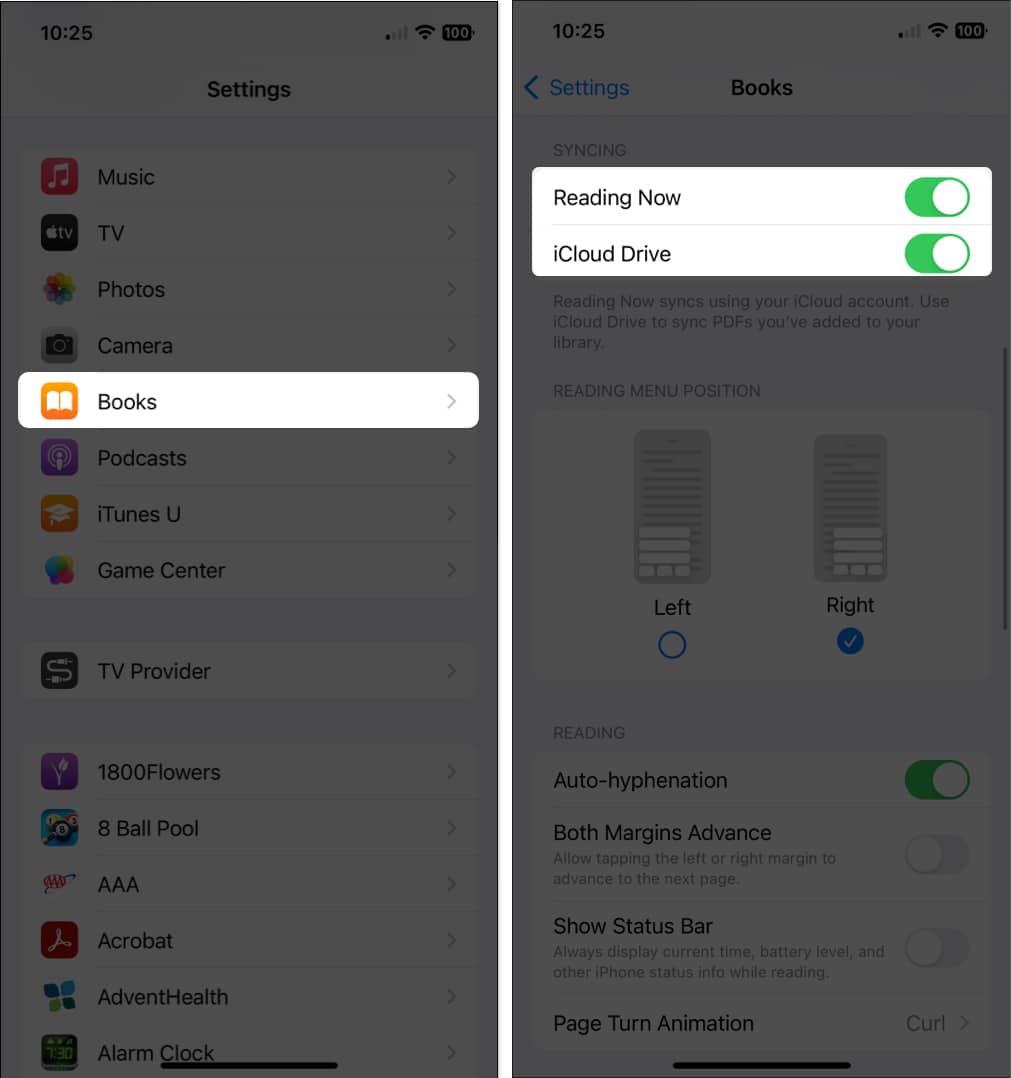
- On your iPhone: Go to Settings > [your name] > iCloud > Show All. Ensure Books is switched on.
If either device does not have iCloud Drive enabled for Books, syncing will not work.
2. Confirm You’re Using The Same Apple Id
Both devices must be signed in with the same Apple ID. To check:
- On Mac: System Settings > Apple ID.
- On iPhone: Settings > [your name].
If they’re different, sign in with the same account.
3. Update Macos, Ios, And The Books App
Outdated software can cause syncing problems. Check for updates:
- Mac: System Settings > General > Software Update.
- IPhone: Settings > General > Software Update.
Also, update the Books app if an update is available.
4. Sync Books Manually Using Finder Or Itunes
If iCloud is not syncing all books, manual sync may help. This is especially useful for non-purchased books (like free ePubs or PDFs).
For Macos Catalina And Later (using Finder):
- Connect your iPhone to your Mac.
- Open Finder and select your iPhone in the sidebar.
- Click the Books tab.
- Check ‘Sync books onto [your device]’.
- Choose to sync all books or selected books.
- Click Apply.
For Macos Mojave And Earlier (using Itunes):
- Connect your iPhone.
- Open iTunes.
- Click your device and go to the Books section.
- Choose which books to sync.
- Click Sync.
5. Check Book Format Compatibility
The iPhone Books app supports ePub and PDF files, but not all formats or DRM-protected files from other sources. If your book is in a different format (like MOBI or AZW), it will not sync. Convert unsupported files to ePub or PDF.
6. Make Sure Books Are In The Right Location
For syncing, books must be in the Books library on your Mac, not just in a folder. Drag the book files into the Books app if needed.
7. Turn Books Syncing Off And On Again
Sometimes, toggling sync settings can “reset” a stalled sync:
- On iPhone: Go to Settings > [your name] > iCloud > Books. Turn off, wait 10 seconds, and turn back on.
- On Mac: System Settings > Apple ID > iCloud > Books. Toggle off and on.
8. Restart Both Devices
Restarting your Mac and iPhone can solve many syncing glitches.
9. Sign Out And Back In To Icloud
If the above steps fail, sign out of iCloud on both devices, restart, and sign in again. Be sure to back up important data first.
10. Check For Device Restrictions
Parental controls or other restrictions may block book syncing. Review Screen Time settings on your iPhone (Settings > Screen Time).
Table: Common Book Syncing Problems And Fixes
Here’s a quick reference comparing common syncing problems and what usually solves them:
| Problem | Likely Cause | Best Fix |
|---|---|---|
| Books missing on iPhone | iCloud not enabled for Books | Enable iCloud Drive for Books on both devices |
| Some PDFs don’t sync | Manual addition, not in Books library | Drag PDFs into Books app and resync |
| Purchased books missing | Different Apple IDs used | Sign in with same Apple ID |
| Unsupported file errors | Wrong file format (e.g., MOBI) | Convert to ePub or PDF |
| Books not updating | Old software | Update Mac and iPhone OS |

Credit: www.youtube.com
Special Cases: Third-party Books And Drm Issues
Not all books are equal when it comes to syncing. Books bought outside of the Apple Books Store (such as free eBooks or purchases from other sellers) may have Digital Rights Management (DRM) that blocks syncing.
- DRM-protected eBooks often can’t be transferred to Apple devices.
- Amazon Kindle books (AZW, MOBI formats) will not appear in your Apple Books app.
- Some PDF files with password protection may not sync.
If you want to read these books on your iPhone, you may need to use other apps or remove DRM (which may not be legal in all countries).
Table: Supported And Unsupported Book Formats
To help you understand which files will sync, here’s a summary:
| Format | Supported by Apple Books | Needs Conversion? |
|---|---|---|
| ePub (no DRM) | Yes | No |
| Yes | No | |
| ePub (DRM) | No | Yes |
| MOBI/AZW (Kindle) | No | Yes |
| TXT, RTF | No | Yes (convert to PDF or ePub) |
Advanced Troubleshooting Tips
If standard steps don’t work, try these advanced options.
Check Network Conditions
A weak Wi-Fi or internet connection can slow or block iCloud syncing. Try connecting to a different network or move closer to your router.
Clear Outdated Or Corrupt Books
Sometimes, a corrupt book file can block syncing. Remove any book that won’t open or shows errors, then try syncing again.
Rebuild The Apple Books Library
If your Books app seems “stuck,” rebuilding the library can help:
- Close the Books app.
- Hold the Option key and open Books.
- Select “Choose Library” and pick a different library or create a new one.
- Add your books to the new library and try syncing.
Reset Sync Data (last Resort)
On your iPhone, you can reset sync data for iCloud (Settings > [your name] > iCloud > Manage Account Storage > Books > Delete Data). Be careful—this removes all iCloud books from the device and can’t be undone.
Non-obvious Insights Most Users Miss
- ICloud Storage Limits: If your iCloud Drive is full, books will not sync—even small PDFs. Check your available space in Settings > [your name] > iCloud.
- File Name Issues: Special characters in book filenames (like slashes or emojis) can block syncing. Rename files with only letters, numbers, and spaces before adding them to the Books app.
- Sync Delay: ICloud sync is not always instant. It can take several minutes (or even hours for large libraries) for changes to appear on all devices.
- Hidden Books Section: On iPhone, tap “Collections” in the Books app and check “PDFs” or “Downloaded.” Sometimes books are there, but not in the main library.
How To Avoid Syncing Problems In The Future
A little planning can prevent most syncing headaches.
- Keep software updated on both devices.
- Always import new books into the Books app first, then sync.
- Prefer ePub and PDF formats for universal compatibility.
- Avoid special characters in filenames.
- Regularly check iCloud storage and free space when needed.
- Sync devices while both are plugged in and connected to Wi-Fi for faster and more reliable results.
Table: Manual Sync Vs Icloud Sync
Which method is better for you? Here’s a quick comparison:
| Feature | iCloud Sync | Manual Sync (Finder/iTunes) |
|---|---|---|
| Wireless | Yes | No (needs USB) |
| Works with Apple Books purchases | Yes | Yes |
| Works with PDFs/ePubs from other sources | Sometimes | Yes |
| Syncs highlights/reading position | Yes | No |
| Needs internet | Yes | No |
| Speed | Slower for big libraries | Faster |
When To Contact Apple Support
If you have tried all steps and your books still do not sync, it may be time to contact Apple Support. Persistent hardware or account issues sometimes require their help. Before calling, have this information ready:
- Your Apple ID email.
- The model and OS version of your Mac and iPhone.
- Steps you have already tried.
- Screenshots of error messages, if any.
You can reach support through the Apple Support app or at Apple’s official website.
Alternative Apps For Reading Non-syncing Books
If you often have books that won’t sync with Apple Books (such as Kindle or Kobo eBooks), consider using the Kindle app, Google Play Books, or other third-party readers. These apps may offer easier syncing for their own formats and can be used alongside Apple Books.

Credit: www.youtube.com
Frequently Asked Questions
Why Are My Apple Books Purchases Not Appearing On My Iphone?
Usually, this means your iPhone and Mac are not signed into the same Apple ID, or iCloud Drive is not enabled for Books. Check both in your device settings. Also, make sure “Hide iCloud Books” is not enabled in the Books app.
Can I Sync Pdfs And Epubs Not Bought From Apple?
Yes, but only if they’re added to the Books app library on your Mac first. Use Finder or iTunes for manual sync if iCloud does not pick them up. Some files with DRM or special formatting may not sync.
How Long Does It Take For Books To Sync Via Icloud?
Syncing can be almost instant for small files, but large libraries or slow internet can cause delays of several minutes or more. If you have just added books, give iCloud some time before troubleshooting.
Do Highlights And Reading Position Sync Between Devices?
Yes, if you use iCloud for Books and both devices are signed in with the same Apple ID. Manual syncing with Finder/iTunes does not transfer highlights or reading position.
Are There File Size Limits For Books In Apple Books?
There’s no official file size limit for individual books, but very large PDFs (hundreds of megabytes) may not sync over iCloud. Manual sync is usually better for large files.
Syncing books from your Mac to your iPhone should be smooth, but small missteps can cause big headaches. By following these steps, understanding common pitfalls, and keeping your software and files organized, you’ll spend less time troubleshooting and more time reading.
For complex or persistent issues, don’t hesitate to seek help from Apple or use alternative reading apps. With a little care, your digital library can travel with you—wherever you go.