When you want to delete an app from your Mac, you expect it to be quick and easy. But sometimes, an app won’t go away. You drag it to the Trash, but it stays. You try using Launchpad, but it’s still there.
This can feel frustrating, especially if you’re worried about storage, security, or just keeping your Mac tidy. You’re not alone—many Mac users face this problem. The good news is that you can solve it with a bit of guidance and patience.
This article will show you why apps don’t delete from Macs, how to fix the issue, and what to do if nothing seems to work. By the end, you’ll know exactly how to remove stubborn apps and keep your Mac running smoothly.
Why Apps Don’t Delete From Mac
Deleting apps on a Mac seems simple, but there are several reasons why it sometimes fails. Understanding these reasons will help you find the right solution.
App Is Running In The Background
One of the most common causes is the app still running. If an app is open, macOS won’t let you delete it. Sometimes, even after you close the window, the app stays active in the background. For instance, messaging apps like Slack or Skype often run background processes.
These keep the app ready for notifications or updates, even if you don’t see the window. To check, open Activity Monitor and search for the app name. If you see related processes, quit them before attempting deletion.
System Permissions And Restrictions
Some apps require administrator privileges to delete. Others are protected by the system because they are considered essential for macOS to run properly. For example, apps like Safari or Mail are built-in and cannot be deleted through normal methods. Even some third-party apps may ask for your password before removal. If you use a managed device (like a work computer), your IT admin might block deletion of certain apps.
App Is Part Of A Bundle Or Linked To Other Software
Certain apps are bundled with other programs or share files with them. Deleting one app could affect others, so macOS prevents removal until you handle the linked files. For example, some printer software installs multiple utilities together. If you try to delete just one, the others may not work correctly, or the system might block the removal.
App Is Malicious Or Corrupted
Malware or corrupted apps often resist deletion. They might hide files, change permissions, or run secret processes that block removal. Some apps disguise themselves as system files or change their names to avoid detection. In these cases, regular uninstall methods may not work.
You might need extra tools to identify and remove hidden files.
App Installed From The Mac App Store Vs. Outside Sources
Apps from the Mac App Store are usually easier to remove. Apps downloaded from websites or installed via package files (.pkg) may scatter files in multiple locations, making deletion harder. These apps can put files in Library folders, create background services, or add browser plugins. If you install apps from outside sources, be prepared to search for extra files when uninstalling.
User Account Issues
If you’re not signed in as the right user, you may lack permission to delete certain apps. This is common on shared Macs or those with multiple user accounts. For example, a parent might install apps for a child, but only the parent’s account can delete them.
Always check you’re using an account with admin rights before trying to uninstall apps.
Methods To Delete Apps From Mac
Now that you know why an app might resist deletion, let’s explore proven methods to remove them. Try these steps in order, and you’ll likely find one that works.
Using The Finder
Finder is the default way to delete most apps.
- Open Finder.
- Go to the Applications folder.
- Find the app you want to remove.
- Drag the app icon to the Trash.
- Empty the Trash to complete deletion.
If you get an error, check if the app is running. Close it using Command + Q or by right-clicking and selecting Quit.
Sometimes, Finder will show a message that the app cannot be deleted because it’s open or in use. You may also see that the app icon stays grayed out in the Applications folder after dragging it to Trash. In these cases, restart your Mac or use Force Quit to ensure all processes are stopped.
Using Launchpad
Launchpad is ideal for deleting apps from the Mac App Store.
- Open Launchpad.
- Locate the app.
- Click and hold the app until it jiggles.
- Click the X icon to delete.
Apps installed from outside the Mac App Store won’t show the X.
If you don’t see the X icon, it means the app was installed from a website or package file. For these apps, use Finder or their own uninstaller. Launchpad won’t help with apps that don’t come from the App Store.
Force Quit The App
If the app is running and won’t quit normally:
- Press Command + Option + Esc to open Force Quit Applications.
- Select the app and click Force Quit.
- Try deleting again.
Force quitting is useful for apps that freeze or won’t close from the menu bar. Some apps may reopen automatically due to background tasks, so double-check in Activity Monitor.
Uninstall Using The App’s Own Uninstaller
Some apps come with their own Uninstaller. This is common for apps like Adobe Creative Cloud or antivirus programs.
- Open the app folder in Applications.
- Look for an Uninstall or Remove tool.
- Follow the prompts.
These uninstallers often remove hidden files and preferences too.
Using the official uninstaller is safer, as it knows where all the app’s files are stored. For example, Adobe’s uninstaller removes plugins, fonts, and caches that you might miss otherwise.
Remove Associated Files
Even after deleting the main app, leftover files may remain. These can include preferences, caches, and other support files. To remove them:
- Open Finder.
- Click Go in the menu bar, then Go to Folder.
- Enter ~/Library/ and press Enter.
- Search for folders like Application Support, Preferences, Caches, or Containers. Look for files with the app’s name.
- Delete those files.
Be careful not to delete important system files.
Sometimes, files are stored in subfolders with names that aren’t obvious. For example, “com. companyname. appname” might be used instead of the app’s name. If you’re unsure, search for the app name in Library folders.
Use Third-party Uninstallers
Some apps leave traces everywhere. Third-party uninstallers like AppCleaner or CleanMyMac can help.
- AppCleaner is free and safe.
- CleanMyMac offers more features but requires payment.
They scan for related files and remove them completely. Only download from trusted sources.
Third-party uninstallers are helpful for apps with complex installation routines. They can find files in hidden folders, system extensions, and plugins. Before using any tool, check reviews and make sure it’s from a reputable developer.
Delete Using Terminal
Advanced users can use Terminal to remove stubborn apps.
- Open Terminal from Applications > Utilities.
- Type:
`sudo Rm -rf /applications/appname.app`
- Press Enter, then type your password.
This command forces deletion. Be careful—mistyped commands can delete important files.
Terminal is powerful but risky. Before running any command, double-check the app name and path. If you’re unsure, copy the command into a text editor and review it carefully.
Reboot Your Mac
Sometimes, restarting your Mac clears temporary issues and lets you delete the app afterward.
A reboot can also end any background services that are preventing deletion. After restarting, repeat the Finder or Launchpad steps.
Update Macos
If your system is outdated, bugs can block deletion. Update macOS to the latest version, then try again.
Updates often fix hidden issues with permissions or app management. To update, go to System Settings > General > Software Update and follow the prompts.
Check For System Integrity Protection (sip)
SIP protects key system files. If you try to delete protected apps, macOS will block you.
To check SIP status:
- Open Terminal.
- Type:
`csrutil Status`
- If SIP is enabled, you cannot remove certain system apps.
Disabling SIP is risky and not recommended unless you know exactly what you’re doing.
SIP is designed to protect your Mac from accidental or malicious changes. Only advanced users should consider changing SIP settings, and only after backing up important data.
Removing Malware Or Corrupted Apps
Malware often blocks deletion. Use a trusted antivirus tool to scan and remove threats.
If an app is corrupted, reinstall it first, then try deleting again.
Some malware disguises itself as a normal app. After scanning with antivirus, check for suspicious files or processes in Activity Monitor. If the app still won’t delete, seek help from a security expert.
Common Problems And Solutions
Sometimes, you follow the normal steps but still can’t delete the app. Here are specific issues and how to fix them.
Error Message: “app Is Open”
This means the app is running or has background processes.
- Use Force Quit to close all related processes.
- Check Activity Monitor for hidden tasks.
If the app has helper tools or extensions, you might need to quit those as well. For example, a browser plugin may keep the app running even after closing the main window.
Error Message: “app Cannot Be Deleted Because It Is Required By Macos”
System apps like Safari or Mail are protected. You cannot delete them. Focus on disabling or hiding them instead.
Sometimes, you can remove these apps from the Dock or set them not to open at login. But full deletion isn’t possible without disabling SIP, which is not recommended.
App Reappears After Deletion
If the app comes back, it may be linked to another program, or you have a syncing issue.
- Check for auto-reinstallation from third-party tools.
- Review Login Items in System Settings.
Some cloud services reinstall apps if they detect missing files. For example, Dropbox may reinstall its helper app if deleted. Review your sync settings and remove unwanted auto-installers.
App Leaves Behind Files
Even after deleting, preferences and support files may remain.
- Manually remove files from ~/Library/.
- Use a third-party uninstaller.
Leftover files can slow down your Mac or cause conflicts when reinstalling the app. Check Library folders every few months for large files.
Permissions Errors
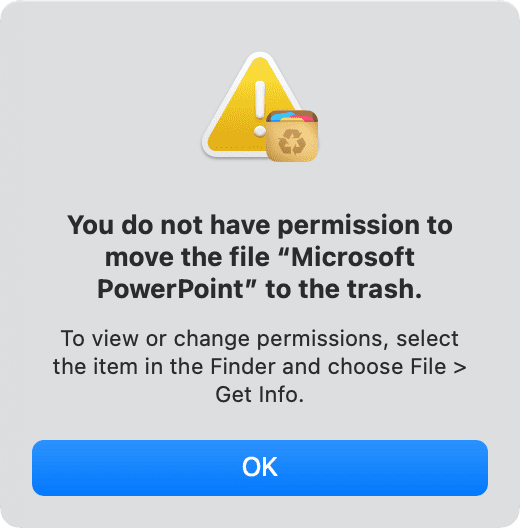
If you see “You don’t have permission to delete,” sign in as an administrator or check your user permissions.
On a work or school Mac, you might need to ask IT support for help. Check your account type in System Settings > Users & Groups.
App Is Not Visible
Some apps hide themselves or install as plugins.
- Check System Settings > Extensions.
- Search for hidden files using Finder.
Apps like browser extensions may not appear in Applications. Open your browser’s settings and remove the extension there.
The Difference Between Deleting And Uninstalling
Many users think deleting and uninstalling are the same, but they’re different.
- Deleting means moving the app to Trash.
- Uninstalling is a complete removal, including hidden files, preferences, and system changes.
For full removal, use the app’s uninstaller or a third-party tool.
| Method | Removes Main App | Removes Hidden Files | Easy for Beginners |
|---|---|---|---|
| Finder | Yes | No | Yes |
| App Uninstaller | Yes | Yes | Yes |
| Terminal | Yes | Yes (if used correctly) | No |
| Third-Party Uninstaller | Yes | Yes | Yes |
Uninstalling is especially important for apps that use system extensions, background services, or plugins. If you only delete the main app, these components can stay behind and cause problems.
How To Avoid App Deletion Issues In The Future
Prevention is better than cure. Here are tips to keep your Mac clean and avoid problems.
Install Apps From Trusted Sources
Download apps from the Mac App Store or official websites. Avoid unknown sources, which can hide malware.
Apps from trusted sources are less likely to install hidden files or resist deletion. Always check reviews and ratings before downloading.
Keep Macos Updated
Updates fix bugs and improve security. Set your Mac to auto-update for peace of mind.
Older versions of macOS may have glitches with app removal. Update regularly to get the latest fixes.
Use An Administrator Account
Sign in as an administrator when installing or deleting apps. This gives you full control.
If you use a non-admin account, switch to admin for app management tasks. On shared Macs, keep admin accounts safe with strong passwords.
Regularly Check For Leftover Files
Every few months, check your Library folders for leftover files. Remove anything you don’t need.
You can use Finder’s search feature to look for old app names and clear unused files. This keeps your Mac fast and tidy.
Use Third-party Uninstallers For Complex Apps
For large programs like Adobe or Office, use their uninstallers or a trusted tool like AppCleaner.
Complex apps often create multiple files and folders. Third-party tools can help you find and remove everything.
Watch Out For Login Items
Some apps auto-start and resist deletion. Go to System Settings > Users & Groups > Login Items and remove unwanted apps.
Review login items after uninstalling apps to prevent automatic reinstallation or startup.
Examples Of Stubborn Apps
Some apps are known to resist deletion. Here are real-world examples and how to handle them.
Adobe Creative Cloud
Adobe apps often require their own uninstaller. If you try deleting from Finder, files remain.
- Use the Adobe Uninstaller found in Applications > Adobe Creative Cloud.
- Follow the instructions carefully.
Adobe installs fonts, plugins, and background helpers. If the uninstaller fails, visit Adobe’s support page for manual removal steps.
Antivirus Apps (norton, Avast, Etc.)
Antivirus software often installs background services.
- Look for the Uninstall tool in the app’s folder.
- If you still can’t delete, contact the vendor’s support.
These apps may use kernel extensions or background daemons. After uninstalling, restart your Mac to clear all services.
Microsoft Office
Office apps leave many files behind.
- Use the Microsoft Office Uninstaller.
- Remove leftover files from ~/Library/Application Support/Microsoft/.
Microsoft’s website has detailed guides for manual removal. Check for shared files in Library folders like “Fonts” and “Preferences. ”
Zoom
Zoom installs plugins and helpers.
- Delete the app from Finder.
- Remove files from ~/Library/Application Support/zoom.us/.
Zoom also adds browser extensions for scheduling. Remove those from your browser settings.
Spotify
Spotify leaves cache and helper files.
- Delete app from Finder.
- Remove files from ~/Library/Application Support/Spotify/.
Clearing Spotify’s cache frees up storage and prevents glitches with new installations.

Credit: www.youtube.com
Data And Statistics: App Deletion On Mac
Let’s look at some data on app deletion issues.
- According to a 2023 survey by MacPaw, 35% of users said they struggled to fully remove apps from their Mac.
- On Apple’s forums, “can’t delete app” is among the top ten troubleshooting topics.
- Apps installed from outside the Mac App Store are 2–3 times more likely to leave behind files or resist deletion.
| Source | % Users With Deletion Problems | Most Common Problem |
|---|---|---|
| MacPaw Survey | 35% | Leftover files |
| Apple Forums | 28% | App reappears |
| Third-Party Uninstaller Reviews | 40% | Permissions errors |
These numbers show app deletion issues are common, especially with complex or non-App Store apps. Many users don’t realize that simply dragging an app to the Trash leaves behind files.
The Impact Of Leftover Files
Leftover files can use up storage, slow down your Mac, and even cause problems when you install new apps. For example, cache files can grow over time and take up gigabytes of space.
Real Example
A Mac user deleted Photoshop, but found that 2 GB of cache remained in ~/Library/Caches/Adobe/. Removing these files freed storage and improved performance.
Another example: Deleting Microsoft Office left behind files in “Preferences” and “Containers,” causing issues when reinstalling Office later. Cleaning these folders resolved the problem.
Credit: www.geeksforgeeks.org
Step-by-step Guide: Removing A Stubborn App
Here’s a practical step-by-step guide for when you encounter a stubborn app.
- Try deleting from Finder.
- If you get an error, check if the app is running. Use Force Quit.
- If it still won’t delete, check for an Uninstaller in the app’s folder.
- Remove leftover files from ~/Library/.
- If the app persists, use a third-party uninstaller.
- Advanced: Use Terminal with caution.
- Restart your Mac and check again.
- If all else fails, contact the app’s support team.
This sequence covers all scenarios, from simple to advanced. If you reach step 8, provide the app developer with details of your issue—they often have specialized removal tools.
Common Mistakes When Trying To Delete Apps
Many users make simple mistakes when removing apps. Avoid these to save time and hassle.
- Forgetting to quit the app before deletion.
- Not checking for background processes.
- Ignoring leftover files in Library folders.
- Using Terminal commands incorrectly.
- Downloading uninstallers from untrusted sources.
- Trying to delete system apps.
- Not using administrator privileges.
A less obvious mistake is not restarting your Mac after uninstalling complex apps. Some files only clear after a reboot. Another is confusing browser extensions with apps—these need to be removed from the browser, not Finder.
Credit: www.idownloadblog.com
Comparison: Mac Vs. Windows App Deletion
Many people wonder if deleting apps is easier on Windows. Here’s a quick comparison.
| Feature | Mac | Windows |
|---|---|---|
| Drag to Trash | Yes | No |
| Built-in Uninstaller | Some apps | All apps (Control Panel) |
| Leftover Files | Common | Common |
| Third-Party Tools | AppCleaner, CleanMyMac | Revo Uninstaller, CCleaner |
| System Apps Protection | Very strong | Moderate |
On Windows, the Control Panel provides a standard removal process for most apps. On Mac, you must use Finder, Launchpad, or a dedicated uninstaller. Both systems leave behind files, but Mac’s protections for system apps are stricter.
When To Seek Professional Help
If nothing works, you may need expert help. Contact Apple Support or the app developer. This is important if:
- You’re dealing with malware.
- The app is part of a critical system process.
- You risk deleting important files.
For more details, see Apple’s official guide: Apple Support.
Professional help is also useful if you see repeated error messages or your Mac is behaving strangely after deleting an app.
Frequently Asked Questions
Why Can’t I Delete Some Apps From My Mac?
Some apps are protected by macOS because they are system-critical, or they are running in the background. Others require administrator permissions or are linked to other software.
What Should I Do If An App Won’t Quit?
Use Force Quit Applications by pressing Command + Option + Esc. If that fails, check Activity Monitor for hidden processes and force quit from there.
Is It Safe To Use Terminal To Delete Apps?
Terminal can delete apps forcefully, but it’s risky. Mistyped commands can remove important files. Only use Terminal if you’re confident and double-check the command.
Are Leftover Files Harmful?
Leftover files aren’t usually harmful but can use up storage, slow your Mac, and cause issues when reinstalling apps. Regularly check your Library folders and clean up old files.
Can I Delete System Apps Like Safari Or Mail?
No. System apps are protected by macOS. Removing them can cause your Mac to malfunction. Instead, disable or hide these apps if you don’t need them.
Take Control Of Your Mac
A stubborn app doesn’t have to ruin your day. With the right steps, you can delete almost any app from your Mac, remove leftover files, and keep your device running fast. Remember to check for running processes, use the right uninstaller, and avoid risky actions unless you’re sure.
By following the advice in this article, you’ll save time, reduce stress, and enjoy a cleaner, safer Mac. If you ever face a tough app again, come back to this guide and take control.