WhatsApp has become a crucial tool for people all around the world. Many use it to send messages, share photos, and communicate through voice notes. Voice notes are easy, fast, and often clearer than typed text. But sometimes, WhatsApp does not record voice notes as expected. This can cause confusion and frustration, especially if you need to send important information quickly. Understanding why this happens and how to fix it is key for anyone who relies on WhatsApp for daily communication.
In this article, you’ll learn why WhatsApp may not record voice notes, how to solve common problems, and which deeper issues to check. Whether you use Android or iPhone, you’ll find practical steps that work. We’ll also cover some non-obvious tips that beginners often miss and include helpful tables and answers to frequent questions.
Why Whatsapp Voice Notes Stop Working
Voice notes in WhatsApp depend on your phone’s microphone, app permissions, and system settings. When something goes wrong, the app cannot record or send your voice note. Here are the main reasons:
- Microphone access denied: WhatsApp needs permission to use the microphone. If this is disabled, you can’t record.
- App glitches: Updates, bugs, or corrupted files can block voice note recording.
- Device issues: Hardware problems with the microphone or system settings may prevent recording.
- Storage limits: Not enough free space can cause the app to malfunction.
- Background noise or interference: Loud environments or other apps using the microphone can cause poor or failed recordings.
Many users assume the problem is always with WhatsApp. But often, it’s a system or device issue. Below, you’ll find step-by-step solutions for each cause.
Fixing Whatsapp Not Recording Voice Notes
Step 1: Check Microphone Permissions
WhatsApp must have permission to use the microphone. Here’s how to check:
On Android
- Go to Settings.
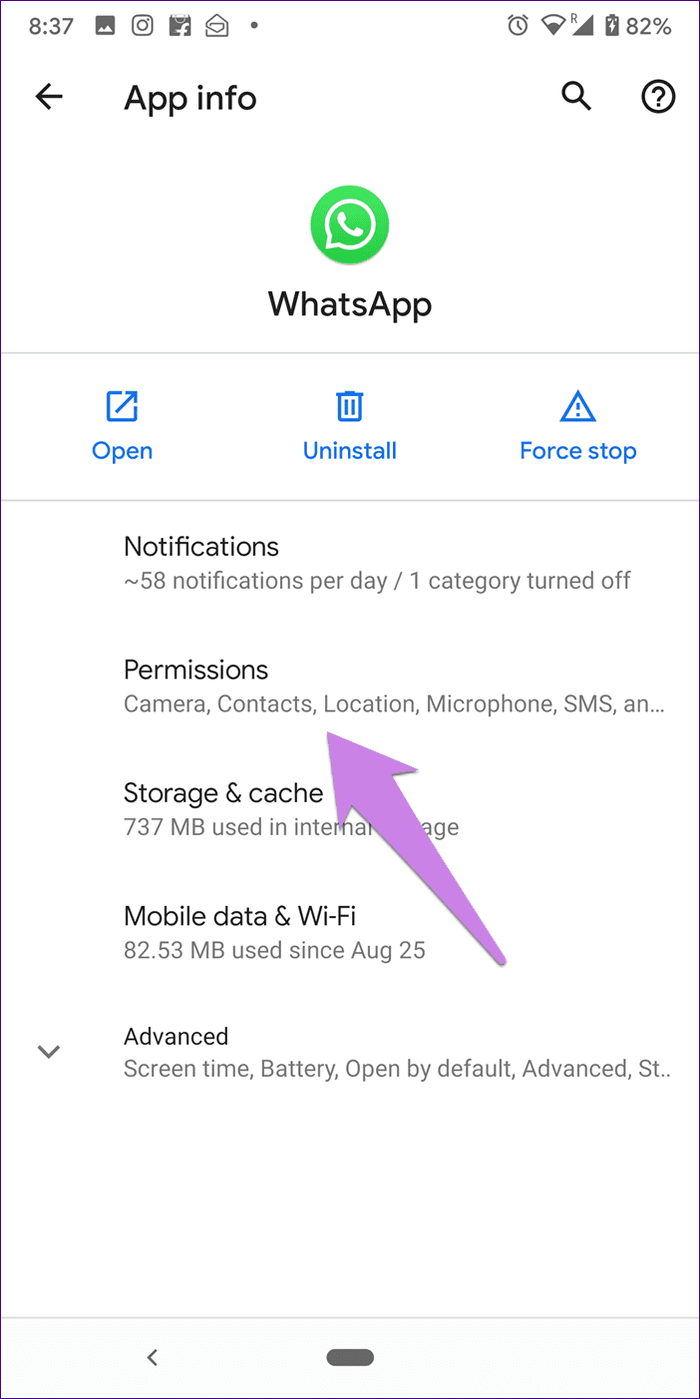
- Tap Apps > WhatsApp.
- Tap Permissions.
- Make sure Microphone is turned ON.
On Iphone
- Open Settings.
- Scroll to WhatsApp.
- Make sure Microphone is enabled.
If permissions are off, turn them on and restart WhatsApp.
Step 2: Restart Your Device
Simple but effective. Restarting can fix temporary bugs and reset system resources. Hold the power button, tap Restart (Android), or swipe to power off and on (iPhone).
Step 3: Update Whatsapp
Outdated apps may not work with new system updates or have bugs. To update:
- Open Google Play Store or Apple App Store
- Search for WhatsApp
- Tap Update if available
Updates often fix known problems and improve security.
Step 4: Check Free Storage
If your phone is low on storage, WhatsApp can’t record or save voice notes. Remove old files, unused apps, or clear cache.
Example Storage Comparison
| Device | Free Storage Needed | Voice Note Recording |
|---|---|---|
| Android | At least 100MB | Stable |
| iPhone | At least 200MB | Stable |
| Below minimum | <50MB | May fail |
Step 5: Test Your Microphone
Record a voice memo in another app (like the default Voice Recorder or Memo app). If it works, the microphone is fine. If not, the hardware may be damaged or blocked (by a case or dust).
Step 6: Close Other Apps Using Microphone
Sometimes other apps (like camera or recording apps) use the microphone and block WhatsApp. Close all apps except WhatsApp and try again.
Step 7: Clear Whatsapp Cache (android Only)
Cached files may cause glitches. To clear:
- Go to Settings.
- Tap Apps > WhatsApp.
- Tap Storage.
- Tap Clear Cache.
This will not delete your messages.
Step 8: Reinstall Whatsapp
If nothing works, uninstall and reinstall WhatsApp. This resets the app and removes corrupted files. Make sure to backup your chats first.
Step 9: Check Whatsapp Server Status
Rarely, WhatsApp’s servers may have issues. If many users report problems, you can check official sources or sites like WhatsApp Status.
Android Vs. Iphone: Common Differences
Voice note issues can depend on your device. Here’s a comparison:
| Feature | Android | iPhone |
|---|---|---|
| Permission Control | Per app, easy to change | System-wide, often hidden |
| Cache Clearing | Available | Not available |
| Microphone Testing | Many apps | Limited apps |
| Storage Warnings | Frequent | Less frequent |
If you switch phones, you may face new challenges. For example, iPhones rarely warn about low storage, but Android does. Android lets you clear cache; iPhones don’t. Knowing these differences helps you fix problems faster.
Less Obvious Solutions Most People Miss
Disable Battery Saver Or Power Saving Mode
Battery saver may block background functions, including microphone use. Disable battery saver and try recording again.
Turn Off Bluetooth Devices
If a Bluetooth headset or speaker is connected, WhatsApp may try to record from it, not your phone’s microphone. Disconnect all Bluetooth devices and test.
Check App Restrictions
Some phones (especially Xiaomi, Huawei, Samsung) limit app activity in the background. Go to Settings > Apps > WhatsApp > Advanced > Allow background activity.
Test With Headphones
Plug in wired headphones with a microphone. Try recording a voice note. If this works, your main microphone may be damaged.
Look For System Updates
Outdated system software can cause compatibility issues. Update your phone’s software regularly.
Credit: support.google.com
Troubleshooting For Common Scenarios
Voice Notes Are Silent Or Low Volume
If your voice notes are silent or too quiet:
- Check if the microphone hole is blocked
- Increase phone volume before recording
- Try recording in a quiet place
Voice Notes Not Sending
If you record but cannot send:
- Check your internet connection (Wi-Fi or mobile data)
- Restart WhatsApp and try again
Voice Notes Disappear After Recording
If your note disappears:
- Make sure you press and hold the microphone button until finished
- Do not swipe up or release too early
Whatsapp Web Not Recording Voice Notes
WhatsApp Web needs browser permission for microphone. Grant permission in browser settings. Use Chrome or Firefox for best results.
Example Browser Permission Comparison
| Browser | Microphone Permission | Voice Note Support |
|---|---|---|
| Chrome | Easy to set | Full support |
| Firefox | Easy to set | Full support |
| Safari | Limited | Partial support |
| Edge | Easy to set | Full support |
When To Seek Professional Help
If none of the above fixes work, the problem may be hardware-related. Signs include:
- Microphone not working in any app
- Physical damage to phone
- Voice notes fail even after reinstalling WhatsApp
In these cases, visit an authorized repair center or contact phone support.

Credit: www.youtube.com
Preventing Voice Note Problems
To avoid future issues:
- Keep WhatsApp updated
- Regularly clear storage
- Check permissions after system updates
- Avoid installing untrusted apps that may interfere
- Use official accessories
Many users overlook system updates and permissions after updating their phone. Always review these settings.
Frequently Asked Questions
Why Does Whatsapp Need Microphone Permission For Voice Notes?
WhatsApp uses your phone’s microphone to record voice notes. Without permission, the app cannot access it, so voice recording fails.
What Should I Do If My Voice Notes Are Distorted?
Distorted voice notes usually mean the microphone is blocked or damaged. Remove any phone case, clean the microphone area gently, and test again. If the problem continues, try headphones with a microphone or visit a repair center.
Can Whatsapp Voice Notes Work Offline?
Yes, you can record voice notes offline. But you need an internet connection to send them. If you’re offline, the note will be sent when you reconnect.
Why Can’t I Record Voice Notes In Whatsapp Web?
WhatsApp Web needs browser microphone permission. Check browser settings and allow microphone access. Some browsers, like Safari, may have limited support.
Are Voice Notes Secure In Whatsapp?
Voice notes are end-to-end encrypted in WhatsApp. Only you and the recipient can listen to them. For more info, see the official WhatsApp Security page.
WhatsApp voice note problems can feel overwhelming, but most are easy to fix. By following the steps above and checking both app and device settings, you can solve the issue quickly. Remember to check permissions, update your app, and test your microphone.
If you keep your phone maintained and stay informed, voice notes will work smoothly. With these practical tips, you’ll avoid common mistakes and enjoy clear communication again.
Credit: www.guidingtech.com