The Xbox App Not Syncing Data: Causes, Solutions, and Expert Guidance
The Xbox app is a popular way for millions to connect with friends, manage games, and enjoy cross-platform play. But nothing is more frustrating than when the Xbox app refuses to sync data. Your game progress vanishes, achievements don’t show up, or your cloud saves are missing. For gamers and casual users alike, this issue can turn a fun experience into a headache.
If you’re stuck with the Xbox app not syncing data, you’re not alone. Many users face this problem on Windows PCs, Android, and iOS devices. The good news? Most syncing issues have solutions, and you can often fix them yourself without advanced technical skills.
In this guide, you’ll find clear explanations, step-by-step fixes, and practical tips to get your app syncing smoothly again.
Why Data Syncing Matters In The Xbox App
Data syncing is more than just a convenience. The Xbox app relies on syncing to:
- Save game progress to the cloud, so you can switch devices easily.
- Track achievements and share them with friends.
- Synchronize settings and preferences across platforms.
- Enable multiplayer features and social connectivity.
When syncing fails, you might lose recent game progress, miss out on achievements, or find your Xbox friends list out of date. If you play both on console and PC, this can even block you from continuing a game where you left off.
Common Signs Of Xbox App Syncing Problems
Not sure if you have a syncing issue? Here are some signs that the Xbox app is not syncing data properly:
- Game progress or saved games are missing on one device but appear on another.
- Achievements do not update or unlock, even after meeting requirements.
- Friends list or messages do not refresh or show recent activity.
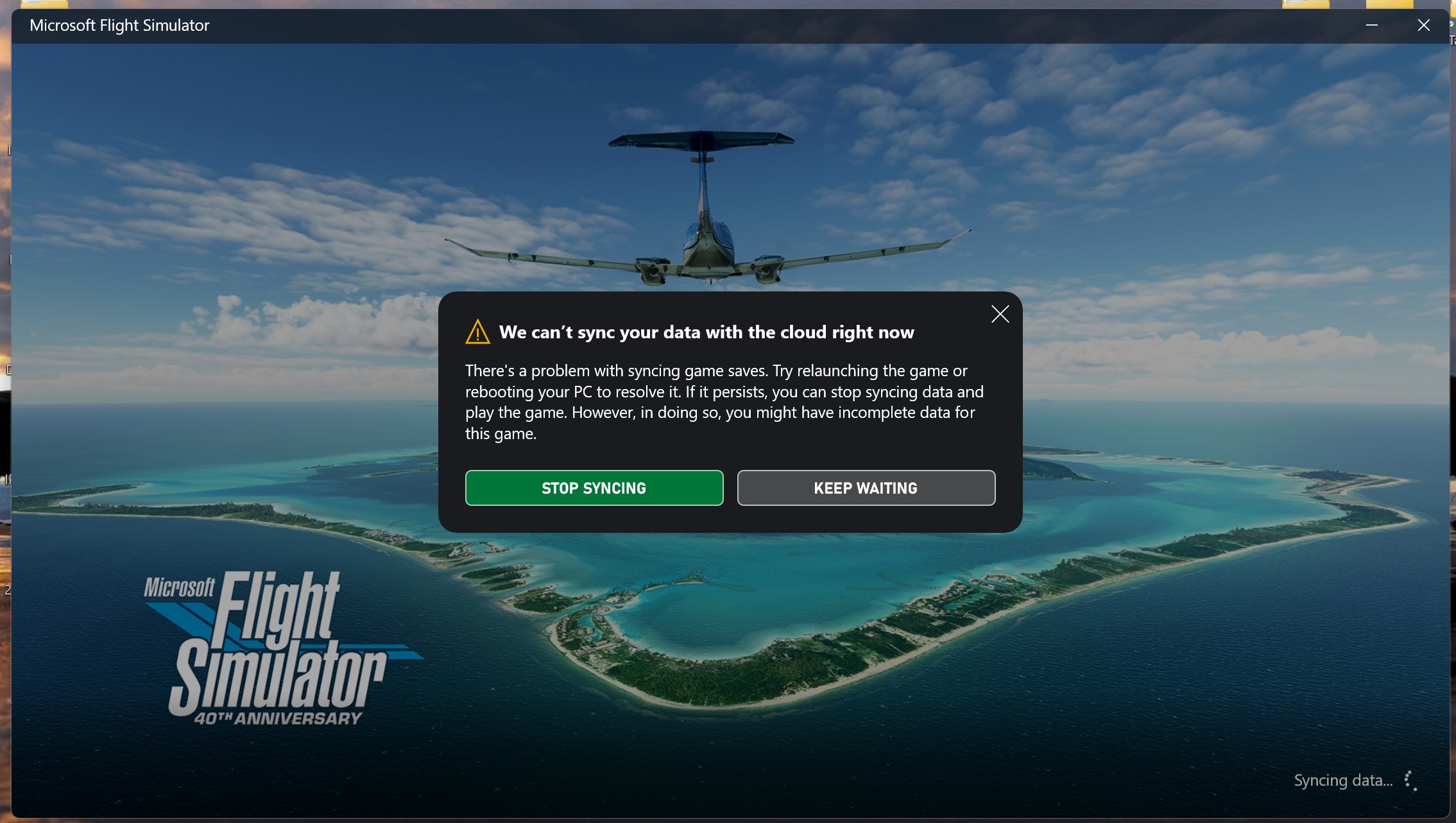
- The app displays errors like “Syncing data failed” or “We can’t save your data”.
- Cloud saves take too long to appear or never show up.
- Multiplayer games fail to connect due to profile or save mismatches.
These symptoms can be confusing, especially if they appear suddenly after working fine for weeks.
The Main Causes: Why The Xbox App Fails To Sync Data
Several factors can stop the Xbox app from syncing data correctly. Understanding these can help you find the right fix faster.
1. Network Problems
The Xbox app depends on a stable internet connection to sync. Weak Wi-Fi, unstable mobile data, or firewall restrictions are common culprits.
2. Outdated App Or System Software
Running an old version of the Xbox app or your device’s operating system can cause compatibility issues. Updates often fix bugs related to syncing.
3. Account Issues
Problems with your Microsoft account, such as password changes, sign-in errors, or security restrictions, may block syncing.
4. Corrupted Local Data
Temporary files or corrupted cache on your device can prevent proper data transfer between your device and Microsoft’s servers.
5. Service Outages
Sometimes, the issue is not on your side. Xbox Live or Microsoft server outages can interrupt syncing for everyone.
6. Conflicting Devices
If you play the same game on different devices at the same time (or switch quickly), data conflicts can prevent successful syncing.
7. App Permissions
Missing or denied permissions (especially on Android/iOS) can block the app from accessing storage or network functions needed for syncing.
8. Third-party Software Interference
Antivirus, VPNs, or custom firewalls can block the Xbox app’s connection to Microsoft servers, causing sync failures.
Quick Fixes: What To Try First
Before diving into advanced troubleshooting, try these simple steps. They often solve the most common syncing problems:
- Restart the Xbox app and your device.
- Check your internet connection. Switch to a more stable Wi-Fi network if possible.
- Sign out and back in to your Microsoft account within the Xbox app.
- Update the app to the latest version via the Microsoft Store, Google Play Store, or Apple App Store.
- Check Xbox Live service status at the official Xbox website to see if there’s an outage.
If the problem remains, continue with the detailed solutions below.
Step-by-step Solutions For Xbox App Syncing Problems
Let’s break down the most effective ways to fix Xbox app syncing issues. Follow these steps based on your platform (PC, Android, or iOS).
1. Ensure A Stable Internet Connection
A poor connection is the root cause in many cases. Here’s how to check and improve it:
- On Windows, open the Command Prompt and type `ping www.xbox.com`. If you see high latency or packet loss, your connection is unstable.
- On mobile devices, switch between Wi-Fi and mobile data to see if the issue persists.
- Restart your router to refresh your connection.
Quick Comparison: Wi-fi Vs. Mobile Data For Xbox App Sync
| Connection Type | Syncing Reliability | Typical Download Speed |
|---|---|---|
| Wi-Fi (5GHz) | Very High | 100–1000 Mbps |
| Wi-Fi (2.4GHz) | High | 20–200 Mbps |
| Mobile Data (4G) | Moderate | 10–100 Mbps |
| Mobile Data (3G) | Low | 1–10 Mbps |
Use the most stable, fastest connection available when syncing critical data.
2. Update The Xbox App And Your Device
Outdated software often causes sync bugs. To check for updates:
- On Windows: Open the Microsoft Store, search for “Xbox,” and click Update if available.
- On Android/iOS: Go to your app store, find the Xbox app, and update as needed.
- Update your operating system as well. Microsoft often fixes app bugs through OS updates.
3. Check Microsoft Account Status
If your account is not in good standing, syncing may fail. Ensure:
- You are signed in with the correct account.
- There are no security holds or required password changes.
- Two-factor authentication is set up if required.
Sign out and sign in again to refresh your credentials.
4. Clear Xbox App Cache And Local Data
Corrupted cache files are a hidden cause of sync problems. Here’s how to clear them:
- Windows 10/11: Go to Settings > Apps > Xbox > Advanced Options > Reset.
- Android: Go to Settings > Apps > Xbox > Storage > Clear Cache/Clear Data.
- IOS: Uninstall and reinstall the app to clear all local data.
This step often fixes syncing issues instantly.
5. Check Xbox Live And Microsoft Service Status
Visit the official Xbox Live Status page to see if Microsoft is having server problems. If services are down, you must wait until they are restored.
6. Adjust App Permissions
On mobile devices, make sure the Xbox app has permissions for:
- Storage (for saving local game data)
- Network access
- Notifications (optional, but sometimes required for background syncing)
Go to your device’s app settings to check and enable these permissions.
7. Disable Vpns, Firewalls, And Third-party Security Apps
Some security tools block the Xbox app from communicating with Microsoft servers. Temporarily disable these tools and try syncing again. If this fixes the problem, add the Xbox app to your firewall’s exception list.
8. Manage Device Conflicts
Syncing problems can happen if you use the Xbox app on multiple devices at once. Always close the app on one device before opening it on another. After playing on your Xbox console, wait a few minutes before launching the app on your PC or phone.
9. Reinstall The Xbox App
If all else fails, uninstalling and reinstalling the Xbox app can resolve hidden software conflicts. This process also ensures you’re running the latest version.
10. Contact Microsoft Support
If you’ve tried every step and syncing still fails, reach out to Microsoft Support. Provide detailed information: your device, app version, account details, and error messages. The support team can look for account-specific or server-side issues.
Advanced Troubleshooting: For Persistent Or Rare Issues
Some syncing problems are complex. Here are deeper solutions for advanced users or those dealing with rare issues.
Syncing Data On Windows: Registry And Network Tweaks
If you’re comfortable with system settings, try these:
- Flush DNS cache: Open Command Prompt and type `ipconfig /flushdns`.
- Check system time: An incorrect clock can cause authentication errors. Make sure your PC’s date and time are correct.
- Edit Registry Settings (advanced): Sometimes, old registry keys block new updates. Only do this if you are experienced, as mistakes can harm your system.
Cloud Save Conflicts: Manual Merge
If you have cloud save conflicts, the Xbox app may ask you to choose which save to keep. Always back up your local saves before choosing. If you’re unsure, pick the most recent one, but be aware this might overwrite progress on other devices.
Using Xbox Game Bar For Syncing
The Xbox Game Bar can also sync achievements and friends. If the main app is not working, try using the Game Bar (Windows Key + G) to check if syncing works there. Sometimes, the Game Bar and Xbox app use different background services.
Comparing Xbox App Syncing Across Devices
| Device | Sync Speed | Common Issues | Best Fix |
|---|---|---|---|
| Windows PC | Fast | Firewall, Outdated App | Update App, Check Firewall |
| Android | Medium | App Permissions, Cache | Clear Cache, Check Permissions |
| iOS | Medium | Account Sync, App Updates | Reinstall App, Update iOS |
| Xbox Console | Very Fast | Cloud Save Conflict | Manual Save Selection |
Two Hidden Insights: What Most Users Miss
- Background Data Restrictions: On some mobile devices, battery optimization or data saver settings can silently block the Xbox app from syncing in the background. Always check that the app has unrestricted background data usage, especially if syncing stops when your device is idle.
- Time Zone and Clock Sync: If your device’s clock is even a few minutes off, Microsoft’s authentication servers may block your syncing requests. Enable automatic time and date updates to avoid this subtle but impactful problem.
Tips For Preventing Syncing Issues In The Future
Once you’ve fixed the problem, keep these habits to avoid future headaches:
- Always close games and the Xbox app before shutting down your device.
- Regularly update both your device OS and the Xbox app.
- Use a strong, stable Wi-Fi connection when syncing important data.
- Avoid using VPNs or custom DNS servers unless necessary.
- Check Xbox Live status if you notice repeated syncing problems—sometimes it’s not your fault.

Credit: www.youtube.com
How Game Data Syncing Works In The Xbox Ecosystem
Understanding the process helps you spot where things can go wrong. Here’s a simple breakdown:
- Local Save: When you play a game, progress is saved locally on your device.
- Upload to Cloud: The Xbox app uploads this data to the Microsoft cloud when you have an internet connection.
- Cloud to Device: When you switch devices, the app downloads the latest save from the cloud.
- Conflict Resolution: If two devices have different saves, the app asks you to pick which one to keep.
This system is fast and reliable—unless something interrupts the process, such as a lost connection, a corrupted save, or a server outage.
When To Worry About Data Loss
Most of the time, your data is safe in the cloud. However, you should be extra careful if:
- You see repeated error messages about cloud saves.
- The app asks you to select between two very different save files.
- You notice missing achievements or lost progress after syncing.
If you’re in doubt, back up your saves manually (especially on PC) before trying risky fixes.

Credit: www.youtube.com
Common Mistakes To Avoid
- Ignoring app updates: Many syncing bugs are fixed in new versions.
- Using multiple accounts: Always use the same Microsoft account for the Xbox app and your games.
- Switching devices too quickly: Give the app time to upload/download data before changing devices.
- Forgetting to check permissions: Especially on Android/iOS, missing permissions block syncing.
- Not checking Xbox Live status: Server outages are more common than you might think.
Real-world Example: Syncing Gone Wrong
Alex is a gamer who plays on both Xbox Series X and his Windows 11 laptop. One day, he finishes a long quest in his favorite game on the console, then immediately launches the Xbox app on his laptop. His progress is missing.
After checking his internet connection and updating the app, he realizes he didn’t close the game on his console before opening it on the PC. The cloud didn’t have time to sync. Next time, Alex waits a few minutes after closing the game, and his progress appears as expected.
Key lesson: Always let the console or app finish syncing before switching devices.
What If You Still Can’t Sync?
If you reach this point, it’s time to look for deeper problems:
- Try a different device with the same account. If syncing works there, the issue is device-specific.
- Create a new user profile on your device and test syncing there.
- Check for device-specific bugs by searching forums or the Microsoft support site.
In rare cases, only Microsoft support can fix the problem from their side.
Frequently Asked Questions
What Causes The Xbox App To Stop Syncing Data Suddenly?
Most sudden sync failures are due to network outages, app updates, or problems with your Microsoft account. Sometimes, a server-side issue at Microsoft can also disrupt syncing for all users. Always check your internet connection and Xbox Live service status first.
Can I Lose My Game Progress If Syncing Fails?
In most cases, your data is safe because it’s stored both locally and in the cloud. However, if you play on two devices at once or ignore conflict warnings, you might overwrite one save with another. To avoid this, always let the app finish syncing before switching devices.
Why Do My Achievements Not Appear In The Xbox App?
Achievements depend on data syncing between your device and Microsoft’s servers. If they don’t show up, it’s usually due to a sync delay, a network problem, or an outdated app. Make sure you are connected to the internet and try updating the app.
How Often Does The Xbox App Sync Data?
The Xbox app tries to sync data automatically whenever you finish a game session or open the app. On mobile, syncing may pause if the app is closed or running in the background with restricted permissions. Regularly opening the app with a stable connection helps ensure up-to-date data.
Credit: forums.flightsimulator.com
What Should I Do If Syncing Works On One Device But Not Another?
This usually means a device-specific issue, such as a corrupted cache, outdated app, or blocked permissions. Clear the app cache, update to the latest version, and check all permissions on the problem device. If needed, uninstall and reinstall the Xbox app.
The Xbox app is a powerful tool for connecting gamers and keeping progress safe across devices. While syncing issues can be frustrating, most are easy to fix with the right steps. By understanding the main causes and applying these practical solutions, you can get back to gaming with confidence, knowing your data is secure and up to date.
If you ever run into trouble again, revisit these tips—and enjoy a smoother Xbox experience.