When you expect a user to appear in Azure Active Directory (Azure AD) but they don’t, it can quickly become a headache. This issue affects sign-ins, access to cloud apps, and can delay onboarding or support tasks. Understanding why a user is not syncing to Azure AD—especially in hybrid environments—requires a careful look at how synchronization works, what can go wrong, and practical steps to fix it.
This article will guide you step by step. We’ll look at the sync process, common causes, troubleshooting actions, and tips that even experienced admins sometimes overlook. By the end, you’ll know how to approach and solve most Azure AD sync mysteries with confidence.
How Azure Ad Sync Works
Azure AD sync is about connecting your on-premises Active Directory (AD) with Azure Active Directory. Most organizations use tools like Azure AD Connect to keep users, groups, and other objects in sync between these environments. This is called hybrid identity.
Here’s what happens in a typical sync setup:
- Azure AD Connect reads user and group info from your on-premises AD.
- It checks which objects need to be synced (new, changed, or deleted).
- The tool pushes those changes to Azure AD using secure connections.
- Azure AD updates its cloud directory, making those users available for cloud services.
Most syncs happen every 30 minutes by default, but you can trigger manual syncs if needed.
Why Sync Is Critical
- Single Sign-On (SSO): Users sign in once and access both local and cloud resources.
- Consistent user data: Changes in local AD (like passwords or group membership) are reflected in the cloud.
- Automated provisioning: New users added in AD appear in cloud apps automatically.
If a user is missing from Azure AD, they can’t access cloud applications, and this can lead to support calls and security issues.
Main Reasons Users Don’t Sync To Azure Ad
Many things can block a user from syncing to Azure AD. Here are the most common:
- User not in scope: Azure AD Connect only syncs users from selected organizational units (OUs) or groups.
- Attribute issues: Missing or invalid required attributes (like UPN, proxyAddresses, or objectGUID).
- Filtering rules: Custom sync rules can exclude users by mistake.
- Synchronization errors: Errors during sync prevent updates.
- Duplicate or conflicting objects: If a similar user exists already in Azure AD, syncing fails.
- Account status: Disabled, expired, or deleted accounts may not sync.
- Licensing or Azure AD limits: Hitting directory limits or missing licenses can block syncs.
- Directory sync not running: Service stoppages or misconfigurations in Azure AD Connect.
- Credential/permission issues: Azure AD Connect needs proper permissions to read users.
- Network or connectivity problems: Firewalls or proxies can block sync traffic.
Let’s explore these reasons in more depth, with real-world examples and guidance for each.
Scoping And Filtering Problems
One of the most overlooked causes is scope settings in Azure AD Connect.
How Scoping Works
During setup, admins choose which OUs or groups should sync. This keeps cloud directories tidy and secure. But if a user’s account is outside the selected OUs, they will never sync.
Example
Suppose you only sync the “Employees” OU, but new hires are added to “NewUsers” first. Those users won’t appear in Azure AD until they’re moved.
Troubleshooting Scope
- Check your Azure AD Connect configuration for selected OUs.
- Use the Synchronization Service Manager tool (miisclient.exe) to see if the user is in scope.
- Confirm the user’s account location in AD.
If you change scope, remember that a full sync might be needed to pick up new users.
Attribute And Object Issues
Azure AD needs certain attributes to sync users correctly. Missing or invalid data is a very common roadblock.
Required Attributes
- UserPrincipalName (UPN)
- ObjectGUID
- SAMAccountName
- Mail (for Exchange Online)
If these are blank or formatted incorrectly, the sync tool will skip the user or log errors.
Attribute Conflicts
- Duplicate UPNs or email addresses across users
- Invalid characters in UPN or mail (like spaces, special symbols)
Example
A user has a UPN of “john. doe@company. local”. Azure AD requires valid internet domains (like. com or. net). “. local” is not routable, so this user will not sync.
Fixing Attribute Issues
- Update the user’s AD attributes with correct values.
- Use PowerShell or AD Users & Computers to edit attributes.
- Check for duplicates in your directory.
Don’t forget to check proxyAddresses for mail-enabled users, especially if using Exchange hybrid.

Credit: www.checkyourlogs.net
Filtering And Sync Rules
Azure AD Connect lets you create custom sync rules. These can be powerful but risky.
Common Filtering Mistakes
- Accidentally excluding users by adding a rule to filter out test users, but the rule matches real accounts.
- Sync rules based on attributes (like department) that are not filled in for all users.
How To Check Sync Rules
- Open Azure AD Connect and review the Synchronization Rules Editor.
- Look for rules that exclude users or set filters on attributes.
- Test with a sample user account to see if it matches exclusion filters.
If you find a problematic rule, edit or remove it and run a manual sync.
Synchronization Errors And Logs
Azure AD Connect produces logs for every sync. These logs show errors, warnings, and skipped objects. Reviewing them is key to troubleshooting.
Where To Find Logs
- Synchronization Service Manager: View recent sync cycles and errors.
- Event Viewer: Look under Applications and Services Logs > Directory Synchronization.
- Azure AD Portal: Go to Azure Active Directory > Azure AD Connect > Sync Errors.
Common Error Messages
- “Export Error — Duplicate Attribute”
- “Failed-Object — InvalidSoftMatch”
- “Insufficient permissions to perform operation”
Example Log Entry
A log may show:
`Export Error: The operation failed because an object already exists in Azure Active Directory with the same proxyAddresses value.`
This tells you there’s a duplicate address issue.
What To Do
- Search for the error message online or in Microsoft docs.
- Fix the problem (like removing a duplicate) and resync.
- Make sure to clear errors after each attempt so new ones stand out.
Conflicting Or Duplicate Objects
Duplicates are a hidden problem in hybrid environments.
How Duplicates Happen
- User is manually created in both on-premises AD and Azure AD.
- A deleted user leaves “orphaned” data in Azure AD.
- Email aliases or UPNs reused by mistake.
Azure AD Connect tries to “soft match” objects—linking them based on key attributes. If there’s a mismatch, the sync fails.
Identifying Duplicates
- Search Azure AD for the user’s name, UPN, or email.
- Use PowerShell (`Get-MsolUser` or `Get-AzureADUser`) to look for matches.
- In the Azure AD portal, check for “Unmatched” or “Error” users.
Resolving Conflicts
- Remove or rename conflicting cloud-only objects.
- Use “hard match” by setting the sourceAnchor or immutableID manually for the correct user.
- Wait for Azure AD Connect to re-link and sync the object.
Account Status And Directory Limits
Sometimes users are not syncing because their accounts are in a bad state or your Azure AD has hit its limits.
Account Problems
- Disabled or expired accounts: These are often filtered by default.
- Deleted users: If a user is deleted in AD, they’re removed from Azure AD during sync.
Directory Limits
- Azure AD Free has a limit of 500,000 objects. Premium plans allow more.
- If you hit this limit, new users will not sync.
Example
If your organization grows quickly and reaches the 500,000 object cap, you must upgrade to Azure AD Premium or clean up unused accounts.
Service And Permission Issues
Azure AD Connect must be running and have the right permissions.
Service Stoppages
- Windows services for Azure AD Connect can stop due to updates or errors.
- Check Services.msc for “Microsoft Azure AD Sync” status.
Permissions
- The AD Connect account needs “Replicate Directory Changes” permissions in AD.
- If permissions change, sync may silently fail.
Network Issues
- Firewalls or proxies might block the outbound ports needed for Azure AD Connect.
- Required ports: 443 (HTTPS) for cloud sync, and 389/636 for LDAP queries.
Fixing These Issues
- Ensure all required services are running.
- Validate account permissions in AD.
- Test network connectivity to Azure endpoints.
Steps To Troubleshoot A User Not Syncing
Let’s bring this together into a practical troubleshooting flow.
- Confirm user is missing in Azure AD
- Search by UPN or email in the Azure portal.
- Check scope and OU selection in Azure AD Connect
- Make sure the user’s account is in a synced OU.
- Review attribute values in AD
- Check for blank or invalid UPN, mail, or proxyAddresses.
- Look for duplicates or conflicting objects
- Search Azure AD for similar accounts.
- Review filtering and sync rules
- See if a rule is excluding this user.
- Check sync status and logs
- Use Synchronization Service Manager and Azure portal logs.
- Run a manual sync
- `Start-ADSyncSyncCycle -PolicyType Delta` in PowerShell.
- Check for errors or warnings
- Investigate and resolve any problems found.
- Validate permissions and service health
- Confirm Azure AD Connect is running and has proper access.
- Ask for help if needed
- Use Microsoft’s documentation or reach out to support.
Here’s a quick comparison of troubleshooting tools:
| Tool | Purpose | Best For |
|---|---|---|
| Synchronization Service Manager | View sync cycles, errors, and object details | Detailed sync diagnostics |
| Azure AD Portal | See synced users and sync errors | Quick error review |
| PowerShell | Search users, trigger syncs, view properties | Advanced troubleshooting and scripting |
Two Non-obvious Insights Most Beginners Miss
- Soft Match vs. Hard Match: Azure AD Connect tries to “soft match” users by comparing attributes (like UPN or proxyAddresses). If there’s a mismatch (for example, a user is renamed), the sync may fail or create a duplicate. Sometimes, you must manually set the immutableID (hard match) so Azure AD knows which local and cloud objects are the same.
- Attribute Synchronization Delay: A user may sync but not all attributes update at once. For example, mailboxes or group memberships can take an extra sync cycle. If changes don’t appear right away, wait for the next sync or run a full sync before troubleshooting further.
Real-world Example: Diagnosing A Sync Problem
A company adds a new employee, “Jane Smith,” to Active Directory and expects her to appear in Azure AD within an hour. After two hours, Jane is still missing.
Here’s how IT solves it:
- First, they check Azure AD for Jane’s UPN—nothing appears.
- Next, they check Azure AD Connect and see that Jane’s account is in the “New Hires” OU, but this OU is not selected for sync.
- They update the OU selection in Azure AD Connect, run a manual sync, and Jane appears in Azure AD after a few minutes.
- Finally, they verify her attributes are correct and assign licenses as needed.
This simple mistake—wrong OU selection—causes many sync issues, but with a structured approach, it’s easy to spot and fix.
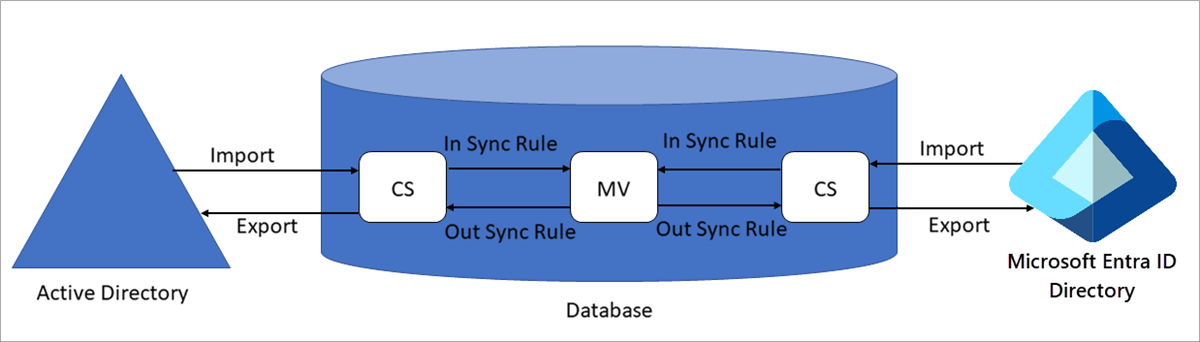
Credit: learn.microsoft.com
Best Practices To Avoid Sync Issues
Preventing user sync problems is easier than constantly troubleshooting. Here are some solid best practices:
- Review sync scope regularly: As your organization changes, make sure all relevant OUs and groups are in scope.
- Standardize attribute formats: Use company-wide naming and email conventions to prevent conflicts.
- Monitor sync health: Set up alerts for sync failures or errors in Azure AD.
- Document custom sync rules: Track any filtering logic so future admins don’t get confused.
- Clean up old or unused accounts: This keeps your directory under limits and reduces clutter.
- Train IT staff: Make sure everyone knows how to check sync status, logs, and common errors.
- Schedule regular audits: Use scripts or tools to verify that on-premises and Azure AD users match.
Here’s a summary table of key preventive actions and their benefits:
| Action | Benefit |
|---|---|
| Scope review | Avoids missing users after org changes |
| Attribute standardization | Reduces duplicates and sync errors |
| Health monitoring | Detects and fixes issues early |
| Documentation | Easier troubleshooting for all admins |
When To Seek Advanced Help
Most sync issues can be solved with the steps above. But sometimes you’ll hit a wall:
- Complex attribute mapping: If you use custom attributes or non-standard setups.
- Large-scale migrations: Moving thousands of users or merging directories.
- Persistent, unexplained errors: If logs and standard fixes don’t work.
For these cases, Microsoft’s official docs and support community are invaluable. One helpful resource is the Microsoft Azure AD Connect troubleshooting guide.

Credit: community.spiceworks.com
Frequently Asked Questions
Why Is A Specific User Not Syncing To Azure Ad Even Though Others In The Same Ou Are Syncing?
The most likely causes are attribute errors (like a bad UPN or missing mail address), custom filtering rules that match only this user, or a duplication/conflict with an existing Azure AD object. Double-check the user’s attributes and any sync errors in logs.
How Long Does It Take For A New User To Sync To Azure Ad?
By default, Azure AD Connect syncs every 30 minutes. You can trigger a manual sync to speed up the process. Sometimes, attribute updates can take an extra cycle to appear.
Can I Force A Manual Sync? How?
Yes, you can use PowerShell on the Azure AD Connect server. Run:
`start-adsyncsynccycle -policytype Delta`
This will sync only changes since the last cycle. For a full sync, use `-PolicyType Initial`.
What Happens If Two Users Have The Same Upn Or Email Address?
Azure AD Connect will log an error and refuse to sync duplicates. This prevents conflicts. You’ll need to resolve the duplicate in on-premises AD or Azure AD before syncing again.
Are There Any Limits To The Number Of Users I Can Sync To Azure Ad?
Yes. The Azure AD Free tier supports up to 500,000 directory objects. Premium tiers allow more. If you exceed the limit, new users will not sync until you upgrade or remove unused accounts.
Effective troubleshooting of users not syncing to Azure AD is about being methodical—checking scope, attributes, rules, and logs. Most issues have simple solutions once you know where to look. With the right habits and understanding, you can keep your hybrid directory healthy and avoid sync headaches in the future.