If you’ve joined a UnitedHealthcare (UHC) wellness program, you might be excited about tracking your physical activity and earning UHC rewards. One of the easiest ways to do this is by syncing your fitness data with Google Fit. But what happens when your steps, workouts, or activity don’t show up in the UHC app? Many users face the frustrating problem of UHC rewards not syncing with Google Fit. This article explains why this issue happens, how to fix it, and what you need to know for smooth tracking—so your healthy habits actually pay off.
Understanding Uhc Rewards And Google Fit Sync
To solve sync problems, it’s important to know how UHC rewards and Google Fit work together. UHC’s wellness programs, like UnitedHealthcare Motion and UHC Rewards, encourage healthy activities. You earn points or rewards for things like walking, running, or completing health goals.
Google Fit is a popular fitness tracking app from Google. It collects data from your phone, smartwatch, or other fitness devices. When you connect Google Fit to your UHC account, your activity data should automatically sync. This means your steps, active minutes, and workouts get counted toward your UHC rewards.
But the system isn’t perfect. Many people find that their data either doesn’t sync at all, is delayed, or is incomplete. This can lead to lost rewards and a lot of confusion.
Common Reasons For Syncing Issues
Several factors can cause UHC rewards not to sync with Google Fit. Some issues are technical, while others come from user mistakes or misunderstandings.
1. Permission Problems
For Google Fit to share data with UHC, you must give the right permissions. Sometimes, these permissions are missing or get turned off by accident.
2. Connection Errors
If the UHC app loses its link to Google Fit, your data won’t sync. This can happen after an app update or if you change your phone.
3. Delayed Data Transfer
Syncing doesn’t always happen instantly. Sometimes, it can take hours or even a day for your activity to show up.
4. Outdated Apps
Running old versions of Google Fit or the UHC app can cause compatibility problems.
5. Device Compatibility
Not all phones or fitness trackers work perfectly with Google Fit, which then affects your UHC rewards.
6. Account Issues
Logging in with the wrong email or UHC account can block the sync.
7. Data Source Conflicts
If you use more than one fitness app or device, they might send conflicting data to Google Fit.

Credit: www.reddit.com
How The Sync Process Works
When you connect UHC rewards to Google Fit, here’s what usually happens:
- You install both the UHC app and Google Fit on your Android or iOS device.
- You open the UHC app, go to the rewards section, and choose to connect Google Fit.
- The UHC app asks for permission to read fitness data from Google Fit.
- Once connected, your daily steps and workouts are sent from Google Fit to UHC’s servers.
- UHC reviews the data and updates your rewards, usually within a few hours.
If any step is broken, syncing can fail. For example, if you switch phones but don’t reconnect Google Fit, your rewards stop updating.
Step-by-step Fixes For Syncing Problems
If your UHC rewards are not syncing with Google Fit, try these practical steps. Most users can solve the problem with one or more of the following solutions.
1. Check App Permissions
- Open your phone’s Settings.
- Go to Apps > UHC app > Permissions.
- Make sure all relevant permissions (like Physical Activity, Storage, and Location) are enabled.
- Do the same for the Google Fit app.
2. Reconnect Google Fit In Uhc
- Open the UHC app.
- Go to the rewards or wellness section.
- Find the “Connect Apps” or “Link Google Fit” option.
- Disconnect Google Fit, then reconnect and allow all permissions.
- Wait a few minutes, then check if your data syncs.
3. Update Your Apps
- Visit the Google Play Store (Android) or App Store (iOS).
- Update both the UHC and Google Fit apps to the latest versions.
4. Restart Your Device
- Power off your phone, wait 10 seconds, then turn it on again.
- Open both apps and check the sync status.
5. Confirm The Right Account
- In Google Fit, check which Google account is active.
- In UHC, confirm you’re logged in with the same email/account you used to connect Google Fit.
6. Check Internet Connection
- Make sure your phone has a stable internet connection (Wi-Fi or mobile data).
- Syncing may fail if you’re offline.
7. Clear App Cache
- On Android: Settings > Apps > UHC app > Storage > Clear Cache.
- Repeat for Google Fit.
8. Manually Sync Data
- Some UHC apps have a “Sync” or “Refresh Data” button in the rewards section. Tap this to force a data update.
9. Reinstall Both Apps
- Uninstall Google Fit and the UHC app.
- Restart your phone.
- Reinstall both apps from the official store.
- Reconnect Google Fit to UHC.
10. Contact Support
If nothing works, reach out to UHC customer service. Use the in-app support chat, call the number on your health card, or visit the UHC website.
Comparing Uhc Rewards And Google Fit: What Data Syncs?
To better understand what you should expect, here’s a quick look at the types of data UHC typically accepts from Google Fit.
| Google Fit Data | UHC Rewards Accepted? | Notes |
|---|---|---|
| Steps | Yes | Main data for daily goals |
| Active Minutes | Yes | Counts toward some challenges |
| Heart Rate | Sometimes | Depends on UHC program |
| Sleep Tracking | No | Usually not rewarded |
| Calories Burned | Rarely | Check your plan details |
| Distance | Yes | If tied to walking/running |
It’s important to note that not all activity types tracked by Google Fit will count toward UHC rewards. Always check your specific UHC plan to know what counts.
Real-life Examples Of Syncing Issues
Let’s look at a few real-world situations to help you spot problems faster.
Example 1: Steps Not Showing Up
Maria walks 8,000 steps a day, but her UHC app shows only 2,000. She checks her account and sees she’s logged into Google Fit with her old email—not the one she linked to UHC. After logging in with the correct email and reconnecting, her steps sync correctly.
Example 2: Data Delays
John finishes a 30-minute run. He checks the UHC app right after, but his activity isn’t there. The next morning, the run appears and he gets his reward. He learns that syncing can take several hours, especially during busy times.
Example 3: Device Compatibility
Sam uses a fitness tracker that doesn’t send step data directly to Google Fit. He switches to a compatible tracker, and syncing starts working.
These stories show that even small details—like the wrong account or using an unsupported device—can block your rewards.
The Impact Of Not Syncing: Why It Matters
When your UHC rewards don’t sync with Google Fit, it’s not just frustrating—you could actually lose out on real value.
- Missed incentives: Many UHC programs give gift cards, cash, or premium discounts for reaching activity goals.
- Lost motivation: If you don’t see your progress, it’s harder to stay motivated.
- Inaccurate health records: Your health activity data helps you and your insurer track wellness over time.
- Wasted effort: You put in the work, but you don’t get the credit.
This is why it’s important to fix sync problems quickly and check your data often.
How To Prevent Syncing Issues In The Future
Avoiding problems is often easier than fixing them. Here are tips to keep your UHC rewards syncing with Google Fit smoothly.
- Keep apps updated: Always use the latest versions of UHC and Google Fit.
- Check permissions after updates: Sometimes, app updates reset permissions.
- Sync regularly: Open both apps once a day to force a sync.
- Stick to one tracker: Avoid using multiple devices that can send conflicting data.
- Double-check accounts: Make sure your Google account in Google Fit matches the one connected to UHC.
- Monitor data: Check your UHC rewards history weekly to catch problems early.

Credit: www.reddit.com
Table: Troubleshooting Steps And Their Effectiveness
Here’s a quick comparison of common troubleshooting steps and how often they solve syncing problems.
| Troubleshooting Step | Success Rate | Time to Apply |
|---|---|---|
| Reconnect Apps | High | 2-5 min |
| Update Apps | Medium | 3-10 min |
| Check Permissions | High | 2-5 min |
| Clear Cache | Low | 2-3 min |
| Contact Support | Medium | 1-24 hrs |
Most issues are solved by reconnecting the apps or checking permissions.
Insights Most Users Miss
Many people think that once they connect Google Fit and UHC, the system works on its own forever. In reality, connections can break after app updates, changing phones, or even if you log out of your Google account. Regularly checking your app connection saves you headaches down the road.
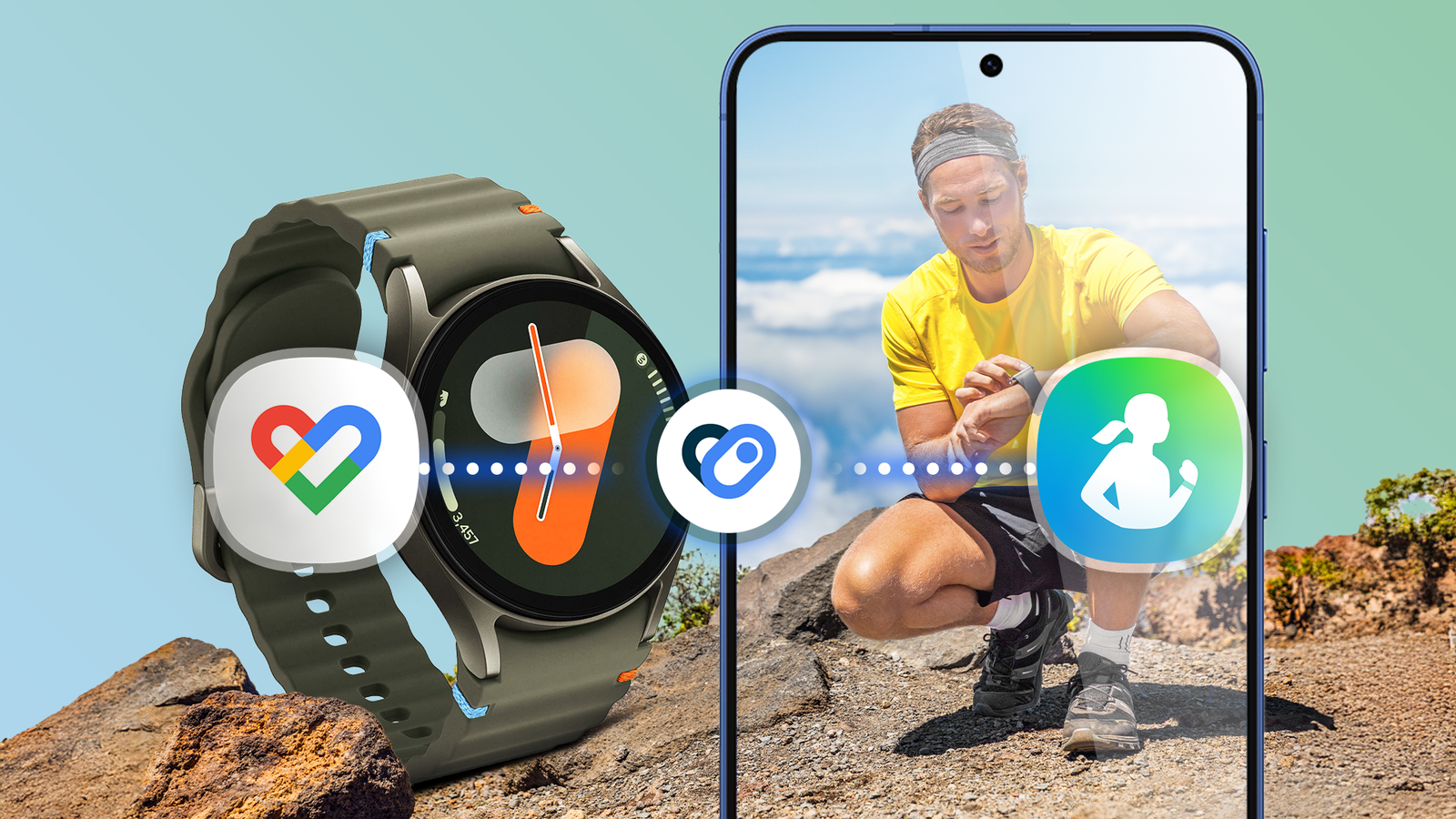
Another hidden issue is with data sources. If you use two fitness apps (like Samsung Health and Google Fit) at the same time, they might both send data for the same day. This can confuse the UHC app, leading to missing or double-counted steps.
To avoid this, pick one app as your main tracker and unlink the others.
Credit: www.androidpolice.com
Uhc Rewards Vs. Other Fitness Apps: How Does Syncing Compare?
Some users wonder if syncing problems are unique to UHC rewards and Google Fit, or if other health reward programs are better. Here’s a quick comparison.
| Health Program | Supports Google Fit? | Sync Reliability | Rewards Offered |
|---|---|---|---|
| UHC Rewards | Yes | Medium | Gift cards, cash, premium discounts |
| Vitality | Yes | High | Gift cards, travel, merchandise |
| Aetna Attain | No | N/A | Apple gift cards, discounts |
| Humana Go365 | Yes | Medium | Merchandise, gift cards |
As seen above, sync reliability is a common issue, not just with UHC. But UHC does support Google Fit, which is a plus for Android users.
When To Contact Support
If you’ve tried all self-help steps and syncing still fails, contact UHC support. Before you call or chat, have this information ready:
- Your UHC member ID
- The email address linked to Google Fit
- Your phone’s make and model
- A description of the problem (for example, “steps not syncing since last week”)
- Screenshots (if possible)
Support can reset your connection, check for known bugs, or open a technical ticket.
Privacy And Security Considerations
Many users worry about privacy. When you connect Google Fit to UHC, you’re sharing health data. UHC follows strict privacy laws, but you should still review what you’re sharing.
- Check permissions: Only allow necessary data.
- Read the privacy policy in both apps.
- If you want to disconnect, you can unlink Google Fit anytime in the UHC app.
For more on health data privacy, you can visit the US Department of Health & Human Services.
Frequently Asked Questions
Why Aren’t My Steps From Google Fit Showing In Uhc Rewards?
If your steps don’t show up, it’s often due to missing permissions, account mismatches, or a broken connection between the apps. Try reconnecting Google Fit in the UHC app and check that you’re logged in with the right email.
How Long Does It Take For Data To Sync From Google Fit To Uhc?
Syncing is not always instant. It can take anywhere from a few minutes to 24 hours for your activity to appear in the UHC app, especially after busy periods or app updates.
Can I Sync Other Fitness Apps (like Fitbit Or Samsung Health) With Uhc Rewards?
UHC rewards mainly connects with Google Fit and Apple Health. Other apps may work if they share data with Google Fit first. Always check the UHC app’s list of supported integrations.
What If I Switch Phones? Will My Uhc Rewards And Google Fit Keep Syncing?
After switching phones, you need to reinstall both apps and reconnect Google Fit to UHC. Make sure you use the same email and account info as before to avoid lost data.
Is My Health Data Safe When I Connect Uhc Rewards To Google Fit?
Yes, UHC uses strong privacy protections to keep your data secure. Only approved health data is shared, and you can review or change permissions at any time.
Getting UHC rewards to sync with Google Fit can be confusing, but it’s worth the effort. With the right setup and regular checks, you’ll make sure all your activity counts—and earn the rewards you deserve for living healthier.