If you love watching movies or TV shows with friends online, you may have used Teleparty (formerly Netflix Party). This browser extension lets people sync their streaming video and chat in real time, even if they’re far apart. But sometimes, Teleparty stops syncing. One person’s video may lag, freeze, or jump ahead, ruining the shared experience. Why does this happen, and what can you do to fix it?
This article explores why Teleparty does not sync, how to troubleshoot the problem, and how to enjoy smooth group streaming again. You’ll find clear steps, common mistakes, and expert tips to help you solve Teleparty syncing issues, even if you’re not a tech expert.
Whether you use Netflix, Disney+, Hulu, HBO, or Amazon Prime Video, these solutions work across all major platforms.
How Teleparty Sync Works
Teleparty works by syncing your video playback with everyone in your group. It sends signals between your browsers, so if one person pauses, everyone’s video pauses. If someone presses play or skips ahead, the group’s video changes together. This makes it feel like you’re all in the same room, even if you’re far apart.
But for this syncing to work well, Teleparty depends on several things:
- Stable internet connection for all viewers
- Up-to-date browser (usually Chrome, Edge, or Opera)
- Latest Teleparty extension
- Streaming service compatibility (Netflix, Disney+, etc.)
- Proper group settings and permissions
If one of these parts fails, Teleparty may not sync videos correctly. Sometimes, only one person is out of sync; other times, the whole group has problems.
Common Reasons Teleparty Does Not Sync
Several issues can cause Teleparty not syncing. Understanding these helps you fix the problem faster.
- Internet connection issues: Slow or unstable internet causes lag or delays.
- Browser problems: Outdated browsers, too many tabs, or unsupported browsers.
- Extension errors: Old or corrupted Teleparty extension.
- Streaming service glitches: Temporary errors or region restrictions.
- Different video versions: One user watches a different cut or episode.
- Operating system conflicts: Sometimes, Mac and Windows behave differently.
- Firewall or antivirus blocks: Security software may block syncing.
- Multiple devices per account: Streaming limits on Netflix or other platforms.
- Incorrect party link: Users not joining the correct session.
- Ad blockers or privacy extensions: These may block Teleparty’s syncing scripts.
Let’s look deeper at the most frequent causes and how to solve each one.

Credit: www.teleparty.com
Diagnosing Teleparty Syncing Issues
Before you start fixing, it’s smart to check where the problem lies. Is it only you, or does everyone have issues? Here’s how to diagnose:
- Ask your group: “Is your video in sync?” If only one person’s video is off, the problem is likely on their side.
- Refresh the page: Sometimes a simple refresh fixes minor glitches.
- Check the chat: Teleparty’s chat box may show error messages.
- Try a different streaming service: If Netflix sync fails but Disney+ works, the problem may be with Netflix.
If possible, do a quick test: everyone pauses, then resumes together. If sync fails for all, it’s a group issue. If just one person is off, focus on their device.
Step-by-step Solutions For Teleparty Not Syncing
Here’s a detailed troubleshooting guide. Start with the simplest fixes and move to more technical ones.
1. Refresh And Rejoin The Party
Most Teleparty sync issues come from minor glitches.
- Everyone leaves the party.
- The host sends a new party link.
- All users close the streaming tab, then reopen it.
- Join the new party using the fresh link.
Often, this simple step restores sync.
2. Check Internet Connection
A fast, stable internet connection is key for Teleparty.
- Test your speed at Speedtest.net. Each person needs at least 5 Mbps download speed.
- Use a wired connection for better stability.
- Avoid heavy downloads or online gaming during the party.
- If your video buffers or pauses, lower the streaming quality.
If one person has much slower internet, they may lag behind.
Internet Speed Comparison
| Speed (Mbps) | Streaming Quality | Teleparty Experience |
|---|---|---|
| 1-3 | Low (SD) | May lag or buffer |
| 5-10 | Medium (HD) | Usually smooth |
| 15+ | High (Full HD/4K) | Very smooth |
3. Update Browser And Teleparty Extension
Always use the latest version of your browser and Teleparty.
- Go to your browser’s extension store.
- Search for Teleparty.
- Click “Update” or reinstall if needed.
- Restart your browser after updating.
Also, check if your browser needs an update. Chrome, Edge, and Opera support Teleparty best. Firefox is not supported.
4. Close Unnecessary Tabs And Programs
Too many open tabs slow down your computer and browser.
- Close unused tabs, especially those streaming video or music.
- Quit heavy apps like games or video editors.
- Restart your computer if it feels slow.
This frees up memory and may improve sync.
5. Disable Conflicting Extensions
Some browser extensions, especially ad blockers or privacy tools, can block Teleparty.
- Go to your browser’s extension settings.
- Disable ad blockers, script blockers, or privacy shields.
- Refresh the streaming page.
If Teleparty works, you’ve found the problem. Either whitelist Teleparty or keep the blocker off during your party.
6. Check Streaming Service Account Limits
Netflix and other platforms limit how many devices can stream at once.
- Check your account plan (e.g., Netflix Standard = 2 devices).
- If too many people are logged in, someone may be kicked out or unsynced.
- Log out unused devices or upgrade your plan if needed.
7. Use The Correct Teleparty Link
Sometimes, a user joins the wrong party, or the link expires.
- Always use the latest party link sent by the host.
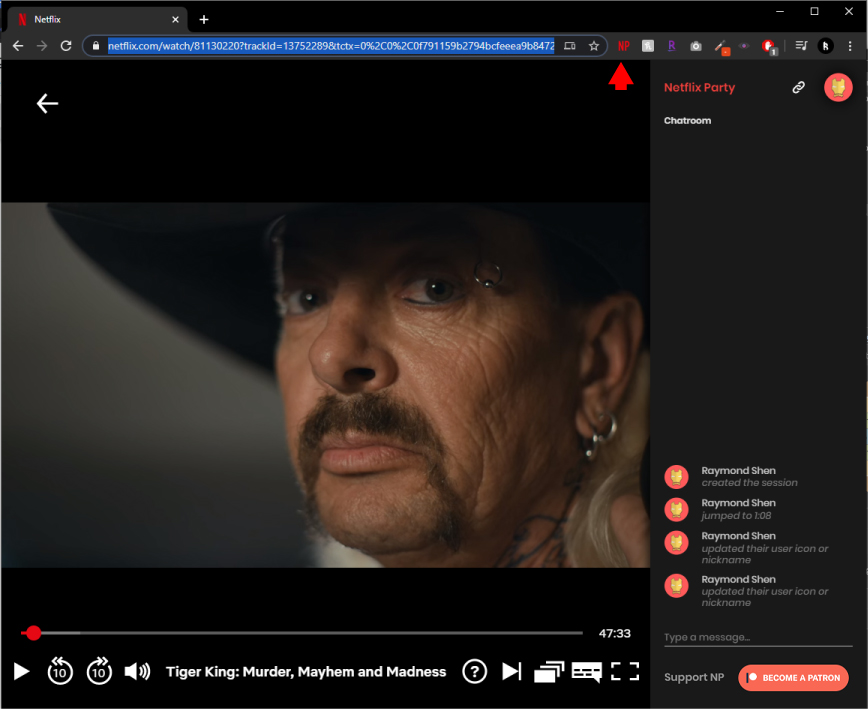
- Double-check the party icon (TP) is red in your browser.
- If you see “Waiting for host,” the party has not started.
8. Clear Browser Cache And Cookies
Corrupted cache or cookies can cause sync problems.
- Go to your browser settings.
- Clear cache and cookies for all time.
- Restart the browser and rejoin the party.
Warning: This may sign you out of websites.
9. Adjust Firewall Or Antivirus Settings
Some security software blocks Teleparty’s connection.
- Temporarily disable your firewall or antivirus and test Teleparty.
- If sync works, add an exception for your browser or Teleparty.
- Never leave security software off after your test.
10. Try A Different Device Or Browser
If nothing works, try joining from another device.
- Use a different laptop or desktop.
- Switch from Chrome to Edge or Opera.
- Avoid phones or tablets—Teleparty works best on computers.
Sometimes, certain setups simply do not work well. Changing devices often helps.
Advanced Fixes For Persistent Sync Issues
If basic troubleshooting fails, try these less obvious solutions.
Check For Different Video Versions
Not all countries get the same Netflix or Disney+ content. One user may have a different video version.
- Confirm everyone is watching the same show, season, and episode.
- If possible, all users should set the same language and subtitles.
- Avoid using VPNs unless all users use the same country setting.
Compare Browser And Device Compatibility
Teleparty works best on certain browsers and operating systems.
| Browser | Teleparty Support | Notes |
|---|---|---|
| Chrome | Full | Most stable |
| Edge | Full | Very stable |
| Opera | Full | Some features may vary |
| Firefox | None | Not supported |
| Safari | None | Not supported |
Also, Windows and Mac sometimes behave differently. If you notice only Mac users are out of sync, try updating their OS or switching browsers.
Sync Time Zones And Start Times
If users are in different time zones, occasional sync delays can happen. Start the party a few minutes early and allow everyone time to join before pressing play.
Real-world Examples And Solutions
Let’s look at two real group Teleparty issues and how they were fixed.
Case 1: Slow Sync on One Computer
A group of four friends found one member’s video was always 10 seconds behind. The solution?
- The lagging user closed all other browser tabs.
- They switched from Wi-Fi to a wired connection.
- They updated Chrome and Teleparty.
After these steps, their video synced perfectly.
Case 2: Everyone Out of Sync on Netflix
A group tried to watch a movie, but everyone’s stream kept pausing at different spots. Troubleshooting steps:
- The host reinstalled Teleparty.
- All users cleared their browser cache.
- The group switched from Netflix to Disney+, and the problem stopped.
The issue was with Netflix’s servers in their region. Later, Netflix worked again without changes.
These examples show that Teleparty sync problems often have simple solutions—don’t panic if something goes wrong.
How To Prevent Teleparty Sync Issues
Prevention is easier than troubleshooting. Here are habits to keep your watch parties smooth:
- Test your setup before the party starts. Have everyone join five minutes early.
- Keep your browser and Teleparty updated.
- Avoid running other heavy apps (like games or downloads).
- Communicate in the chat if something goes wrong—often others can help.
- Check device compatibility before inviting new friends.
Teleparty Alternatives For Syncing Video
If you cannot fix Teleparty syncing, try an alternative. Some popular options:
- Scener: Supports more platforms and has video chat.
- Watch2Gether: Works for YouTube, Vimeo, and more (no Netflix).
- Disney+ GroupWatch: For Disney+ only, built-in sync.
- Amazon Prime Watch Party: For Prime Video, built-in.
- Kast: Streams your whole screen to others.
Each has its pros and cons. For example, Scener supports HBO Max, while Kast works for any video but may reduce quality. Always choose the tool that fits your group’s needs.
Feature Comparison: Teleparty Vs. Alternatives
| Service | Supported Platforms | Video Chat | Browser Support |
|---|---|---|---|
| Teleparty | Netflix, Disney+, Hulu, HBO, Prime Video | No | Chrome, Edge, Opera |
| Scener | Many (incl. HBO Max) | Yes | Chrome, Firefox |
| Watch2Gether | YouTube, Vimeo, etc. | Yes | All major browsers |
| Disney+ GroupWatch | Disney+ | No | All major browsers |
| Kast | Any (screen share) | Yes | All major browsers |
Credit: www.teleparty.com
Non-obvious Insights And Tips
Teleparty sync can be frustrating, but here are two tips many beginners miss:
- Host Control Matters: The host’s actions (play, pause, skip) usually override others. If the host’s connection is unstable, everyone will feel it. Choose the most stable user as host.
- Subtitles and Audio Tracks: If users select different audio or subtitle tracks, Teleparty sometimes struggles to sync. Make sure everyone uses the same language and subtitle settings.
Also, if users have different streaming plans (e. g. , one has Netflix Basic, another has Premium), video quality can differ. This does not usually affect sync, but it may cause minor delays if one person’s stream buffers at higher quality.
When To Contact Support
If you’ve tried everything and Teleparty still does not sync, it may be a bug or server issue.
- Visit the Teleparty official support page or check their Twitter for outage reports.
- Submit a bug report with your browser, OS, and streaming service details.
- Check for updates or reinstall the extension.
You may also find helpful discussions on Reddit or streaming forums.
For the most up-to-date information on Teleparty’s compatibility and troubleshooting, you can check the official Teleparty Support page.

Credit: chromewebstore.google.com
Frequently Asked Questions
Why Is Teleparty Not Syncing On Netflix But Works On Disney+?
Netflix and Disney+ use different streaming technology. Sometimes, Netflix servers in your area may be overloaded or Teleparty’s extension may need an update for Netflix. Try refreshing, updating your extension, or switching browsers. If only Netflix has issues, wait a while and try again.
Does Everyone Need A Netflix Account For Teleparty?
Yes. Each user must have their own active account for the streaming service you want to use (Netflix, Disney+, etc. ). Teleparty does not share your video stream; it just syncs playback. Sharing accounts may cause syncing and security issues.
Can I Use Teleparty On My Phone Or Tablet?
Teleparty is designed for desktop browsers like Chrome, Edge, or Opera. It does not work on mobile phones or tablets. For group viewing on mobile, try using built-in options like Disney+ GroupWatch.
Why Does The Teleparty Chat Say “waiting For Host”?
This means the host has not started the video yet, or you joined an old or incorrect party link. Make sure the host is present, and that you’re using the latest link. If the problem continues, the host should create a new party.
How Do I Fix Teleparty If I See A Black Screen?
A black screen usually means a browser or extension issue. Try these steps:
- Refresh the page.
- Disable ad blockers or privacy extensions.
- Update your browser and Teleparty.
- Switch to a supported browser (Chrome, Edge, Opera).
- If problems persist, clear your browser cache and restart.
Watching together online is meant to be fun, not stressful. With the right setup and a few quick checks, you can enjoy smooth, synced streams with friends on Teleparty. If all else fails, try another service or ask for help—there’s always a way to share a good show.