Many people buy an Apple Watch to track their health and fitness. It counts steps, records workouts, and helps you close your Activity rings. But what if your Apple Watch activity is not recording? You move all day, but your rings stay empty. This can feel very frustrating, especially if you want to stay healthy or beat your personal goals.
You are not alone. Thousands of Apple Watch users face this problem every year. The good news is, in most cases, you can fix this without visiting a repair center. This article will explain the common reasons why activity is not recording on Apple Watch, how to solve them, and how to avoid mistakes in the future.
We will also show you how to check if your watch is working correctly and when to ask for expert help.
Why Is Apple Watch Activity Not Recording?
Activity tracking can stop working for many reasons. Sometimes, it’s a simple problem with settings. Other times, it’s a deeper issue with the watch or iPhone. Let’s look at the main causes:
- Sensors not working: Apple Watch uses sensors to detect movement, heart rate, and exercise. If these are blocked or damaged, tracking fails.
- Software glitches: Bugs in the Activity app, watchOS, or iOS can cause data to stop syncing or recording.
- Settings errors: If permissions are off or tracking is paused, activity won’t be saved.
- Incorrect personal data: Wrong height, weight, or age in your Health profile can confuse the watch.
- Connection problems: The watch and iPhone must sync. If they can’t connect, data may be lost.
- Low battery or power saving: Some features turn off to save energy.
- Wearing the watch incorrectly: If the watch is too loose or not on your wrist, sensors may not work.
Quick Checks Before Troubleshooting
Before you start changing settings, do some quick checks. These simple steps often solve the problem right away:
- Make sure Apple Watch is charged above 10%.
- Check that it’s firmly on your wrist.
- Confirm the watch is unlocked and not in Theater Mode or Airplane Mode.
- Open the Activity app and see if it shows any movement.
- Restart both your Apple Watch and iPhone.
If activity still isn’t recording, move on to deeper troubleshooting.
Common Fixes For Activity Not Recording
Not all solutions are obvious. Here are the most effective steps, based on real user experiences and Apple’s own support advice.
1. Check Wrist Detection And Watch Fit
The wrist detection setting helps the watch know when you are wearing it. If it’s off, activity tracking may not work. To check:
- On your iPhone, open the Watch app.
- Tap Passcode.
- Make sure Wrist Detection is ON.
Also, the watch must fit snugly, not too tight or loose. If it slides around, sensors may miss your movements.
2. Update Watchos And Ios
Old software can have bugs that block activity tracking. Always use the latest versions:
- On your iPhone, open Settings > General > Software Update.
- Update both your iPhone and Apple Watch if updates are available.
3. Check Activity Tracking Settings
Permissions may be off by mistake. To check:
- On your iPhone, go to Settings > Privacy > Motion & Fitness.
- Make sure Fitness Tracking and Health are ON for both iPhone and Watch.
In the Health app: tap your profile, then Devices. Select your Apple Watch and make sure it’s set to track activity.
4. Review Personal Health Data
Apple Watch uses your age, weight, height, and sex to track calories and distance. If these are wrong, your activity may look incorrect. To update:
- Open the Health app on your iPhone.
- Tap your profile, then Health Details.
- Edit any wrong information.
5. Unpair And Re-pair Your Apple Watch
If all else fails, unpairing and pairing again resets many internal connections. This often solves hidden bugs.
- Open the Watch app on iPhone.
- Tap your watch at the top.
- Tap Unpair Apple Watch.
- Pair the watch again and restore from backup.
Note: This will not erase your iPhone data, but it may remove unsynced activity from the watch.
How To Tell If Your Apple Watch Sensors Are Working
The heart rate sensor and motion sensors are the “eyes” of your Apple Watch. If these fail, activity recording will too. Here’s how to test them:
- Open the Heart Rate app on your watch. Does it show your current heart rate?
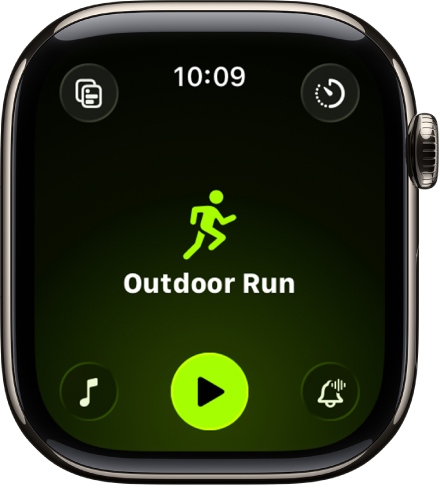
- Start a Workout from the Workout app. Move your arms or walk. Does the time, distance, or calories change?
- Turn on Walking Steadiness in the Health app and walk for a minute. Are steps counted?
If these features do not respond, your sensors may be blocked or broken.
Credit: support.apple.com
Advanced Troubleshooting Steps
If basic steps do not solve the issue, try these advanced fixes.
Reset Fitness Calibration Data
Sometimes, calibration data can get “stuck. ” Resetting it helps the watch relearn your movement.
- On iPhone, open Watch app > Privacy.
- Tap Reset Fitness Calibration Data.
You will need to walk or run outside for 20 minutes to recalibrate.
Check For App Conflicts
Some third-party apps can interfere with Apple’s activity tracking. Think about any new apps you installed recently. Try removing or disabling them, then test the Activity app again.
Reinstall The Activity And Health Apps
If the apps are corrupted, delete and reinstall them from the App Store.
Review Icloud And Health Data Sync
Poor iCloud or Health sync can cause missing data. On iPhone:
- Go to Settings > [Your Name] > iCloud > Health.
- Make sure Health is ON.
You can also toggle it off and on to refresh the sync.
Comparison: Apple Watch Models And Activity Tracking
Not all Apple Watch models track activity the same way. Here’s how key models compare:
| Model | Heart Rate Sensor | GPS | Always-On Display | Water Resistance |
|---|---|---|---|---|
| Series 3 | Yes | Yes | No | 50m |
| Series 5 | Yes | Yes | Yes | 50m |
| SE | Yes | Yes | No | 50m |
| Ultra | Yes (Advanced) | Dual-Frequency | Yes | 100m |
If you have an older model, some advanced tracking features may not be available.
Credit: www.macobserver.com
How Activity Rings Work (and Why They Might Not Move)
Apple Watch uses three Activity rings:
- Move (red): Tracks active calories burned.
- Exercise (green): Tracks minutes of brisk activity.
- Stand (blue): Tracks hours with at least one minute standing.
If any ring is not moving:
- You may not be moving enough to count as exercise.
- The sensors might not detect your motion (e.g., pushing a stroller, cycling with hands still).
- The watch may have missed a sync or restart.
A useful tip: For the Exercise ring, activity must be at least a brisk walk. Light housework or slow walking may not count.
Real-world Example: Why Activity Was Not Recording
Sarah, a busy office worker, wore her Apple Watch every day but noticed her rings stopped moving. She tried restarting, but nothing changed. Finally, she checked the Motion & Fitness settings and found Fitness Tracking was off. After turning it on, her activity data returned.
Many people miss this simple setting. It’s a good habit to check every few months, especially after major iOS updates.
Data Table: Common Causes And Solutions
This summary table helps you quickly find and fix your problem.
| Problem | Possible Cause | Solution |
|---|---|---|
| Rings not moving | Wrist detection off | Enable in Watch settings |
| No workout data | App permission missing | Turn on in iPhone Settings |
| Incorrect calories | Wrong health profile | Update Health app info |
| Heart rate not shown | Dirty sensor | Clean watch back and wrist |
| Data not syncing | Bluetooth off or iCloud issue | Check connection, toggle Health sync |
Non-obvious Insights Most Users Miss
- Loose bands reduce accuracy: Even high-end models give poor results if the watch is loose. For best tracking, make sure the watch is snug, especially during workouts.
- Manual workouts improve calibration: If your watch often under-reports exercise, try starting a manual workout. This helps your watch learn your movement style, making automatic tracking better.
- Data gaps may be permanent: If your watch didn’t record activity for a day or more, that data can’t be restored. It’s best to check tracking every day so you can act quickly if something goes wrong.
- Theater Mode disables some sensors: Many people accidentally turn on Theater Mode, which stops some background tracking. Swipe up on the watch face to make sure the icon (two theater masks) is not orange.
- Background app refresh affects tracking: On your iPhone, if background app refresh is off for Health or Activity, syncing may stop. Enable it for smooth data flow.

Credit: www.youtube.com
When To Contact Apple Support
If none of these solutions work, your watch may need repair or deeper diagnostics. This is likely if:
- The watch won’t record activity in any app or after a full reset.
- The heart rate sensor never shows data.
- The watch gets hot or drains battery very fast.
You can contact Apple Support through their website, by phone, or at an Apple Store. Bring your iPhone and watch together for the best help. For official guidance, see the Apple Support page.
Frequently Asked Questions
Why Does My Apple Watch Show Steps But Not Record Exercise?
The Exercise ring only fills when you move at a certain speed, usually a brisk walk or more. Light steps or slow walking may count as steps, but not exercise. Start a Workout in the app for more reliable tracking.
Can I Add Missing Activity Manually?
No, you cannot add Activity ring data by hand. However, you can add workouts in the Health app, which affects calories and other stats, but not the rings themselves.
Why Are My Activity Rings Not Syncing To My Iphone?
Check that Bluetooth is on, both devices are close together, and the Health app has permission to sync. If issues continue, restart both devices and check iCloud sync settings.
Does Apple Watch Track Activity When Not Connected To Iphone?
Yes, the watch records activity on its own and syncs when back near your iPhone. However, some features, like GPS maps, may be less accurate without the phone.
How Do I Clean My Apple Watch Sensors?
Use a soft, slightly damp cloth. Make sure there is no lotion, oil, or dust on the back of the watch or your wrist. Dry with a lint-free cloth before wearing.
Apple Watch is a powerful tool for health, but only if it works as expected. By checking these settings and understanding how tracking works, you’ll get the most from your device and never miss an active day.