Steam Cloud Not Syncing: Causes, Fixes, And Expert Tips
Many gamers depend on Steam Cloud to keep their game progress safe and available on any device. But sometimes, you might see a dreaded message: Steam Cloud not syncing. Suddenly, you worry about losing hours of gameplay or being unable to continue on another PC. You are not alone—this is a common frustration among Steam users, and it can happen for many reasons.
If you’ve ever lost progress or found your settings missing after switching computers, you know how stressful it is. This guide explains why Steam Cloud sync issues happen, how to fix them step by step, and what you can do to protect your game data in the future. Along the way, you’ll find non-obvious tips, real examples, and advice you won’t find on most forums.
What Is Steam Cloud And Why Does It Matter?
Steam Cloud is a cloud storage feature from Valve, the company behind Steam. It automatically saves your game progress, settings, and sometimes screenshots to online servers. When you log in on another device, your data comes with you. This is essential if you play on multiple computers or need to reinstall Windows.
Some games store only save files, while others also sync things like control settings or graphics preferences. Not all games support Steam Cloud, but thousands do. You can check if your game supports it by looking for the cloud icon in your library.
Steam Cloud matters because:
- It prevents lost progress if your computer crashes or you reinstall Steam.
- It makes switching devices easy, so you can play on your laptop, desktop, or even at a friend’s house.
- It saves time by syncing settings, so you don’t have to reconfigure every game.
But when Steam Cloud not syncing errors appear, you risk losing unsaved progress or facing annoying conflicts. That’s why understanding the causes and solutions is crucial.
Common Causes Of Steam Cloud Not Syncing
There are several reasons why Steam Cloud might not sync your files correctly. Knowing these helps you pinpoint the problem faster.
1. Internet Connectivity Issues
Steam needs a stable connection to upload or download cloud files. Even a brief outage can block syncing.
2. Steam Client Bugs Or Outdated Version
An old or buggy Steam client sometimes fails to trigger cloud sync events.
3. Game-specific Limitations
Some games have unique save systems or store files outside Steam’s monitored folders.
4. Manual Interruption
If you close Steam or your game before syncing finishes, files may not upload.
5. Conflicting Files
Changes made on two devices without syncing in between can confuse Steam Cloud.
6. Disabled Steam Cloud
Either globally or for individual games, the cloud feature might be turned off.
7. Antivirus Or Firewall Blocking
Security tools can sometimes interfere with Steam’s cloud communication.
8. Server-side Problems
Rarely, Valve’s own servers may have issues or outages.
9. Storage Limits Reached
Steam Cloud gives each user and game a storage quota. If exceeded, sync will fail.
Many users overlook causes like firewall interference or game-specific save locations. It’s easy to blame Steam itself, but sometimes the problem is local.
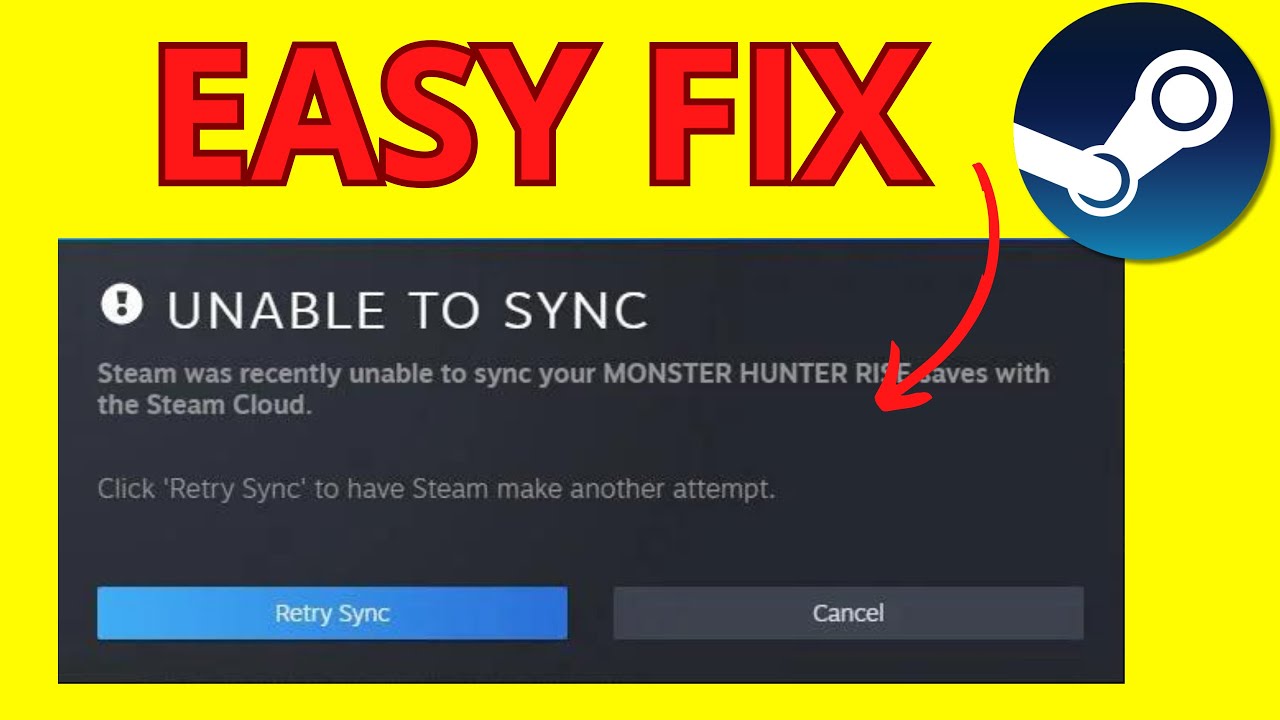
Credit: www.youtube.com
How Steam Cloud Sync Works (and Where It Can Break)
Steam Cloud works in the background, but understanding its basic process helps you troubleshoot.
- Game Launch: When you start a game, Steam checks for new cloud data and downloads it if needed.
- During Play: As you save progress, the game writes files to a special Steam folder.
- Game Exit: When you quit, Steam uploads any changed files to the cloud.
- Sync Across Devices: If you log in elsewhere, Steam repeats this process, downloading the latest data.
Problems can occur at any step. For example, if you force-quit a game or lose your internet connection before quitting, Steam might not upload your latest save. Or, if you have two computers and play offline on both, you might get a “conflict” error later.
Here’s a simple comparison showing where things can break:
| Step | What Should Happen | Common Issue |
|---|---|---|
| Game Launch | Cloud files download | Internet down, old files used |
| Game Play | Progress saved locally | Game saves outside Steam folder |
| Game Exit | Files upload to cloud | Steam closed too soon, upload fails |
| Sync on Other PC | Latest files downloaded | Conflicting changes, sync error |
How To Check If Steam Cloud Is Enabled
Before troubleshooting, make sure Steam Cloud is turned on. Sometimes, users accidentally disable it without realizing.
To check the global setting:
- Open Steam.
- Click Steam in the top-left menu and select Settings.
- Go to the Cloud tab.
- Make sure Enable Steam Cloud synchronization is checked.
To check for a specific game:
- Right-click the game in your library.
- Select Properties.
- Under the General tab, check if Keep game saves in the Steam Cloud is enabled.
If either setting is off, Steam Cloud will not sync for that game or your account.
Step-by-step Fixes For Steam Cloud Not Syncing
Let’s walk through the most effective solutions, from simplest to more advanced. Try these in order—many users solve their problem with the first few steps.
1. Restart Steam And Your Pc
A simple restart often clears temporary issues. Close Steam fully (check your system tray to be sure), restart your computer, and launch Steam again.
2. Check Internet Connection
Steam Cloud needs a reliable connection. Test your internet by loading a few websites or running a speed test. If your connection is unstable, fix that first.
3. Update Steam Client
Valve frequently releases updates to fix bugs. Click Steam > Check for Steam Client Updates. Install any available updates and restart.
4. Verify Game Files
Corrupted or missing files can block syncing. To verify:
- Right-click the game in Steam.
- Go to Properties > Installed Files.
- Click Verify integrity of game files.
This process checks for file problems and repairs them automatically.
5. Log Out And Back In
Sometimes, your Steam session gets “stuck. ” Log out of your account (Steam > Change Account), then log back in.
6. Check Steam Cloud Status Online
Visit Steam Status to see if there are any reported issues with Steam Cloud servers. If servers are down, you’ll need to wait for Valve to fix the problem.
7. Disable And Re-enable Steam Cloud
Turning off and then reactivating Steam Cloud can “reset” the sync process.
- Open Steam Settings > Cloud.
- Uncheck “Enable Steam Cloud synchronization.”
- Restart Steam.
- Re-enable the setting.
Repeat this for the affected game in its Properties window.
8. Manually Trigger Sync
If Steam Cloud is enabled but stuck, try forcing a sync:
- Launch the game.
- Make a small change (e.g., change a setting or make a new save).
- Exit the game and wait until Steam finishes syncing (look for the sync icon next to the game in your library).
If you see a sync error, click it for more details.
9. Check For File Conflicts
If you play the same game on multiple computers, you might get a file conflict warning. Steam will ask you to pick which file to keep. Choose carefully—if unsure, back up both versions first. After resolving the conflict, sync should resume.
10. Review Antivirus And Firewall Settings
Security software can block Steam’s communication. Add Steam to your firewall and antivirus “allow” lists. On Windows Defender, add Steam.exe as an exception.
11. Free Up Steam Cloud Storage
Each game and user has a storage quota (usually 1GB per game). Large save files or mods can fill this up. To check usage:
- Go to Steam Cloud Management.
- Review how much space each game uses.
- Delete old or unnecessary files if you’re near the limit.
Here’s a quick look at common storage limits:
| Game Type | Typical Save File Size | Default Steam Cloud Quota |
|---|---|---|
| Indie Platformer | 5–10 MB | 100 MB |
| RPG (many saves) | 50–200 MB | 1 GB |
| AAA Shooter | 10–50 MB | 100 MB |
12. Move Or Backup Save Files Manually
If all else fails, you can copy save files directly. Each game stores saves in a different place—sometimes in C:Users[YourName]DocumentsMy Games, sometimes in Steamuserdata folders.
Copy these files to a USB drive or cloud service to avoid losing progress. This is especially important if you see repeated sync errors or plan to reinstall Windows.
13. Reinstall Steam (last Resort)
If nothing works, uninstall and reinstall Steam. Back up your games and save files first. This fixes client-side bugs but should be your last option.
Non-obvious Tips Most Users Miss
Even experienced Steam users miss these expert tricks:
- Don’t play the same game on two PCs at once. Even if both are online, Steam Cloud can get confused and create conflicts.
- Wait for the sync icon to disappear before shutting down. After quitting a game, Steam may take a few seconds to upload your data. Watch for the blue “syncing” arrow—closing Steam too soon interrupts this.
- Some games use custom save locations. Mods or non-Steam versions might save files outside the usual folders. These won’t sync unless you copy them manually.
- Offline mode disables cloud sync. If you play offline, your saves won’t upload until you reconnect. Remember to launch Steam online before switching devices.
- Check for multiple accounts. If your family shares a PC, make sure you’re logged into the right Steam account—saves don’t transfer between accounts.

Credit: www.reddit.com
What To Do If You Lost Progress Due To Steam Cloud Not Syncing
Losing progress is one of the worst outcomes, but there are ways to recover:
- Check Local Save Folders. Sometimes, your data is still on your PC even if it didn’t upload. Search in Steamuserdata or your Documents folder.
- Restore from Windows Backup. If you use File History or System Restore, you might recover older versions of save files.
- Ask the Game’s Community. Some games have built-in backup systems or mods that can help recover lost data. Check the game’s Steam forums or Discord.
- Contact Steam Support. Rarely, Valve can assist if a widespread outage caused lost saves, but they can’t recover most user-side losses.
Preventing Steam Cloud Sync Problems In The Future
Once you fix Steam Cloud, take steps to avoid future problems.
- Enable Steam Guard. This protects your account from unauthorized access, which can lead to cloud conflicts.
- Back up saves regularly. Even with Steam Cloud, keep manual backups for your most important games.
- Keep Steam updated. Set Steam to auto-update to avoid bugs.
- Don’t play offline for long periods. Always let Steam sync after a long offline session.
- Monitor cloud status. Check Steam’s status page during big sales or updates, when servers are busiest.
Here’s a summary of best practices:
| Action | Benefit |
|---|---|
| Manual save backups | Protects against rare cloud failures |
| Enable Steam Guard | Prevents unauthorized changes |
| Wait for sync to finish | Ensures latest data is uploaded |
| Check cloud status before travel | Avoids surprises when switching PCs |
When To Use Other Cloud Solutions
Steam Cloud is convenient, but not perfect for every situation. If you need more control, consider using services like Google Drive, Dropbox, or OneDrive to back up save files.
This is especially useful for:
- Games without Steam Cloud support
- Modded games with unique save locations
- Sharing progress with friends or family
To do this, locate your save folder and add it to a cloud backup service. Remember, this method requires manual setup and can’t resolve in-game conflicts.
Real-world Example: Solving A Tough Sync Problem
Consider Alex, who played The Witcher 3 on a desktop and a laptop. After a week offline on his laptop, he returned home, but Steam Cloud couldn’t decide which save to use. Alex chose the desktop version, but lost 10 hours of progress from the laptop. He recovered by:
- Copying the laptop’s save files to a USB drive.
- Pasting them into the desktop’s save folder.
- Letting Steam Cloud upload the correct files.
This example shows why manual backups and understanding file locations matter.

Credit: www.youtube.com
Frequently Asked Questions
Why Does Steam Cloud Say “conflict Detected”?
This means Steam found two different versions of your save file—usually from playing on two devices without syncing in between. Steam asks which one to keep. Choose the version with your latest progress. If unsure, back up both files before deciding.
Can I Recover Lost Game Progress If Steam Cloud Failed?
Sometimes. Check your local save folders and Windows backups. For some games, community forums offer tools or advice to recover lost saves. However, if both your local and cloud files are gone, recovery is unlikely.
Does Every Steam Game Support Steam Cloud?
No. Developers must add support for Steam Cloud. You can see if a game supports it by looking for the cloud icon in your library or checking the game’s Steam page. Some games use their own cloud systems instead.
How Can I Tell If Steam Cloud Is Syncing?
Look for the blue syncing icon next to the game in your Steam library. You can also see recent sync activity in the game’s properties or under Settings > Cloud. Wait until syncing finishes before shutting down Steam.
Is It Safe To Delete Old Saves From Steam Cloud?
Yes, but be careful. Deleting old saves frees up space but cannot be undone. Always back up important saves manually before deleting from Steam Cloud, especially if you plan to replay a game or use mods.
Steam Cloud is a powerful tool for gamers, but like any technology, it’s not foolproof. With the right knowledge and a few smart habits, you can keep your progress safe, avoid sync headaches, and enjoy your games anywhere. If you need more technical details, Valve’s own developer documentation offers a deep dive into how Steam Cloud works.