If you love customizing your PC, you probably know about MSI Mystic Light. This software lets you control RGB lighting on MSI motherboards, graphics cards, RAM, fans, and even some peripherals. Many gamers and PC builders use it to sync colors, create effects, and show off their setups. But what happens when Mystic Light stops working? You click, nothing changes. Lights freeze, or some devices don’t show up. It’s frustrating, especially if you just upgraded your PC or want everything to glow in sync.
This article dives deep into the reasons why MSI Mystic Light not working is a common issue, and how you can fix it. You’ll find practical solutions, examples, and a clear breakdown of what to try. Whether you’re new to RGB or have years of experience, you’ll learn something new. We’ll also look at common mistakes, compatibility data, and provide FAQs to answer your burning questions.
What Is Msi Mystic Light?
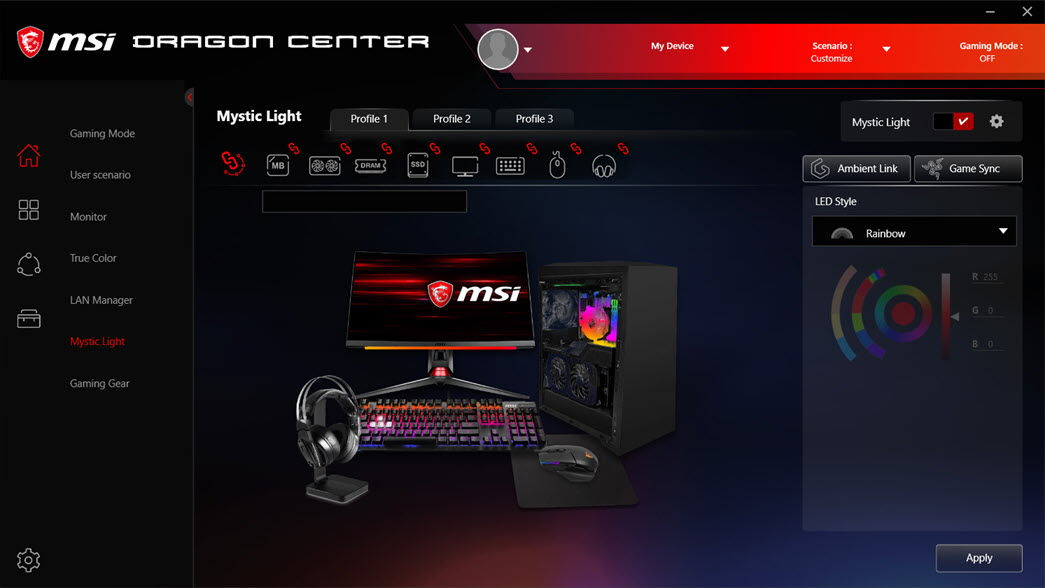
MSI Mystic Light is a software tool from MSI (Micro-Star International) that helps users control RGB lighting on their computers. It’s mainly for MSI products, but it can also work with some third-party devices. The software lets you:
- Change colors and effects for each component
- Sync all lighting in your PC
- Set static, breathing, flashing, and custom patterns
Mystic Light is part of MSI’s Dragon Center or MSI Center. You can download it from MSI’s website, and it usually comes pre-installed on new MSI gaming PCs.
Supported Devices
MSI Mystic Light works with many devices, such as:
- Motherboards (MSI models only)
- Graphics cards
- RAM modules
- Fans and coolers
- Keyboards, mice, and headsets
Some third-party brands like Corsair, G. SKILL, and Thermaltake may work, but compatibility is not always guaranteed. For example, certain Corsair fans might show up in Mystic Light, but only basic effects are available. For full control, you might need the brand’s own software.
It’s also common for new users to overlook that some devices require extra cables or adapters for RGB to work with Mystic Light. Checking the manual for each component often saves a lot of troubleshooting time.
MSI regularly updates Mystic Light to support more devices, but newer models may take a few months to appear in the compatibility list. If you buy the latest hardware, always check for updates or announcements on the MSI website or their forums.
Why Does Msi Mystic Light Stop Working?
If your RGB lights suddenly stop responding, don’t panic. There are several reasons for MSI Mystic Light not working. Let’s look at the most common causes.
1. Software Conflicts
RGB software from different brands can clash. For example, if you have ASUS Aura, Gigabyte RGB Fusion, or Corsair iCUE installed, they may fight over control. This can cause Mystic Light to stop working or freeze. Sometimes, even if you’re not actively running another RGB app, background services can interfere. For instance, iCUE or Aura services running in the background may “lock” the RGB hardware, making it unavailable to Mystic Light.
It’s also important to check for pre-installed RGB software on new PCs or after Windows updates. Sometimes, update packages quietly install new utilities that take over device control without you noticing.
2. Outdated Drivers Or Software
RGB control relies on up-to-date drivers and software. If your motherboard, GPU, or Mystic Light itself is outdated, it might not recognize devices or apply changes. Sometimes, even a small Windows driver update can break Mystic Light’s ability to talk with your hardware.
A common beginner mistake is to only update Mystic Light but forget about other drivers. For example, updating your GPU driver, but leaving your chipset driver old, can lead to partial detection problems. Always update all related drivers, not just one.
3. Windows Updates
Windows updates sometimes break Mystic Light. After a big update, RGB functions may stop, or Mystic Light won’t launch. This happens because Windows sometimes changes system files, security permissions, or even the way drivers interact with hardware.
Some users have found that their RGB works fine until a “feature update” from Windows, then suddenly parts of Mystic Light stop responding. Rolling back the update sometimes fixes this, but the better solution is to wait for MSI to release a compatible version.
You can check MSI’s forum or support page for any recent reports after big Windows updates.
4. Hardware Compatibility
Not all devices work with Mystic Light. Even within MSI’s lineup, older products or certain RAM and fans may not sync. For example, some older MSI motherboards only support basic 12V RGB, while newer components may require 5V ARGB headers.
Plugging an ARGB device into a regular RGB header won’t work, and can even damage your parts.
Another compatibility problem: third-party cases with built-in RGB controllers often block Mystic Light from detecting the fans or strips. In these cases, you may need to connect the RGB wires directly to the motherboard and bypass the case controller.
5. Corrupted Installation
If Mystic Light files are corrupted or incomplete, the software may crash, show errors, or fail to detect devices. This can happen after a failed update, a Windows crash, or even after a system restore.
One less obvious cause: over-aggressive antivirus programs. Sometimes, security software flags Mystic Light files as suspicious and blocks or deletes them. If Mystic Light suddenly disappears after an antivirus scan, check your quarantine or logs.
6. Bios Settings
Some RGB features require proper BIOS settings. If the RGB header or related options are disabled, Mystic Light can’t control lights. BIOS updates can sometimes reset these settings to default, which may turn off RGB headers without warning.
Don’t forget to check for advanced settings like “ErP Ready” or “Deep Sleep,” which can disable RGB lighting when your PC is off or in sleep mode. If your RGB turns off at shutdown and won’t turn back on, this setting is a likely culprit.
7. User Account Control (uac)
Windows security settings can block Mystic Light from accessing device controls, especially if you don’t run it as administrator. For users with limited accounts (like children’s or guest profiles), Mystic Light might not have the permissions needed to change hardware settings.
Sometimes, Windows Defender or controlled folder access can also block Mystic Light from accessing its files. Adding Mystic Light to the “allowed apps” list in Windows Security can solve this.
Quick Troubleshooting Steps
Before digging deeper, try these quick fixes. Many users solve Mystic Light issues with basic actions.
- Restart your PC: Simple, but effective for software glitches.
- Close other RGB software: Only run Mystic Light.
- Run Mystic Light as administrator: Right-click and select “Run as administrator.”
- Check device connections: Make sure RGB headers and cables are plugged in.
- Update Mystic Light and drivers: Download latest versions from MSI’s site.
- Check Windows updates: Install all recent updates.
- Scan for malware: Sometimes viruses block apps.
If these don’t work, keep reading for detailed solutions.
Extra advice: Unplug your PC for a few minutes before restarting. Some RGB controllers keep their state when powered. Full power-off can reset stuck controllers and allow Mystic Light to detect them again.
Deep Dive: Fixing Msi Mystic Light Problems
Now let’s get into the nitty-gritty. Each method targets a specific root cause, so try them in order.
Updating Mystic Light And Drivers
Running old versions is a top reason Mystic Light fails. Here’s how to update everything:
- Go to MSI’s official website.
- Download the latest MSI Center or Dragon Center.
- Update motherboard, GPU, and chipset drivers.
- Restart your PC.
Pro tip: Always uninstall the old version before installing the new one. Using “Add or Remove Programs” in Windows can prevent conflicts.
Also, don’t forget to check for firmware updates for your devices. Some RAM modules and fans need a firmware update to work with the newest Mystic Light. Firmware updates are often overlooked, but they can make a big difference.
Uninstalling Conflicting Rgb Software
Multiple RGB apps rarely play nice. If you have ASUS Aura, Gigabyte RGB Fusion, Corsair iCUE, or others, uninstall them:
- Go to “Add or Remove Programs.”
- Remove all non-MSI RGB software.
- Restart your PC.
Non-obvious insight: Even if you don’t run other RGB software, leftover files can cause issues. Use tools like CCleaner to clear registry entries after uninstalling.
It’s also a good idea to check the “Startup” tab in Task Manager and disable any leftover RGB utilities that may load with Windows, even if you think you uninstalled them.
Checking Hardware Compatibility
Not all hardware works with Mystic Light. For example, Corsair RAM might need Corsair iCUE, and some older MSI products don’t support Mystic Light.
Below is a comparison table of common devices and their compatibility:
| Device Type | MSI Mystic Light Compatible | Notes |
|---|---|---|
| MSI Motherboard (new) | Yes | Full features |
| MSI GPU | Yes | Works well |
| Corsair RAM | Partial | May need iCUE |
| Thermaltake Fan | Partial | Check model |
| ASUS peripherals | No | Use Aura |
If you’re not sure about your hardware, check the product page or manual for “Mystic Light” or “RGB Sync” compatibility. Some fans or light strips only work with specific headers (3-pin ARGB vs. 4-pin RGB).
Repairing Msi Mystic Light Installation
Corrupted files cause software to misbehave. To repair:
- Uninstall Mystic Light using “Add or Remove Programs.”
- Delete leftover folders in “C: Program Files (x86)MSI.”
- Reboot your PC.
- Reinstall Mystic Light from MSI’s official site.
Extra tip: Avoid using third-party download sites. Official MSI links ensure safe, updated files.
If you have a persistent problem, try installing the software on a different drive or Windows user account. Sometimes, user profile corruption can stop Mystic Light from working properly.
Adjusting Bios Settings
Some RGB functions depend on BIOS options. Here’s what to check:
- Reboot and enter BIOS (usually by pressing “DEL” or “F2” at boot).
- Find the RGB LED or Lighting section.
- Make sure RGB headers are enabled.
- Save changes and restart.
If you flash or update BIOS, always use MSI’s official instructions. Wrong settings can damage your hardware.
Some motherboards let you control RGB directly from BIOS. Check if your lighting is set to “off” or “static” in BIOS, which can override Mystic Light settings.
Running Mystic Light As Administrator
Windows can block Mystic Light from accessing device controls. To fix:
- Right-click the Mystic Light icon.
- Choose “Run as administrator.”
If this works, set it to always run as admin:
- Right-click, choose “Properties.”
- Go to “Compatibility.”
- Check “Run this program as administrator.”
Another tip: If you’re using Windows 10/11, try disabling “Controlled Folder Access” under Windows Security > Virus & Threat Protection. This feature can block Mystic Light from writing settings.
Credit: www.drivereasy.com
Advanced Solutions
Sometimes, simple fixes aren’t enough. Let’s look at deeper methods.
Clean Windows Boot
Booting with only essential drivers can show if another app is blocking Mystic Light.
- Press “Windows + R,” type “msconfig,” and hit Enter.
- Go to “Services,” check “Hide all Microsoft services.”
- Click “Disable all.”
- Go to “Startup,” open Task Manager, disable all startup items.
- Restart your PC.
If Mystic Light works now, add other apps back one-by-one to find the culprit.
Clean booting is especially useful after installing new peripherals or software, as these can add hidden background services.
Registry Edits
Registry errors can block Mystic Light. Only advanced users should try this.
- Press “Windows + R,” type “regedit,” hit Enter.
- Backup your registry.
- Search for “Mystic Light” entries. Delete only those related to old installations.
- Restart your PC.
Warning: Editing the registry incorrectly can cause Windows problems. If unsure, skip this step.
Some users report that deleting only the “MSI” folder under `HKEY_LOCAL_MACHINESOFTWARE` (after uninstalling Mystic Light) helps clear persistent bugs.
Reinstalling Windows
If nothing else works, consider a fresh Windows install. Backup your files first. This removes all conflicts and corrupted files.
Fact: Most users never need this step. Try other methods first!
If you do reinstall Windows, install drivers and Mystic Light before any other RGB software to avoid new conflicts.
Common Mistakes When Fixing Mystic Light
Beginners often make errors that waste time or cause more problems. Here are mistakes to avoid:
- Installing Mystic Light from unofficial sites
- Forgetting to uninstall old RGB apps
- Not updating motherboard BIOS
- Skipping driver updates
- Ignoring hardware compatibility lists
Non-obvious insight: Sometimes, installing Mystic Light on a laptop (not a desktop) won’t work, because laptop RGB is often controlled by the manufacturer’s own tools.
Another mistake is forcing Mystic Light to control devices through splitters or adapters not designed for MSI headers. This can cause signal problems and may even damage the controller.

Credit: www.systweak.com
Msi Mystic Light Vs. Other Rgb Software
How does Mystic Light compare to other popular RGB controllers? Here’s a data table for quick reference:
| Software | Supported Brands | Ease of Use | Sync Features | Common Issues |
|---|---|---|---|---|
| MSI Mystic Light | MSI, some third-party | Easy | Good sync, limited third-party | Device detection |
| Corsair iCUE | Corsair, some partners | Moderate | Excellent sync | Software conflicts |
| ASUS Aura | ASUS, limited others | Easy | Average sync | Freezing |
| Gigabyte RGB Fusion | Gigabyte | Moderate | Poor sync | Crashes |
Key takeaway: MSI Mystic Light is user-friendly, but third-party device support is limited compared to Corsair iCUE. If you want maximum compatibility and advanced effects, Corsair’s ecosystem is often better, but Mystic Light is easier for beginners.
Real-world Examples
Let’s look at some real user experiences:
- Case 1: An MSI B550 motherboard owner couldn’t control RAM RGB. The fix was uninstalling Corsair iCUE, then Mystic Light recognized the RAM.
- Case 2: After a Windows update, Mystic Light stopped working. Reinstalling Mystic Light and updating motherboard drivers solved the problem.
- Case 3: A gamer with mixed MSI and ASUS hardware found Mystic Light only worked on MSI parts. Using ASUS Aura for ASUS devices and Mystic Light for MSI products worked, but syncing was impossible across brands.
Another example: A builder with Thermaltake fans found that Mystic Light only controlled them after connecting directly to the motherboard and removing the Thermaltake controller. This shows how important wiring and controller selection is for RGB success.
Data: Mystic Light Issue Frequency
According to MSI forums and Reddit, Mystic Light issues are reported in about 10-20% of setups with mixed brands. Most problems happen after Windows updates or installing new RGB software.
Stat: Over 85% of Mystic Light errors are fixed by updating software, drivers, or uninstalling conflicting apps.
It’s also worth noting that in full-MSI builds, Mystic Light issues drop below 5%, especially when users keep their software updated. The more brands you mix, the higher the risk of problems.
How To Check If Your Device Supports Mystic Light
Before buying new parts or troubleshooting, check compatibility:
- Visit MSI’s official Mystic Light page.
- Look for your device model.
- Read user reviews and forums.
If unsure, contact MSI support. Some devices may require firmware updates or extra cables.
If you plan to use multiple RGB products, make a list and check every model for Mystic Light support. Some online PC part pickers include RGB compatibility filters.
Tips For Smooth Rgb Experience
Want to avoid headaches? Follow these tips:
- Use only one RGB software at a time.
- Check compatibility before buying new parts.
- Keep all drivers and software updated.
- Backup your settings before Windows updates.
- If you build a PC, use parts from the same brand for easier RGB sync.
Practical tip: If you want to use third-party parts, research their RGB software. Mixing brands is possible, but syncing colors perfectly is often tricky.
Another advanced tip: Some users use hardware controllers (like NZXT or Corsair Commander) to bypass software and control all RGB. This can be a solution if you want perfect sync but don’t want to deal with software conflicts.
When To Contact Msi Support
If all else fails, MSI support can help. Before reaching out:
- Prepare your PC specs (model numbers, Windows version, device list).
- Note down error messages or screenshots.
- Try all troubleshooting steps first.
MSI’s support team can guide you, provide firmware updates, or help with replacement if needed.
External resource: For official troubleshooting and downloads, see MSI Support.
Comparing Rgb Ecosystems: Msi Vs. Others
RGB lighting is a big selling point for PC parts. Here’s a comparison of ecosystem flexibility:
| Brand | RGB Software | Third-Party Support | Customization Level |
|---|---|---|---|
| MSI | Mystic Light | Medium | High |
| Corsair | iCUE | High | Very High |
| ASUS | Aura Sync | Low | Medium |
| Gigabyte | RGB Fusion | Low | Medium |
MSI Mystic Light sits in the middle—great for MSI systems, but less flexible for exotic or mixed builds. Corsair’s ecosystem is wider, but also more complex, while ASUS and Gigabyte focus mainly on their own hardware.
Future Trends In Rgb Control
MSI and other brands are working on open standards for RGB. This means more devices may sync together in the future. Some new products use Addressable RGB (ARGB), which allows individual LEDs to change color. Mystic Light is updating to support more ARGB devices, but it’s not fully universal yet.
Non-obvious insight: ARGB headers look similar to standard RGB, but aren’t compatible. Always check your motherboard and device specs before connecting.
MSI has started adding support for some open RGB standards like Razer Chroma and JRAINBOW headers. If you want to “future-proof” your setup, look for motherboards with ARGB and standard RGB headers, and devices that support multiple standards.

Credit: www.reddit.com
Frequently Asked Questions
Why Does Msi Mystic Light Not Detect My Ram?
This happens if your RAM is not supported or another RGB software is controlling it. Corsair and G. SKILL RAM often need their own software. Uninstall other RGB apps, update Mystic Light, and check compatibility.
Can I Use Mystic Light With Non-msi Devices?
You can use Mystic Light with some third-party devices, but support is limited. Always check compatibility lists, and be aware syncing colors across brands isn’t guaranteed.
How Do I Fix Mystic Light After A Windows Update?
Try reinstalling Mystic Light, updating drivers, and running as administrator. If issues remain, check for new Mystic Light versions, as MSI often releases updates after major Windows changes.
Is It Safe To Edit The Windows Registry To Fix Mystic Light?
Editing the registry can help if you know what you’re doing, but it’s risky. Always backup your registry first. If you’re not experienced, try other fixes or contact MSI support.
What’s The Best Way To Sync Rgb Across Brands?
The easiest way is to use parts from one brand. If you mix brands, use each brand’s software for their devices, but syncing colors perfectly is often not possible. Some third-party apps claim to sync everything, but results are mixed.
RGB lighting can be fun and beautiful, but software like MSI Mystic Light sometimes needs extra care. By following the steps above, updating software, and checking compatibility, you can fix most issues and enjoy a glowing PC. If you plan your build carefully and use trusted sources, Mystic Light will work smoothly. Remember: RGB is only as good as the software behind it. Stay updated, stay compatible, and your PC will shine as bright as you want.