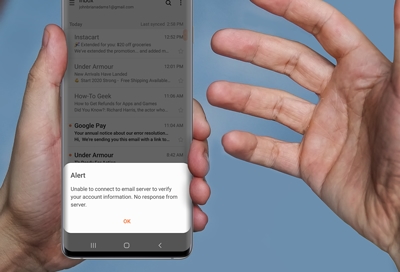
When your Samsung Email app stops syncing, it can turn a simple day into a frustrating one. Important messages don’t show up, work emails are delayed, and you might miss out on critical information. For many users, email is the main way to communicate with colleagues, friends, and family. When syncing fails, it feels like your smartphone is letting you down.
This problem is more common than you might think. Many Samsung users face issues where emails do not update, new messages do not appear, or sent emails get stuck in the outbox. While the reasons can be technical, the solutions are often simple—if you know where to look.
In this article, you’ll find clear explanations, practical steps, and useful tips to fix the Samsung Email not syncing issue. Whether you use Gmail, Outlook, Yahoo, or another email provider on your Samsung phone, these troubleshooting steps can help you get your email back on track. Let’s explore why this happens, how to solve it, and what you can do to prevent it in the future.
Why Samsung Email Stops Syncing
Understanding the possible causes helps you fix the problem faster. The Samsung Email app relies on several parts working together—your phone’s software, the email service’s servers, internet connection, and app settings.
Common reasons for sync failure include:
- Weak or unstable internet connection
- Incorrect email account settings
- Battery or data saving features blocking background activity
- Outdated app or phone software
- Corrupted app cache or data
- Sync disabled in app or device settings
- Problems with the email provider’s servers
While most users check their email settings, many overlook simple issues like poor Wi-Fi or mobile data. Sometimes, a small mistake in your password, a server change by your email provider, or a new security update can disrupt syncing.
Basic Checks Before Troubleshooting
Before diving into advanced fixes, start with these simple checks. Many sync issues are caused by things that are easy to miss.
- Test your internet connection. Open a website or another app that uses data. If it’s slow or not loading, try switching from Wi-Fi to mobile data (or vice versa).
- Restart your Samsung device. A simple reboot can refresh connections and clear minor glitches.
- Check if the email provider’s service is down. Visit their official status page or search “Gmail/Outlook/Yahoo down” to see if others are reporting issues.
- Update the Samsung Email app and your device’s operating system to the latest version. Updates often fix known bugs.
If your internet is working and there are no service outages, move on to more specific troubleshooting.
Step-by-step Solutions For Samsung Email Not Syncing
Let’s look at targeted solutions, from basic to advanced, to get your Samsung Email app syncing again.
1. Check Sync Settings In The Samsung Email App
Sometimes, syncing is simply turned off by accident. To check:
- Open the Samsung Email app.
- Tap the menu (three lines in the top left).
- Go to Settings.
- Select your email account.
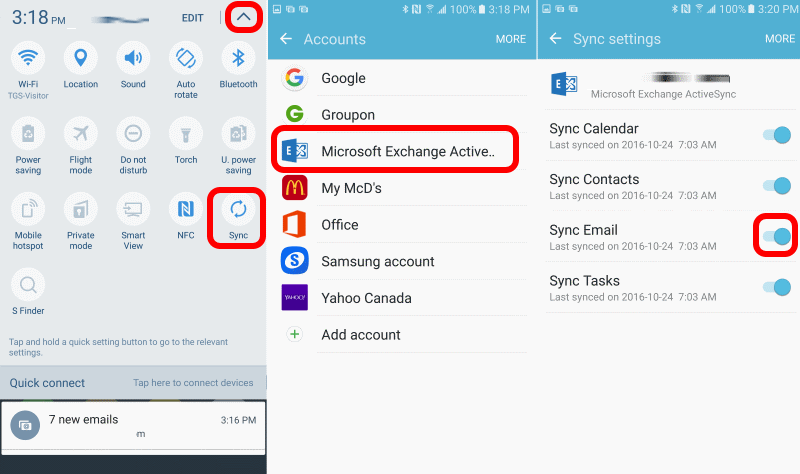
- Make sure Sync Email is turned on.
- Check the Sync schedule—make sure it’s set to automatic or as often as you need.
2. Enable Auto-sync For Accounts
Your device settings can override app settings. Here’s how to check:
- Open Settings on your phone.
- Scroll to Accounts and Backup or Cloud and Accounts.
- Tap Accounts.
- At the top right, tap More (three dots), then Auto sync data.
- Make sure this is enabled.
If auto-sync is off, email, contacts, and other data will not update in real-time.
3. Review Battery And Data Saving Settings
Battery and data saving features can stop apps from syncing in the background.
- Go to Settings > Device care > Battery > App power management.
- Disable Put unused apps to sleep for the Samsung Email app.
- Add Samsung Email to the Never sleeping apps list.
- Go to Settings > Connections > Data usage > Mobile data usage.
- Find Samsung Email and make sure Allow background data usage is enabled.
These steps prevent your device from blocking sync to save battery or data.
4. Clear App Cache And Data
Corrupted cache or data can cause sync problems.
- Go to Settings > Apps.
- Find and select Samsung Email.
- Tap Storage.
- Tap Clear Cache.
- If the problem persists, tap Clear Data (this will remove your account from the app; you’ll need to sign in again).
5. Re-add Your Email Account
If sync issues continue, remove and re-add your account:
- Open Settings > Accounts and Backup > Accounts.
- Select your email account.
- Tap Remove account.
- Restart your phone.
- Open the Samsung Email app and add your account again.
This refreshes the connection between your device and the email server.
6. Check Server Settings (advanced)
Sometimes, email providers change their server settings. Double-check:
- Open the Samsung Email app.
- Go to Settings > select your account > Server settings.
- For IMAP accounts, check the incoming and outgoing server addresses, ports, and security types.
- For Microsoft Exchange, make sure your domain, username, and server are correct.
You can find the latest settings on your email provider’s support site.
7. Remove Conflicting Apps
Some third-party apps (like antivirus or VPNs) can block syncing.
- Temporarily disable or uninstall these apps.
- Check if Samsung Email starts syncing again.
8. Reset Network Settings
Resetting network settings can fix hidden connectivity problems:
- Go to Settings > General management > Reset > Reset network settings.
- Confirm and restart your device.
Note: This will erase saved Wi-Fi networks and Bluetooth connections, so reconnect as needed.
9. Update Security Permissions
If you recently updated your phone, permissions may have changed.
- Go to Settings > Apps > Samsung Email > Permissions.
- Make sure permissions for Contacts, Storage, and Calendar are enabled.
10. Factory Reset (last Resort)
If nothing works, a factory reset can solve deep software issues, but it will erase everything on your phone.
- Back up important data first.
- Go to Settings > General management > Reset > Factory data reset.
Most users never need this step. Try all other solutions before considering it.
Comparison Of Sync Issues Across Email Providers
Some users notice that sync issues happen more often with certain providers. Here’s a quick look at how major email services perform on Samsung phones:
| Email Provider | Common Sync Issues | Special Steps Required? |
|---|---|---|
| Gmail | Occasional delays, push sync sometimes fails | Check IMAP settings, enable “Allow less secure apps” if needed |
| Outlook/Hotmail | Folder sync issues, missing notifications | Verify Exchange ActiveSync settings, re-authenticate account |
| Yahoo | Login errors, slow updates | Update app password if 2-step verification enabled |
| Other (IMAP/POP3) | Full inbox not loading, sent emails stuck | Manually enter server settings, check port numbers |
Non-obvious Solutions Most People Miss
Many guides cover the basics, but these less obvious fixes can make a real difference:
- Check your phone’s date and time settings. If your device is set to the wrong time zone, email servers may block syncing for security reasons. Set to automatic date & time.
- Disable “Data Saver” mode. This Android feature limits background data for all apps, including email. Go to Settings > Connections > Data usage > Data saver and turn it off.
- Use a different email app as a test. Install Gmail or Outlook and add your email account. If syncing works there, the problem is likely with the Samsung Email app itself, not your account or device.
- Update your password on all devices. If you changed your password elsewhere, the Samsung Email app may be using the old one, causing silent sync failures.
- Check app-specific passwords. Some email providers (like Yahoo or Gmail with 2-step verification) require a special password for third-party apps like Samsung Email.
How To Prevent Samsung Email Sync Problems
Once you fix the issue, you want to avoid it happening again. Here are practical steps:
- Keep your phone and apps updated. Updates often fix bugs and improve security.
- Restart your device weekly. It sounds simple, but it clears memory and refreshes connections.
- Review battery and data settings after major updates. Sometimes, new software changes your preferences.
- Avoid installing too many third-party “optimizer” apps. These can interfere with background syncing.
- Use strong, unique passwords and update them regularly. This helps avoid account lockouts.
When To Contact Support
Sometimes, you’ve tried everything and emails still won’t sync. In these cases, it’s time to contact support:
- Samsung Support: For device or app-specific issues.
- Your email provider’s help center: For account or server problems.
- Carrier support: If you suspect network or data plan restrictions.
Keep a note of any error messages, steps you’ve already tried, and your account details. This will speed up the help process.
Data Table: Impact Of Sync Issues
Sync problems can affect more than just your inbox. Here’s a quick summary of what can go wrong and the possible impacts:
| Issue | Potential Impact | Who Is Most Affected? |
|---|---|---|
| Delayed incoming emails | Missed deadlines, slow responses | Business users, students |
| Outbox not sending | Messages stuck, poor communication | Anyone relying on timely replies |
| No notifications | Unaware of urgent messages | Remote workers, emergency contacts |
| Missing calendar invites | Missed meetings/events | Professionals, students |

Credit: www.youtube.com
Advanced Troubleshooting: Logs And Diagnostics
For users comfortable with more technical steps, you can gather diagnostic logs to help identify deeper problems.
- Enable Samsung’s Diagnostic Mode: Dial *#9900# on the phone app. Look for “Run dumpstate/logcat” and follow the prompts. This will create a log you can share with support.
- Check battery optimization logs: In Settings > Device care > Battery, tap “Battery usage” to see if Samsung Email is restricted.
- Use Email provider’s diagnostic tools: Some services offer online tools to test IMAP/SMTP connections.
These steps are not necessary for most users but can be helpful if support requests more details.
Real-world Example: Fixing A Persistent Sync Issue
Let’s look at a real scenario. Sarah, a Samsung Galaxy S21 user, noticed her work emails stopped updating overnight. She tried refreshing the app, but nothing changed. Here’s how she solved it:
- Checked Wi-Fi and mobile data—both working fine.
- Rebooted the phone—still no new emails.
- Opened Samsung Email settings and found Sync Email turned off (possibly after a recent update).
- Turned sync back on, but still no messages.
- Cleared app cache, then data, and re-added her Exchange account.
- Emails began syncing instantly.
Sarah’s case highlights an important point: sometimes, problems appear after a software update or app change. Always review your sync settings after big updates.
Credit: www.samsung.com
Table: Common Mistakes When Troubleshooting Samsung Email Sync
Here are errors many users make, which can slow down the fix:
| Mistake | Why It’s a Problem | Better Approach |
|---|---|---|
| Only restarting the app, not the phone | Doesn’t clear device-level glitches | Always restart the full device |
| Ignoring server-side outages | Wastes time troubleshooting local settings | Check provider status online first |
| Clearing app data without backup | Loss of unsaved emails or settings | Back up data before clearing |
| Relying only on mobile data in low-signal areas | Unstable connection disrupts sync | Switch to stable Wi-Fi for tests |
Frequently Asked Questions
Why Are My Samsung Emails Not Syncing Even With A Good Internet Connection?
Sync issues can still happen even if your connection is strong. Common causes include disabled sync settings, outdated app or device software, or battery optimization blocking background activity. Always check both app and device sync settings.
What Do I Do If My Samsung Email App Won’t Send Messages?
First, check your outbox for stuck emails. Ensure your outgoing server settings are correct. Try clearing the app cache, restarting your phone, and re-adding your account. If the problem continues, contact your email provider for possible server issues.
Can Battery Saving Features Stop Samsung Email From Syncing?
Yes, battery savers can block apps from working in the background. Disable battery optimization for the Samsung Email app, and add it to the “Never sleeping apps” list in your device’s battery settings.
How Can I Tell If The Problem Is With My Phone Or My Email Provider?
Add your email account to another device or app (like Gmail or Outlook). If it syncs there, your Samsung device or app is the issue. If it also fails, the problem is likely with your email provider’s servers.
Where Can I Find The Correct Server Settings For My Email Account?
Check your email provider’s official support website. They list the latest IMAP, POP3, and SMTP server addresses and port numbers. For more info, see this Gmail official guide.
Fixing Samsung Email not syncing is all about methodically checking each possible cause. With the right steps, you can restore your inbox to full speed and never miss an important message again. Don’t forget to maintain good habits—keep your device updated, review settings after changes, and stay aware of battery and data management features. A little regular attention can prevent most email problems before they start.
Credit: www.urtech.ca