When you depend on a password manager like Bitwarden, you expect your logins, notes, and other data to appear instantly across all your devices. But sometimes, the Bitwarden app does not sync between devices. You add a new password on your laptop, but it does not show up on your phone. This can be frustrating, especially if you need your passwords quickly. The good news: most sync problems have clear solutions. This guide will help you fix Bitwarden sync issues, understand why they happen, and prevent future headaches.
Why Bitwarden Sync Matters
Bitwarden is a popular, open-source password manager trusted by millions. It uses end-to-end encryption to keep your data safe. Syncing is one of its most important features. When sync fails, you risk:
- Not having your latest passwords when you need them
- Losing data if you overwrite entries
- Security risks if you use old or weak passwords
You want your vault to stay up to date. So, when Bitwarden is not syncing, fixing it becomes a top priority.
How Bitwarden Sync Works
Bitwarden syncs your data using secure cloud servers. When you add or change something, the app sends encrypted data to Bitwarden’s servers. Other devices then download the latest data when they sync. This process usually happens automatically every few minutes, but you can also force a manual sync.
Basic Sync Flow
- Change made on Device A (e.g., add new password)
- Data encrypted and sent to Bitwarden’s cloud server
- Device B requests a sync and downloads the new data
- Decryption happens locally on Device B
Problems can happen anywhere in this flow—network issues, app bugs, or even server problems.
Common Reasons Bitwarden Does Not Sync
Before you fix the problem, you need to know what might cause it. Bitwarden sync issues usually fall into these areas:
- Network connection problems
- Outdated Bitwarden app
- Account or login errors
- Server-side outages
- Device-specific settings or restrictions
- Conflicting changes or cache issues
Let’s look at each one more closely.
Network Issues
Bitwarden needs internet to sync. If your phone or computer is offline, or on a restricted network (like public Wi-Fi with firewalls), sync can fail.
Outdated Apps
Old versions of Bitwarden can have bugs. New features and security updates fix sync problems and compatibility issues.
Account Errors
If you’re logged in with the wrong account or your session expired, sync will stop. Sometimes, Bitwarden logs you out without warning.
Server Outages
Very rarely, Bitwarden’s cloud servers go down for maintenance or due to technical problems. In this case, syncing stops for all users.
Device Or Os Restrictions
Some phones and computers restrict background data use, battery usage, or app permissions, which can block sync.
Conflicts And Cache
If you edit the same item on two devices before syncing, you may get conflicts. Also, a corrupted app cache can block sync.
Quick Ways To Diagnose Bitwarden Sync Issues
Before making big changes, check these quick fixes:
- Open Bitwarden on the device that’s not syncing.
- Tap or click Sync (usually found in the app menu).
- If you see an error message, note the exact words.
- Try logging out and back in.
- Check your internet connection by visiting a website.
If these steps don’t help, it’s time for deeper troubleshooting.

Credit: www.youtube.com
Step-by-step Solutions For Bitwarden Not Syncing
1. Check Your Internet Connection
Bitwarden needs a stable connection. Try these steps:
- Switch from Wi-Fi to mobile data, or vice versa.
- Restart your router.
- Test if other apps (like Gmail or YouTube) work.
- If you’re on public Wi-Fi, try a different network.
If syncing works after changing networks, the problem is with your original connection.
2. Force A Manual Sync
Sometimes, automatic sync gets stuck. To force a sync:
- On mobile: Open Bitwarden, tap the menu, choose Sync.
- On desktop: Click your account icon, select Sync Vault.
Wait for a confirmation message. If you see errors, keep them for reference.
3. Update The Bitwarden App
Outdated apps cause many sync problems. Always use the latest version:
- On iOS/Android: Visit the App Store or Google Play, search Bitwarden, tap Update.
- On desktop: Download the latest version from Bitwarden’s official website.
- For browser extensions: Go to your browser’s extension store and update.
After updating, restart the app and try syncing again.
4. Log Out And Log In Again
Session errors can block sync. Logging out and in refreshes your session:
- Open Bitwarden settings.
- Tap Log Out.
- Log in with your correct email and master password.
This step often fixes invisible account glitches.
5. Restart Your Device
A simple restart can solve memory, cache, or temporary file problems.
- Restart your phone or computer.
- Open Bitwarden and try syncing.
6. Check Bitwarden Server Status
Sometimes, the problem is not on your side. Visit the official Bitwarden Status Page to see if servers are down. If there’s a known outage, wait for Bitwarden to fix it.
7. Verify You’re Using The Same Account
Double-check the email address on all devices. People sometimes create two Bitwarden accounts by accident.
- On mobile: Tap your profile/account settings, check the email.
- On desktop: Click your profile or settings, check the email.
If emails don’t match, log out and sign in with the correct one.
8. Clear Bitwarden App Cache (mobile Only)
A corrupted cache can block sync. To clear it:
- On Android: Go to Settings > Apps > Bitwarden > Storage > Clear Cache.
- On iOS: Uninstall and reinstall Bitwarden (this clears the cache).
After clearing cache, log in and sync.
9. Check Device Date And Time Settings
Incorrect date/time can block encrypted connections.
- Set your device to automatic date and time.
- Restart and try syncing.
10. Review App Permissions And Restrictions
Phones sometimes block apps from using data in the background, or restrict battery use.
- On Android: Settings > Apps > Bitwarden > Data usage > Allow background data. Also, under Battery, set to “Unrestricted.”
- On iOS: Settings > Bitwarden > Enable all permissions (Cellular Data, Background App Refresh).
If you use a battery saver or data saver mode, turn it off and try syncing.
11. Try A Different Device Or Platform
If Bitwarden syncs between your phone and web vault, but not your desktop app, the problem is device-specific.
- Try logging in to the Bitwarden web vault at https: //vault.bitwarden.com.
- See if your latest changes appear there.
If the web vault is up to date, the problem is with your app, not your account or Bitwarden’s servers.
12. Remove And Reinstall Bitwarden
If all else fails, uninstall and reinstall the Bitwarden app:
- Backup your vault if you use any local (not synced) data.
- Uninstall Bitwarden.
- Restart your device.
- Reinstall from the official source.
- Log in and sync.
This fixes most deep-level app problems.
Comparing Sync On Different Platforms
Bitwarden works on many platforms: iOS, Android, Windows, macOS, Linux, and browser extensions. Not all platforms handle sync the same way.
Here’s a comparison of sync behavior across platforms:
| Platform | Automatic Sync | Manual Sync Option | Common Issues |
|---|---|---|---|
| iOS | Every few minutes | Yes | Background restrictions |
| Android | Every few minutes | Yes | Battery/data saver blocks |
| Desktop App | On startup/interval | Yes | Outdated version, firewall |
| Browser Extension | On unlock/interval | Yes | Extension conflicts |
| Web Vault | No (manual only) | Yes | Browser cache |
Knowing these differences can help you spot where your sync problem starts.

Credit: community.bitwarden.com
Advanced Troubleshooting Steps
If your Bitwarden app still does not sync after basic fixes, try these advanced methods. These steps are best for users who are comfortable with settings and logs.
Check For App Conflicts
Other password managers or security apps can interfere with Bitwarden.
- Disable other password managers (like LastPass, 1Password) and see if syncing improves.
- On desktop, whitelist Bitwarden in any firewall or security software.
Review Bitwarden Error Logs
On desktop and mobile, Bitwarden sometimes shows error logs or codes. Review them to get clues.
- On desktop: Click Help > Error logs.
- On mobile: Errors may show as notifications or in-app messages.
Search for the error code on Bitwarden’s forums or support pages.
Test With Another Network
Some company or school networks block Bitwarden traffic.
- Try syncing on your home Wi-Fi or a mobile hotspot.
- If syncing works, ask your IT team to unblock Bitwarden.
Export And Re-import Your Vault
If your vault is corrupted, exporting and re-importing can sometimes fix issues.
- Export your vault as an encrypted .json or .csv file (Settings > Export Vault).
- Log out of all devices.
- Log in to one device, import your vault.
- Sync and check if other devices now update.
Use Bitwarden’s Web Vault As A Baseline
The Bitwarden web vault is always up to date if the cloud server is working. Use it to check if your changes are syncing to the cloud.
- Add a test item in the web vault.
- Sync your other devices.
- If they don’t update, the problem is with your device/app.
Contact Bitwarden Support
If you’ve tried everything, reach out to Bitwarden’s support team. Provide:
- Your device type and OS version
- Bitwarden app version
- Error messages
- Steps you’ve tried
Getting help from Bitwarden is usually fast if you give details.
Preventing Future Sync Problems
Once you fix syncing, you want to prevent issues in the future. Here’s how:
- Keep Bitwarden updated on all devices.
- Use strong, stable internet (avoid unreliable public Wi-Fi).
- Check device permissions after OS updates.
- Avoid using multiple password managers at the same time.
- Regularly test by adding a dummy entry on one device and checking others.
- Export your vault for backup every few months.
- Use Bitwarden’s official apps, not third-party clones.
What To Do If Bitwarden Still Won’t Sync
Sometimes, rare problems need extra solutions:
- If you’re part of a business or family organization, check if admins have set sync restrictions.
- For users with huge vaults (over 10,000 items), sync can be slow. Try splitting your vault or archiving old items.
- If you use self-hosted Bitwarden, make sure your server is online and up to date.
Real-world Example: Fixing Sync On A Family’s Devices
Let’s look at a case study. A family uses Bitwarden on three devices: Dad’s Android phone, Mom’s iPhone, and a shared Windows laptop. Dad adds a new credit card on his phone, but Mom’s iPhone does not show it.
Here’s how they fix it:
- Dad forces a manual sync on his phone. Still nothing.
- Mom checks her internet—she’s on mobile data, which works.
- She opens Bitwarden, pulls down to refresh (forces sync).
- Still missing. She checks the app version and updates Bitwarden.
- After restarting her iPhone, she logs out and in again.
- Now, the new credit card appears.
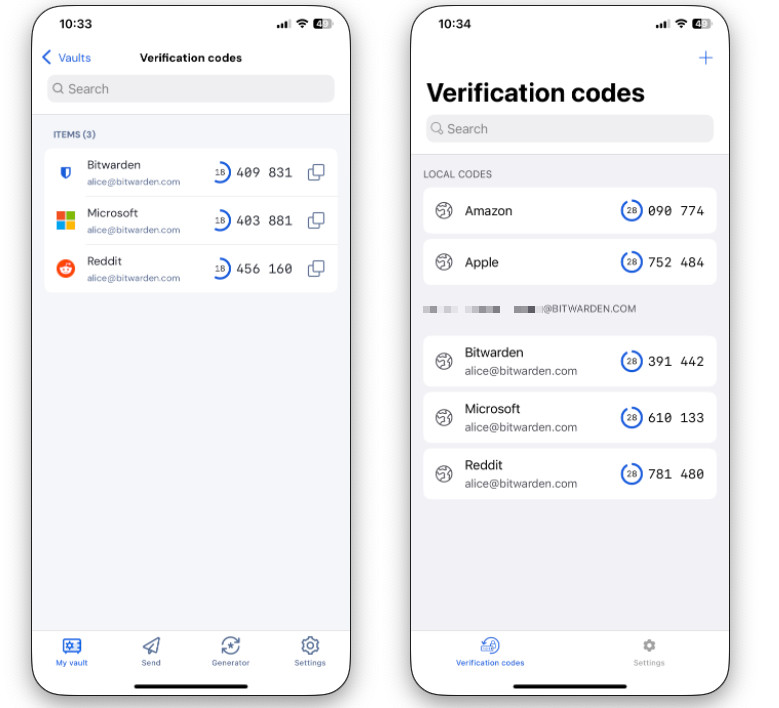
They learn that iOS had restricted Bitwarden’s background data, and the app needed an update. This example shows how a few simple steps can solve most problems.
Credit: bitwarden.com
Data Table: Bitwarden Sync Issue Causes And Fixes
To help you quickly match symptoms to solutions, here’s a reference:
| Problem Symptom | Likely Cause | Best Fix |
|---|---|---|
| No new items appear | Network or app version | Check connection, update app |
| Error message: “Sync failed” | Server outage, login expired | Check status page, re-login |
| Some devices sync, others not | Device-specific block | Check permissions, reinstall app |
| Web vault up to date, app not | App cache issue | Clear cache, reinstall app |
| Conflicting changes | Edited same item on two devices | Manually merge or delete duplicates |
Extra Tips And Insights Most Beginners Miss
Many new Bitwarden users miss these important details:
- Manual sync is often needed after big changes. Bitwarden’s auto-sync is not always instant, especially on mobile. If you make many changes, force a sync on all devices.
- Browser extensions can get out of sync easily. If you keep your browser open for days, the Bitwarden extension may not auto-refresh. Lock and unlock the extension to force a sync.
- Background app refresh is critical on mobile. If you turn off background refresh or use battery saver, Bitwarden may not sync until you open the app.
- Check for organization policies. If you use Bitwarden with a work or family group, admins might set sync or access policies that affect your account.
Understanding these points will help you avoid common pitfalls.
Frequently Asked Questions
Why Does Bitwarden Need Internet To Sync?
Bitwarden stores your encrypted vault on cloud servers. It needs internet to upload changes from one device and download them to others. Without internet, your data stays local and does not update across devices.
Can I Use Bitwarden Offline?
Yes, you can view and use your saved passwords offline. However, new changes will not sync until you reconnect to the internet and the app successfully syncs.
How Often Does Bitwarden Sync Automatically?
On most platforms, Bitwarden tries to sync every few minutes or when you unlock the app. Mobile devices may delay sync if background restrictions are on. You can always force a manual sync.
What Should I Do If I See A “sync Failed” Error?
First, check your internet connection and make sure you’re using the latest Bitwarden version. Then, log out and back in. If the problem continues, visit the Bitwarden Status Page to check for outages.
Is Bitwarden Sync Secure?
Yes. Bitwarden uses end-to-end encryption. Your data is encrypted before leaving your device and can only be decrypted with your master password. Even Bitwarden staff cannot read your vault.
—
If your Bitwarden app is not syncing between devices, you now have a complete, step-by-step guide to find and fix the problem. Following these steps should solve almost all sync issues—keeping your passwords safe and always available, whenever and wherever you need them.