The Quicken Mobile App is a popular tool for tracking finances on the go. Many users rely on its sync feature to keep their budget, spending, and account balances updated across devices. But sometimes, syncing does not work as expected. If you’ve found your Quicken Mobile App not syncing, you’re not alone. This problem can feel frustrating, especially when you need real-time data to make financial decisions. In this article, we’ll explore why syncing fails, how to fix it, and share practical advice for reliable use. We’ll also highlight common mistakes, provide real examples, and help you avoid wasting time on solutions that don’t work.
Understanding Quicken Mobile Sync
Syncing in Quicken means transferring your data between the desktop software, the cloud, and your mobile app. When you enter a transaction on your phone, it should appear on your desktop and vice versa. The sync process uses Quicken’s cloud servers to connect your devices. For most users, this works smoothly, but several factors can cause interruptions.
How Sync Works
Quicken uses a cloud sync system. When you update your desktop app, data is sent to the cloud. The mobile app then pulls this data from the cloud. This design allows users to check balances, add transactions, and manage budgets anywhere.
- Desktop to Cloud: After updating, the desktop app sends new data to Quicken’s cloud.
- Cloud to Mobile: The mobile app fetches changes from the cloud.
If any part of this chain breaks, syncing fails.
Key Benefits
Syncing brings several advantages:
- Real-time access: See your finances instantly.
- Automatic backups: Data is stored in the cloud.
- Multi-device support: Switch between phone, tablet, and computer.
But these benefits depend on smooth syncing. When it stops working, users lose up-to-date information and risk missing important financial changes.
Common Reasons For Sync Failures
Syncing problems happen for many reasons. Some are technical, while others are due to user mistakes. Here are the most frequent causes:
1. Internet Connection Issues
Quicken needs a stable connection to sync. If your Wi-Fi or mobile data is weak or unstable, syncing may not complete.
2. Outdated App Version
Running an old version of Quicken Mobile or desktop can cause incompatibility. Updates often fix bugs and improve syncing reliability.
3. Cloud Account Problems
If your Quicken Cloud account is not set up correctly, or if there are authentication errors, syncing fails.
4. Data File Corruption
A damaged Quicken data file can block the sync process. This happens after software crashes or improper shutdowns.
5. Sync Settings Misconfiguration
Incorrectly configured sync settings on the desktop app can limit what data is sent to the cloud.
6. Server Outages
Sometimes, Quicken’s servers experience downtime. This is rare but can affect all users.
7. Firewall Or Security Software Blockage
Some antivirus or firewall programs block Quicken’s access to the cloud.
8. Multiple Device Conflicts
Syncing from several devices at once may cause data conflicts or duplication.
9. Third-party Account Issues
If you link bank accounts, missing or changed credentials can disrupt syncing.
10. User Error
Forgetting to press the sync button or misunderstanding the process is a common beginner mistake.
Non-obvious insight: Many users overlook firewall and security software as a cause. Another often-missed issue is improper sign-out from the mobile app, which can block sync until you log back in.

Credit: allquicksolutions.com
Troubleshooting Steps For Quicken Mobile Sync
If your Quicken Mobile App isn’t syncing, you can fix most issues by following a logical process. Let’s break down the practical steps:
Step 1: Check Internet Connection
- Make sure your phone and computer have a strong, stable internet connection.
- Try switching from Wi-Fi to mobile data if possible.
Step 2: Update All Apps
- Download the latest Quicken Mobile App from the App Store or Google Play.
- Update your desktop Quicken software.
Step 3: Review Cloud Account Settings
- Log into your Quicken Cloud account on both desktop and mobile.
- Check for authentication errors or prompts.
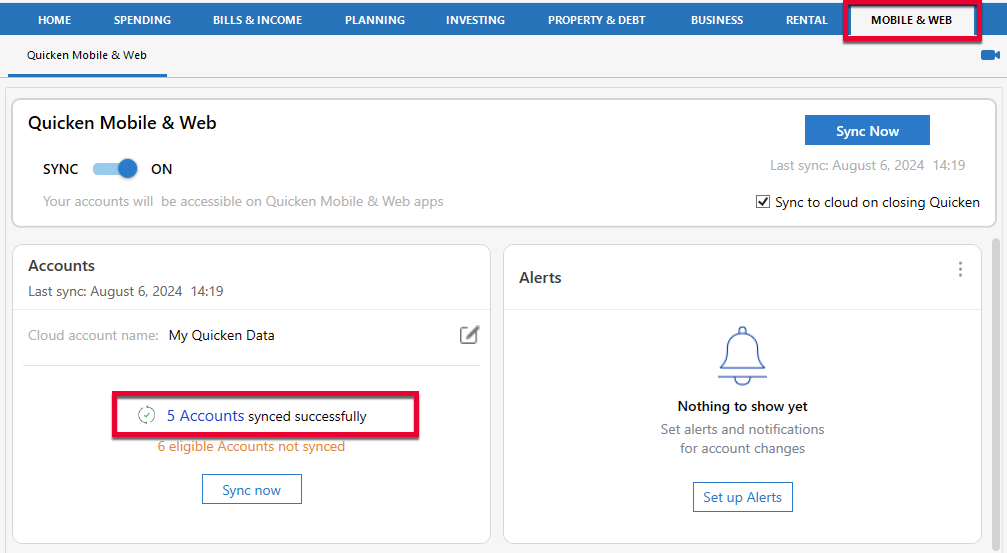
Step 4: Verify Sync Settings
- Open Quicken desktop app.
- Go to Edit > Preferences > Mobile & Web.
- Ensure the correct accounts and categories are selected for syncing.
Step 5: Repair Data File
- In Quicken desktop, use the Validate and Repair tool:
- Go to File > Validate and Repair File.
- Run validation and follow prompts.
Step 6: Restart Devices
- Restart your phone and computer after making changes.
Step 7: Disable Security Software Temporarily
- Turn off firewall or antivirus programs.
- Try syncing again.
- If it works, add Quicken to your software’s allowed list.
Step 8: Clear Cache And Reinstall App
- Delete the Quicken Mobile App from your device.
- Reinstall from the official app store.
- Log in again.
Step 9: Check For Server Status
- Visit Quicken’s official website or support channels for outage information.
Step 10: Re-sync All Devices
- Log out from all devices.
- Log in and initiate sync from desktop first, then mobile.
Experience-based tip: Always sync from the desktop before the mobile app. This ensures the latest data reaches the cloud first.
Comparing Sync Problems: Desktop Vs Mobile
To understand syncing failures, it’s helpful to compare how issues differ between Quicken’s desktop and mobile platforms.
| Platform | Common Sync Problem | Typical Solution |
|---|---|---|
| Desktop | Data file corruption | Validate and repair file |
| Mobile | Outdated app version | Update app via store |
| Both | Cloud account authentication | Re-login and verify credentials |
| Desktop | Firewall blockages | Add Quicken to allowed list |
| Mobile | Cache/data issues | Clear cache, reinstall app |
This comparison shows that while some issues are platform-specific, others affect both desktop and mobile users. Addressing the right area speeds up troubleshooting.
Advanced Solutions For Persistent Sync Issues
Sometimes, basic troubleshooting does not work. Here are advanced steps for stubborn sync problems:
Resetting Quicken Cloud Data
You can reset your Quicken Cloud data from the desktop app. This deletes and rebuilds your cloud data, often fixing deep sync errors.
- Go to Edit > Preferences > Quicken ID & Cloud Accounts.
- Click Reset your cloud data.
- Follow prompts carefully.
Warning: Resetting the cloud deletes current cloud data, so back up your desktop file first.
Manual Data Export And Import
If syncing still fails, export your data from desktop and import it into a new file.
- Use File > Export to create a QIF or CSV file.
- Create a new data file and import.
- Set up sync again.
Contact Quicken Support
If you’re stuck, reach out to Quicken’s support team. They have tools to diagnose account-specific issues.
quicken Official Support
Comparing Reset And Import Methods
Let’s compare the effectiveness of resetting cloud data versus manual export:
| Method | Effectiveness | Risks | Time Needed |
|---|---|---|---|
| Cloud Reset | High | Data loss if not backed up | 5-10 minutes |
| Export/Import | Medium | Possible data format issues | 15-30 minutes |
Cloud reset is faster but riskier, while manual export is slower but safer if you back up files.
User Mistakes That Cause Sync Problems
Many users make simple mistakes that block Quicken Mobile sync. Being aware helps avoid wasted time.
1. Not Enabling Sync In Desktop Preferences
Some users forget to turn on sync for accounts or categories, so nothing transfers.
2. Using Different Quicken Ids
If you log in with different IDs on desktop and mobile, syncing will not work.
3. Ignoring Update Prompts
Skipping app updates often leads to compatibility errors.
4. Adding New Accounts Only On One Platform
If you add a bank account on desktop but don’t sync, the mobile app won’t see it.
5. Leaving App Idle For Long Periods
Some users leave the mobile app open without syncing, causing stale data.
Non-obvious insight: Adding accounts or categories after initial setup requires a manual sync on desktop for mobile to recognize them.
Preventing Sync Issues In Future
You can reduce the chances of syncing failures with a few best practices:
- Update apps regularly: Enable automatic updates on your phone and computer.
- Check sync settings after changes: Whenever you add new accounts, review sync preferences.
- Use the same Quicken ID on all devices: Double-check your login credentials.
- Back up your data file weekly: Use Quicken’s backup tool or cloud storage.
- Add Quicken to firewall exceptions: Make sure your security software never blocks Quicken.
- Log out and back in occasionally: Refreshing your session can prevent authentication errors.
- Monitor server status before big updates: Check Quicken’s support page for outages.
Real-life Examples
Let’s look at two real situations to highlight how sync issues affect users:
Example 1: Sync Fails After Adding A New Account
Anna adds a new checking account in Quicken desktop. She expects it to appear in her mobile app but it doesn’t. After checking, she realizes she didn’t select the new account in sync preferences. Once selected and synced, it appears on her phone.
Example 2: Data Doesn’t Update After App Crash
John’s Quicken mobile app crashes during a sync. When he reopens it, his data is missing. He restarts his phone, clears the app cache, and reinstalls Quicken Mobile. After logging in, his data is restored.
These examples show that both user errors and technical glitches can cause sync failures.
Credit: www.quicken.com
Data Table: Most Common Sync Error Codes
Quicken sometimes displays error codes during sync failures. Here’s a quick reference:
| Error Code | Meaning | Suggested Action |
|---|---|---|
| CC-501 | Server unavailable | Wait and retry later |
| CC-898 | Cloud authentication error | Log out and log in again |
| CC-503 | Account not supported | Check account credentials |
| CC-505 | Firewall blockage | Add Quicken to firewall exceptions |
| CC-506 | Data corruption | Validate and repair file |
This table helps users quickly identify problems and find solutions.
When To Seek Help
If you have tried all steps and syncing still does not work, it’s time to get help.
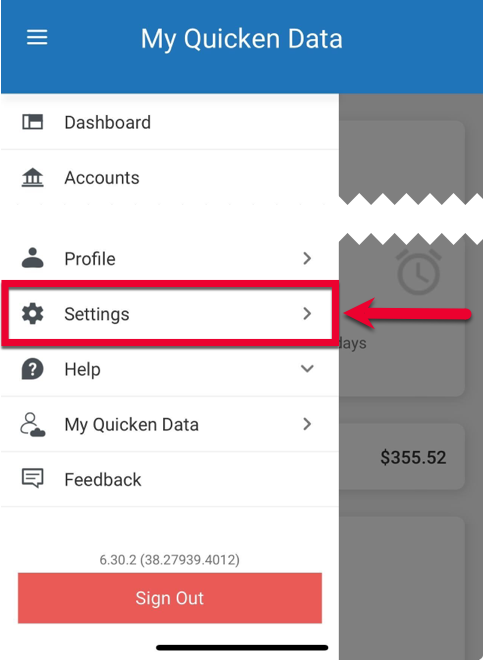
- Contact Quicken support through their website or app.
- Join the Quicken community forum for user advice.
- Check for updates and bug reports on Quicken’s official blog.
Experienced users often share solutions for rare issues, and official support can diagnose problems specific to your account.
Credit: www.quicken.com
Frequently Asked Questions
What Should I Do If My Quicken Mobile App Still Won’t Sync After Troubleshooting?
Try resetting your cloud data from the desktop app. If that fails, export your data and create a new Quicken file. Contact Quicken support if nothing works.
How Often Should I Sync My Quicken Mobile App?
You should sync after every major change or at least daily if you use the app regularly. Frequent syncing reduces the chance of data conflicts.
Can Security Software Block Quicken Mobile Syncing?
Yes, some firewall or antivirus programs block Quicken’s access to the cloud. Add Quicken to your exceptions list to fix this.
Is It Safe To Reset Quicken Cloud Data?
It’s safe if you back up your desktop file first. Resetting cloud data deletes current cloud data but does not affect your desktop file unless you forget to back up.
Why Do I See Duplicate Transactions After Syncing?
Duplicate transactions happen if you sync from multiple devices at once or add the same transaction on both desktop and mobile. Always sync desktop first, then mobile, and avoid manual entries on both platforms for the same transaction.
Sync problems with the Quicken Mobile App can be annoying, but most can be fixed with careful troubleshooting and good habits. By understanding the sync process, recognizing common causes, and following practical steps, you can keep your finances up to date and avoid costly mistakes.
If you run into persistent issues, advanced solutions or support are available. With these tips, your Quicken Mobile experience will be smoother, safer, and more reliable.