Spotify has changed how millions of people enjoy music. From its huge song library to personalized playlists, Spotify has become a favorite for music fans everywhere. But not every song you want is on Spotify. That’s why the Local Files feature is so useful—it lets you add songs from your own computer to your Spotify library. However, many users face a common issue: their local files not syncing across devices. This can be frustrating, especially if you want to enjoy your unique music collection on your phone or tablet.
If you’ve ever tried to play your local files on Spotify and found them missing, grayed out, or simply refused to sync, you’re not alone. This article explores the reasons behind Spotify local files not syncing, step-by-step solutions, and clever tips you might not find elsewhere.
Whether you’re a casual listener or a true music collector, you’ll learn how to get your local music playing everywhere you want—smoothly and reliably.
How Spotify Local Files Feature Works
Before solving the syncing problem, it helps to understand how Spotify local files are handled.
Spotify does not upload your music files to the cloud. Instead, it scans your computer for music files (like MP3, M4A, or WAV), adds them to your local Spotify library, and only makes them available on that device. If you want to play these tracks on your phone or another computer, Spotify needs to transfer the files across your devices, but only if certain conditions are met.
Here’s a quick overview:
- You can add local files from your computer into Spotify via the app’s settings.
- Only Spotify Premium users can sync local files to mobile devices.
- Both your computer and mobile device must be connected to the same Wi-Fi network for syncing to work.
- The local files must be in a playlist to show up on your mobile device.
- Some file formats are not supported.
Understanding these basics is the first step to solving syncing problems.
Common Reasons Why Local Files Don’t Sync
Many users run into local file syncing issues for reasons that are not always obvious. Here’s a breakdown of the top causes:
- Network issues: Both devices must be on the same Wi-Fi network (not just any internet connection).
- Account mismatch: You must be logged into the same Spotify account on all devices.
- Unsupported file formats: Spotify only supports MP3, M4A (without DRM), and a few others.
- Incorrect playlist setup: Local files must be added to a playlist to sync.
- App version differences: Outdated apps can cause compatibility problems.
- Firewall or security software: Firewalls may block Spotify from syncing.
- Storage or permission problems: Your mobile device must have enough space and permissions.
- Premium account requirement: Syncing to mobile is only for Premium subscribers.
- DRM-protected files: Songs bought from iTunes or other stores with DRM won’t sync.
- Cache or app glitches: Sometimes, app data needs to be refreshed.
Here’s a quick comparison of the most common causes and which devices they affect:
| Issue | Affects Desktop | Affects Mobile | Needs Premium |
|---|---|---|---|
| Network mismatch | ✔ | ✔ | ✔ |
| Unsupported files | ✔ | ✔ | ✗ |
| Playlist setup | ✔ | ✔ | ✔ |
| DRM-protected files | ✔ | ✔ | ✗ |
Many users overlook network and playlist setup issues, thinking the problem is with the app itself.

Credit: www.youtube.com
Step-by-step: How To Sync Local Files On Spotify
Let’s walk through the correct way to sync local files. Missing even one step can cause problems.
1. Add Local Files To Spotify On Desktop
- Open the Spotify desktop app.
- Go to Settings (click your profile icon > Settings).
- Scroll down to Local Files.
- Turn on “Show Local Files.”
- Click “Add a source” and select the folders where your music files are stored.
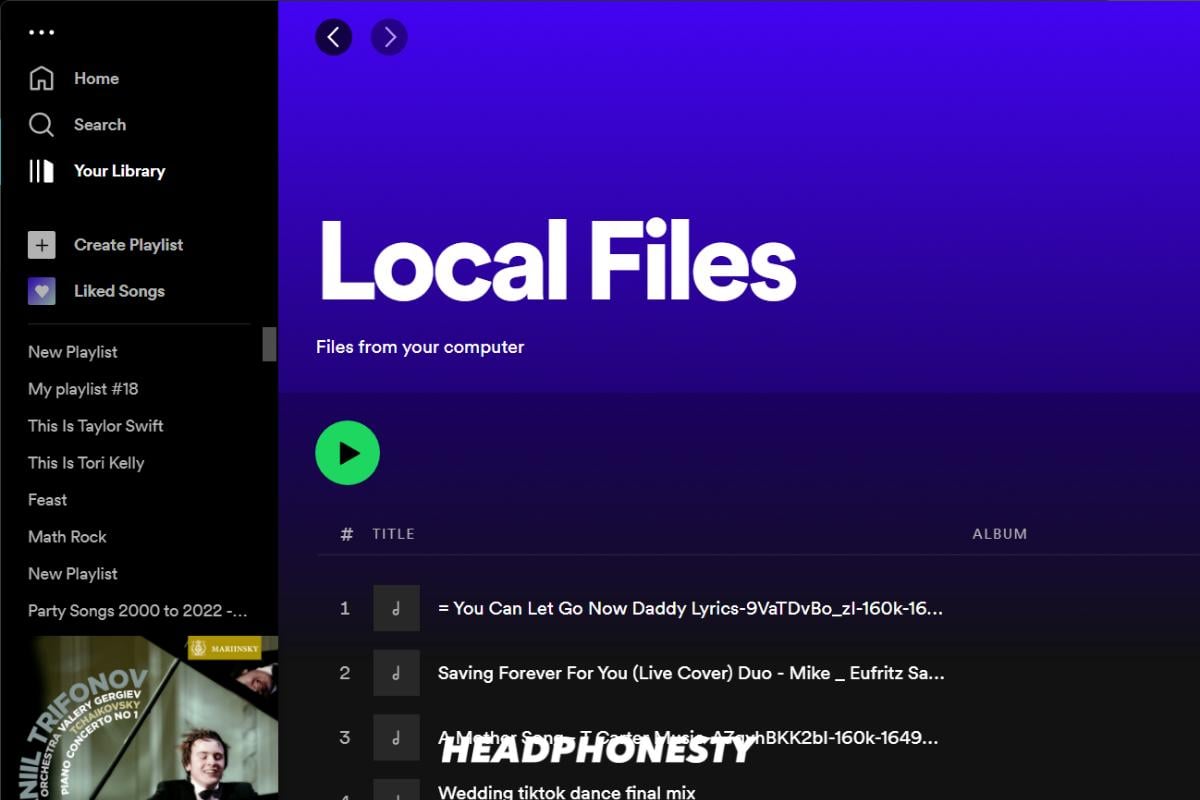
- Go to “Your Library” > “Local Files” to see your songs.
2. Create A Playlist With Your Local Files
- Select the local songs you want to sync.
- Right-click and add them to a new playlist (e.g., “My Local Music”).
- Only playlists, not the main Local Files folder, will sync to mobile.
3. Prepare Your Mobile Device
- Make sure you have Spotify Premium.
- Connect your phone/tablet to the same Wi-Fi as your computer.
- Log into the same Spotify account.
4. Download The Playlist On Your Mobile Device
- Open the Spotify app on your phone.
- Find the playlist with your local files.
- Tap the download icon (“Download”).
- The app will transfer the files over Wi-Fi and make them available offline.
If the playlist or songs are grayed out or don’t appear, something went wrong. The next sections cover fixes.
Troubleshooting: Fixing Local Files Not Syncing
If your local files are not syncing, try these practical solutions. Each fix targets a specific cause.
1. Check Wi-fi Connection
Both your computer and mobile device must be on the same Wi-Fi network. Public or guest networks often block device-to-device communication. Try these steps:
- Turn Wi-Fi off and on again on both devices.
- Restart your router if needed.
- Avoid using a mobile hotspot or VPN, as these can interfere.
2. Update The Spotify App
Using different versions of Spotify can cause syncing errors. Update both desktop and mobile apps to the latest version. This is especially important after major Spotify updates.
3. Verify File Formats
Spotify supports only these formats for local files:
- MP3
- M4A (no DRM)
- WAV
- FLAC (on some versions)
If your songs are in WMA, AAC with DRM, or OGG, they won’t sync. Convert them to MP3 using a tool like Audacity or a free online converter.
4. Add Local Files To A Playlist
The most common mistake: forgetting to add local songs to a playlist. Only playlists will sync to mobile, not the main Local Files folder.
5. Allow Spotify Through Firewall
On Windows, the firewall may block Spotify from sending files:
- Open Windows Security > Firewall & network protection.
- Click “Allow an app through firewall.”
- Make sure both “Spotify” and “SpotifyWebHelper” are allowed on Private networks.
On Mac, go to System Preferences > Security & Privacy > Firewall, and add Spotify.
6. Clear Cache And Data
Old or corrupted app data can prevent syncing. Try clearing the cache:
- On mobile: Go to Settings > Apps > Spotify > Storage > Clear cache.
- On desktop: Log out and back in, or reinstall Spotify.
This often fixes invisible or grayed-out tracks.
7. Check Storage Space
If your phone’s storage is full, Spotify can’t save the synced files. Free up space by deleting unused apps or files.
8. Log Out And Back In
It sounds simple, but logging out and back in on both devices refreshes your account connection. This can solve sync errors related to account mismatches.
9. Disable Battery Optimization (mobile)
On Android and iOS, battery saver or power management features can stop Spotify’s background syncing. Disable battery optimization for Spotify while syncing files.
10. Recreate The Playlist
If a playlist refuses to sync, create a new one and add your local files again. Sometimes, playlist data gets stuck or corrupted.
Credit: www.headphonesty.com
Advanced Tips For Reliable Local File Syncing
These strategies go beyond the basics and help you avoid issues in the future.
Use Simple File Names And Paths
Spotify sometimes struggles with files in folders with special characters, accents, or very long paths. Keep file names and folder paths simple. Example:
- Good: C:MusicMySong.mp3
- Bad: C:UsersNameMy DocumentsVery_Long_Folder_Name_With_Special_CharactersÅßçd.mp3
Stick To Mp3 Format
MP3 is the most compatible format for Spotify. Even if Spotify says it supports M4A, some newer versions have bugs with Apple’s file format. Convert all your local music to MP3 for best results.
Avoid Network Isolation Modes
Many modern routers have a “Guest” or “AP Isolation” mode, which blocks devices from seeing each other on the network. Make sure both devices are on the main Wi-Fi network.
Sync In Small Batches
Trying to sync hundreds of files at once can overwhelm Spotify. Start with 10–20 songs per playlist, then add more as each batch completes. This reduces errors and makes troubleshooting easier.
Test With One Song First
Before syncing a large playlist, try with just one local file. If it works, expand to more songs. If not, you can quickly test and fix the issue without waiting for a big sync.
Spotify Local Files Syncing: Desktop Vs Mobile
The process and possible issues differ slightly depending on whether you’re using a desktop or mobile device. Here’s a side-by-side comparison:
| Feature | Desktop (Windows/Mac) | Mobile (iOS/Android) |
|---|---|---|
| Supports adding local files | ✔ | ✗ (can only sync from desktop) |
| Requires Premium for sync | ✗ | ✔ |
| Needs same Wi-Fi | ✗ | ✔ |
| Can play all file types | ✔ | ✗ (only synced files supported) |
Many users expect to add local files directly from their phone, but this is not possible. You always need a computer to add and sync local files.

Credit: community.spotify.com
Common Myths About Spotify Local Files
Many guides and forums contain outdated or incorrect information. Here are some myths—and the facts:
- Myth: You can upload local files to Spotify’s cloud and stream anywhere.
- Fact: Spotify only transfers files locally, not over the internet.
- Myth: Free users can sync local files to their phone.
- Fact: Only Premium users have this feature.
- Myth: All file types will work if added to Spotify.
- Fact: Only certain types (mainly MP3) are supported.
- Myth: Local files sync instantly.
- Fact: Large files or slow Wi-Fi can make syncing take several minutes.
Knowing these details helps set realistic expectations.
When Local Files Still Won’t Sync: What To Do
If you’ve tried every solution and your local files still won’t sync, consider these last-resort options:
- Use a different Wi-Fi network: Sometimes, network settings block local file sharing.
- Try a different device: Sync from another computer if possible.
- Reinstall Spotify: Uninstall and reinstall the app on both devices to remove hidden glitches.
- Contact Spotify Support: Use the official help center or community forums for help.
- Consider other apps: If syncing is mission-critical, apps like Plex or VLC offer more flexible local music syncing.
Why Syncing Local Files Matters
For many music lovers, Spotify’s catalog is not enough. You might have rare remixes, old recordings, or personal audio files. Being able to play these on all your devices, alongside Spotify’s streaming library, is a powerful feature.
But as streaming takes over, apps like Spotify sometimes make local file support less of a priority. Staying up-to-date with app updates and troubleshooting steps is the only way to keep your local music accessible everywhere.
Non-obvious Insights Most Beginners Miss
Many guides repeat the same steps, but here are two tips even experienced users miss:
1. Router Settings Can Block Syncing
Some routers have security features (like AP Isolation or guest network mode) that block devices from talking to each other—even if they’re on the same Wi-Fi. Check your router’s settings and switch to the main network if needed.
2. Spotify Caches Cover Art and Metadata
If you change the file name, album art, or tags after adding the file to Spotify, you may need to remove and re-add the file. Spotify caches this info and won’t update it unless you refresh the library.
Alternatives To Spotify For Local File Playback
If you find Spotify’s local file support too limited or buggy, there are other apps that handle personal music collections better:
- VLC Media Player: Plays all file types and works on every platform.
- Plex: Streams your music library to any device, even remotely.
- ITunes (Apple Music): Still supports local files, though syncing to iOS devices can be tricky.
- Foobar2000: For advanced users who want deep control over their library.
Each app has pros and cons, but Spotify remains the best choice if you want to blend streaming and local files in one place.
Staying Up-to-date
Spotify occasionally changes how local files work. Always check their official support pages for the latest instructions, as features and requirements may change with updates. For more details, see the Spotify Local Files Support Page.
Frequently Asked Questions
Why Are My Spotify Local Files Grayed Out On Mobile?
Grayed out tracks usually mean Spotify can’t find the source file on your desktop, or the file format isn’t supported. Check that the file is still in the same location and playlist on your computer, and that both devices are online and on the same Wi-Fi network.
Do I Need Spotify Premium To Sync Local Files To My Phone?
Yes, only Spotify Premium users can sync local files to mobile devices. Free users can play local files on the desktop app, but not sync them to phones or tablets.
What File Formats Does Spotify Support For Local Files?
Spotify supports MP3, M4A (without DRM), WAV, and sometimes FLAC. Files with DRM protection (like songs bought from iTunes) or unsupported types (like WMA or OGG) will not sync.
Can I Add Local Files Directly From My Phone?
No, you must add local files from the Spotify desktop app. There is currently no way to add music files directly from your phone and have them appear in Spotify mobile playlists.
How Can I Fix “waiting To Download” Or Stuck Syncing?
Try these steps: make sure both devices are on the same Wi-Fi, update the Spotify app, check file formats, add the songs to a playlist, and allow Spotify through your firewall. If it’s still stuck, clear the app cache or reinstall Spotify.
Spotify’s local files feature can be tricky, but with the right steps, you can enjoy your personal music collection everywhere you go. Keep your apps updated, stay on the same network, and follow the tips above to ensure smooth syncing—so your soundtrack never stops.