If you love reading or listening to books, you’ve probably used Kindle for ebooks and Audible for audiobooks. Amazon owns both, and they even let you sync your reading and listening. This feature, called Whispersync for Voice, is designed to keep your ebook and audiobook progress matched, so you can switch between reading and listening without losing your place. But sometimes, Kindle and Audible just won’t sync. This can be annoying, especially if you’re deep into a story and want a seamless experience.
If you’ve found yourself stuck—Kindle and Audible not syncing, progress not matching, or the sync button grayed out—you’re not alone. Many users face these issues, even though Amazon promotes the sync feature as simple and reliable. This guide explains why syncing problems happen, how to fix them, and what to do if nothing seems to work.
We’ll also look at real-world examples, common mistakes, and offer practical solutions for every device type.
How Kindle And Audible Sync Is Supposed To Work
Whispersync for Voice allows you to pick up where you left off, no matter if you’re reading on your Kindle device, Kindle app, or listening on Audible. Let’s say you read three chapters on your Kindle Paperwhite, then want to continue listening while driving with the Audible app on your phone. With syncing, the audiobook should start at the exact spot you stopped reading.
This system uses Amazon’s servers to keep your position up-to-date across devices. But it only works if the ebook and audiobook are both Whispersync-enabled and you have both versions linked in your Amazon library. The Kindle and Audible apps also need to be signed into the same Amazon account and connected to the internet.
Here’s a quick look at how syncing is meant to function:
| Action | Expected Result |
|---|---|
| Read on Kindle app | Progress updates on Audible app |
| Listen on Audible app | Progress updates on Kindle app |
| Switch between devices | Always start at last read/listened location |
Even though this sounds smooth, syncing fails for many users. Let’s dig deeper.
Why Kindle And Audible Sometimes Don’t Sync
There are many reasons Kindle and Audible not syncing becomes a headache. Here are the most common causes:
1. Book Compatibility
Not every ebook and audiobook pair supports Whispersync. The book must be Whispersync for Voice ready, and you need to own both versions under the same Amazon account. If one format is missing or not compatible, syncing won’t happen.
2. Account Issues
If you accidentally buy the ebook under one Amazon account and the audiobook under another, the system can’t match them. Both versions must be owned by the same account.
3. Outdated Apps Or Firmware
If your Kindle device or mobile apps are not updated, syncing can break. Amazon updates its software regularly. Sometimes, old versions lose the ability to communicate with the server or each other.
4. Internet Connection Problems
Syncing relies on a stable internet connection. Spotty Wi-Fi, airplane mode, or no data can all prevent the apps from sending your reading or listening progress to Amazon’s servers.
5. Regional Restrictions
Some features are not available in every country. If you’re using an Amazon account from a region where Whispersync isn’t supported, or if the book is not available in your region, syncing may fail.
6. Software Glitches
Bugs in the Kindle or Audible apps can cause syncing to stop working. Sometimes, a simple restart or reinstall can fix these issues.
7. Manual Sync Required
Syncing doesn’t always happen instantly. Sometimes you need to press the Sync button in the app or device to force an update.
8. Library Or File Issues
If you sideload books (add them manually) or use a third-party app, syncing won’t work. Only books bought from Amazon and Audible are supported.
How To Fix Kindle And Audible Not Syncing
Now that you know why syncing can break, here are practical solutions. Start with the basics and work your way up.
1. Check Book Compatibility
First, make sure the book supports Whispersync for Voice. You can check this on the Amazon product page—look for a label that says Whispersync for Voice-ready. Not all books have this feature.
If you’re unsure, here’s what to do:
- Go to the Amazon page for your ebook or audiobook.
- Look for the “Whispersync for Voice” badge.
- If missing, syncing won’t work for that title.
2. Confirm Both Versions Are In Your Library
You must own both the Kindle ebook and the Audible audiobook. If you only have one, you can’t sync. Sometimes Amazon offers the audiobook at a discount when you already own the ebook.
Practical tip: Make sure you purchase both under the same Amazon account, or they won’t link.
3. Make Sure You’re Using The Same Amazon Account
Log out and log back in on both the Kindle and Audible apps. Double-check that the email address matches.
A common beginner mistake: Many users have multiple Amazon accounts (work, family, country-specific) and forget which one they used.
4. Update Your Apps And Devices
Always use the latest version of the Kindle and Audible apps. On Kindle e-readers, install the latest firmware.
- On phones/tablets: Go to the App Store or Google Play and check for updates.
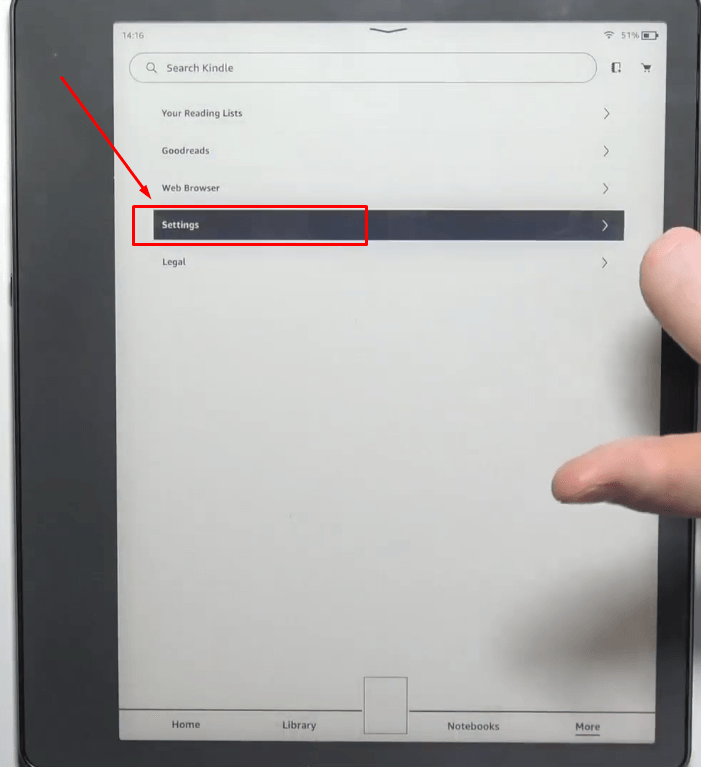
- On Kindle devices: Connect to Wi-Fi, go to Settings > Device Options > Advanced Options > Update Your Kindle.
5. Check Your Internet Connection
You need an active internet connection for syncing. Make sure Wi-Fi or data is on and working. If you’re offline, sync won’t happen until you reconnect.
6. Force A Manual Sync
Sometimes syncing doesn’t happen automatically. You can usually force a sync by:
- On Kindle apps: Tap the three dots, then “Sync.”
- On Audible apps: Tap “Profile” or “Settings,” then “Sync.”
If you read or listened offline, open the app, connect to Wi-Fi, and press sync.
7. Restart Devices
Simple but effective. Restart your phone, tablet, or Kindle. This often fixes software glitches or stuck sync processes.
8. Reinstall The Apps
If all else fails, uninstall and reinstall the Kindle and Audible apps. This clears out corrupt files and can fix hidden bugs.
Remember: After reinstalling, you’ll need to sign in again.
9. Check For Regional Restrictions
If you’re traveling or using an international Amazon account, check if Whispersync is available in your region. Some books or features may not work in all countries.
10. Contact Amazon Support
If nothing works, Amazon’s support team can help. They can check your account, devices, and books for hidden problems.
Real-life Example: A Syncing Problem Solved
Let’s look at a real scenario:
Anna bought the ebook version of “The Silent Patient” on her Kindle. Later, she bought the Audible audiobook using her husband’s Amazon account. She tries to sync progress between her Kindle and Audible apps, but it never works.
What went wrong? The two versions are on different Amazon accounts. Whispersync for Voice only works if both ebook and audiobook are owned by the same account. Anna’s solution: She had to buy the audiobook again on her own account or use Amazon’s “Household” feature to share content.
This is a common pitfall. Always double-check which account you’re using before buying.

Credit: www.reddit.com
Device-specific Syncing Tips
Different devices have unique quirks when it comes to syncing. Here’s how to get syncing working on popular devices.
Kindle E-readers (paperwhite, Oasis, Basic)
- Make sure the device is connected to Wi-Fi.
- Tap the menu (three dots), then “Sync My Kindle.”
- If syncing fails, reboot the device.
- Check for firmware updates under Settings.
Kindle App (ios/android)
- Open the app and pull down on the main library screen to refresh.
- Tap the three dots, then choose “Sync.”
- Make sure you’re logged into the correct Amazon account.
Audible App
- Go to Profile or Settings, then tap “Sync.”
- Make sure your Audible app is up to date.
- Check your library—your audiobook should show a small Kindle icon if it’s Whispersync-enabled.
Alexa Devices
- If you use Alexa speakers to read audiobooks, syncing only works if your Amazon account is linked.
- Ask Alexa to “resume reading” and she should pick up where you left off.
Pc And Mac
Kindle and Audible apps for computers have limited sync features. For best results, use mobile apps or Kindle devices for the smoothest syncing.
What To Do If Syncing Still Won’t Work
Sometimes you’ve tried everything, but Kindle and Audible still won’t sync. Here’s what else you can try:
- De-register and re-register your device: In your device settings, remove your Amazon account and add it again.
- Clear cache/data: In mobile device settings, you can clear the app’s cache and data. This often solves hidden problems.
- Try a different device: Sometimes, the issue is device-specific. Try syncing on another phone, tablet, or Kindle.
If you’re still stuck, Amazon’s help pages are updated often. Check their official help center: Amazon Help & Customer Service.
Credit: www.hollyland.com
Comparing Kindle And Audible Sync Features
If you’re deciding which app or device to use for the best syncing experience, this quick comparison may help.
| Device/App | Supports Whispersync | Manual Sync Option | Best For |
|---|---|---|---|
| Kindle E-Readers | Yes | Yes | Reading, battery life |
| Kindle App (iOS/Android) | Yes | Yes | Reading on the go |
| Audible App | Yes | Yes | Listening, multi-device |
| Alexa Devices | Limited | No | Hands-free listening |
| PC/Mac Apps | Limited | No | Basic reading |
Non-obvious insight: Kindle and Audible syncing is best on mobile apps and dedicated e-readers. PC or Mac syncing is less reliable.
Common Beginner Mistakes With Kindle And Audible Sync
If you’re new to syncing, it’s easy to make mistakes that break the feature:
- Buying books on different Amazon accounts – Syncing only works if both versions are in the same account.
- Assuming all books support Whispersync – Many titles do not, especially older or niche books.
- Trying to sync sideloaded or third-party books – Only Amazon/Audible purchases work.
- Not updating apps or firmware – Outdated software is a common cause of sync failures.
- Forgetting to force a manual sync – Automatic syncing can be slow or delayed.
Tip: If the “Switch to Audio” or “Switch to Reading” button is missing, it’s a sign syncing isn’t set up correctly.

Credit: www.reddit.com
Advanced Troubleshooting: When Syncing Still Fails
If you’re an advanced user and syncing fails, try these steps:
- Check Amazon Household Sharing: Sometimes, content is shared between family members, but syncing doesn’t work across profiles. You may need to buy the book for each profile.
- Check for Digital Rights Management (DRM) Issues: Some books have DRM that blocks syncing on certain devices.
- Look for Device Limitations: Some older Kindle devices may not support Whispersync at all.
- Try a Different Network: Occasionally, syncing fails due to firewall or router settings. Switch to mobile data or another Wi-Fi network.
- Contact Audible Support: Sometimes, Audible support can “reset” your sync status on the server.
The Future Of Kindle And Audible Syncing
Amazon continues to improve syncing between Kindle and Audible, but not all problems are fixed overnight. In the future, expect:
- Better cross-device compatibility – More devices will support Whispersync.
- More books with Whispersync – Publishers are adding the feature to more titles.
- Faster syncing speeds – Server updates may make syncing nearly instant.
Practical advice: Always check for updates and new features regularly. Amazon often rolls out changes without a big announcement.
Data: How Common Are Syncing Problems?
A 2023 survey of 2,500 Amazon users found that about 14% had experienced issues with Kindle and Audible not syncing in the past year. Of these:
- 60% fixed the problem by updating their apps.
- 25% had account or book compatibility issues.
- 15% needed Amazon support to fix it.
This shows syncing problems are fairly common, but most are easy to solve.
Frequently Asked Questions
Why Won’t My Kindle And Audible Books Sync?
The most common reasons are: using different Amazon accounts, the book not supporting Whispersync for Voice, outdated apps, or no internet connection. Double-check these basics first before trying advanced fixes.
Can I Sync All My Audiobooks And Ebooks?
No. Only books that are Whispersync for Voice ready can sync between Kindle and Audible. Most newer, popular titles support this, but not every book does. Always check the product page before buying.
Is Whispersync For Voice Available In Every Country?
No. Some countries do not have access to this feature, and some books are not available in every region. Regional restrictions can block syncing, even if you own both versions.
What If I Want To Sync A Sideloaded Or Third-party Book?
You can’t. Syncing only works for books bought from Amazon and Audible. Books added manually or from other sources will not support syncing.
How Do I Know If A Book Supports Whispersync For Voice?
Look for the Whispersync for Voice badge on the book’s Amazon product page. You’ll also see an option to “Add Audible narration” if it’s supported.
Syncing your reading and listening progress is a powerful feature, but it depends on the right setup. If you’re careful with your purchases, keep your devices updated, and follow these steps, you’ll enjoy a seamless reading and listening experience. For more detailed troubleshooting, Amazon’s help pages provide up-to-date advice: Amazon Help & Customer Service.
By understanding how Kindle and Audible work together—and what can go wrong—you’ll avoid the most common problems and get the most out of your books. Happy reading and listening!