If you use the Capitec app regularly, you know how important it is for daily banking. When it suddenly stops working, it can be frustrating. You might wonder if your phone has a problem, if Capitec’s systems are down, or if there’s something wrong with your account.
The good news is, most issues with the Capitec app can be fixed quickly with the right steps. This guide explains the main reasons why the Capitec app is not working, how to solve each problem, and how to avoid them in the future.
You’ll also learn some less-known tips that can save you time, plus answers to common questions at the end.
Why Is The Capitec App Not Working? Common Causes
The Capitec app is designed to work smoothly, but several factors can cause it to stop. Understanding these causes is the first step to solving the issue.
1. Internet Connection Problems
The Capitec app needs a stable internet connection. If your mobile data or Wi-Fi is weak, slow, or disconnected, the app may not load or may show errors.
Example: If you’re traveling and move between cell towers or into a building with poor signal, the app may freeze or not connect to Capitec’s servers.
2. Outdated App Version
Old versions of the Capitec app may not support the latest security or feature updates. Sometimes, Capitec blocks access until you update the app.
Example: If you haven’t updated the app for several months, you may get a message saying “Update required” or the app may just crash.
3. Device Compatibility Issues
Not all phones support every version of the Capitec app. If you use an old phone or an outdated operating system, the app may stop working after an update.
Example: Phones running Android 6 or below, or iPhones with iOS 11 or lower, might not be able to install the latest Capitec app.
4. Server Outages Or Maintenance
Sometimes the problem is not on your side. Capitec’s servers may go down for maintenance or due to technical issues. During these times, no one can access the app.
Example: On payday or Black Friday, heavy usage can overload servers, causing short outages.
5. Incorrect Login Details Or Account Issues
Entering the wrong PIN, password, or fingerprint can lock you out. Sometimes, your account may be flagged for unusual activity, stopping you from logging in.
Example: If you enter your PIN incorrectly three times, the app may lock you out until you reset it.
6. App Cache And Data Corruption
Over time, the app stores data (cache) on your phone. If this data gets corrupted, the app may crash or not load correctly.
Example: After months of use, the app might start freezing or showing blank screens until you clear its cache.
7. Permissions Not Granted
The app requires certain permissions, such as access to storage, camera, or location. If you deny these, some features may stop working.
Example: If you don’t allow access to the camera, you cannot scan QR codes for payments.
8. Security Software Blocking The App
Some antivirus or firewall apps can block the Capitec app from connecting to the internet.
Example: If you install a new security app, it may block Capitec by default, leading to connection errors.
9. Sim Card Or Number Change
If you change your SIM card or phone number, the Capitec app may not recognize your device until you re-register.
Example: Moving to a new phone or network often requires re-activation for security.
10. Software Bugs Or Glitches
Sometimes, a bug in the app or your phone’s software causes problems. This may need a fix from Capitec or a phone restart.
Example: A recent app update might introduce a bug that affects only certain phones.
Quick Fixes For Capitec App Issues
If your Capitec app is not working, try these solutions first. Most problems can be solved with one of these steps.
1. Check Your Internet Connection
- Switch between Wi-Fi and mobile data to see if the app works on one.
- Test other apps or websites to make sure your connection is active.
- Move to an area with better signal if needed.
2. Restart The App And Your Device
- Close the Capitec app completely (not just minimize).
- Restart your phone to refresh memory and connections.
- Open the app again.
3. Update The Capitec App
- Go to Google Play Store or Apple App Store.
- Search for Capitec Bank.
- If you see “Update,” tap it.
- Wait for the update to finish, then open the app.
4. Update Your Phone’s Operating System
- Go to your phone’s Settings > Software Update.
- Download and install any available updates.
- Sometimes, an old OS causes compatibility issues.
5. Clear App Cache And Data
On Android:
- Go to Settings > Apps > Capitec.
- Tap Storage.
- Tap Clear Cache and Clear Data.
On iPhone:
- Delete the app and reinstall it from the App Store.
6. Check App Permissions
- Go to Settings > Apps > Capitec > Permissions.
- Allow permissions for storage, camera, and contacts if needed.
7. Disable Vpns Or Security Apps
- Temporarily turn off any VPNs or security/antivirus apps.
- Open Capitec and see if it works.
8. Re-register The App
- If you changed your SIM or phone, open the app and follow prompts to re-register.
- You may need your card and PIN.
9. Reset Your Capitec App Pin
- On the login screen, select Forgot PIN.
- Follow steps to reset, using your card and ID.
10. Contact Capitec Support
- If all else fails, call Capitec’s helpline or visit a branch.
- They can check if your account is blocked or if there’s a bigger problem.
Comparing Capitec App Problems: User Vs. System Issues
It’s helpful to know if the problem is with your device or with Capitec’s systems. Here’s a quick comparison:
| Problem Source | Typical Signs | Who Is Affected? |
|---|---|---|
| Your Device/Network | Only your app fails, other users can access. Error messages like “No internet”, “Device not supported”. | Just you |
| Capitec Servers | Many users report issues, social media mentions outages. App may show “Service unavailable”. | Many users |
If you see complaints on Twitter or news sites about Capitec being down, it’s likely a system issue. If not, it’s probably on your end.
How To Avoid Capitec App Problems In The Future
You can prevent most issues with a few simple habits.
1. Keep The App Updated
Set your phone to auto-update apps. This ensures you always have the latest security patches and features.
2. Maintain A Stable Internet Connection
- Use Wi-Fi for important transactions.
- Check your mobile data balance regularly.
3. Regularly Restart Your Device
This clears out memory and minor glitches.
4. Avoid Using Unofficial Apps
Never download Capitec or banking apps from outside the official app stores. Fake apps can steal your information or simply not work.
5. Limit Unnecessary Security Apps
Too many antivirus or VPN apps can cause conflicts. Only use trusted security apps if truly needed.
6. Back Up Your Device
If you must reset your phone, back up your data first so you don’t lose important information.
7. Check Capitec’s Official Channels
Before panicking, check Capitec’s Twitter, Facebook, or website for service status updates.
8. Be Careful When Changing Sim Cards
If you change your number or device, be ready to re-register your app. Keep your Capitec card and ID handy.
9. Use Strong, Memorable Pins
Don’t use easy-to-guess PINs, but also avoid PINs you’ll forget easily.
10. Learn To Clear Cache
Every few months, clear the app’s cache to prevent data corruption.

Credit: support.stitch.money
Detailed Troubleshooting For Specific Error Messages
The Capitec app sometimes shows specific error messages. Here’s what they mean and what you should do.
“unable To Connect To Server”
This usually means a problem with your internet or Capitec’s servers.
- Check your connection.
- Try again after a few minutes.
- If the problem continues, check Capitec’s social media for outage reports.
“device Not Supported”
Your phone may be too old or running an unsupported OS.
- Update your phone if possible.
- If not, you may need to use a different device.
“incorrect Pin”
You entered the wrong PIN. After three tries, you may be locked out.
- Tap Forgot PIN to reset.
- Use your Capitec card and ID to verify your identity.
“update Required”
Your app is out of date.
- Go to the app store and update Capitec.
- If you can’t update, check if your phone supports the latest version.
Blank Or Frozen Screen
The app may be stuck due to memory issues or corrupted data.
- Close all apps and restart your device.
- Clear the Capitec app’s cache/data.
- Reinstall the app if needed.
Capitec App Not Working: Real-world Examples
To show how these problems play out, here are some real cases:
Example 1: Connection Issues On Payday
Many South Africans report trouble logging in to Capitec on payday. The surge in users can slow down servers, causing temporary outages. Usually, waiting 10–30 minutes solves the problem.
Example 2: After A Sim Swap
A user changes their number and finds the app won’t open. The solution is to re-register the app with their new number, using their card and PIN.
Example 3: Old Phone, New App
Someone with a 5-year-old Android phone tries to update the Capitec app, but it won’t install. The phone runs Android 6, while the app now requires Android 8 or higher. Upgrading the phone or using a newer device is the only fix.
Example 4: Security App Conflict
A user installs a new antivirus that blocks “suspicious apps. ” Suddenly, Capitec won’t connect. Disabling the antivirus restores access.
Example 5: Forgotten Pin
A user enters the wrong PIN too many times and gets locked out. They use the Forgot PIN option and reset it using their card and ID.

Credit: www.youtube.com
Comparing Capitec App With Other South African Banking Apps
How does the Capitec app stack up when it comes to reliability? Here’s a quick comparison with other major banks.
| Bank App | Average User Rating (Google Play) | Common Problems | Update Frequency |
|---|---|---|---|
| Capitec | 4.5 | Connection, login errors on busy days | Monthly |
| FNB | 4.3 | App crashes, biometric login issues | Every 2–4 weeks |
| Standard Bank | 4.1 | Slow loading, registration problems | Monthly |
| ABSA | 4.2 | Security blocks, update errors | Every 2–3 weeks |
While all major South African bank apps experience issues, Capitec generally enjoys high user ratings and regular updates. Still, peak times and old devices remain common pain points.
Non-obvious Insights: What Most Beginners Miss
Many new users overlook these less obvious but important points:
1. Your App May Stop Working After A Major Security Breach
If Capitec detects a possible hack or unusual activity, they may block all mobile access for your account until you visit a branch. This is a rare but important protection.
Tip: If you get messages about “suspicious activity,” act quickly to secure your account.
2. Public Wi-fi Can Cause Issues
Some public Wi-Fi networks block banking apps or use proxies that interfere with secure connections. If your app suddenly fails in a mall or airport, try switching to mobile data.
3. App Not Working After A Factory Reset
If you reset your device, you must re-register the Capitec app as if it’s a new phone. Have your card, PIN, and ID ready in advance.
4. Scheduled Maintenance Is Usually Announced
Capitec often posts about planned outages on social media or their website. Checking these sources can save you from unnecessary troubleshooting.
5. Account Holds Can Block App Access
If there’s a legal hold or a fraud investigation on your account, you may lose app access even if everything else works. Only Capitec support can resolve this.
Capitec App: Features That Sometimes Fail
Not all features are equally reliable at all times. Some functions are more likely to break when the app has issues.
High-risk Features For Errors
- Immediate Payments: Can fail if the server is overloaded.
- QR Payments: Needs both internet and camera access.
- Statement Downloads: Large statements can freeze the app on old phones.
- Account Linking (Joint Accounts): Extra verification can cause delays.
- Push Notifications: May not arrive if your phone’s notification settings are strict.
If a single feature fails but the rest of the app works, it’s often a permissions or device issue rather than a full outage.
When To Visit A Capitec Branch
Most problems can be solved from home, but in some cases, you must visit a branch:
- Your account is blocked for security reasons.
- You forgot your PIN and can’t reset it online.
- You lost access to your registered phone number.
- Legal holds or fraud investigations prevent app access.
Bring your ID, Capitec card, and proof of address for faster service.
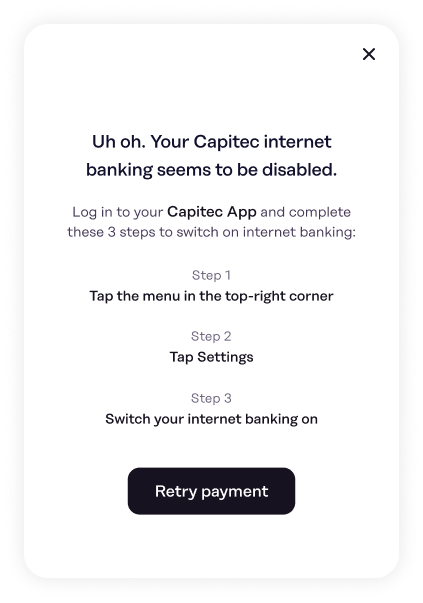
Credit: support.stitch.money
Capitec App Security And Privacy Concerns
Some users worry about security after the app fails. Here’s what you should know:
- The Capitec app uses end-to-end encryption to protect your data.
- If your app is not working, your money is still safe as long as you keep your PIN and card secure.
- Never share your PIN or one-time passwords (OTPs) with anyone, even if they claim to be from Capitec.
- Always log out from public devices and avoid using the app on shared phones.
For more on mobile banking security, see this guide from the SANS Institute.
Capitec App Not Working: Data And Statistics
To understand how common these problems are, consider these facts:
- In 2023, Capitec had over 10 million active mobile app users in South Africa.
- More than 95% of Capitec’s transactions are done digitally, showing how vital the app is for daily life.
- During system outages, Capitec’s official Twitter account receives hundreds of user complaints per hour.
- Most app issues are resolved by updating the app or clearing cache (over 70%, according to user reports).
Here’s a summary of common causes and their frequency:
| Problem Type | Estimated Frequency (%) | Typical Resolution |
|---|---|---|
| Internet/Network Issue | 30 | Switch connection, restart device |
| Outdated App Version | 25 | Update app |
| Server Outage/Maintenance | 20 | Wait and try later |
| Device Incompatibility | 10 | Use newer device |
| Account/Security Lock | 10 | Reset PIN, visit branch |
| App Cache/Data Corruption | 5 | Clear cache/data, reinstall app |
Frequently Asked Questions
Why Does The Capitec App Keep Asking For Updates?
The Capitec app requires the latest version for security reasons. If you see update prompts often, your phone may not be set to auto-update, or your device storage is full, blocking updates.
What Should I Do If I Forgot My Capitec App Pin?
On the login screen, select Forgot PIN. Follow the steps using your card and ID. If you’re unable to reset, visit a Capitec branch for help.
How Can I Tell If The Capitec App Is Down For Everyone?
Check Capitec’s official social media, website, or search Twitter for recent complaints. If many users are reporting the same issue, it’s likely a system-wide problem.
Can I Use The Capitec App On Two Devices?
No, for security, you can only have the Capitec app registered on one device at a time. If you register on a new device, the old one is deactivated.
Is My Money Safe If The Capitec App Is Not Working?
Yes, your funds remain safe even if the app is down. Your banking data is encrypted. Just avoid sharing your PIN or card details with anyone.
When your Capitec app is not working, it’s usually a temporary issue. By following the right steps—checking your connection, updating the app, and clearing cache—you can solve most problems quickly. Always use official channels for help, and remember that most issues are easy to fix at home.
By keeping your device and app updated, you’ll enjoy smooth digital banking with Capitec. If you ever need expert help, Capitec’s support lines and branches are there to assist. Stay informed and secure, and your banking experience will remain stress-free.