In today’s digital world, syncing keeps our devices, apps, and files up-to-date and accessible everywhere. But sometimes, not syncing is smarter. You may want to keep certain data private, avoid technical glitches, or simply keep your devices running faster. The decision to “keep not syncing” is more important than it seems—especially for people who use multiple devices or cloud services every day. If you’re wondering why, when, or how to choose not to sync, you’re not alone. This article dives deep into the reasons, methods, risks, and smart strategies for keeping your data unsynced.
Why Do People Choose Not To Sync?
Syncing is convenient, but there are solid reasons for not syncing some files, apps, or devices. Let’s explore the main motivations:
1. Privacy Concerns
Many users worry about their personal data being exposed. Syncing often involves storing files in the cloud, where hackers or companies might access them. Sensitive documents, medical records, or financial details are safer when not synced.
2. Limited Bandwidth Or Data Caps
Syncing large files can quickly consume your internet bandwidth, leading to slow speeds or expensive overage charges. Not syncing avoids these costs, especially for people with limited data plans.
3. Device Storage Constraints
Some devices, like smartphones or tablets, have small storage. Syncing can fill up space with files you don’t need on every device. Keeping files unsynced saves precious storage.
4. Avoiding Technical Errors
Syncing sometimes causes duplicate files, corrupted data, or conflicts between versions. Not syncing eliminates these risks and keeps your files stable.
5. Regulatory Compliance
Businesses in sectors like health or finance must follow strict rules about data storage and sharing. Not syncing certain files helps them meet legal standards.
6. Personal Preference And Control
Some people simply prefer to handle files manually. They want to know exactly where their data is, and avoid automatic changes.
How Syncing Works (and Why It Sometimes Fails)
To understand the benefits of not syncing, it helps to know how syncing works—and why it’s not always reliable.
What Is Syncing?
Syncing means updating files, apps, or settings across devices, so everything matches. For example, if you edit a file on your laptop, it appears updated on your phone. Syncing uses cloud services like Google Drive, iCloud, or Dropbox.
Common Syncing Problems
Syncing can fail for many reasons:
- Network issues: Poor internet stops syncing.
- App bugs: Software errors break sync processes.
- File conflicts: Two versions of a file can cause confusion.
- Account problems: Logging out or changing passwords can disrupt sync.
Real-world Example
Imagine you’re working on a shared spreadsheet. If two people edit the same cell, syncing might fail, creating duplicate or missing data. This confusion is why some teams turn syncing off for critical files.
Benefits Of Keeping Not Syncing
Choosing not to sync isn’t just about avoiding trouble—it has clear advantages.
Better Privacy And Security
When files stay local, they’re less exposed to hacking, leaks, or unwanted access. Unsynced data is harder for outsiders to reach.
Faster Device Performance
Syncing uses CPU and memory. By not syncing, your device runs smoother, especially older models.
More Control Over Data
You decide which files go where. There’s no risk of automatic updates or unwanted changes.
Avoiding Unnecessary Costs
Cloud syncing often costs money. By keeping files unsynced, you avoid subscription fees and data charges.
Reduced Risk Of Data Loss
Syncing errors can delete or overwrite files. Keeping files unsynced protects them from accidental loss.
Risks And Drawbacks Of Not Syncing
While not syncing has benefits, it’s not always the perfect solution.
Limited Access
Unsynced files are only available on one device. If your phone breaks or your laptop is lost, you may lose important data.
Manual Updates Needed
You must update files yourself—no automatic changes. This can be time-consuming.
Reduced Collaboration
Teams working on projects may struggle without syncing. Sharing files manually can cause delays.
Higher Chance Of Forgetting
People sometimes forget to back up unsynced files, increasing risk of loss.
When Should You Keep Not Syncing?
Knowing when to keep not syncing is crucial. Here are smart situations where it makes sense:
- Sensitive Personal Files
- Medical records, legal documents, or passwords are best kept unsynced.
- Confidential Business Data
- Company secrets or client information should stay local.
- Temporary Files
- Drafts or test files don’t need to be everywhere.
- Large Media Files
- Videos or photos can consume storage and bandwidth; keep them unsynced unless needed.
- Devices with Limited Storage
- Older phones or tablets may benefit from unsynced files.
- Travel Situations
- When abroad, avoid syncing to save on roaming data charges.
How To Keep Not Syncing: Practical Steps
It’s easy to say “don’t sync,” but how do you actually do it? Here are proven steps:
Disabling Sync In Popular Apps
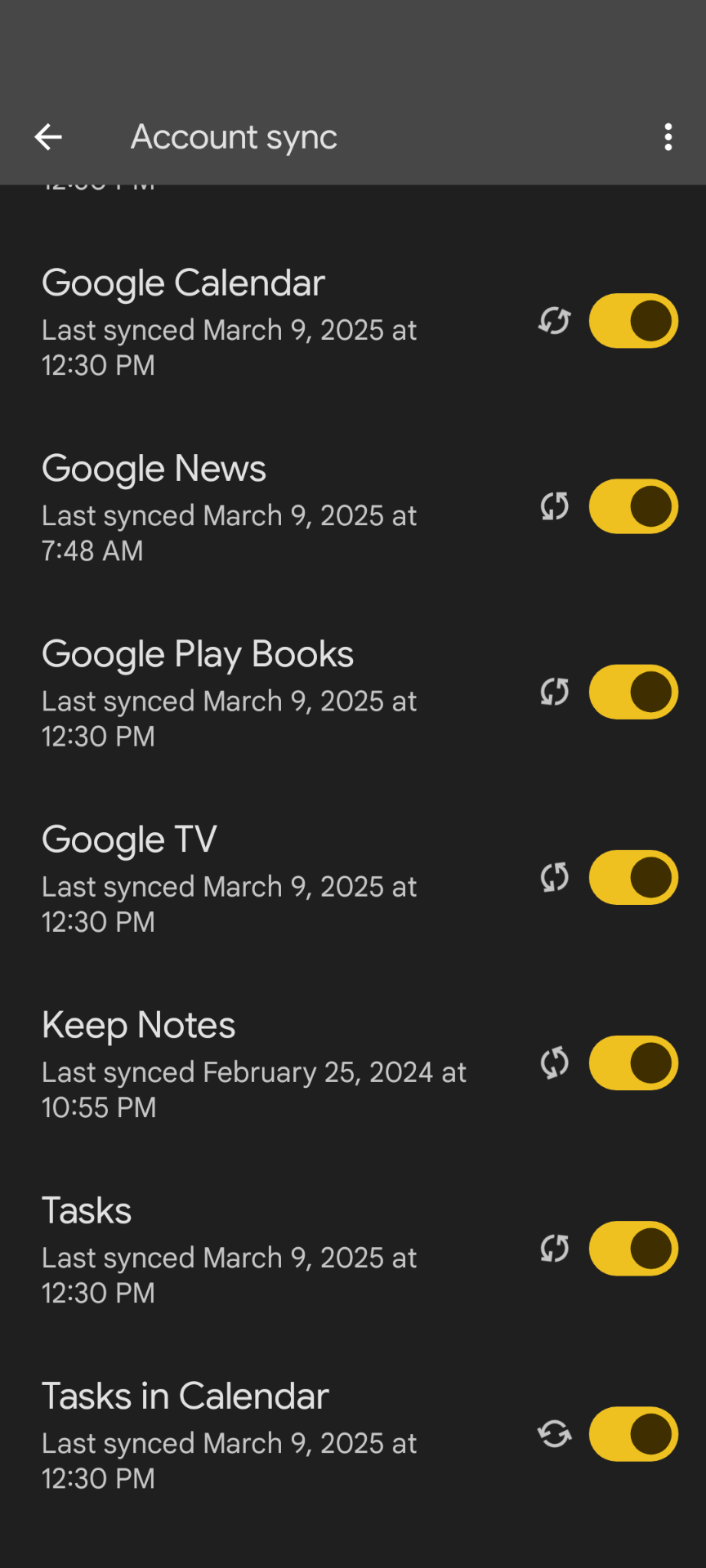
Most apps allow you to turn off sync:
- Google Drive: Go to Settings > Disconnect Account.
- ICloud: Settings > Apple ID > iCloud > Toggle off unwanted items.
- Dropbox: Preferences > Sync > Selective Sync.
Managing Local Files
Organize files by folders. Make regular backups to an external drive or USB stick. Use strong passwords if files are sensitive.
Manual File Transfers
Use USB cables or external drives to move files between devices. This avoids cloud syncing altogether.
Selective Syncing
Some apps let you sync only certain folders. Use selective sync for files you want on multiple devices, while keeping others unsynced.
Keeping Apps Up-to-date
Don’t forget to update apps manually. Unsynced apps won’t get automatic updates, so check for new versions.
Credit: support.google.com
Comparison: Syncing Vs Not Syncing
To help clarify, see this direct comparison:
| Feature | Syncing | Not Syncing |
|---|---|---|
| Accessibility | Available everywhere | Local only |
| Privacy | Less private | More private |
| Risk of Data Loss | Lower (if cloud backup) | Higher (if no backup) |
| Performance | Uses resources | Faster device |
| Cost | Possible fees | No cloud fees |
Real-life Scenarios: Who Benefits From Not Syncing?
Let’s look at some practical situations where not syncing is best.
Journalists And Activists
People working in risky environments often avoid syncing. Keeping files local avoids surveillance and hacking.
Travelers
If you’re in a country with poor internet or expensive roaming, not syncing saves money and reduces frustration.
Students
Students with limited device storage or poor internet can keep study materials local, avoiding sync errors.
Small Businesses
Companies handling client data or trade secrets may keep files unsynced to meet privacy laws.
Elderly Users
Older people may find syncing confusing. Keeping files unsynced simplifies device use.
Smart Strategies For Keeping Not Syncing
Not syncing doesn’t mean ignoring backups or security. Here’s how to stay safe and organized:
Regular Manual Backups
Schedule weekly or monthly backups to an external drive. This reduces risk of data loss.
Use Strong Passwords
If files are sensitive, protect them with strong passwords or encryption.
Keep A Backup Plan
Consider storing a copy of important files in a safe place, like a locked drawer or a trusted friend’s house.
Organize Your Files
Use clear folder names and dates. This helps you find files easily.
Limit Device Sharing
Don’t share devices with others if you keep sensitive files unsynced.
How To Choose Between Syncing And Not Syncing
The decision comes down to your needs. Ask yourself:
- Do I need files on multiple devices?
- Is privacy more important than convenience?
- Am I at risk of losing my device?
- Do I have good backup habits?
If you value privacy and control, not syncing is smart. If you work in teams or need access everywhere, syncing is better.

Credit: www.reddit.com
Data And Trends: Syncing Habits Worldwide
Recent studies show that:
- Around 71% of US adults use at least one cloud syncing service.
- About 28% worry about privacy and choose not to sync certain files.
- 42% of people have experienced sync errors or data loss.
- In Asia, only 54% use syncing regularly, citing cost and privacy.
These numbers show that not syncing is common, especially for sensitive data.
Common Mistakes When Keeping Not Syncing
Avoid these errors:
- Not Backing Up Files
- Unsynced files need manual backups. Forgetting this can lead to disaster.
- Poor Organization
- Scattered files are hard to find. Use folders and clear names.
- Weak Security
- Unsynced files are vulnerable if your device is stolen. Use passwords and encryption.
- Outdated Software
- Apps and devices need updates. Unsynced setups require manual checks.
Credit: www.dbreunig.com
Keeping Not Syncing: Data Table
To illustrate, here’s a look at common sync settings:
| App/Service | Default Sync | How to Disable Sync |
|---|---|---|
| Google Photos | Automatic | Settings > Backup & Sync > Off |
| Apple Notes | Automatic | Settings > Apple ID > iCloud > Notes > Off |
| Microsoft OneDrive | Automatic | Settings > Accounts > Choose folders to sync |
| Manual | No sync unless backup enabled | |
| Dropbox | Automatic | Preferences > Sync > Selective Sync |
Advanced Methods For Keeping Not Syncing
For people who want even more control, try these advanced methods:
Encryption
Encrypt files before saving. Even if someone accesses your device, files stay secure.
Offline Apps
Some apps work entirely offline, never syncing data. Examples include offline note apps or spreadsheets.
Private Cloud Solutions
If you need cloud backup but want privacy, use a private server at home. This keeps files off public clouds.
File Versioning
Keep copies of files with different dates. This protects against accidental deletion or editing.
Comparison Table: Syncing Vs Not Syncing For Business
For companies, the choice can be even more complex.
| Factor | Syncing | Not Syncing |
|---|---|---|
| Collaboration | Easy, real-time | Manual, slower |
| Compliance | Risk of leaks | Better control |
| Data Recovery | Cloud backups | Manual backup needed |
| Cost | Subscription fees | One-time hardware cost |
| Security | Depends on provider | Depends on user |
How To Teach Others About Not Syncing
If you want friends, family, or coworkers to understand why not syncing matters, use these tips:
- Share real-life stories about data breaches.
- Show how to disable sync step-by-step.
- Explain the risks of cloud storage.
- Give examples of sensitive files best kept local.
Resources For Further Learning
If you want to explore more, visit the official Wikipedia Synchronization page for technical details and history.
Frequently Asked Questions
What Does “keep Not Syncing” Actually Mean?
“Keep not syncing” means you choose not to update or share files, apps, or settings across devices automatically. Your data stays local and doesn’t transfer to other devices or cloud services.
Is Not Syncing Safe For Important Files?
It can be safe if you make manual backups and use strong security. However, forgetting to back up unsynced files is risky—you might lose them if your device fails.
Can I Keep Some Files Unsynced And Others Synced?
Yes, most apps offer selective sync. You can choose which folders or files to sync, and keep others local. This gives you control and flexibility.
What Is The Best Way To Back Up Unsynced Files?
Use an external drive, USB stick, or local server. Schedule regular backups, and use encryption for sensitive data.
Does Not Syncing Affect App Updates?
Yes, unsynced apps won’t get automatic updates. You need to check for updates manually to stay secure and fix bugs.
Final Thoughts
Choosing to keep not syncing is a personal and sometimes strategic decision. It can protect your privacy, save money, and give you more control. But it also requires good habits—manual backups, strong passwords, and regular updates. As technology changes and our digital lives grow, understanding when and how to keep not syncing is more valuable than ever. Whether you’re a business owner, student, or everyday user, using these insights can help you stay safe, organized, and confident with your data.