If you rely on the British Airways app to check in, manage bookings, or get flight updates, an outage or glitch can be more than just a minor frustration. For many travelers, especially those on the go, the app is not just a convenience—it’s an essential tool. When the British Airways app is not working, it can cause confusion, missed opportunities, and even travel disruptions. This guide explores why the app might fail, how to solve common issues, and what to do if nothing seems to help. You’ll also find practical tips that most users overlook, comparisons with other airline apps, and answers to common questions.
Why The British Airways App Matters
The British Airways app is designed for travelers who want speed and control. It lets you:
- Check in for flights
- Download and store mobile boarding passes
- Track live flight status
- Select seats or manage upgrades
- Receive real-time notifications about changes
- Access your Executive Club account and Avios balance
With more than 10 million downloads, it’s clear the app is a key part of many journeys. But when it stops working, the convenience disappears—and stress levels rise.
Common British Airways App Problems
Not all issues are the same. Here’s what most users report:
- App won’t open: The app crashes on launch or freezes on the splash screen.
- Login failures: Passwords not accepted, or accounts not recognized.
- Boarding pass won’t load: Mobile passes don’t appear or cannot be added to Apple Wallet or Google Pay.
- Slow performance: Pages take a long time to load, or features lag.
- Booking management errors: Changes to bookings or seat selection don’t save.
- Missing notifications: Push alerts do not arrive, causing missed updates.
- App not updating: Latest version won’t download or install.
Understanding the exact problem helps you choose the right solution.
Causes Of British Airways App Issues
Several factors can cause the app to misbehave. Some relate to your device or connection, others to the app or British Airways’ servers.
Device-related Causes
- Outdated operating system: Apps may not run well on older iOS or Android versions.
- Full storage: Not enough space can block updates or new data.
- Device settings: Incorrect date/time or denied permissions can cause failures.
Network Issues
- Weak Wi-Fi or mobile data: Poor connectivity can prevent the app from syncing or loading content.
- VPN or firewall: Some network security tools block app access.
- Roaming restrictions: International users may face extra hurdles.
App-specific Problems
- Corrupted cache/data: Temporary files can become damaged over time.
- Old app version: Features may break if the app is not updated.
- Account sync errors: Log-in or profile problems can stop access to bookings.
Server-side Glitches
- British Airways outages: Sometimes, the issue is on their end, not yours.
- API changes: Updates to the airline’s backend may temporarily disrupt the app.
Quick Fixes To Try First
Before you dig deeper, these basic steps solve most issues.
- Restart your device: Simple, but often effective.
- Update the app: Check the App Store or Google Play for the latest version.
- Check your connection: Switch between Wi-Fi and mobile data to see if one works better.
- Close and reopen the app: Force quit and relaunch.
- Clear the app cache (Android): Go to Settings > Apps > British Airways > Storage > Clear Cache.
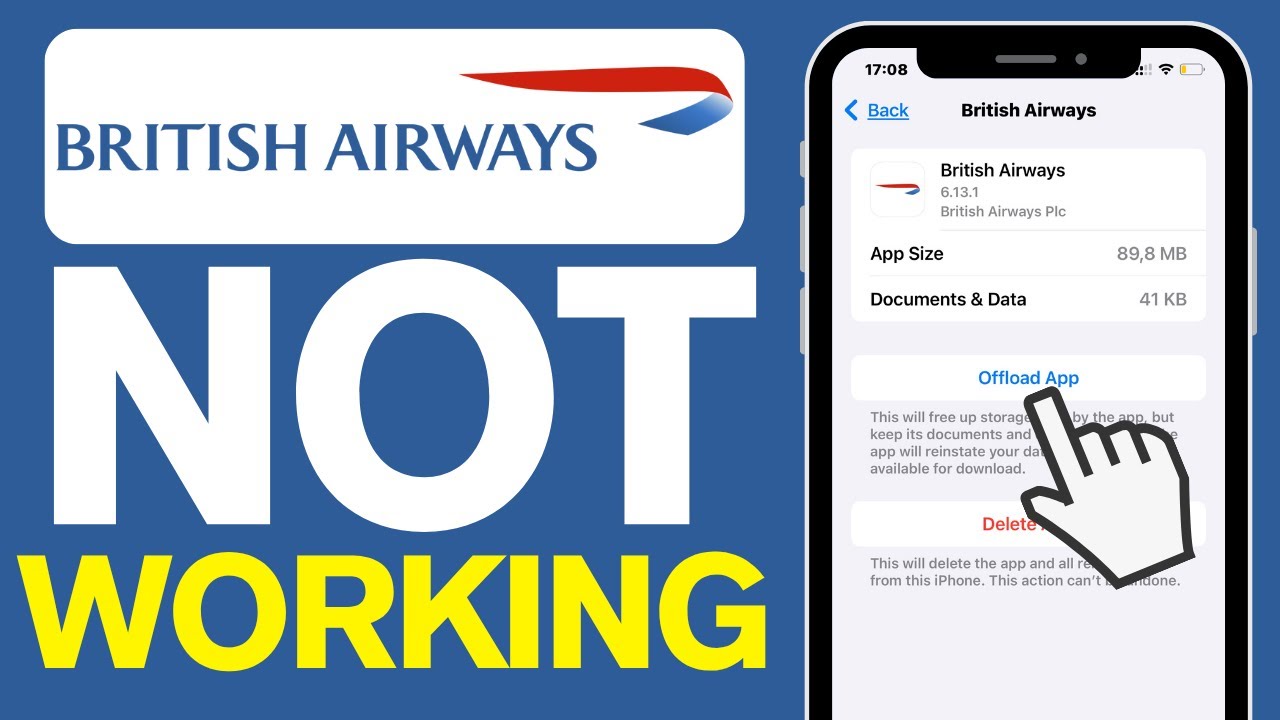
- Reinstall the app: Delete, then download again.
If none of these work, the problem may be more complex.
Step-by-step Troubleshooting Guide
If you’re still stuck, follow these steps to isolate and fix the problem.
1. Check For App Updates
Developers release updates to fix bugs and improve security. Using an outdated app increases the risk of glitches. Open your phone’s app store and search for British Airways. If there’s an update, install it.
2. Test On A Different Device
Sometimes, the problem is specific to your phone or tablet. If possible, install the app on another device and try logging in. If it works there, your original device may have a unique issue.
3. Review Internet Access
Try loading other apps or websites. If they’re also slow or offline, the problem is your connection. If only the British Airways app fails, move to the next step.
4. Check British Airways System Status
British Airways sometimes posts about outages on their website or social media. You can also use independent outage trackers like DownDetector to see if other users have the same issue.
5. Clear App Data (more Than Just Cache)
On Android, you can also clear app data (Settings > Apps > British Airways > Storage > Clear Data). This logs you out and erases saved settings, but it can fix stubborn bugs. On iOS, you need to uninstall and reinstall.
6. Re-login Or Reset Your Password
Problems with your British Airways account can block access. Tap “Forgot password? ” on the login screen and follow the steps. If you still cannot log in, try resetting your password on the British Airways website.
7. Update Your Device’s Operating System
Some app updates require the latest iOS or Android. Check for system updates in your device settings. If you’re running an old version, update and try again.
8. Check App Permissions
Make sure the app has permission to access location, notifications, and storage. Denied permissions can cause unexpected problems.
9. Turn Off Vpns Or Firewalls
Some corporate or personal VPNs block airline apps. Try turning off VPNs or firewalls and see if the app works.
10. Contact British Airways Support
If all else fails, reach out to British Airways customer service. They may be aware of an outage or can reset your account from their end.
Comparing British Airways App With Other Airline Apps
How does the British Airways app stack up against the competition? Here’s a side-by-side look at features and reliability compared to leading airline apps.
| Feature | British Airways | Delta | Lufthansa | Emirates |
|---|---|---|---|---|
| Mobile Check-in | Yes | Yes | Yes | Yes |
| Mobile Boarding Pass | Yes | Yes | Yes | Yes |
| Live Flight Updates | Yes | Yes | Yes | Yes |
| In-App Bag Tracking | No | Yes | No | No |
| Loyalty Integration | Yes | Yes | Yes | Yes |
| Apple Wallet/Google Pay Passes | Yes | Yes | Yes | Yes |
| Customer Ratings (App Store) | 4.7/5 | 4.8/5 | 4.5/5 | 4.6/5 |
While the British Airways app covers essential features, it lacks in-app bag tracking, which is offered by some competitors. User ratings are high, but not the highest among major airlines.
Real-world Examples Of App Failures
To understand how app problems affect travelers, consider these real scenarios:
- Missed check-in: A user tried to check in 24 hours before departure but the app froze. They had to use a desktop browser, losing their preferred seat.
- Boarding pass disappeared: After an iOS update, a traveler’s boarding pass vanished from Apple Wallet. They had to queue at the airport desk, risking a late gate arrival.
- Wrong notification timing: One frequent flier received a gate change alert only after the boarding gate had closed, causing a missed flight.
Such examples show why it’s important to have backup plans.
What To Do If You Can’t Fix The App
Sometimes, no amount of troubleshooting helps. Here’s how to protect your travel plans if the British Airways app just won’t work:
- Check in on the website: Use the desktop or mobile browser version of ba.com.
- Print your boarding pass: If you worry about mobile issues, print your pass as a backup.
- Save documents offline: Take screenshots of boarding passes and booking details.
- Visit an airport kiosk: Most airports have self-service kiosks for check-in.
- Arrive early: If you expect trouble, give yourself extra time at the airport.
Hidden Troubles Beginners Often Miss
Some issues aren’t obvious, especially for new travelers or first-time app users.
1. Device Time And Date Mismatch
If your phone’s time or date is wrong (even by a few minutes), the app might refuse to connect to British Airways servers for security reasons. Always set your device to update time and date automatically.
2. Multiple Devices Or App Sessions
Logging in on multiple devices at once can sometimes trigger security blocks. If you share your account with a family member, try logging out everywhere else.
3. Local Storage Problems
If you’ve installed the app on a device with very little storage left, new updates or downloads (like boarding passes) might silently fail. Free up some space and try again.
4. App Not Allowed To Run In Background
Some battery-saving modes (especially on Android) stop the British Airways app from sending notifications. Check your device’s battery optimization settings and make exceptions for the app.
Tips For A Reliable App Experience
To avoid future problems, these habits help keep the British Airways app running smoothly:
- Update early: Don’t wait for the last minute before your flight to update the app.
- Test before travel: Open the app a few days before departure to check for problems.
- Enable auto-updates: Let your device install app updates automatically.
- Allow notifications: Make sure you’re set to receive push alerts.
- Use strong Wi-Fi: Especially when checking in or downloading boarding passes.
- Backup your essentials: Screenshot or print important travel documents.

Credit: www.youtube.com
When It’s Not Just You: System-wide Outages
Sometimes, the British Airways app goes down for thousands of users at once. Major outages often happen during:
- System upgrades
- High-traffic holidays
- Unexpected technical failures
During these times, all users may be affected, and solutions are out of your hands. You can check sites like Downdetector for live outage maps and reports.
How British Airways Communicates During App Problems
If the app fails due to a system-wide problem, British Airways usually:
- Posts updates on their official Twitter account
- Sends emails to affected customers (if possible)
- Displays notices on the website’s homepage
Always check these sources for the latest news if you suspect a widespread outage.
Credit: www.youtube.com
Data Privacy And Security Concerns
When troubleshooting, some users worry about their data. Clearing cache or reinstalling the app does not delete your bookings or Avios points—they’re stored on British Airways servers. However, always:
- Log out before uninstalling if possible
- Never share your password with support staff
- Use only the official app from the App Store or Google Play
British Airways App Vs. Mobile Website
If the app won’t work, can you get the same features on the mobile web? Here’s a direct comparison.
| Task | British Airways App | Mobile Website |
|---|---|---|
| Check in | Yes | Yes |
| Boarding pass download | Yes (offline access) | Yes (PDF, but must save manually) |
| Live flight status | Yes (push notifications) | Yes (manual refresh) |
| Seat selection | Yes | Yes |
| Loyalty account access | Yes | Yes |
| Offline access | Yes | No |
The app is better for offline boarding pass access and instant notifications. The website is a good backup for most other features.

Credit: www.reddit.com
How To Report App Bugs Effectively
If you want to help British Airways improve their app, report bugs with as much detail as possible:
- Include your device model and OS version
- State the app version (find it in app settings)
- Describe the problem step by step
- Attach screenshots if possible
- Mention any error messages
This makes it easier for tech teams to find and fix the issue.
Should You Trust The British Airways App?
No app is perfect, but British Airways’ app has a strong track record. According to App Store and Google Play reviews, over 70% of users rate it 4 stars or higher. Most negative reviews are tied to specific device bugs or temporary outages, not ongoing problems.
Still, it’s smart to be prepared. Don’t rely on any single digital tool for your whole travel experience. Always have a backup plan.
Frequently Asked Questions
Why Is My British Airways App Not Letting Me Log In?
Login issues can be caused by incorrect passwords, outdated app versions, or account security blocks. Try resetting your password on the British Airways website, update the app, and check your internet connection. If the problem continues, contact British Airways support for help.
Can I Check In Without The British Airways App?
Yes, you can check in using the British Airways website or at the airport using self-service kiosks. If the app isn’t working, visit ba.com on your mobile browser or print your boarding pass at home.
Is The British Airways App Safe To Use For Bookings?
The official app uses secure connections and encryption. Only download the app from the Apple App Store or Google Play. Never share your password with anyone, and log out if using a shared device. For more on app security, see the British Airways security page.
What Should I Do If My Boarding Pass Disappears From The App?
If your mobile boarding pass vanishes, try restarting the app or your device. If it doesn’t return, log in to the British Airways website and download or print your boarding pass. You can also get a new copy at the airport check-in desk.
How Do I Know If The British Airways App Is Down For Everyone?
Check independent outage trackers like DownDetector or search for updates on the British Airways Twitter account. If many users report problems at the same time, it’s likely a system-wide issue.
Travelers trust the British Airways app for its speed and convenience, but like any technology, it can fail. With the tips and troubleshooting steps above, you’ll be ready to handle most problems quickly and keep your journey on track. If you ever feel stuck, remember: there’s always a backup option, and the airline’s support team is just a call or message away.