Connecting your smartwatch to your phone should be quick and easy. But for many users, the Itime Smartwatch sometimes refuses to pair, sync, or stay connected. This can be frustrating, especially when you rely on your device for notifications, fitness tracking, and daily tasks. Understanding why the Itime Smartwatch is not connecting to your phone—and how to fix it—can save you hours of stress.
This article will help you solve connection problems with the Itime Smartwatch. You’ll learn about common causes, step-by-step solutions, troubleshooting tips, and how to avoid future issues. Whether you are a beginner or have some experience, you’ll find practical advice and clear explanations to get your smartwatch working smoothly.
Why Your Itime Smartwatch Won’t Connect
The Itime Smartwatch uses Bluetooth to connect to phones, but there are many factors that can cause problems. Here are the most frequent reasons:
- Bluetooth Issues: Bluetooth is not enabled, or there is interference from other devices.
- App Problems: The companion app is outdated, buggy, or not installed properly.
- Device Compatibility: The phone’s operating system or hardware does not support the smartwatch.
- Software Updates: Either the phone or the smartwatch needs a firmware update.
- Physical Barriers: Walls, distance, or metal objects block the signal.
- Battery Issues: Low battery or charging errors can prevent pairing.
- Permissions: The app does not have required permissions (location, Bluetooth, etc. ).
- Pairing Conflicts: The smartwatch is already paired to another device.
Many users miss two key points: Bluetooth signal interference from nearby electronics is often overlooked, and app permissions (especially location) are critical even if you’re not tracking location. Without the right permissions, the app cannot scan for devices.
First Steps: Basic Troubleshooting
Before trying advanced fixes, follow these simple steps to solve most connection issues:
- Check Bluetooth: Make sure Bluetooth is turned on for both devices.
- Restart Devices: Power off and restart your phone and smartwatch.
- Charge Both Devices: Low battery can cause connection errors.
- Update the App: Download the latest version from Google Play or App Store.
- Update Firmware: Check for updates on your smartwatch and install them.
- Move Closer: Keep the phone and smartwatch within 10 feet (3 meters).
If your device still won’t connect, move to deeper troubleshooting.

Credit: www.big5sportinggoods.com
Checking Compatibility
Not every phone works with every Itime Smartwatch model. Check these points:
- Operating System: Most Itime watches require Android 5.0+ or iOS 10+.
- Bluetooth Version: Phones must support Bluetooth 4.0 or newer.
- App Support: The Itime app may not work on older phones or tablets.
Here’s a quick comparison of compatibility:
| Device Type | Minimum OS | Bluetooth | App Support |
|---|---|---|---|
| Android Phone | Android 5.0 | 4.0+ | Yes |
| iPhone | iOS 10 | 4.0+ | Yes |
| Windows Phone | N/A | N/A | No |
If your phone is not compatible, connection will fail every time. Always check your device specs before buying a smartwatch.
Solving Bluetooth Pairing Problems
Bluetooth pairing issues are common with smartwatches. If you see errors like “Cannot find device” or “Pairing failed,” try these steps:
1. Remove Previous Pairings
If your smartwatch was paired with another phone, remove that pairing first. Go to Bluetooth settings and “forget” the device.
2. Clear Bluetooth Cache
On Android, go to Settings > Apps > Bluetooth > Storage > Clear Cache. On iPhone, simply restart the phone.
3. Turn Bluetooth Off And On
Disable Bluetooth for 10 seconds, then enable it again. This refreshes the connection.
4. Re-pair The Devices
Open the Itime app and start pairing as instructed. Make sure only one phone is searching.
5. Avoid Interference
Move away from WiFi routers, microwaves, or other Bluetooth devices that can interfere.
Here’s a simple comparison of common Bluetooth issues:
| Problem | Likely Cause | Quick Fix |
|---|---|---|
| Cannot Find Device | Bluetooth off or blocked | Enable Bluetooth, move closer |
| Pairing Fails | Already paired elsewhere | Unpair from other devices |
| Connection Drops | Interference, low battery | Charge, move away from electronics |
Fixing App And Permissions Issues
The Itime Smartwatch relies on its companion app for pairing and syncing. If the app is not working, pairing will fail. Here’s how to fix app-related problems:
Update Or Reinstall The App
- Uninstall the Itime app.
- Restart your phone.
- Download and install the latest version from the app store.
Grant Permissions
When you open the app for the first time, it asks for permissions. If you miss this step, the app cannot scan for devices.
- Location Permission: Needed for Bluetooth scanning.
- Bluetooth Permission: Allows connection.
- Notifications: Needed for alerts.
Go to Settings > Apps > Itime > Permissions, and turn on all required permissions.
Check App Settings
Open the app and check if your smartwatch model is supported. Some models need extra steps or updates.
Beginner tip: Many users ignore location permission, thinking it’s not needed. But Bluetooth scanning requires it, even if you don’t use GPS features.
Updating Smartwatch Firmware
Outdated firmware can cause connection errors. Firmware updates fix bugs and improve stability. Here’s how to update:
- Connect your smartwatch to a charger.
- Open the Itime app and check for firmware updates.
- Follow instructions to update.
Warning: Do not disconnect the smartwatch during the update. This can cause more problems.
If your watch is stuck during the update, restart both devices and try again.
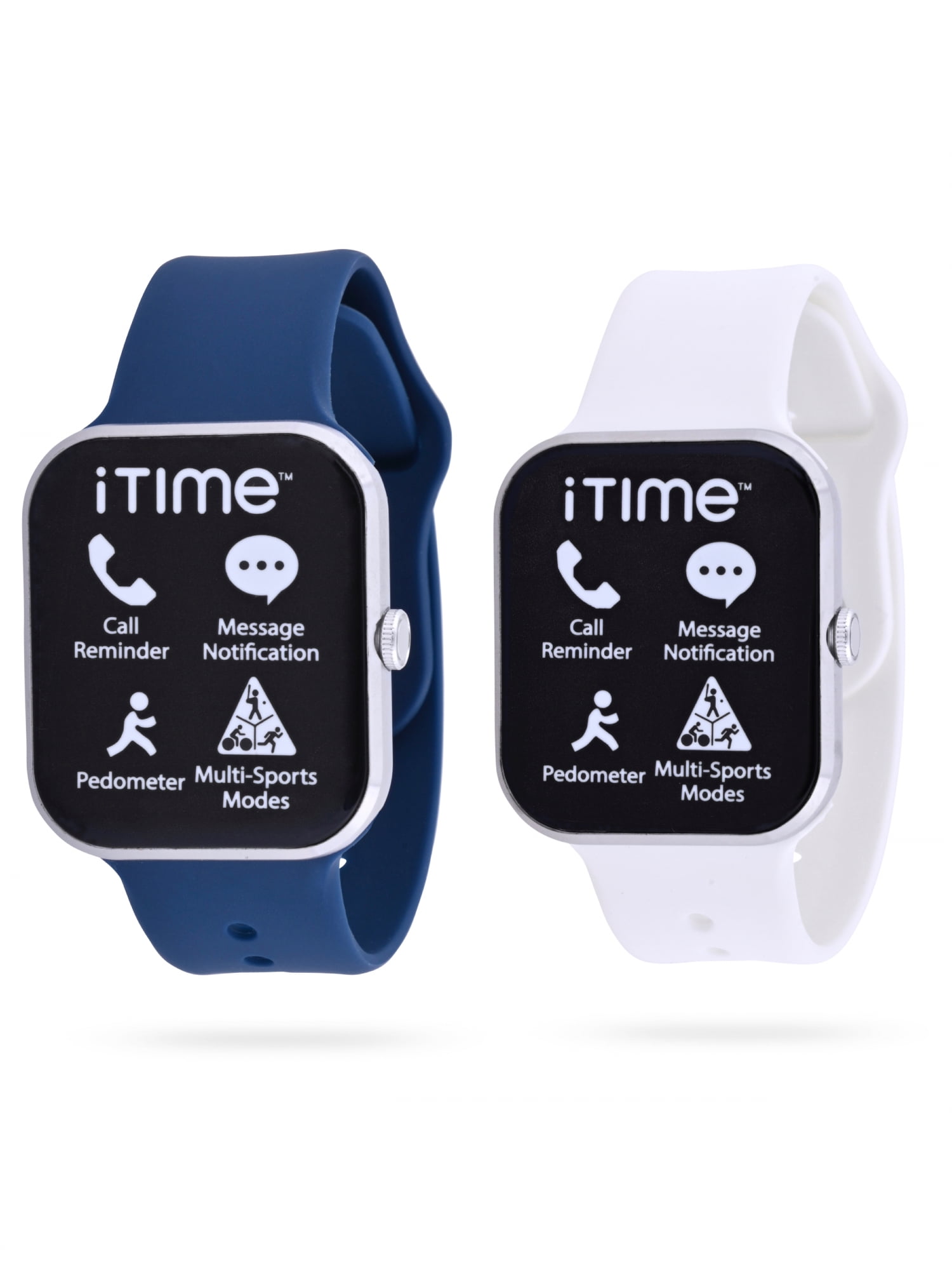
Credit: www.walmart.com
Advanced Troubleshooting Steps
If basic solutions don’t work, try these advanced steps:
Factory Reset Your Smartwatch
A factory reset wipes all data and returns the device to original settings.
- Go to Settings on the smartwatch.
- Choose “Factory Reset.”
- Confirm and restart.
After reset, pair the device again.
Reset Network Settings On Your Phone
On Android: Settings > System > Reset Options > Reset Wi-Fi, Mobile & Bluetooth.
On iPhone: Settings > General > Reset > Reset Network Settings.
This clears all network and Bluetooth settings. You’ll need to reconnect Wi-Fi after.
Check For Hardware Issues
If your smartwatch still won’t connect, it may have a hardware problem. Common signs:
- Bluetooth won’t turn on at all.
- Watch won’t charge or power up.
- Screen is frozen.
Contact Itime support or visit a service center if you suspect hardware damage.
Common Mistakes And How To Avoid Them
Many connection problems are caused by simple mistakes. Here are some to watch for:
- Trying to pair without charging: Always charge both devices first.
- Not granting permissions: Double-check app permissions.
- Pairing from phone settings instead of app: Use the Itime app for pairing.
- Using a phone with an unsupported OS: Check compatibility.
- Ignoring software updates: Keep both app and firmware updated.
- Pairing multiple smartwatches at once: Disconnect other devices before pairing.
A non-obvious insight: Some phones limit Bluetooth connections when battery-saving modes are active. Turn off power-saving mode before pairing.

Credit: www.ebay.com
Real-world Examples
Let’s look at a few common user scenarios:
- User A tried to connect their Itime Smartwatch to an old Android phone. Connection failed because the phone had Android 4.4 and didn’t support Bluetooth 4.0. Upgrading to a newer phone fixed the issue.
- User B had a smartwatch paired to their tablet. When trying to pair with their phone, the watch did not appear in the list. Unpairing from the tablet allowed pairing with the phone.
- User C ignored the location permission for the app. The phone couldn’t find the smartwatch until the location permission was enabled.
These examples show that checking compatibility, removing old pairings, and granting permissions can solve most connection problems.
How To Prevent Connection Issues
Once your Itime Smartwatch is connected, you want it to stay connected. Here are tips to avoid future problems:
- Keep Devices Updated: Update both phone and smartwatch regularly.
- Stay Within Range: Bluetooth works best within 10 feet (3 meters).
- Avoid Interference: Stay away from WiFi routers and other Bluetooth devices.
- Maintain Battery Levels: Charge devices before pairing.
- Use Official Apps: Avoid third-party apps that may not support your device.
A practical tip: If you travel often, turn off Bluetooth on other devices to avoid pairing conflicts.
Comparing Itime Smartwatch With Other Brands
To understand if your connection issues are unique to Itime, let’s compare how pairing works with other brands.
| Brand | Pairing Method | Common Issues | Support Quality |
|---|---|---|---|
| Itime | App-based | Bluetooth, permissions | Moderate |
| Apple Watch | Direct (iOS only) | OS updates, WiFi | High |
| Samsung Galaxy | App-based | Bluetooth, app bugs | High |
| Fitbit | App-based | Sync errors, battery | Moderate |
Itime relies on the app for most pairing functions, while Apple Watch uses direct iOS integration. If you want fewer pairing issues, brands with dedicated support may offer a better experience.
When To Contact Support
If you try all the steps above and your Itime Smartwatch still won’t connect, it’s time to contact support. Here’s what you should prepare:
- Model number of your smartwatch.
- Phone brand and model.
- OS version (Android/iOS).
- Detailed description of the problem.
- Steps you have already tried.
Itime support can guide you through advanced troubleshooting or help with warranty claims if your device is faulty.
For official information and firmware downloads, visit the Itime Smartwatch Official Site.
Frequently Asked Questions
Why Does My Itime Smartwatch Not Show Up In Bluetooth Devices?
If your smartwatch does not appear, Bluetooth is likely disabled, or the watch is paired to another device. Make sure Bluetooth is enabled on both devices, and unpair from other phones or tablets.
Can I Connect My Itime Smartwatch To Any Phone?
No. The smartwatch requires a phone with Android 5. 0+ or iOS 10+, and Bluetooth 4. 0 or higher. Older phones or unsupported operating systems will not connect.
What Should I Do If The App Keeps Crashing?
Uninstall the Itime app, restart your phone, and reinstall the latest version. Make sure you grant all permissions during setup. If the app still crashes, check for phone OS updates or contact support.
How Can I Fix “pairing Failed” Errors?
Try clearing previous pairings, restarting both devices, and pairing from the Itime app—not from Bluetooth settings. Move away from other Bluetooth devices and ensure batteries are charged.
Is It Safe To Factory Reset My Smartwatch?
Yes, but it will erase all data and settings. Only reset if other troubleshooting fails. Always back up any important data before resetting.
Connecting your Itime Smartwatch should be easy, but sometimes small details cause big problems. By understanding Bluetooth, compatibility, app permissions, and practical troubleshooting, you can solve most issues quickly. Remember to keep your devices updated, use the official app, and avoid common mistakes.
If you still have trouble, Itime support is your best option. With these steps, your smartwatch can help you stay connected, active, and organized every day.