Many people trust their iPhones to capture and save their memories. With the rise of cloud technology, iCloud Photos promises to keep these memories safe, accessible, and synced across all devices. But what happens when your iPhone photos are not syncing to iCloud? Suddenly, those important pictures stay stuck on your phone, or worse, disappear when you need them most. If you’re facing this frustrating issue, you’re not alone. Understanding why photos stop syncing and how to fix it is essential for anyone who wants to protect their digital memories. This article will walk you through common causes, actionable solutions, and key insights to help you get your iPhone and iCloud working together smoothly again.
How Icloud Photo Sync Works
To solve problems, it helps to know how things are supposed to work. iCloud Photos is a feature by Apple that stores your photos and videos securely in the cloud. When enabled, every new photo or video you take on your iPhone uploads to iCloud. The cloud then pushes a copy to all other Apple devices using the same Apple ID and with iCloud Photos enabled.
Syncing is supposed to be automatic and seamless. The process depends on a few things:
- Stable internet connection (Wi-Fi or cellular)
- Enough free iCloud storage
- ICloud Photos turned on
- The device must not be in Low Power Mode
Syncing happens in the background. Sometimes, it can take minutes to hours, depending on your connection and the number of photos.
Main Reasons Iphone Photos Don’t Sync To Icloud
Several issues can break this smooth process. Below are the most common reasons:
- Poor internet connection: ICloud needs Wi-Fi or a strong cellular signal.
- ICloud storage is full: If your storage is maxed out, new photos can’t upload.
- ICloud Photos is turned off: Sometimes it gets disabled by mistake.
- Low Power Mode: This pauses iCloud syncing to save battery.
- Outdated iOS version: Old software can cause bugs or compatibility issues.
- Device storage is almost full: The system may pause syncing to avoid problems.
- Software glitches: Temporary bugs or errors can interfere.
- Account issues: Problems with your Apple ID or a sign-in error.
Knowing these causes helps you troubleshoot wisely instead of guessing.
Step-by-step Troubleshooting Guide
Let’s break down practical steps to get your iPhone photos syncing to iCloud again. Follow these in order for the best results.
1. Check Your Internet Connection
A reliable internet connection is essential. Photos won’t upload or download without it.
- Open Safari and try loading a website.
- If the page doesn’t load, connect to a stronger Wi-Fi network or check cellular data settings.
Pro Tip: Large photo libraries often sync much faster over Wi-Fi than cellular.
2. Confirm Icloud Photos Is Enabled
Sometimes, the feature is accidentally turned off.
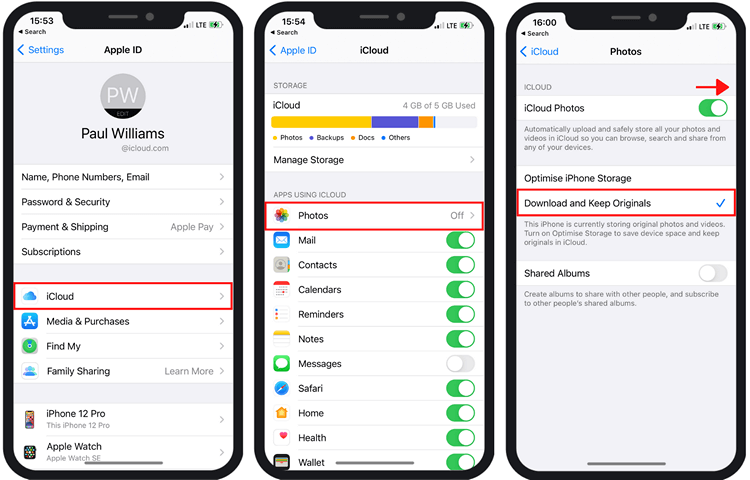
- Go to Settings > [your name] > iCloud > Photos.
- Make sure Sync this iPhone (or “iCloud Photos” on older iOS versions) is toggled ON.
If it’s off, turn it on. Your photos should start syncing soon.
3. Check Icloud Storage Space
If your iCloud storage is full, syncing will stop.
- Go to Settings > [your name] > iCloud > Manage Storage.
You’ll see a chart of used and available space.
Common Icloud Storage Plans
| Plan | Storage | Monthly Price (USD) |
|---|---|---|
| Free | 5 GB | $0 |
| Basic | 50 GB | $0.99 |
| Standard | 200 GB | $2.99 |
| Premium | 2 TB | $9.99 |
If you’re out of space, delete unnecessary backups or upgrade your plan.
4. Restart Your Iphone
A simple restart can solve temporary glitches.
- Press and hold the power button and slide to power off.
- Wait 10 seconds, then turn it back on.
This refreshes your system and can trigger iCloud syncing.
5. Update Your Ios Software
Running the latest iOS version ensures bug fixes and compatibility.
- Go to Settings > General > Software Update.
- If an update is available, download and install it.
Some iCloud issues disappear after updating.
6. Sign Out And Back In To Apple Id
Account problems can block syncing.
- Go to Settings > [your name], scroll down, and tap Sign Out.
- Restart your device, then sign back in.
This often fixes invisible account-related bugs.
7. Disable Low Power Mode
When your iPhone is in Low Power Mode, background syncing is paused.
- Go to Settings > Battery.
- Make sure Low Power Mode is off.
Now, iCloud Photos should sync as usual.
8. Check Device Storage
If your iPhone storage is nearly full, it can block uploading.
- Go to Settings > General > iPhone Storage.
If space is low, delete unused apps, old videos, or transfer files elsewhere.
9. Review Date And Time Settings
Incorrect date or time can confuse iCloud servers.
- Go to Settings > General > Date & Time.
- Enable Set Automatically.
This keeps your device in sync with Apple’s servers.
10. Manually Trigger Icloud Sync
Open the Photos app and leave it open on Wi-Fi. Sometimes, just viewing your library triggers a sync.
- Pull down to refresh in the Photos tab.
- Wait a few minutes.
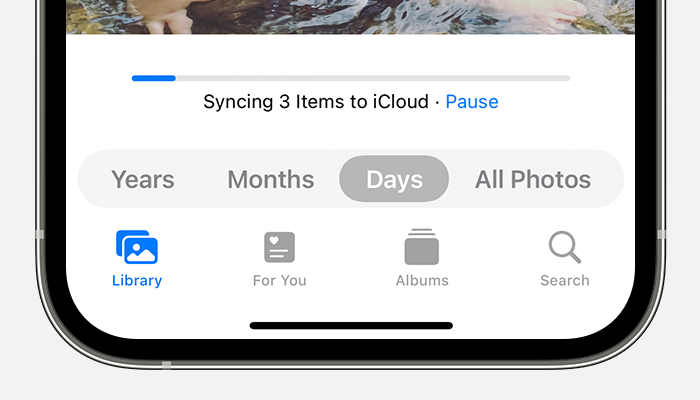
If you see a progress bar at the bottom, syncing has started.
11. Check For System Outages
Rarely, Apple’s iCloud servers have outages.
- Visit the official Apple System Status page.
If there’s a problem, wait for Apple to fix it.
Advanced Fixes For Persistent Syncing Issues
If the basic steps didn’t solve your problem, try these advanced solutions.
Reset Network Settings
Network configuration errors can block syncing.
- Go to Settings > General > Transfer or Reset iPhone > Reset > Reset Network Settings.
Note: This erases saved Wi-Fi passwords.
Free Up Icloud Storage
If you can’t upgrade your plan, try deleting items.
- Remove old backups, unused app data, or large files from iCloud Drive.
- Clean up your Recently Deleted album in Photos.
Turn Off, Then On, Icloud Photos
This forces a fresh sync.
- Go to Settings > [your name] > iCloud > Photos.
- Turn off iCloud Photos, choose to keep photos on device, wait a minute, then turn it back on.
Restore From Icloud Backup
If your photo library is stuck, restoring from a backup may help.
- Back up your iPhone first.
- Erase and set up your device, choosing Restore from iCloud Backup.
Warning: This is a last-resort step. Only try if other methods fail.
Common Scenarios And Solutions
Photos Not Uploading From Iphone
If new pictures stay on your iPhone but don’t appear in iCloud:
- Check for slow Wi-Fi or cellular.
- Make sure iCloud Photos is enabled.
- Confirm enough iCloud storage.
Photos Not Downloading To Other Devices
If pictures are in iCloud but missing on your iPad or Mac:
- Check that iCloud Photos is enabled on every device.
- Sign in with the same Apple ID.
- Connect to Wi-Fi and keep the Photos app open.
Only Some Photos Sync
Partial syncing can be confusing.
- Some photos may be in the Hidden album or use HEIC format not supported on older devices.
- Videos or Live Photos are large and take longer.
- Check for device or iCloud storage limits.
Shared Albums Not Syncing
Shared albums have their own settings.
- Go to Settings > [your name] > iCloud > Photos > Shared Albums.
- Make sure it’s toggled ON.
- Ask the album owner to resend the invitation.
How To Keep Icloud Photos Syncing Smoothly
Prevention is better than cure. Follow these tips to avoid syncing headaches in the future:
- Keep iOS updated: Each update improves reliability.
- Monitor iCloud storage: Check regularly and clean up if needed.
- Use Wi-Fi for big uploads: Cellular data is slower and may pause large syncs.
- Charge your device: Low battery can pause uploads.
- Avoid frequent account changes: Signing in and out repeatedly can cause sync delays.
- Keep Photos app open: Especially for large libraries, leave the app open and device unlocked for a while.
Credit: www.copytrans.net
Comparing Icloud Photos With Other Cloud Services
Sometimes, iCloud isn’t enough for everyone’s needs. Here’s how it compares with other popular cloud photo services:
| Service | Free Storage | Platform Support | Best For |
|---|---|---|---|
| iCloud Photos | 5 GB | Apple devices, Web | Seamless Apple integration |
| Google Photos | 15 GB | iOS, Android, Web | Cross-platform users |
| Amazon Photos | Unlimited (Prime) | iOS, Android, Web | Amazon Prime members |
| OneDrive | 5 GB | iOS, Android, Windows, Web | Windows users |
Non-obvious insight: Some users run both iCloud and Google Photos for extra backup security. Just make sure you don’t confuse which app you’re checking for your latest photos.
What To Do If Photos Still Won’t Sync
If you’ve tried every step and iPhone photos still aren’t syncing to iCloud, consider these actions:
- Contact Apple Support: Sometimes, only an Apple technician can resolve deeper issues.
- Backup your photos manually: Use a computer, AirDrop, or another cloud service as a temporary solution.
- Wait and retry: Occasionally, Apple’s servers or your internet provider may have temporary problems.
Credit: mobi.easeus.com
Data Loss: How To Minimize Risk
Losing photos is a nightmare for many people. Here’s how to reduce the risk:
- Regular backups: Use iCloud and another cloud service for redundancy.
- Export important albums: Every few months, move your best photos to a computer or external drive.
- Be careful with “Optimize iPhone Storage”: This setting saves space by keeping only lower-quality versions on your device. If your iCloud sync fails, you could lose full-quality photos if your device is lost.
- Don’t rush to delete: If photos are missing after a sync, wait a few hours before deleting anything. Sometimes, they just need more time to appear.
Real-world Example
Anna, a college student, noticed her vacation photos stopped syncing. She checked her iCloud storage and saw it was full. Upgrading to the next plan fixed the problem, and her photos started appearing on her iPad. The key insight: sometimes the solution is as simple as checking your storage and making a small upgrade.
Another case: Ben’s iPhone kept pausing uploads. He found that Low Power Mode was always on. Turning it off allowed his photos to sync within minutes.
How Syncing Performance Varies
Not all photo libraries sync at the same speed. Here’s a comparison of typical upload times for a 1,000-photo library (assuming good Wi-Fi):
| Library Size | Average Upload Time | Factors Affecting Speed |
|---|---|---|
| 1,000 photos (2 GB) | 1-3 hours | Wi-Fi speed, device in use, battery |
| 5,000 photos (10 GB) | 3-10 hours | Background activity, device heat |
| 10,000 photos (20 GB) | Overnight to 1 day | Network congestion, iCloud load |
Non-obvious insight: If you just switched to a new iPhone, syncing your full photo library can take much longer than you expect. Be patient, connect to Wi-Fi, and keep your device plugged in.
When To Use “download And Keep Originals”
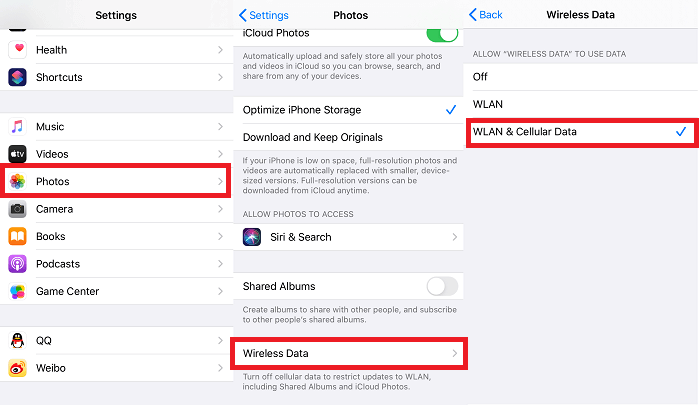
In your Photos settings, you can choose Optimize iPhone Storage or Download and Keep Originals. Here’s when each is best:
- Optimize iPhone Storage: Good for smaller devices with limited space. Full-resolution photos stay in iCloud.
- Download and Keep Originals: Best if you have lots of device storage and want all photos available offline.
Switching between these options can also trigger re-syncing. If you’re troubleshooting, try toggling these settings.
The Role Of Apple Id In Syncing
All your devices must use the same Apple ID for iCloud Photos to sync. If you use different accounts on each device, syncing will not work. This is a common mistake in families or shared devices.
- Check Apple ID on each device under Settings > [your name].
- If you have multiple Apple IDs, consider merging or consolidating content.
Signs That Syncing Is Working
How do you know if your photos are syncing? Look for:
- A status bar at the bottom of the Photos app (e.g., “Uploading 200 items…”)
- Photos appearing on other devices within minutes to hours
- No error messages in Settings > Photos
If the status stays stuck or you see error messages, revisit the troubleshooting steps above.
Credit: discussions.apple.com
Frequently Asked Questions
Why Are My Iphone Photos Not Syncing To Icloud Even With Enough Storage?
Sometimes, it’s not about storage. Check your internet connection, make sure iCloud Photos is enabled, and confirm you’re signed in with the correct Apple ID. Also, check for Low Power Mode, which can pause syncing.
How Do I Force My Iphone To Sync Photos To Icloud?
Open the Photos app, connect to Wi-Fi, and leave the app open for several minutes. Pull down to refresh your library. If it still doesn’t sync, restart your device or toggle iCloud Photos off and on.
Will I Lose My Photos If I Turn Off Icloud Photos?
When you turn off iCloud Photos, you’ll see an option to keep photos on your device. If you select this, your photos remain on your iPhone. If you choose to remove them, they’ll be deleted from your device but stay in iCloud.
Is It Safe To Delete Photos From My Iphone If They Are In Icloud?
If iCloud Photos is enabled, deleting a photo from your iPhone deletes it from iCloud and all connected devices. To keep a photo, back it up to another location before deleting.
Where Can I Find More Help If Syncing Problems Persist?
Visit Apple’s official support page or contact Apple Support directly. You can also check the Apple iCloud Photos Help for step-by-step guides.
Keeping your photos safe and accessible is important. By understanding how iCloud Photos works and knowing what to do when things go wrong, you can avoid losing your valuable memories. With the right steps and a bit of patience, your iPhone photos should sync smoothly to iCloud, letting you enjoy peace of mind and easy access on all your devices.