If you’ve ever launched the DJI Fly app only to see it crash, freeze, or fail to connect to your drone, you know how frustrating it can be. The DJI Fly app is the heart of many DJI drones, from the popular Mavic Mini to the Air 2S and Mini 3 Pro. Without it, features like live video feed, intelligent flight modes, and firmware updates are out of reach. But when the app stops working, it can ruin a flying day or even put your drone investment at risk.
This guide will help you solve DJI Fly app problems, whether you’re a new pilot or have hundreds of flight hours. You’ll learn why the app stops working, how to fix it, and what to do if you just can’t get it running.
You’ll also discover some less obvious reasons for app failure that even experienced users sometimes miss. By the end, you’ll know how to get back in the air with confidence.
Why The Dji Fly App Stops Working
Many factors can cause problems with the DJI Fly app. Some are simple, like an outdated version. Others are more complex, involving device compatibility or hidden settings. Knowing the root causes can save you time and stress.
Common Reasons For Dji Fly App Problems
1. Device Compatibility
The DJI Fly app does not work on every smartphone or tablet. It needs a 64-bit device running a specific version of Android or iOS. Many budget or older devices are not supported, even if they can install the app.
2. Outdated App Version
Using an old version of the DJI Fly app can result in bugs, crashes, or missing features. DJI often updates the app to fix issues, support new drones, and close security holes.
3. Os Version Mismatch
If your phone or tablet is running an unsupported version of Android or iOS, the app may not launch or may crash unexpectedly.
4. Permissions Not Granted
The app requires access to storage, camera, location, and sometimes Bluetooth. If you deny these permissions, features may not work or the app could close immediately.
5. Firmware Incompatibility
Sometimes, the drone’s firmware and the app version are out of sync. This can break the connection or cause features to fail.
6. Corrupted App Data
Over time, the app’s cache or data can become corrupted, causing strange behavior or startup failures.
7. Third-party Software Conflicts
Security apps, VPNs, or background cleaners can interfere with the DJI Fly app, especially on Android devices.
8. Internet Connection Issues
Some features need a stable internet connection, especially for logging in, map downloads, or firmware checks.
Less Obvious Causes (what Many Miss)
- USB Cable Issues: Not all USB cables support data transfer. A charging-only cable can prevent the app from seeing your drone.
- Battery Optimization Settings: On Android, aggressive battery saving can kill the DJI Fly app in the background.
- App Not Installed from Official Source: Sideloaded or modded APKs might not work correctly or could contain malware.
Supported Devices And System Requirements
Not every device is compatible with the DJI Fly app. Using an unsupported phone or tablet is a common beginner mistake that leads to hours of troubleshooting.
Here’s a comparison of basic requirements for Android and iOS:
| Platform | Minimum OS Version | Recommended Devices | Notes |
|---|---|---|---|
| Android | Android 7.0 or above | Most devices with 64-bit CPU | Google Play may not list the app for unsupported devices |
| iOS | iOS 11.0 or above | iPhone 8 or newer, iPad Pro, iPad Air (3rd Gen+) | Older iPhones and iPads are not supported |
Pro tip: Even if your phone meets the minimum, some features may only work smoothly on higher-end devices. For example, live streaming, 4K video preview, and certain intelligent flight modes need more processing power.

Credit: www.youtube.com
Initial Troubleshooting: Quick Fixes
Before you dive into deep solutions, try these simple steps. They fix most app problems for DJI pilots.
1. Restart Your Device
A simple reboot clears temporary glitches in the operating system and app.
2. Force Stop And Relaunch The App
On Android: Go to Settings > Apps > DJI Fly > Force Stop. Then reopen the app.
On iOS: Swipe up from the bottom, find DJI Fly, and swipe it away. Open it again.
3. Check For Updates
Update both the DJI Fly app and your device’s operating system. App updates are available on the official DJI website or the App Store.
4. Grant Permissions
Make sure the app has access to storage, location, camera, and notifications.
5. Switch Usb Cables
Try a new, certified cable. Some cables only support charging, not data transfer.
6. Disable Battery Optimization
On Android, go to Settings > Battery > Battery Optimization. Find DJI Fly and set it to “Don’t optimize. ”
7. Connect To The Internet
Some features need an active connection, especially for login or unlocking flight zones.
If the app still won’t work, it’s time to try more advanced solutions.
Deep Dive: Advanced Fixes For Persistent Problems
When quick fixes fail, you need to dig deeper. Below, you’ll find targeted solutions for stubborn DJI Fly app issues.
Reinstall The Dji Fly App
Uninstall the app completely, then reinstall it from the official DJI website or the Apple App Store.
Important: Never use third-party APK sites. Sideloading can introduce malware or unstable versions.
Clear App Data And Cache
On Android, go to Settings > Apps > DJI Fly > Storage > Clear Data and Clear Cache.
On iOS, uninstalling the app removes all data, so just reinstall.
Check Device Compatibility Again
Double-check if your device is truly supported. Some phones, especially from Xiaomi, Huawei, or other brands with heavy customization, may not work well even if specs seem good.
Update Drone And Controller Firmware
Connect your drone and controller to the DJI Fly app and check for firmware updates. Incompatibility between firmware and app versions can cause connection failures.
Try A Different Device
If possible, borrow or use another phone or tablet from DJI’s supported list. If the app works there, your original device is likely the problem.
Factory Reset (last Resort)
If nothing else works, back up your data and perform a factory reset on your phone or tablet. This can fix deep software issues but should only be a last resort.
Compare Common Issues And Solutions
Here’s a quick overview to help you diagnose based on symptoms:
| Problem | Likely Cause | Solution |
|---|---|---|
| App crashes on launch | Outdated app, unsupported OS, corrupted data | Update app/OS, clear data, reinstall |
| No connection to drone | Bad cable, firmware mismatch, permissions | Use new cable, update firmware, allow permissions |
| Live video is black/blank | Low device specs, camera permissions, overheating | Try new device, check permissions, cool device |
| App not found in store | Device not supported, region restrictions | Install from DJI website, use supported device |

Credit: www.reddit.com
Device Compatibility: A Closer Look
Not all Android phones and iPhones are created equal when it comes to running the DJI Fly app. Even if your device is new, it might not be compatible due to software or hardware limitations.
Android Devices
- 64-bit requirement: The DJI Fly app only works on 64-bit Android devices. Many budget phones are still 32-bit.
- Google Play restrictions: If your device isn’t supported, the app may not appear in the Play Store.
- Manufacturer software: Some brands (like Huawei, Xiaomi) use custom Android versions that can break compatibility.
Ios Devices
- Only iPhone 8 and newer: Older iPhones will not run the latest DJI Fly versions.
- IPads: Only iPad models with 64-bit chips and iOS 11 or above will work.
Hidden Device Factors
- Screen resolution: If your device has a very high or low resolution, display issues may occur.
- Background apps: Too many open apps can drain resources, causing the DJI Fly app to crash or lag.
Connection Issues: Drone Won’t Connect To App
One of the most common DJI Fly headaches is the app not connecting to the drone. This can happen for several reasons.
Step-by-step Connection Fixes
1. Check Cable Quality And Connection
Use the original cable or a high-quality replacement. Ensure the cable is fully inserted at both ends.
2. Turn On Devices In Correct Order
Power up your remote controller first, then your drone, then open the DJI Fly app.
3. Enable Otg (on-the-go) On Android
Some Android phones need OTG enabled for USB devices.
4. Check For Usb Permissions
When you connect, your phone may prompt for USB permission. Tap “Allow. ”
5. Update All Firmware
Outdated firmware can block connections.
6. Try A Different Usb Port
Some controllers have more than one port—try the other one.
Real-world Example
A pilot using a Samsung Galaxy A50 found that the DJI Fly app wouldn’t recognize his Mavic Mini. After switching from the included cable to a certified third-party cable, the connection worked perfectly.
App Crashes, Freezes, Or Black Screen
If the DJI Fly app crashes as soon as you open it, freezes during use, or shows a black screen, follow these steps:
1. Close All Other Apps
Free up memory by closing unused apps.
2. Lower Video Feed Quality
In the settings, set video quality to 720p instead of 1080p or 4K.
3. Check For Device Overheating
Let your phone cool down before trying again.
4. Clear App Cache/data
Corrupted files can cause crashes—clear cache/data as described earlier.
5. Reinstall The App
A fresh installation can resolve hidden bugs.
Data Table: Dji Fly App Problem Symptoms
| Symptom | Possible Fix | Extra Tip |
|---|---|---|
| App won’t launch | Update app and OS | Try on another device |
| App freezes mid-flight | Close other apps, lower video quality | Monitor device temperature |
| Black video feed | Check camera permissions | Test with a different USB cable |
Dji Fly App Not Showing In Google Play Store
Many Android users discover they can’t find the DJI Fly app in Google Play. This is because DJI removed the app from Google Play in some regions and for some devices.
What To Do
- Download from the Official DJI Website:
Go to DJI’s official site and download the APK directly. Make sure to enable “Install from unknown sources” in your phone’s settings.
- Check Device Compatibility:
If your device isn’t supported, installing the APK may not help.
- Beware of Fake APKs:
Only download from the official DJI website. Fake versions can contain malware.
Note: Installing apps from unknown sources increases your risk of malware. Always double-check the URL and file before installing.
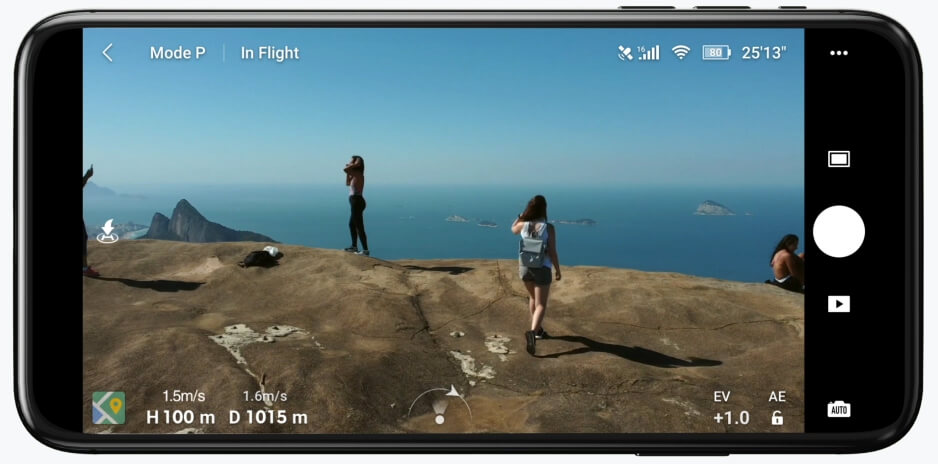
Credit: www.dji.com
Firmware Compatibility: Keeping App And Drone Synced
A mismatch between your drone’s firmware and the DJI Fly app can cause major issues. Firmware updates add features, fix bugs, and improve safety, but sometimes they break compatibility with old app versions.
Tips For Managing Firmware
- Always update the DJI Fly app before updating firmware.
- If you update firmware and the app breaks, check DJI forums for known issues.
- Sometimes, rolling back firmware is possible—but do this only if advised by DJI support.
Internet Connection And Map Issues
Some features, like unlocking flight zones or downloading maps, need a stable internet connection.
How To Fix Network Problems
- Switch from Wi-Fi to Mobile Data:
Some public Wi-Fi networks block DJI servers.
- Clear Network Settings:
On iOS: Settings > General > Reset > Reset Network Settings.
- Download Maps in Advance:
If you’ll be flying in an area without coverage, open the app and download the map tiles while you still have internet.
Permissions: The Hidden Cause Of Many Issues
The DJI Fly app needs permissions to work correctly. If you deny these, features like live video, storage, and location won’t work.
Permissions To Check
- Camera
- Location
- Storage/Photos
- Microphone (for some features)
- Bluetooth (for some models)
How To Change Permissions
- Android: Settings > Apps > DJI Fly > Permissions.
- IOS: Settings > DJI Fly.
Tip: Some permissions may reset after a system update. Check them again if you update your phone.
Battery Optimization And Background Restrictions
Android has aggressive battery-saving features that can kill apps in the background. This is a common but often missed cause of connection drops and crashes.
Disable Battery Optimization For Dji Fly
- Go to Settings > Battery > Battery Optimization.
- Find DJI Fly and set it to “Don’t optimize.”
Some manufacturers have extra settings under “App battery management. ” Set DJI Fly to “No restrictions. ”
When To Contact Dji Support
If you’ve tried everything and the DJI Fly app still won’t work, it’s time to get help from DJI support. Gather this information before contacting them:
- Your drone model and serial number
- Device make, model, and OS version
- DJI Fly app version
- A description of the issue and what you’ve tried
You can reach official support at the DJI website or through their support channels.
Lesser-known Tips For Avoiding Dji Fly App Problems
1. Turn Off Vpns And Proxies:
These can block DJI servers, causing login or map issues.
2. Avoid Beta Versions Of Android/ios:
Early system versions may break app compatibility.
3. Backup Flight Logs Regularly:
If you need to reinstall the app, your flight logs may be lost unless you back them up or sync to DJI’s cloud.
4. Check Third-party Accessories:
Some tablet holders or extension cables can cause connection problems.
5. Update Before You Go Out:
Always check for app and firmware updates before heading to a remote location.
Real User Experiences: What Pilots Say
Many DJI pilots have faced Fly app problems. Some common stories:
- A hobbyist in Canada found the app kept crashing after a phone update. Reinstalling and granting all permissions solved the issue.
- A travel vlogger reported that using a cheap, long USB cable caused the app to disconnect mid-flight. Switching to a short, high-quality cable fixed it.
- Several users on DJI forums noticed that after major Android or iOS updates, the app sometimes needs a fresh install to work smoothly again.
These stories show that even small changes—like a new phone case that blocks the USB port—can cause big headaches.
Alternatives To The Dji Fly App
If you simply cannot get the DJI Fly app to work, consider these options:
- Use Another Device: Borrow a friend’s supported phone or tablet.
- Try DJI Assistant 2 (PC): For firmware updates and some settings, you can use DJI’s desktop app.
- Third-Party Apps: Some drones work with apps like Litchi or DroneDeploy, but support may be limited. Always research compatibility before using.
Staying Safe: The Risks Of Ignoring Dji Fly App Issues
Flying without a fully working DJI Fly app can be risky:
- No live feed: You can’t see what your drone sees.
- Loss of intelligent features: Modes like Return to Home, QuickShots, or tracking may not work.
- No firmware updates: You miss critical safety or performance improvements.
- Legal issues: Some areas require flight logging or unlocking restricted zones, only possible with the app.
Always resolve app issues before flying to protect your drone, your data, and your safety.
The Future Of Dji Fly App Updates
DJI updates the Fly app regularly to add support for new drones, fix bugs, and improve performance. However, this means older devices or OS versions may lose support. To reduce problems in the future:
- Stick to devices on DJI’s official compatibility list
- Avoid updating to beta versions of Android or iOS
- Check the DJI website or forums for update news
If you want to stay informed, follow DJI’s official update news on their site or community forums.
For a detailed list of compatible devices and official announcements, see the DJI Fly app page.
Frequently Asked Questions
Why Can’t I Find The Dji Fly App On Google Play?
DJI removed the Fly app from Google Play for many regions and unsupported devices. Download it directly from the official DJI website. Make sure your device is compatible and beware of unofficial APK sites.
How Do I Know If My Device Supports The Dji Fly App?
Check DJI’s official compatibility list. Your device must be 64-bit and run at least Android 7. 0 or iOS 11. Many older or budget devices are not supported, even if they seem powerful enough.
What Should I Do If The App Crashes Every Time I Open It?
First, update both the app and your device’s OS. If it still crashes, clear the app cache/data (Android) or reinstall (iOS). Make sure all permissions are granted, and try using a different cable or device if possible.
My Drone Won’t Connect To The App—what’s Wrong?
Check your USB cable and ports, and try a different high-quality cable. Update all firmware (drone, controller, app). Make sure the app has all necessary permissions and that your phone isn’t blocking background activity for the app.
Is It Safe To Download The Dji Fly App From Websites Other Than Dji?
No. Only download from the official DJI website. Unofficial sites may offer modified or unsafe versions that can harm your device or steal data.
Getting the DJI Fly app working again is possible for nearly everyone, as long as you’re patient and follow the steps above. Take your time, double-check compatibility, and don’t be afraid to seek help from DJI or the drone community.
With the right approach, you’ll be back in the sky—and flying safely—in no time.