When your iPhone calendar stops syncing, it can be more than just a minor annoyance. Missed meetings, double bookings, and lost reminders can quickly disrupt your day. You might rely on your calendar for work, family, or personal planning—so when events disappear or refuse to update across devices, stress levels rise.
While the iPhone is known for smooth integration, calendar sync issues remain a common headache. The good news? Most problems have clear solutions if you know where to look.
Let’s explore why your iPhone calendar might not be syncing, how to fix it step by step, and what you can do to prevent future headaches. Along the way, you’ll learn a few lesser-known tips that can save hours of frustration.
Whether you use iCloud, Google, Outlook, or another service, this guide will help you reclaim control over your schedule.
Understanding Iphone Calendar Syncing
Your iPhone calendar can connect to different services—like iCloud, Google Calendar, Microsoft Exchange, or even Yahoo. When syncing works, changes on one device (like your phone) appear everywhere—your MacBook, iPad, or even a Windows PC. The process relies on three things:
- Account connection: Your iPhone must be linked to the right account.
- Sync settings: Calendar syncing needs to be enabled for each account.
- Internet connection: Without Wi-Fi or mobile data, updates can’t travel between devices.
If any of these break down, your calendar stops syncing. But before you try advanced fixes, it’s important to pinpoint the real source of the problem.
Common Reasons Iphone Calendar Is Not Syncing
You might expect a single cause, but calendar syncing can fail for many reasons. Here are the most frequent culprits:
- Poor internet connection: No Wi-Fi or weak cellular data can block updates.
- Account password problems: If you recently changed your email password, the calendar can’t connect.
- Sync setting disabled: Sometimes, calendar sync is turned off in Settings without you realizing.
- Outdated iOS: Old software sometimes contains bugs that affect syncing.
- Conflicting accounts: Multiple calendar accounts can sometimes clash.
- Storage limits: If your iCloud or Google account is full, no new events sync.
- Server outages: Rarely, the calendar provider (like Apple or Google) has a temporary outage.
Many users miss the simple fixes—especially checking sync settings for each account. For example, you might have iCloud calendar enabled but not your work Exchange calendar.
Quick Troubleshooting: Basic Checks
Before diving into complex solutions, run through these basic checks. Many syncing issues vanish after these steps.
- Restart your iPhone: Simple but effective. Hold the power button and slide to turn off, then restart.
- Check your internet connection: Open Safari and visit a website. If it loads, your connection is fine.
- Check Apple’s System Status: Sometimes, the problem is on Apple’s side. Visit their official System Status page to see if iCloud Calendar is down.
- Update iOS: Go to Settings > General > Software Update. Install any available updates.
- Check your account password: If you recently changed your email or iCloud password, re-enter it in Settings.
These steps fix more issues than you might expect. But if your calendar still won’t sync, it’s time to dig deeper.
Checking Calendar Account Settings
Each calendar account has its own sync settings. Sometimes, one account works fine while another fails. Here’s how to verify your calendar accounts:
Icloud Calendar
- Go to Settings > [your name] > iCloud.
- Make sure the Calendars toggle is ON (green).
- If it’s off, switch it on. Wait a minute and check if your events appear.
Google Calendar
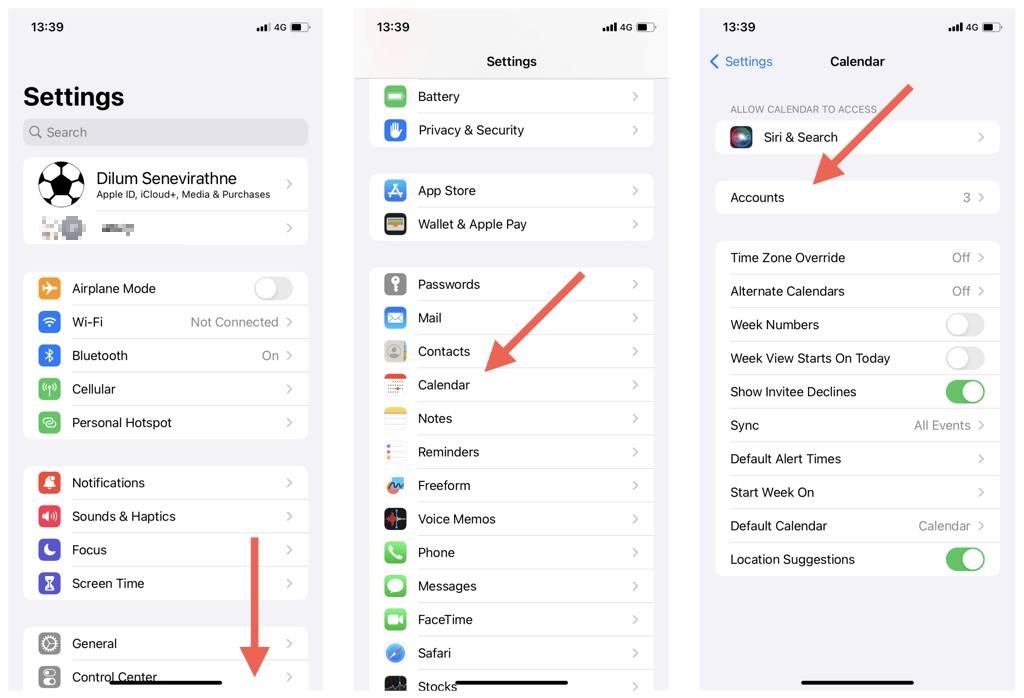
- Open Settings > Mail > Accounts.
- Tap your Gmail account.
- Make sure Calendars is enabled.
Outlook/exchange Calendar
- In Settings > Mail > Accounts, select your Exchange or Outlook account.
- Ensure Calendars is toggled on.
Add Missing Accounts
Sometimes, the account isn’t added at all. To add an account:
- Go to Settings > Mail > Accounts > Add Account.
- Choose your provider and sign in. Make sure Calendars is enabled during setup.
Non-obvious tip: If you use multiple calendar accounts, double-check which calendar you’re saving events to. Events saved to a local “On My iPhone” calendar won’t sync with iCloud or Google.
Sync Settings On Iphone
Your iPhone lets you control how much calendar data it syncs. By default, it might only sync events from the last month. Here’s how to change that:
- Go to Settings > Calendar > Sync.
- Choose All Events to sync every event, not just recent ones.
Many users miss this setting—leading to old events disappearing or not showing up on new devices.
Manual Calendar Refresh
Sometimes, you need to force your calendar to refresh. Open the Calendar app and pull down from the top of the screen. This triggers a manual sync. If events suddenly appear, the issue might have been a temporary network glitch.

Credit: www.youtube.com
Comparing Calendar Sync Services
Here’s a quick look at how popular calendar services differ when syncing with an iPhone:
| Service | Sync Method | Offline Support | Multiple Device Sync | Common Issues |
|---|---|---|---|---|
| iCloud Calendar | Push/Automatic | Yes | Yes | Account conflicts, Storage limits |
| Google Calendar | Push/Fetch | Partial | Yes | Account not syncing, 2-step verification |
| Exchange/Outlook | Push | Yes | Yes | Password changes, Server issues |
| Yahoo Calendar | Fetch | No | Yes | Frequent login issues |
Insight: Google accounts with 2-step verification often need an app-specific password for proper calendar syncing.
Advanced Fixes For Stubborn Sync Issues
If the basics didn’t work, try these advanced solutions.
Remove And Re-add Calendar Account
- Go to Settings > Mail > Accounts.
- Tap the problem account, then Delete Account.
- Restart your iPhone.
- Add the account again and enable Calendars.
This refreshes your account connection and solves many hidden issues.
Sign Out And Back Into Icloud
- In Settings, tap your name at the top.
- Scroll down and Sign Out.
- Sign back in with your Apple ID.
- Ensure Calendars is enabled.
Warning: Signing out of iCloud can remove some data from your device. Most information will return after you sign in again, but always back up your data first.
Reset Sync Data (icloud Only)
If you use iCloud, you can reset calendar data:
- Visit iCloud.com on a browser.
- Export your calendar as a backup.
- Delete all calendar events on your device.
- Wait a few minutes, then your events should re-sync from iCloud.
Reset All Settings
If nothing else works, you can reset all settings:
- Go to Settings > General > Transfer or Reset iPhone > Reset > Reset All Settings.
- This won’t delete your data, but will reset system settings (Wi-Fi, passwords, etc).
How Calendar Sync Works: Behind The Scenes
Understanding how calendar sync works can help you troubleshoot more confidently. When you create or change an event, your iPhone sends this information to a cloud server (like iCloud or Google). The server then pushes the update to your other devices.
Push means the server notifies your device immediately about changes. Fetch means your iPhone checks for updates every few minutes. Some services (like Yahoo) use fetch, so updates can be delayed.
Example: If you add an event on your iPhone and it appears instantly on your Mac, that’s push syncing in action.
Iphone Calendar Not Syncing With Google: Special Steps
Google Calendar is popular, but sometimes the iPhone fails to sync new events. Here’s how to fix it:
- Check sync at Google’s end: Visit calendar.google.com/calendar/syncselect. Make sure all your calendars are checked for syncing with your iPhone.
- Remove and re-add Google account: Follow the earlier steps to refresh your connection.
- App password for 2-step verification: If you use 2-step verification, generate an app password at myaccount.google.com/security and use it in your iPhone settings.
Iphone Calendar Not Syncing With Outlook/exchange
Work calendars often use Outlook or Exchange. Problems here can be trickier. Try these steps:
- Update credentials: If you recently changed your work password, update it in Settings > Mail > Accounts.
- Check server settings: Your IT department might require a custom server address or security setting.
- Remove and re-add account: This refreshes your sync connection.
- Check “Default Calendar”: Sometimes, events go to the wrong calendar. In Settings > Calendar > Default Calendar, choose your work calendar.
Non-obvious tip: Exchange calendars can be set to “manual” sync. Always select “push” for real-time updates.
What If Calendar Sync Works Only One Way?
Sometimes, changes made on your iPhone appear everywhere, but updates made on your computer or web don’t show up on your phone. This is called one-way sync.
Causes Of One-way Sync
- Events saved to a local calendar (“On My iPhone”) don’t sync to the cloud.
- Wrong default calendar set on your iPhone.
- Old events not covered by your sync settings.
Fixes
- Set the correct default calendar: Settings > Calendar > Default Calendar.
- Change event calendar when adding events: In the Calendar app, tap the calendar color and pick the right one.
- Extend sync range: Set Sync to All Events (see above).
Credit: helpdeskgeek.com
Comparing Icloud Vs Google Calendar Sync
Which calendar service is more reliable on iPhone? Here’s a head-to-head comparison:
| Feature | iCloud | Google Calendar |
|---|---|---|
| Native integration | Seamless | Good, but needs account setup |
| Multiple calendar support | Yes | Yes |
| Shared calendars | Easy with Apple users | Easy with anyone |
| Push sync | Yes | Partial (some calendars fetch only) |
| Works offline | Yes | Partial |
Insight: For users who mix Apple and non-Apple devices, Google Calendar often offers better cross-platform support.
Preventing Calendar Sync Problems In The Future
Once your calendar is working again, a few habits can keep it reliable:
- Keep iOS updated: Install updates regularly to get bug fixes.
- Back up your calendar: Use iCloud or export your calendar data.
- Limit accounts: Too many calendar accounts can cause confusion and conflicts.
- Check default calendar: Make sure new events go to the right account.
- Monitor storage: If your iCloud or Google storage is full, clear space to avoid sync errors.

Credit: support.apple.com
Real-world Example: Work Meeting Not Appearing
Maria uses her iPhone to track work meetings. Last week, a manager added a meeting, but it didn’t show up on her phone. Here’s how she fixed it:
- Maria checked her internet—her Wi-Fi was fine.
- She opened Settings > Calendar > Accounts and saw her work Outlook account wasn’t enabled for Calendars.
- She toggled it on, refreshed the Calendar app, and the missing meeting appeared.
Lesson: Always verify which accounts are enabled for calendar syncing.
When To Contact Support
If you’ve tried every fix above and your calendar still won’t sync, it may be time to contact support. This is especially true for:
- Persistent Exchange/Outlook issues (contact your IT department).
- Errors after iOS updates that don’t resolve.
- Large numbers of missing or duplicated events.
Apple Support, Google Workspace support, or your company’s IT help desk can offer specialized advice.
Third-party Calendar Apps: Help Or Hindrance?
Some users switch to third-party calendar apps for extra features. Popular options include Fantastical, Google Calendar app, and Outlook Mobile. These apps often handle syncing differently than the built-in Calendar app.
Tip: Always check sync settings inside the third-party app. Sometimes, they use their own connection settings, which can bypass or conflict with iPhone’s built-in accounts.
Data Security And Privacy Considerations
Syncing your calendar means sending your event data to the cloud. For most users, this is safe—Apple and Google use strong encryption. But if you handle sensitive work meetings or personal events, consider:
- Using a strong account password and two-factor authentication.
- Avoiding public Wi-Fi when possible.
- Reviewing which apps have access to your calendar in Settings > Privacy.
For more on security, see Apple’s official privacy overview.
Troubleshooting Calendar Sync On Other Devices
If your iPhone calendar works but other devices (like your iPad or Mac) don’t sync, try these steps:
- Update all devices: Out-of-date software can cause mismatches.
- Sign in with the same account: Each device must use the same iCloud or Google account.
- Check calendar selection: On Mac, open the Calendar app and ensure the right account is visible.
Example: If you make an event on your iPhone but it doesn’t appear on your iPad, check both devices are online and signed into the same account.
Hidden Sync Problems: Time Zones And Duplicates
Time Zone Confusion
If events appear at the wrong time, check:
- Settings > Calendar > Time Zone Override. Make sure it matches your current location or is turned off.
Duplicate Events
Sometimes, you see the same event twice. Causes include:
- Adding the same account twice (like Google via both Mail and the Google Calendar app).
- Sharing calendars with yourself or others who resend invites.
To fix, remove duplicate accounts or shared calendars.
Frequently Asked Questions
Why Are My Iphone Calendar Events Not Showing Up On My Computer?
This usually means your events are saved to a local “On My iPhone” calendar, which does not sync to the cloud. Make sure new events are saved to an iCloud or Google calendar. Also, check your computer is signed into the same account.
How Do I Sync My Iphone Calendar With Google Calendar?
Add your Google account in Settings > Mail > Accounts. Enable Calendars for your Google account. In the Calendar app, select Google calendars to view. For more details, visit Google’s calendar sync help page.
Can I Sync My Iphone Calendar With Multiple Accounts?
Yes, you can add several accounts (iCloud, Google, Outlook, Yahoo) and select which calendars to view or sync. However, having too many accounts can cause confusion, so keep your list manageable.
Why Are Old Events Missing From My Iphone Calendar?
By default, your iPhone might only sync recent events. Go to Settings > Calendar > Sync and choose All Events to keep old events visible and synced.
What’s The Difference Between Push And Fetch Syncing?
Push means updates are sent to your iPhone instantly when changes happen. Fetch means your iPhone checks for updates on a schedule (every 15 minutes, hourly, etc.). Push is faster, but not all services support it.
Managing your iPhone calendar doesn’t have to be a mystery. With the right steps and a bit of attention to settings, you can solve most syncing problems and keep your schedule running smoothly. Remember, check the basics first, but don’t hesitate to dive deeper if your calendar isn’t behaving.
Your time is too valuable to leave events to chance.