If you use Apple devices, iCloud Photos is a powerful tool for keeping your pictures and videos safe and available everywhere. With one switch, your memories should sync across iPhone, iPad, Mac, and even the web. But sometimes, things don’t work as expected. You take a photo on your iPhone, but it never appears on your Mac. Or you delete a video on your iPad, yet it stays stuck on your other device. This can be annoying—and worrying, especially if you depend on iCloud to back up precious memories.
You are not alone. Many Apple users face iCloud Photos not syncing problems every year. The reasons can be simple, such as a poor internet connection, or more complex, like software conflicts or storage limits. The good news is most syncing issues have clear solutions. In this guide, you’ll learn the main causes of iCloud Photos not syncing, step-by-step troubleshooting, advanced fixes, and smart prevention tips. By the end, you’ll know how to get your photos syncing smoothly and avoid future headaches.
How Icloud Photos Sync Works
Before diving into solutions, it helps to understand how iCloud Photos actually works. When you turn on iCloud Photos, your device uploads all photos and videos to Apple’s cloud servers. These are then available on all devices signed in with the same Apple ID and with iCloud Photos enabled.
The syncing is automatic. When you add, delete, or edit a photo on one device, iCloud updates all your devices. The process happens in the background—usually when your device is charging and connected to Wi-Fi. For most users, it’s seamless.
But several factors can break the chain.
Key facts about iCloud Photos:
- Requires a stable internet connection (Wi-Fi or cellular)
- Needs enough free iCloud storage
- Only works when the device is unlocked and often plugged in
- Uses the same Apple ID across all devices
If any of these fail, syncing can get stuck or stop altogether.
Common Reasons Icloud Photos Is Not Syncing
Several issues can cause iCloud Photos to stop syncing. Here are the most common:
- Poor Internet Connection: Syncing large photos and videos uses a lot of data. Weak or unstable Wi-Fi can pause or slow down the process.
- Insufficient iCloud Storage: Apple only gives 5GB free. If you reach your storage limit, new photos won’t upload.
- Device Storage Full: If your iPhone, iPad, or Mac is nearly full, your device may pause syncing to save space.
- ICloud Photos Not Enabled: Sometimes, the setting gets turned off by accident during updates or resets.
- Different Apple IDs: If your devices use separate Apple IDs, photos can’t sync.
- Battery Saver or Low Power Mode: These modes may pause background syncing to save energy.
- Outdated Software: Old versions of iOS, iPadOS, or macOS can have bugs or lack features needed for syncing.
- Pending System Updates: Sometimes, a required update is downloaded but not installed, blocking syncing.
- Large Video Files: Very large videos (especially 4K) can take a long time to sync or fail if the connection drops.
- Server Outages: Rarely, Apple’s iCloud servers go down for maintenance or technical problems.
Quick Checks Before Troubleshooting
Before going deeper, start with these simple checks. Many times, a basic issue is the cause.
- Check Apple’s System Status: Visit the official Apple System Status page to see if iCloud Photos is down.
- Restart Your Device: A simple restart can fix temporary glitches.
- Check Your Internet: Try loading a website or streaming a video to confirm your connection is working.
- Sign In to iCloud.com: Log in to iCloud.com and see if your photos appear there. If yes, the problem is likely on your device.
Step-by-step Solutions For Icloud Photos Not Syncing
If the quick checks didn’t fix your problem, follow these steps:
1. Confirm Icloud Photos Is Turned On
Sometimes, updates or settings changes turn iCloud Photos off without warning.
On iPhone/iPad:
- Open Settings
- Tap your name at the top
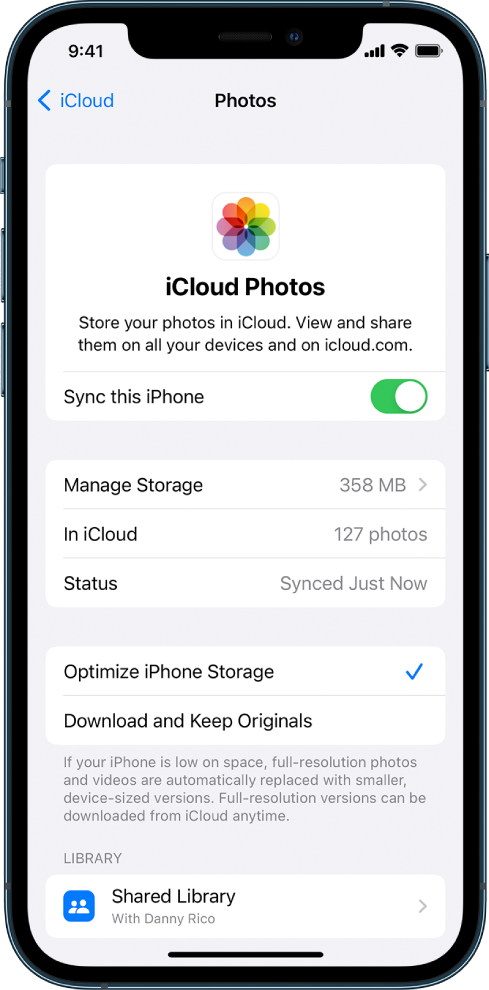
- Tap iCloud > Photos
- Make sure Sync this iPhone/iPad is ON
On Mac:
- Open System Settings or System Preferences
- Click Apple ID > iCloud
- Click Photos and make sure it’s enabled
On the Web:
- Go to iCloud.com
- Click Photos and check if your latest photos appear
2. Check Your Icloud Storage
If your storage is full, syncing will stop until you free up space or upgrade your plan.
How to check:
- Go to Settings > [your name] > iCloud > Manage Storage on iPhone/iPad
- On Mac: Apple Menu > System Settings > Apple ID > iCloud > Manage
- Check if you are over the limit
Free up space by:
- Deleting old backups or unused files
- Removing large email attachments
- Upgrading your iCloud plan if needed
3. Ensure Enough Device Storage
Even with cloud storage, your device keeps smaller versions of photos for viewing. If your device is almost full, iCloud syncing may pause.
- On iPhone/iPad: Settings > General > iPhone Storage
- On Mac: Apple Menu > About This Mac > Storage
Delete unused apps, old videos, or large documents to free up space.
4. Check Internet Connection
ICloud Photos needs a reliable connection, especially for videos or large photo libraries.
- Connect to a strong Wi-Fi network
- Avoid public Wi-Fi with login pages or restrictions
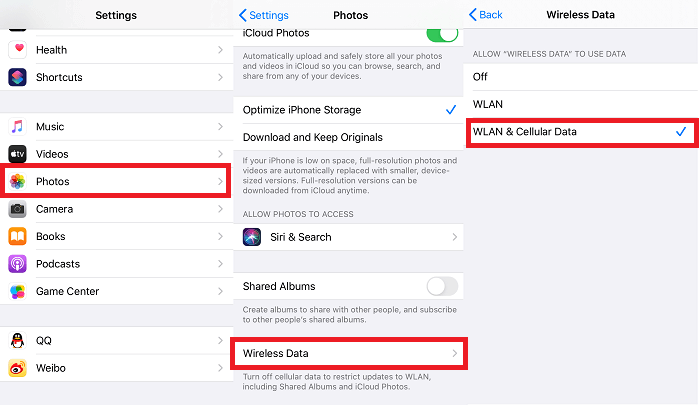
- For cellular, check Settings > Photos > Cellular Data is ON (if you want to use mobile data for syncing)
5. Update Your Software
Apple regularly fixes bugs and improves syncing in updates.
- On iPhone/iPad: Settings > General > Software Update
- On Mac: Apple Menu > System Settings > Software Update
Install the latest updates.
6. Make Sure Devices Use The Same Apple Id
Photos only sync between devices using the same Apple ID.
- Double-check under Settings > [your name] on each device.
If you have a family member’s Apple ID on one device, syncing won’t work.
7. Disable Low Power Or Battery Saver Modes
Low Power Mode on iPhone and iPad, or Battery Saver on Mac, can pause background activity.
- Turn off Low Power Mode in Settings > Battery
- On MacBooks, connect your charger
8. Force Sync Manually
Sometimes, opening the Photos app and leaving it open for a few minutes can restart syncing. Make sure your device is unlocked and connected to Wi-Fi.
9. Sign Out And Back Into Icloud
This refreshes your iCloud connection. Warning: Make sure you know your Apple ID password before signing out.
- Settings > [your name] > scroll down > Sign Out
- Restart your device
- Sign in again and check if syncing resumes
10. Reset Network Settings
If your device has a network glitch, resetting network settings can help.
- Settings > General > Transfer or Reset iPhone > Reset > Reset Network Settings
This will erase Wi-Fi passwords, so have them handy.
Credit: mobi.easeus.com
Advanced Troubleshooting Steps
If the usual steps don’t work, try these advanced methods.
Check For Paused Or Stuck Uploads
In the Photos app, scroll to the bottom. If you see “Uploading…” or “Paused,” tap for more info. Sometimes large videos or RAW photos block the process. Try deleting or moving these files to your computer.
Compare Photo Libraries Across Devices
This helps spot where syncing stops. Here’s an example comparison:
| Device | Total Photos | Last Updated | Missing Items? |
|---|---|---|---|
| iPhone | 4,250 | Today | No |
| iPad | 4,245 | Yesterday | Yes (5 photos) |
| MacBook | 4,250 | Today | No |
If one device lags behind, focus your troubleshooting there.
Turn Off Vpns Or Firewalls
Some VPNs or strict firewalls can block iCloud traffic. Try disabling them and see if syncing resumes.
Rebuild Your Photo Library (mac Only)
If syncing is broken on your Mac, you can repair the Photos library.
- Quit Photos app
- Hold Option + Command and open Photos
- Click Repair in the dialog that appears
Note: This can take time if your library is large.
Test With A New User Account
On Mac, create a new user account and enable iCloud Photos. If syncing works there, your main account may have a corrupted setting.
Use “optimize Storage” Wisely
The Optimize iPhone/Mac Storage option saves space but means some photos are only in iCloud, not downloaded. If you travel or lose internet, you may not see all photos. For large libraries, it’s best to keep this on—but know how it works.
Prevention Tips To Avoid Syncing Issues
Once you fix iCloud Photos syncing, here’s how to avoid future problems:
- Regularly check your iCloud storage and upgrade if needed.
- Make sure all devices use the same, correct Apple ID.
- Keep your software up to date.
- Avoid filling up device storage completely.
- Back up your most important photos to a second location (like an external drive or another cloud service).
- Don’t rely 100% on iCloud for irreplaceable memories—tech failures can happen.
Icloud Photos: Strengths And Weaknesses
To decide if iCloud Photos is right for you, it helps to compare its pros and cons.
| Strengths | Weaknesses |
|---|---|
| Seamless integration with Apple devices | Only 5GB free storage (paid plans needed for large libraries) |
| Automatic syncing and backup | Relies on stable internet connection |
| Supports original quality photos and videos | Not cross-platform (limited on Windows/Android) |
| Easy sharing with Family Sharing | Can be hard to manage large libraries |
How Icloud Photos Compares To Other Services
Some users prefer alternatives like Google Photos or Amazon Photos. Here’s a quick look at how iCloud Photos stacks up:
| Feature | iCloud Photos | Google Photos | Amazon Photos |
|---|---|---|---|
| Free Storage | 5GB | 15GB (shared) | 5GB (unlimited for Prime members, photos only) |
| Original Quality | Yes | Counts against quota | Yes |
| Device Integration | Best with Apple | Works on all platforms | Best with Amazon ecosystem |
| Editing Tools | Good | Excellent | Basic |
| Family Sharing | Yes | Yes | Yes |
iCloud Photos is best for all-Apple households. For cross-platform users, Google Photos offers more flexibility.
Credit: www.youtube.com
Real-world Example: Fixing A Sync Issue
Let’s walk through a real case. Jane has an iPhone and a MacBook. She notices that recent photos from her iPhone are not showing up on her Mac. Here’s how she solves it:
- Jane checks her iCloud storage and sees she has 500MB left. She deletes some old backups to free up space.
- She confirms both devices use the same Apple ID.
- Her iPhone is on the latest iOS, but her MacBook is two versions behind. She updates macOS.
- After updating, she restarts both devices.
- She opens the Photos app on her Mac and leaves it running while connected to Wi-Fi overnight.
The next day, all her photos appear on both devices.
Non-obvious insight: Sometimes, syncing delays happen because the device is in sleep mode or low power. Keeping the device awake and plugged in can speed up the process.
Common Myths About Icloud Photo Sync
Many users believe if their photos are in the cloud, they’re “safe forever. ” This isn’t always true.
- Myth: Deleting a photo on one device removes it from that device only.
- Truth: Deleting a photo deletes it everywhere after 30 days (from Recently Deleted).
- Myth: ICloud Photos backs up all photos permanently.
- Truth: ICloud syncs, not backs up. If you delete a photo on all devices, it’s gone from iCloud too.
- Myth: ICloud Photos works without Wi-Fi.
- Truth: It can use cellular, but large libraries will pause until Wi-Fi is available unless you allow cellular data.
Tip: Always have a second backup for important photos, like on an external hard drive.
Credit: discussions.apple.com
What To Do If Nothing Works
If your photos still won’t sync after all troubleshooting, try these steps:
- Contact Apple Support: Sometimes, there’s a deeper problem only Apple can solve.
- Backup and Restore: Back up your device to your computer, then erase and restore. This is a last resort but can fix deep software issues.
- Use Third-Party Tools: Some apps help transfer photos between devices without iCloud, but be careful with privacy.
Frequently Asked Questions
Why Are Only Some Of My Photos Syncing, Not All?
This usually happens when your internet connection drops, or you have very large video files. Sometimes, photos taken in new formats (like ProRAW or HEIF) may not sync to older devices. Make sure all your devices have the latest updates.
Can I Force Icloud Photos To Sync Faster?
Yes. Open the Photos app and leave it open, with your device unlocked and connected to Wi-Fi. Plug your device into power. Large libraries may take hours or days to sync fully.
What Happens If I Turn Off Icloud Photos?
You can keep a copy of your photos on your device, but new photos won’t sync to iCloud or other devices. Turning off iCloud Photos removes iCloud-stored photos from your device unless you download them first.
Are My Photos Safe If I Delete Them From My Device?
If iCloud Photos is on, deleting a photo deletes it from all devices and iCloud after 30 days. Always back up important photos elsewhere if you want to keep them forever.
How Do I Check If Icloud Photos Is Syncing Right Now?
On iPhone/iPad, open the Photos app and scroll to the bottom. You’ll see a message like “Uploading x items” or “Updated Just Now. ” On Mac, open Photos and look for a progress bar at the bottom of the window.
iCloud Photos makes managing memories easy—when it works. With these solutions and tips, you can fix syncing issues, keep your photos safe, and understand how iCloud works behind the scenes. If you need more help, you can always check Apple’s support resources or visit the official Apple iCloud Photos support page.