If you’ve ever reached for your phone to control your smart home and found the Google Home app not working, you’re not alone. This app is central for people using Google Nest speakers, smart displays, lights, cameras, and more. When it stops working, even simple tasks—like turning on the lights or playing music—can suddenly feel impossible. But why does this happen, and how can you fix it? Let’s dive deep into the reasons, solutions, and tips to get your Google Home app running smoothly again.
Why The Google Home App Matters
The Google Home app is more than just a remote control. It connects all your compatible devices, lets you set up routines, and helps manage your home’s comfort and security. People rely on it for everything from adjusting thermostats to checking security cameras and even automating daily tasks. When it breaks down, the entire smart home experience can come to a halt.
Common Problems With The Google Home App
Before you can fix the Google Home app, it’s helpful to know what can go wrong. Here are the most frequent problems users report:
- App Won’t Open or Crashes: The app closes immediately after launch or freezes during use.
- Device Not Found: The app can’t detect or control your smart devices.
- Connection Issues: Problems connecting to Wi-Fi or syncing with other accounts.
- Delayed Responses: Commands take too long or don’t go through at all.
- Update Failures: The app fails to update or install correctly.
- Routines Not Working: Automations don’t trigger as expected.
Each of these problems may have different causes, but most can be solved with a few proven steps.
Quick Fixes To Try First
Sometimes, the simplest solutions work best. Before diving into advanced troubleshooting, try these basic steps:
- Restart the App: Close it completely and reopen it.
- Restart Your Phone: A quick reboot can resolve many glitches.
- Check Your Internet Connection: Make sure your Wi-Fi or mobile data is active and stable.
- Update the App: Open the Google Play Store or Apple App Store and check for updates.
- Update Your Device OS: Sometimes, an old operating system causes compatibility problems.
- Force Stop and Clear Cache: In Android settings, you can force stop the app and clear its cache.
These actions solve most minor problems, especially if the issue is new.
Deeper Troubleshooting For Persistent Issues
If the basics didn’t work, it’s time for more targeted solutions. The Google Home app interacts with many systems, so identifying the cause is key.
Check Google Services And Permissions
The app relies on several Google services running in the background, as well as device permissions.
- Location: Make sure location services are enabled for the app.
- Bluetooth: Turn on Bluetooth if you’re setting up or managing devices that use it.
- Account Permissions: Ensure the app has permission to access your Google account.
On Android, go to Settings > Apps > Google Home > Permissions. On iOS, go to Settings > Google Home and check permissions.
Troubleshoot Wi-fi And Network Issues
Your smart devices and the app must be on the same Wi-Fi network. Network glitches are a top reason for app problems.
- Reconnect to Wi-Fi: Switch your phone off and on, or disconnect and reconnect to Wi-Fi.
- Restart Router: Power cycling your router can resolve hidden network issues.
- Check Network Band: Many smart devices only support 2.4 GHz networks. Make sure your phone and devices are on the correct band.
Here’s a quick comparison of the two main Wi-Fi bands:
| Wi-Fi Band | Speed | Range | Device Compatibility |
|---|---|---|---|
| 2.4 GHz | Lower | Longer | Most smart devices |
| 5 GHz | Higher | Shorter | Newer phones, some smart devices |
If your Google Home devices only work on 2. 4 GHz, ensure your phone is also on that network during setup.
Check For Outages Or Service Issues
Sometimes, the problem isn’t on your end. Google outages can affect smart home functions worldwide. To check for issues:
- Visit the Google Workspace Status Dashboard for real-time updates.
- Search social media or forums to see if other users report similar problems.
If there’s an outage, you’ll have to wait until Google resolves it.
Re-link Or Re-add Devices
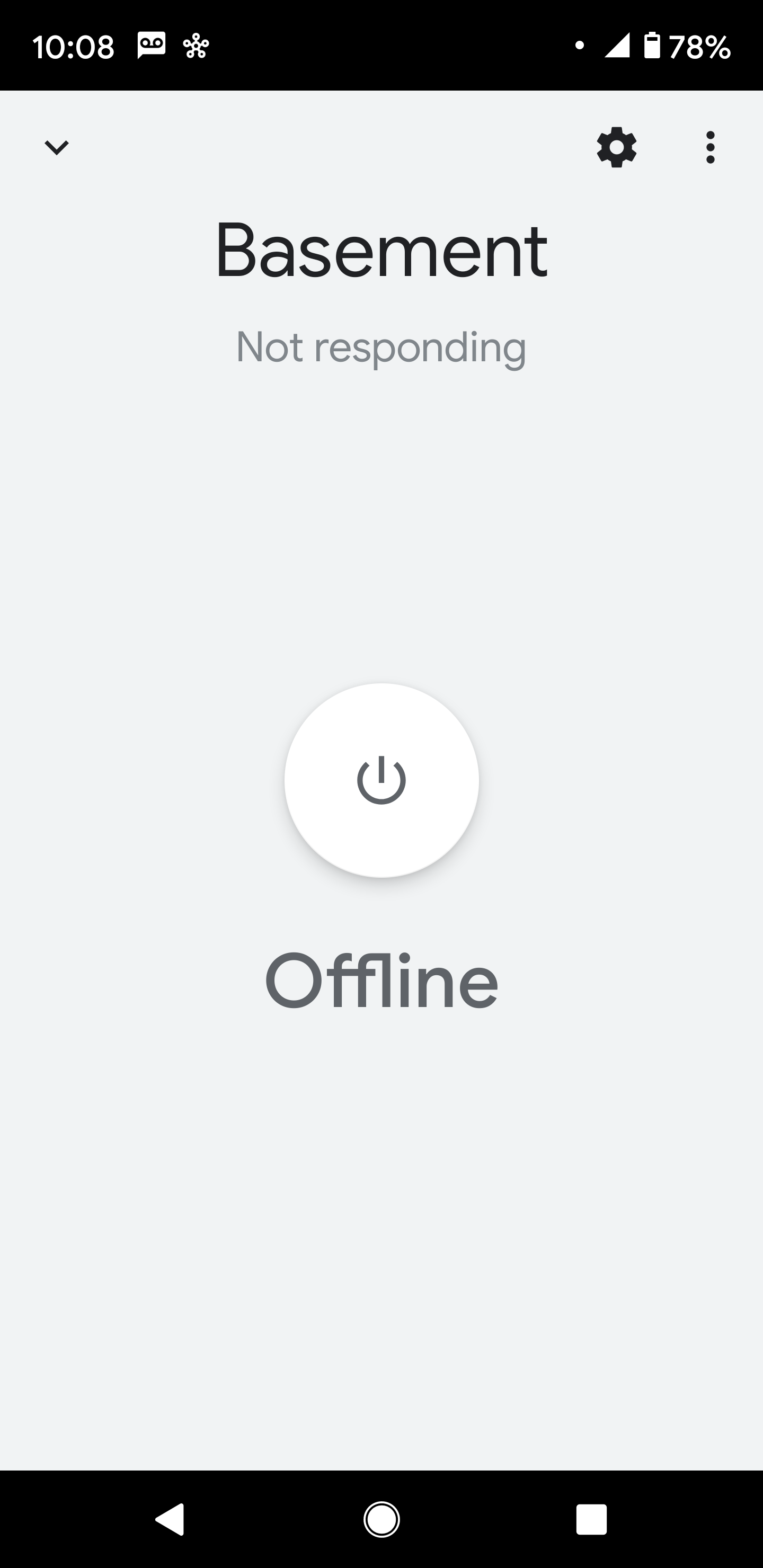
If your devices show as “offline” or “not responding,” try removing and re-adding them in the app.
- Open Google Home.
- Tap the device, then the gear icon for settings.
- Tap “Remove device.”
- Re-add the device using the “+” icon.
This refreshes the connection and often solves stubborn issues.
Clear Data Or Reinstall The App
If all else fails, a clean reinstall can help.
- Android: Go to Settings > Apps > Google Home > Storage, then tap “Clear Data.” Uninstall and reinstall from the Play Store.
- IOS: Delete the app, then reinstall from the App Store.
This resets the app to its default state and clears any corrupted files.

Credit: www.reddit.com
Advanced Solutions For Specific Errors
Some issues are rare but can be especially tricky. Here’s how to tackle them.
Google Account Sync Problems
Sometimes, the app gets stuck syncing with your Google account. You might see errors like “Can’t reach Google” or “Account not found. ”
- Remove and Re-add Google Account: On your phone, remove your Google account, restart the phone, then add the account again.
- Check for Two-Factor Authentication: If you use 2FA, make sure to approve sign-ins or check for security alerts.
Device Firmware And Compatibility
Smart home devices need to be compatible and up to date.
- Check Device Firmware: Use the app for your smart device (like Philips Hue or TP-Link Kasa) to check for firmware updates.
- Check Device List: Not every smart device works with Google Home. Visit the official compatibility list on Google’s support site.
App Crashing After Update
Sometimes, a new app version introduces bugs.
- Wait for a Fix: Check the Play Store or App Store reviews—if many users report crashes, Google may be working on a fix.
- Install an Older Version: On Android, you can find earlier versions of the app from trusted sources, but always use caution.
Issues With Linked Services (spotify, Youtube, Etc.)
If music or video services stop working:
- Re-link the Service: In Google Home, tap your profile icon > Assistant settings > Music or Video, and re-link your account.
- Check Subscription Status: Some features require a paid subscription.
Problems With Routines Or Automations
If your routines aren’t running:
- Double-check Triggers: Make sure your routine is set for the right time, device, or voice command.
- Recreate the Routine: Delete and recreate routines if they’re not working.
- Test with Simple Actions: Start with a basic routine (like turning on a light) to test.
Comparing Google Home App With Other Smart Home Apps
It’s useful to see how the Google Home app stacks up against other popular smart home platforms.
| Feature | Google Home | Apple HomeKit | Amazon Alexa |
|---|---|---|---|
| Device Compatibility | Very High | Medium | Very High |
| User Interface | Simple | Intuitive | Feature-rich |
| Routine Automation | Strong | Limited | Very Strong |
| Voice Assistant | Google Assistant | Siri | Alexa |
| Platform Support | Android/iOS | iOS/macOS | Android/iOS |
Google Home leads in device compatibility and ease of use, but it’s not without faults.
When To Contact Google Support
If you’ve tried all the steps above and the Google Home app is still not working, it might be time to contact official support. You should reach out if:
- The app crashes every time, even after reinstalling.
- Devices won’t connect, even after a factory reset.
- There are strange error codes with no clear solution.
Google’s support team can check your account for deeper problems or escalate the issue if it’s widespread.
Non-obvious Insights Most People Miss
While most users try the basics, there are a couple of advanced tips that can save time and frustration.
1. Isolate the Problem with Another Device
If possible, try installing the Google Home app on a different phone or tablet, then log in with your account. If the app works on the other device, the problem is likely with your original phone’s settings or software. This step is often skipped but can quickly show whether the issue is account-related or device-specific.
2. Consider Router Settings
Some modern routers have advanced security features like AP Isolation or client isolation. These features block devices on your network from talking to each other, which can prevent your phone from connecting to your smart devices—even if everything looks fine. Check your router’s admin settings and make sure these options are disabled.
Credit: community.hubitat.com
Preventing Future Issues With Google Home
You can avoid many app problems by following a few best practices:
- Keep Everything Updated: Regularly update your phone, app, and all connected devices.
- Use a Stable Network: Avoid frequent Wi-Fi changes or weak signals.
- Reboot Devices Occasionally: Restart your phone, router, and smart devices monthly.
- Limit Number of Linked Accounts: Too many accounts linked to a single device can cause confusion.
- Monitor Storage Space: Low phone storage can cause apps to crash or freeze.
Data Privacy And Security With Google Home
Security is a major concern for many users. The Google Home app collects data to help your devices work, but you can control what is shared.
- Review Privacy Settings: Go to your Google Account > Data & Privacy to manage what’s stored.
- Guest Mode: Enable guest mode for smart speakers to keep personal data private during gatherings.
- Two-Factor Authentication: Always turn on 2FA for your Google account to prevent unauthorized access.
Common Mistakes To Avoid
Many users make similar mistakes when troubleshooting:
- Ignoring App Permissions: The app needs permission for location, Bluetooth, and local network.
- Overlooking Router Placement: Poor Wi-Fi coverage can disconnect smart devices.
- Skipping Firmware Updates: Outdated devices may lose compatibility.
- Forgetting About Multiple Wi-Fi Bands: Devices and phone must be on the same band, especially during setup.
- Not Checking for Outages: Sometimes the problem is with Google, not your setup.
Remember, a little attention to these details can prevent hours of frustration.
Real-world Example: Fixing A Google Home App Problem
Let’s walk through a real example. Maria, a user in Texas, found her Google Home app wouldn’t discover her new smart plug. She tried restarting the app and her phone, but nothing worked. After reading about Wi-Fi bands, she realized her phone was on 5 GHz and the smart plug only supported 2.
4 GHz. She switched her phone to the 2. 4 GHz network, restarted the setup, and the device appeared instantly. This is a common scenario and shows why network details matter.
The Impact Of App Updates
Google often updates the Home app to add features or fix bugs. While updates are generally helpful, they sometimes introduce new issues.
Here’s a look at app update trends and how they’ve impacted users:
| Update Version | Main Changes | User Impact |
|---|---|---|
| 2.45 | Improved device setup flow | Mostly positive, easier device addition |
| 2.50 | Bug fixes, new routines feature | Some users reported more crashes |
| 2.53 | Security enhancements | Mixed: better security, but some device disconnects |
| 2.60 | UI redesign, performance tweaks | Positive overall, minor learning curve |
If you experience new problems after an update, check the Play Store or App Store reviews. Other users may share your issue, and developers often respond with fixes in future versions.
When The Problem Is With A Specific Device
Sometimes, only one device is unreachable or not responding in the app. Here’s how to handle it:
- Check Device Power: Make sure the smart device is plugged in and turned on.
- Reboot the Device: Unplug the device, wait 10 seconds, then plug it back in.
- Factory Reset: If the device still won’t appear, look up instructions for a factory reset and set it up from scratch.
- Update Device Firmware: Use the manufacturer’s app to check for and install updates.
Smart lights, plugs, and cameras are most likely to lose connection after power outages or router changes.
Integrating Third-party Devices
Google Home supports many brands, but not all devices work the same way.
- Certified Devices: Look for “Works with Google Assistant” on the box or product page.
- Manual Linking: Some devices need you to link the manufacturer’s account (like Philips Hue or SmartThings) in the Google Home app.
- Voice vs. App Control: Some devices can be controlled by voice, but not through the app interface.
Always check compatibility before buying new devices.
What To Do If Google Home App Is Not Working After Moving House
Moving to a new home is a common time for problems to appear.
- Update Wi-Fi Details: All smart devices need to be reconnected to the new network.
- Reset Devices if Needed: Some devices don’t support Wi-Fi changes without a factory reset.
- Re-add Devices in Google Home: After resetting, add devices as if they are new.
Planning ahead can save hours of reconnecting.

Credit: www.youtube.com
Accessibility Features In Google Home App
Google has made efforts to ensure its app is usable by everyone.
- Voice Commands: Control your home hands-free with Google Assistant.
- Screen Reader Support: The app works with Android’s TalkBack and iOS VoiceOver.
- Simple Interface: Large buttons and clear icons help users with vision or motor challenges.
If accessibility is important for you or your family, take time to explore these features.
Frequently Asked Questions
Why Does My Google Home App Say “can’t Reach Device”?
This usually means your phone and the smart device are not on the same Wi-Fi network, or the device is offline. Double-check your network settings and restart the device.
How Do I Clear The Cache For The Google Home App?
On Android, go to Settings > Apps > Google Home > Storage, then tap “Clear Cache. ” On iOS, deleting and reinstalling the app is the easiest way to clear stored data.
Can I Use The Google Home App On Multiple Devices?
Yes, you can install the app on as many devices as you like and log in with the same Google account. This is useful for families or shared homes.
What Should I Do If My Google Home App Keeps Crashing After An Update?
First, check for another update—sometimes Google releases quick fixes. If that doesn’t help, uninstall and reinstall the app. If the problem continues, check app reviews for similar reports or contact Google support.
Where Can I Find A List Of Devices Compatible With Google Home?
Google maintains an up-to-date list on its support site and also marks compatible products with the “Works with Google Assistant” logo. For more info, visit the official compatibility page.
—
The Google Home app is a powerful tool for managing your smart home, but like any technology, it can run into problems. By understanding the main causes—network issues, permissions, device compatibility, and software bugs—you’ll be better prepared to solve issues quickly.
Don’t forget to check for outages and updates, and use advanced troubleshooting steps if basic fixes don’t work. With these strategies, you can keep your smart home running smoothly and avoid common mistakes that trip up even experienced users. If you ever get stuck, remember that you’re not alone—millions use the app daily, and help is always available from Google and the wider tech community.