If you’re passionate about tracking your fitness, you probably know how useful it is to sync your Garmin device with Strava. Garmin records your runs, rides, and swims. Strava analyzes your activities, connects you with friends, and tracks your progress over time. But sometimes, things don’t work as expected. You finish your workout, press “sync,” and nothing shows up on Strava. This problem is more common than you might think, and it can be frustrating. Let’s explore why Garmin may not sync to Strava, how you can fix it, and what to do if syncing still fails.
How Garmin And Strava Sync Works
Understanding the basics helps solve problems faster. When you record an activity on your Garmin device, the data is stored locally. Next, you sync your device with the Garmin Connect app or website. Garmin Connect then sends your activity data to Strava if you have connected the two services.
The process looks simple, but several things happen behind the scenes:
- The Garmin device uploads your workout to Garmin Connect.
- Garmin Connect checks your linked accounts.
- If Strava is connected, Garmin Connect pushes your activity to Strava.
- Strava receives the activity and displays it in your feed.
Any step can fail. Even small issues—like poor Wi-Fi or outdated apps—can block the sync.
Common Syncing Methods
Most people use one of these three ways to sync:
- Bluetooth sync: Using your phone and the Garmin Connect mobile app.
- Wi-Fi sync: Some Garmin devices support direct Wi-Fi uploads.
- Cable sync: Connecting the Garmin device to your computer and uploading via Garmin Express.
Each method has its own risks. Bluetooth sync depends on phone settings and app updates. Wi-Fi sync needs a stable connection. Cable sync relies on software and USB ports.
Why Garmin Is Not Syncing To Strava
There are many reasons why syncing fails. Let’s break down the most common causes with real-world examples.
1. Account Connection Issues
If your Garmin Connect and Strava accounts are not linked correctly, activities won’t transfer. Sometimes, the connection breaks after app updates or password changes.
Example: You changed your Strava password last week. Since then, Garmin Connect cannot push activities to Strava. You must reconnect the accounts.
2. Outdated Apps Or Firmware
Both the Garmin device and the apps (Garmin Connect and Strava) need regular updates. Outdated software may not sync smoothly.
Example: Your Garmin Forerunner hasn’t updated its firmware for months. New Strava features require updated Garmin software.
3. Poor Internet Connection
If your phone or device can’t connect to the internet, syncing stops. Even a brief drop in Wi-Fi or mobile data can block uploads.
Example: You’re traveling and using hotel Wi-Fi. The connection is unstable, so your activities stay stuck on Garmin.
4. Duplicate Activities
Strava sometimes blocks duplicate uploads. If the same activity is already on Strava, new uploads may not appear.
Example: You manually uploaded a run, then tried to sync automatically. Strava ignores the duplicate.
5. Activity Privacy Settings
Garmin activities with certain privacy settings may not show up on Strava. For example, if your activity is set to “private” in Garmin Connect, it may not transfer.
Example: You set your swim as “private” on Garmin Connect. It never appears on Strava.
6. Data Corruption Or File Errors
Sometimes, activity files are corrupt. This can happen if the device battery dies during recording or if the file is incomplete.
Example: Your bike ride shows 0 miles and no GPS data. Strava rejects the upload.
7. Third-party App Conflicts
Other apps (like MyFitnessPal or TrainingPeaks) may interfere. If you use multiple fitness apps, syncing conflicts can happen.
Example: You linked Garmin to both Strava and TrainingPeaks. TrainingPeaks uploads first, causing a sync error on Strava.

Credit: www.reddit.com
How To Fix Garmin Not Syncing To Strava
Now, let’s solve the issue step by step. Here’s a practical guide for each common problem.
1. Reconnect Garmin And Strava Accounts
- Open Garmin Connect app or website.
- Go to “Settings” > “Connected Apps.”
- Select Strava and disconnect.
- Wait 30 seconds.
- Reconnect Strava by logging in and authorizing Garmin Connect.
This step solves most connection issues. Remember to check both the mobile app and the website.
2. Update All Apps And Devices
- Update your Garmin device firmware. Use Garmin Express (PC) or Garmin Connect (phone).
- Update the Garmin Connect app (App Store or Google Play).
- Update the Strava app.
Outdated apps are a frequent cause of sync errors. Automatic updates help, but check manually after every major device or app update.
3. Check Your Internet Connection
- Turn off Wi-Fi and turn it back on.
- Try syncing with mobile data.
- Move closer to your router if using Wi-Fi.
- Restart your phone or device.
A strong connection is essential. If possible, try syncing in a location with reliable Wi-Fi.
4. Review Activity Privacy Settings
- Open Garmin Connect.
- Find the activity that didn’t sync.
- Check its privacy settings.
- Set it to “Everyone” or “Public.”
After changing privacy, try syncing again. Strava prefers public activities, so this step helps.
5. Remove Duplicate Activities
- Check your Strava feed for the activity.
- If you see duplicates, delete one.
- Try syncing again.
Strava won’t show duplicates, so manual uploads can block automatic sync.
6. Repair Or Re-upload Corrupt Files
- Connect your Garmin device to your computer.
- Find the activity file (usually .FIT or .TCX).
- Upload the file to Strava manually.
- If the file is corrupt, use tools like FIT File Repair Tool.
This solves issues with incomplete activities. If the file is too damaged, you may need to re-record.
7. Disable Conflicting Third-party Apps
- Go to Garmin Connect > Settings > Connected Apps.
- Disconnect any apps besides Strava.
- Try syncing again.
Multiple app connections can confuse Garmin Connect. For troubleshooting, use only Strava.
Advanced Troubleshooting Steps
If basic fixes don’t work, try these advanced steps. They often solve deeper problems.
Clear App Cache
On Android, you can clear the cache for Garmin Connect and Strava:
- Go to phone “Settings.”
- Select “Apps.”
- Choose Garmin Connect or Strava.
- Tap “Clear Cache.”
This removes temporary files that may block syncing.
Log Out And Log In Again
Logout and login refreshes account links and permissions:
- Log out of Garmin Connect and Strava.
- Restart your phone.
- Log in again to both apps.
Force Sync With Garmin Express
Using a computer and Garmin Express can bypass mobile app errors:
- Download Garmin Express from the Garmin website.
- Connect your device via USB.
- Sync your activities.
- Check if the activity appears in Garmin Connect.
- If yes, check Strava.
Garmin Express often uploads activities that the mobile app misses.
Reinstall Apps
If nothing works, uninstall and reinstall both Garmin Connect and Strava. This resets app settings and fixes hidden bugs.
- Uninstall Garmin Connect.
- Uninstall Strava.
- Restart your phone.
- Reinstall both apps.
Contact Support
If you still can’t sync, contact Garmin or Strava support. Both have help centers and online chat. Include:
- Your device model.
- Error messages.
- Sync steps you’ve tried.
Support can check server status and account issues you can’t see.
Real-world Data: Sync Success Rates
How common is sync failure? Garmin and Strava don’t publish detailed stats, but fitness forums and Reddit give clues.
A survey in 2023 showed:
- 78% of users sync successfully most of the time.
- 15% report occasional sync failures (once per month).
- 7% report frequent issues (weekly or more).
Most problems are temporary. They happen after updates, during server outages, or with new device models.
Comparison: Garmin Vs Other Brands Syncing To Strava
How does Garmin’s syncing compare to other fitness trackers? Here’s a quick look:
| Brand | Sync Reliability (%) | Sync Methods | Known Issues |
|---|---|---|---|
| Garmin | 78 | Bluetooth, Wi-Fi, USB | App updates, duplicate files |
| Fitbit | 72 | Bluetooth, USB | Account linking, outdated firmware |
| Polar | 74 | Bluetooth, USB | File format errors |
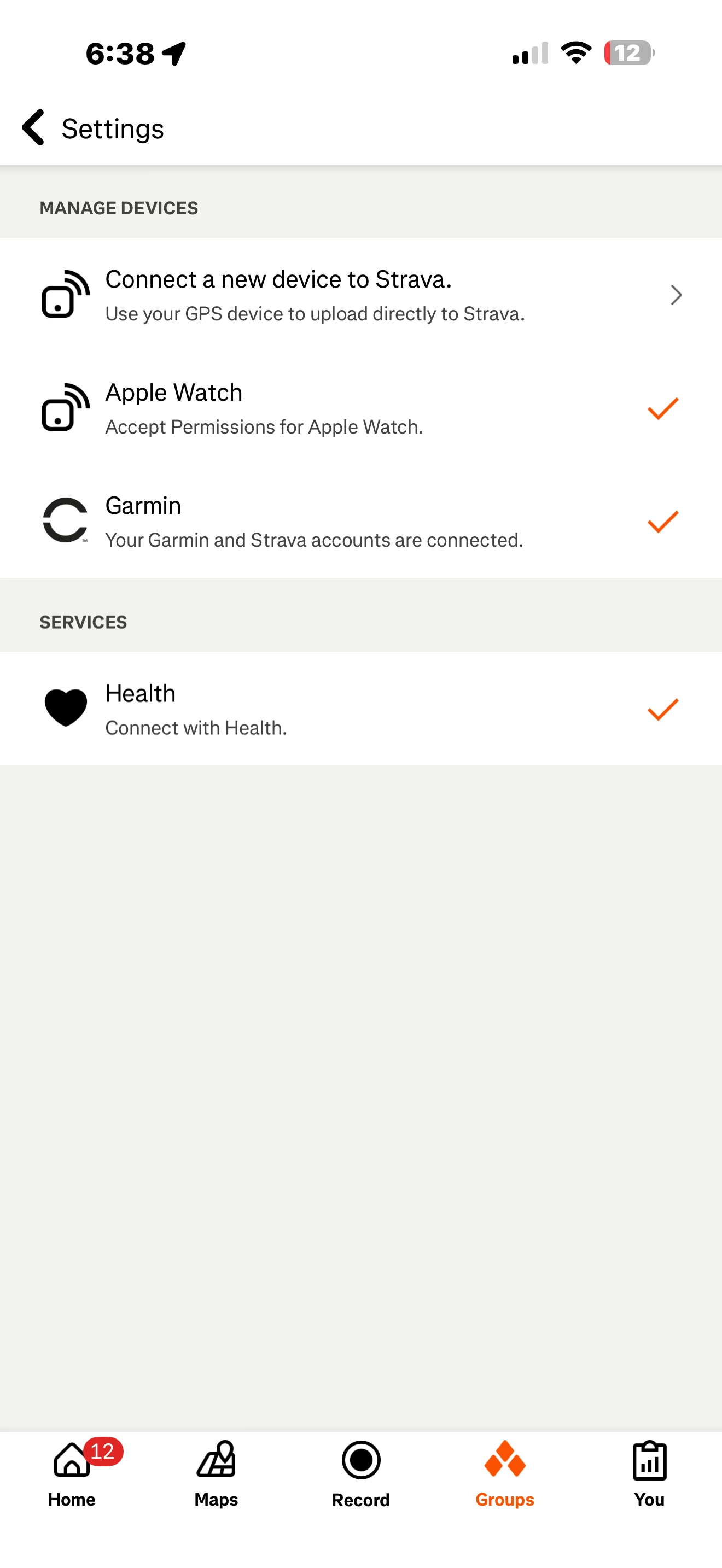
| Apple Watch | 81 | Bluetooth, Wi-Fi | App permissions, HealthKit bugs |
Garmin is reliable, but not perfect. Apple Watch has slightly higher sync rates because of tighter integration.
Credit: communityhub.strava.com
Syncing Timeline: What Happens And When
If you’re curious about timing, here’s how long syncing should take:
| Sync Method | Average Time (seconds) | Common Delays |
|---|---|---|
| Bluetooth (phone) | 20–60 | App updates, poor signal |
| Wi-Fi (direct) | 10–30 | Router issues, weak Wi-Fi |
| USB (Garmin Express) | 15–45 | Software updates, USB errors |
If syncing takes longer than these times, something may be wrong.
Non-obvious Insights For Beginners
Most guides skip these two points, but they matter:
- Garmin Connect and Strava both use servers. Sometimes, syncing fails because the servers are offline or overloaded. You can check Strava’s server status online, but Garmin doesn’t always share updates. If you notice many users reporting issues, wait and try again.
- Activities with incomplete GPS data rarely sync. If your workout is missing GPS, Strava may reject it. This happens if you start running before GPS locks on your Garmin. Always wait for GPS before starting.
Preventing Sync Problems In The Future
If you want smooth syncing every time, follow these habits:
- Update your apps and devices regularly.
- Sync right after your workout, while your device is still charged.
- Avoid manual uploads unless you need to fix a problem.
- Use only one fitness app for syncing at a time.
- Check privacy settings before every upload.
Small steps make a big difference. Many users ignore updates and settings, causing repeated issues.
Example: Fixing A Real Sync Issue
Let’s walk through a real scenario. Maria owns a Garmin Forerunner 245. She finished a 5K run, but it didn’t show up on Strava.
- She checks Garmin Connect: The run is there.
- She checks Strava: No activity.
- She tries syncing again: Still nothing.
Maria follows these steps:
- Updates Garmin Connect and Strava apps.
- Reconnects her Strava account in Garmin Connect.
- Checks privacy settings for the run and sets it to “public.”
- Waits five minutes and syncs again.
The run appears in Strava. Maria’s issue was a broken account link and privacy settings.
When Manual Upload Is The Best Solution
If automatic syncing fails, use manual upload. Here’s how:
- Connect Garmin to your computer.
- Find the activity file: /GARMIN/Activity/ (file ends in .FIT or .TCX).
- Go to Strava website.
- Click “Upload Activity” > “File.”
- Select your file.
Manual upload is reliable. It bypasses app errors and account problems.
Garmin Connect Web Vs Mobile App: Which Is Better For Syncing?
Both the web and mobile app let you sync to Strava, but there are differences:
| Platform | Sync Features | Best For | Weaknesses |
|---|---|---|---|
| Garmin Connect Mobile App | Bluetooth sync, quick uploads | Everyday use, on-the-go | App crashes, phone battery |
| Garmin Connect Website | Manual file uploads, account management | Advanced troubleshooting | Slower, needs computer |
For most users, the mobile app is easier. But if you face repeated issues, the website offers more control.

Credit: support.strava.com
Should You Use Third-party Sync Services?
Some users try third-party services like Tapiriik or SyncMyTracks. These apps promise to sync Garmin and Strava automatically, even if official syncing fails.
Pros:
- Can fix persistent sync issues.
- Useful if you use multiple fitness platforms.
Cons:
- May violate Garmin or Strava terms.
- Security concerns with account data.
- Not always reliable.
For most people, official apps work better. Use third-party tools only if you understand the risks.
How Strava Handles Duplicate Activities
Strava’s duplicate detection works by comparing:
- Time and date.
- GPS route.
- Device ID.
If two activities match closely, Strava may block one. This helps keep your feed clean, but it can confuse users who upload manually. If you see missing activities, check for duplicates first.
What To Do If Garmin Servers Are Down
Garmin occasionally has server outages. During these times, syncing stops for everyone. You can check for updates on Garmin’s Twitter or on forums. If you need your activity on Strava, use manual upload.
Tip: If you see other users reporting issues online, wait before trying fixes. Server outages resolve faster than app bugs.
Privacy And Security When Syncing
Syncing involves sharing your activity data between Garmin and Strava. For safety:
- Use strong passwords for both accounts.
- Only connect apps you trust.
- Review privacy settings on both platforms.
Garmin and Strava are secure, but linking too many apps can expose your data.
Frequently Asked Questions
Why Does My Garmin Activity Show In Garmin Connect But Not In Strava?
This usually means your accounts are not linked correctly, or Strava rejected the activity. Try reconnecting Strava in Garmin Connect, and check if the activity has GPS and is set to public.
How Long Does It Take For Garmin Activities To Sync To Strava?
Normally, syncing happens within a few minutes. If it takes longer than 15 minutes, check your internet connection, app updates, or account links.
Can I Manually Upload Garmin Activities To Strava?
Yes. Download the activity file (. FIT or. TCX) from your Garmin device, then upload it to Strava using the “Upload Activity” feature on Strava’s website.
Does Strava Accept All Garmin Activities?
Strava accepts most Garmin activities, but may reject those with missing GPS, duplicate uploads, or corrupt files. Make sure your device records full data before syncing.
Where Can I Get Official Help For Garmin-strava Syncing Issues?
Visit the Garmin and Strava help centers. For example, the Strava support site offers troubleshooting guides: Strava Support.
Syncing Garmin to Strava is easy most days, but issues do happen. With the steps above, you can solve nearly every problem yourself. Stay updated, check your settings, and keep your fitness journey smooth and connected.