If you’ve owned a Dell laptop, you know how useful the keyboard backlight can be. Whether you’re working late at night, sitting in a dim classroom, or just want to add a bit of style to your workspace, the backlit keyboard helps you see the keys easily. But what if the backlight suddenly stops working? For many users, this is a frustrating problem. You press the usual key combination, but nothing happens—the keys stay dark.
Understanding why the Dell keyboard backlight is not working can save you time and headaches. Sometimes, the fix is simple. Other times, it requires a closer look at your device settings, drivers, or even hardware. This article will walk you through every step you need to diagnose and fix the problem.
You’ll also learn what makes Dell’s backlight different from other brands, and how to keep your keyboard light working for the long run.
Why Does The Dell Keyboard Backlight Matter?
The backlight feature is more than just a convenience. For many users, it’s essential. Students often work in low-light dorm rooms. Professionals travel on planes or work late in offices where lighting isn’t ideal. Even at home, a backlit keyboard helps you avoid eye strain and type more accurately.
Dell includes backlights in most of its mid-range and premium laptops—such as the XPS, Inspiron, Latitude, and Alienware series. But not every Dell keyboard supports backlighting. Understanding your laptop’s features is the first step before troubleshooting.
Common Reasons Dell Keyboard Backlight Stops Working
When your Dell keyboard backlight isn’t responding, there are several possible causes. Here are the most frequent ones:
- Function key settings: Accidentally disabling the backlight is common. Sometimes, the function key combo gets pressed without you knowing.
- Software issues: Outdated or corrupted drivers can stop the backlight from working.
- Power management settings: If your laptop is on battery saver mode, it may turn off the backlight to conserve power.
- Hardware problems: Physical damage to the keyboard or connection issues inside the laptop can cause failure.
- BIOS or firmware settings: Some Dell laptops let you control keyboard backlight behavior from the BIOS menu.
- Operating system updates: After a Windows or Linux update, some settings might revert or drivers might need updating.
Recognizing which of these applies to your situation helps you fix the problem faster.
How To Check If Your Dell Keyboard Has A Backlight
Before you try to fix the backlight, make sure your Dell keyboard actually supports it. Not every Dell laptop comes with a backlit keyboard, especially budget or entry-level models.
Check The Keyboard Symbols
Look closely at your keyboard. Most Dell laptops use a symbol (often an icon that looks like a glowing keyboard or a light bulb) on one of the function keys—usually F6, F10, or the right arrow key. If you see this icon, your keyboard is likely backlit.
Model Specifications
You can check your laptop’s model number (often on the underside of your device or in system settings) and search for its specifications on the official Dell website. This will confirm if your keyboard is supposed to have a backlight.
Dell Support Assistant
If you’re unsure, open the Dell Support Assistant app. It automatically recognizes your system and lists hardware features, including the keyboard type.
Quick Fixes For A Non-working Backlight
Sometimes, the problem has a simple solution. Try these quick steps before moving on to more complex troubleshooting.
1. Use The Function Key Combination
Press the Fn key plus the key with the backlight icon. This is usually:
- Fn + F6
- Fn + F10
- Fn + Right Arrow
Try pressing just the backlight key alone if Fn doesn’t work. Some models require only the function key, while others use both.
2. Adjust Keyboard Backlight Brightness
Dell allows you to cycle through different brightness levels. Press the backlight key repeatedly to see if the light comes on at a higher setting.
3. Restart Your Laptop
A simple restart can fix temporary glitches, especially after a Windows update.
4. Plug In The Charger
Some Dell laptops disable the keyboard backlight when running on battery to save power. Plug in your charger and try again.
If these steps don’t help, it’s time to look deeper.
Credit: www.dell.com
Software And Driver Troubleshooting
When basic fixes don’t work, your problem may be related to software settings or drivers.
Update Keyboard Drivers
Outdated or corrupted drivers can stop the backlight from working. Here’s how to update them:
- Right-click the Start menu and choose Device Manager.
- Expand the Keyboards section.
- Right-click your keyboard device and select Update driver.
- Choose Search automatically for drivers.
If Windows finds new drivers, install them and restart your laptop.
Reinstall Dell Quickset Utility
Some Dell laptops use the QuickSet application to control features like keyboard backlight and screen brightness. If QuickSet is missing or corrupted, download the latest version from the Dell support site:
- Go to the Dell Support Drivers & Downloads page.
- Enter your laptop model.
- Download and install the QuickSet utility.
- Restart your laptop.
Check Windows Mobility Center
Windows Mobility Center often includes a section for keyboard backlight settings. Open it by pressing Windows Key + X and selecting Mobility Center. Adjust the backlight settings if available.
Update Windows
Major Windows updates sometimes reset or break device settings. Go to Settings > Update & Security > Windows Update and check for updates. Install any pending updates, then restart.
Bios And Firmware Settings
On many Dell laptops, the BIOS menu controls hardware features, including the keyboard backlight.
How To Access Bios
- Restart your Dell laptop.
- As soon as the Dell logo appears, press F2 repeatedly until the BIOS menu opens.
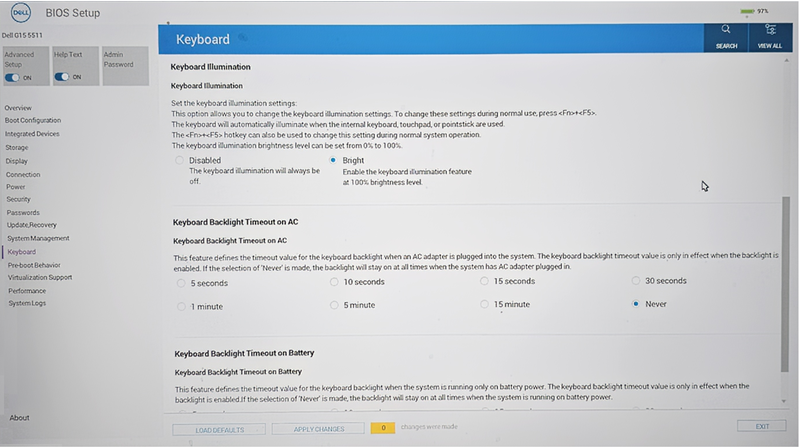
Enable Keyboard Backlight In Bios
- In the BIOS menu, look for System Configuration or a similar option.
- Find Keyboard Illumination or Backlight settings.
- Set it to Enabled.
- Save changes and exit BIOS (usually by pressing F10).
If the backlight setting is missing in BIOS, your laptop might not support it, or you may need a BIOS update from Dell’s website.
Comparing Dell Keyboard Backlight Features
Different Dell models offer varying levels of keyboard backlight control. Here’s a comparison of some popular series:
| Model Series | Backlight Control | Brightness Levels | Automatic Timeout |
|---|---|---|---|
| XPS | Fn + F10 | 3 | Yes |
| Inspiron | Fn + F6 | 2 | Yes (customizable) |
| Latitude | Fn + Right Arrow | 3 | Yes |
| Alienware | Alienware Command Center | Custom RGB | Yes |
This shows that higher-end models like Alienware and XPS offer more customization, while Inspiron and Latitude keep things simple.
Power Settings And Backlight Functionality
Dell laptops often manage power carefully to maximize battery life. This affects the keyboard backlight, especially when running on battery.
Change Power Plan Settings
In Windows:
- Open Control Panel > Hardware and Sound > Power Options.
- Click Change plan settings next to your active plan.
- Click Change advanced power settings.
- Expand Keyboard backlight (if available). Adjust the time or set to “Never turn off.”
If you don’t see a keyboard backlight setting, your model may not support control through Windows power plans.
Disable Battery Saver
If you use Windows Battery Saver, try turning it off:
- Click the battery icon in the taskbar.
- Turn off Battery saver.
- Try the backlight key combo again.
Dell Command Center And Third-party Software
For gaming and premium laptops like Alienware, Dell uses special software called Alienware Command Center to manage RGB lighting and backlight settings.
Using Alienware Command Center
- Open the Alienware Command Center from the Start menu.
- Select FX or Lighting.
- Adjust your keyboard backlight colors and effects.
- Save your preferences.
If this software is missing or not working, download the latest version from Dell’s official site.
Third-party Software Conflicts
Some third-party apps (like keyboard remappers or custom lighting tools) can interfere with the Dell backlight control. Try uninstalling these apps or disabling them temporarily to test if the backlight works.
Hardware Troubleshooting
If software solutions fail, the issue might be hardware-related.
Check For Physical Damage
- Inspect your keyboard for signs of liquid spills, stuck keys, or debris.
- If the backlight flickers or only part of the keyboard lights up, this could signal a hardware problem.
Try An External Keyboard
Connect an external backlit keyboard to your laptop. If it works, your laptop’s own backlight hardware may be faulty.
Internal Cable Connection
Inside the laptop, the keyboard backlight connects via a small cable. If your laptop has been dropped or opened for repair, this cable may be loose. If you’re comfortable opening your device, you can check this. Otherwise, seek help from a certified Dell technician.
Warranty And Repair
If your Dell laptop is under warranty, contact Dell Support for repair options. Opening the laptop yourself may void the warranty.
Differences Between Dell And Other Brands
Dell’s approach to keyboard backlighting is a little different from other laptop makers. Here’s a quick comparison:
| Brand | Backlight Activation Key | Software Control | Custom Colors |
|---|---|---|---|
| Dell | Fn + F6/F10/Right Arrow | QuickSet, Command Center | Alienware only |
| HP | F5 or F4 | HP OMEN Command Center | High-end models |
| Lenovo | Fn + Space | Lenovo Vantage | Rare |
| Asus | Fn + F4/F3 | Armoury Crate | Gaming series |
Dell generally provides straightforward white backlight on most models, while Alienware and some gaming laptops allow custom colors.
Advanced Troubleshooting Steps
If you’ve tried all the common fixes and your Dell keyboard backlight still isn’t working, these advanced steps may help.
System Restore
If the backlight stopped working after a recent software update or installation, use System Restore to roll back to a previous state.
- Search for System Restore in Windows.
- Choose a restore point before the problem started.
- Follow prompts to restore your system.
Reset Bios To Default
Sometimes, BIOS settings become corrupted. Resetting to default can fix odd hardware problems.
- Enter the BIOS menu (restart and press F2).
- Look for an option like Load Defaults or Reset to Default.
- Save and exit.
Run Dell Diagnostics
Dell laptops include built-in diagnostics.
- Restart your laptop.
- Press F12 during startup.
- Select Diagnostics from the boot menu.
- Follow prompts to test the keyboard and backlight.
If an error is found, the diagnostic code can help Dell support quickly identify the issue.
Check For Bios Update
An outdated BIOS can cause hardware features to malfunction.
- Visit the official Dell support site.
- Enter your laptop model.
- Download the latest BIOS update and follow instructions carefully.
Warning: Never interrupt a BIOS update. Losing power during this process can permanently damage your laptop.

Credit: www.youtube.com
Tips To Prevent Future Backlight Problems
Most keyboard backlight issues are avoidable with good habits:
- Always keep your drivers and Windows updated.
- Avoid spilling liquids on your keyboard.
- Use a keyboard cover if you work in dusty environments.
- Don’t force keys or press too hard.
- If your laptop gets hot, allow it to cool down—excess heat can damage the backlight.
It’s also smart to learn your laptop’s specific backlight key combo and adjust settings to your liking.
Non-obvious Insights Most Users Miss
- Timeout Settings: Many Dell keyboards turn off the backlight after a few seconds of inactivity. Users often think the light is broken, but it’s just timed out. You can usually adjust the timeout in the BIOS or Dell QuickSet Utility.
- Ambient Light Sensor: Some high-end Dell models include an ambient light sensor. If you’re in a bright room, the backlight may not turn on—even if you press the right key. Try covering the sensor (usually near the webcam) or move to a dimmer area to test.

Credit: www.asurion.com
Real-world Example: Student’s Frustration
A university student with a Dell Inspiron 15 found the keyboard backlight worked during the day but not at night. After trying all the usual key combinations, they realized their laptop was set to battery saver mode at night to extend battery life.
Once battery saver was disabled, the keyboard backlight worked perfectly again.
When To Contact Dell Support
If you’ve tried every troubleshooting method and the backlight still doesn’t work, it’s time to reach out to Dell Support. Write down what you’ve tried, your laptop model, and any error codes from diagnostics. This helps the technician diagnose the problem faster.
Dell offers chat, phone, and email support. You can find more information at the official Dell Support page.
Frequently Asked Questions
Why Is My Dell Keyboard Backlight Turning Off After A Few Seconds?
This is usually due to timeout settings. Dell keyboards often turn off the backlight after a short period of inactivity to save battery. You can change this behavior in the BIOS or QuickSet Utility, or set the backlight to stay on longer.
How Do I Know If My Dell Laptop Supports Keyboard Backlight?
Look for a backlight icon on your function keys (F6, F10, or right arrow). You can also check your laptop’s specifications on the Dell website or use the Dell Support Assistant app to confirm hardware features.
Will Updating Windows Affect My Keyboard Backlight?
Sometimes, major Windows updates can reset or disable drivers needed for the keyboard backlight. If your backlight stops working after an update, check Device Manager for driver updates or reinstall the Dell QuickSet Utility.
Can I Change The Color Of My Dell Keyboard Backlight?
On most Dell laptops, the backlight is white-only and not customizable. However, Dell Alienware series and some high-end gaming models allow you to change the color using the Alienware Command Center software.
What Should I Do If None Of The Fixes Work?
If you’ve tried all software and hardware troubleshooting steps, and your backlight still doesn’t work, the issue may be with the hardware itself. Contact Dell Support for further assistance, especially if your laptop is under warranty.
Getting your Dell keyboard backlight working again doesn’t have to be a mystery. By following these steps, you can quickly find out if the problem is a simple setting, a driver issue, or a hardware fault. With the right approach, you’ll be typing comfortably in any lighting condition in no time.