If you use a Galaxy Fit 3 to track your sleep, but it is not recording your sleep data, you are not alone. Many users have faced this issue, and it can be frustrating, especially if you want to monitor your health or improve your sleep habits. The Galaxy Fit 3 is designed to make sleep tracking easy, but sometimes things do not work as they should. This article explores the most common reasons why your Galaxy Fit 3 is not recording sleep, practical solutions for each cause, and tips to ensure reliable sleep tracking every night.
Why Sleep Tracking Matters
Good sleep is essential for health, memory, and energy. Wearables like the Galaxy Fit 3 use sensors to detect when you fall asleep, wake up, and how much time you spend in each sleep stage. The device uses this information to provide insights and recommendations.
If sleep is not recorded, you miss out on valuable feedback.
Three Main Reasons Galaxy Fit 3 Fails To Record Sleep
Through user feedback and technical support cases, three main issues cause the Galaxy Fit 3 to miss sleep data:
- Improper Fit or Position on Wrist
- Firmware or Software Issues
- Syncing Problems with Samsung Health App
Let’s look at each of these closely and learn how to fix them.
Credit: www.omnewyork.com
Improper Fit Or Position On Wrist
The first and most common reason for missed sleep tracking is how the Galaxy Fit 3 sits on your wrist. The device uses an optical heart rate sensor and motion detectors. If the fit is wrong, the sensors cannot collect accurate data.
Why Fit And Position Matter
- The optical sensor needs direct contact with your skin.
- A loose band allows light to leak, causing the sensor to fail.
- Wearing the band too tight can block blood flow and also cause errors.
Best Practices For Wearing Galaxy Fit 3
- Snug, Not Tight: The band should be tight enough that it does not slide around, but not so tight that it leaves marks.
- Above the Wrist Bone: Wear it about one finger-width above your wrist bone for best sensor contact.
- Clean Skin: Dirt or sweat between the sensor and skin can interfere. Clean your wrist and the back of the device regularly.
- Wear All Night: Remove only if it becomes uncomfortable. The device cannot track sleep if it is not worn.
Common Mistakes
- Wearing the device on the inside of the wrist instead of the top.
- Taking off the band in the middle of the night.
- Using third-party bands that do not fit well.
Real-world Example
A user reported that after switching from a loose aftermarket strap to the original Samsung band and wearing it correctly, sleep data appeared every night.
Firmware Or Software Issues
The Galaxy Fit 3 relies on its internal software (firmware) and the Samsung Health app. If either has a bug, sleep tracking can fail.
Outdated Firmware
Updates often fix sensor bugs and improve accuracy. If your Fit 3 runs old firmware, it may not record sleep correctly.
How To Check And Update Firmware
- Open the Galaxy Wearable app on your phone.
- Go to Band Settings > Band Software Update.
- If an update is available, download and install it.
App Version Problems
The Samsung Health app must also be updated for best performance.
- Open the Google Play Store or Galaxy Store.
- Search for Samsung Health.
- Tap Update if available.
Restarting And Resetting
Sometimes, the device or app may get stuck. Try these steps:
- Restart the Galaxy Fit 3 (hold the power button).
- Restart your phone.
- If issues persist, consider a factory reset (note: This erases data).
Data Corruption
Rarely, files inside the app or band can get corrupted. A factory reset can help, but do this only if other steps fail.
Example Of Firmware Impact
After a major firmware update in early 2024, some users noticed improved sleep tracking, especially for short naps.

Credit: eu.community.samsung.com
Syncing Problems With Samsung Health App
Your Galaxy Fit 3 collects data, but the Samsung Health app displays it. If data does not sync, sleep records may appear missing.
How Syncing Works
- The band stores sleep data until it can connect with your phone.
- When Bluetooth is on and the app is open, data transfers.
- If syncing fails, you may see gaps or no data.
Signs Of Sync Issues
- Sleep data appears on the band but not in the app.
- Data is delayed or missing after device updates.
- The last sync time in the app is hours or days old.
How To Fix Sync Problems
- Check Bluetooth: Make sure Bluetooth is enabled on your phone.
- Open Samsung Health: Sometimes, opening the app triggers a manual sync.
- Give Permissions: The app needs permissions for Bluetooth, location, and background activity.
- Restart Devices: Restart both the band and your phone.
- Re-pair Devices: If syncing still fails, remove the band from the app and add it again.
Differences In Data Storage
The Galaxy Fit 3 stores a limited amount of data. If you do not sync for a long time (several days), some data may be lost.
Example Of Sync Delay
Some users note that after traveling or turning off Bluetooth for several days, old sleep data may not appear even after reconnecting.
Comparison Of Key Factors Affecting Sleep Tracking
To help you quickly see the main differences, here is a comparison of the three issues and how they impact sleep recording:
| Issue | Signs | How to Fix | Risk of Data Loss |
|---|---|---|---|
| Improper Fit | No sleep data, or frequent gaps | Adjust strap, clean sensors | Low |
| Firmware/Software | Random failures or bugs | Update, restart, reset | Medium |
| Sync Problems | Data on band, missing in app | Check Bluetooth, sync manually | High if delayed |
How To Ensure Accurate Sleep Tracking
Even if your Galaxy Fit 3 is working well, you can take extra steps to get the most accurate sleep data.
Prepare For Bed
- Wear the band at least 15 minutes before sleep. This helps it learn your patterns.
- Avoid moving or taking off the band during the night.
Use The Latest Software
- Enable automatic updates for the Galaxy Wearable and Samsung Health apps.
Sync Regularly
- Open Samsung Health each morning to check your data.
- Avoid long periods without syncing.
Choose The Right Settings
- In Samsung Health, make sure Sleep Tracking is turned on.
- Set your usual bedtime and wake time, if available.
Monitor Battery
A low battery may stop tracking in the middle of the night. Charge your band during the day.
Differences In Sleep Tracking Accuracy
Not all wearables use the same sensors or algorithms. Here’s a quick look at how the Galaxy Fit 3 compares to other popular trackers:
| Device | Sensor Type | Sleep Stages Detected | App Integration |
|---|---|---|---|
| Galaxy Fit 3 | Optical HR, Accelerometer | Light, Deep, REM | Samsung Health |
| Fitbit Inspire 3 | Optical HR, SpO2 | Light, Deep, REM | Fitbit App |
| Xiaomi Mi Band 7 | Optical HR, Accelerometer | Light, Deep, REM | Mi Fit App |
Two Non-obvious Insights
- Short Naps May Not Be Tracked: Many users expect all sleep to be recorded, but the Galaxy Fit 3 may only track sleep periods longer than 30-60 minutes. Short naps can be missed, especially if the device is not worn securely.
- Manual Edits Are Limited: Unlike some advanced wearables, the Galaxy Fit 3 does not let you manually add or edit sleep records in the Samsung Health app. If a night is missed, there is no way to recover or adjust the data.

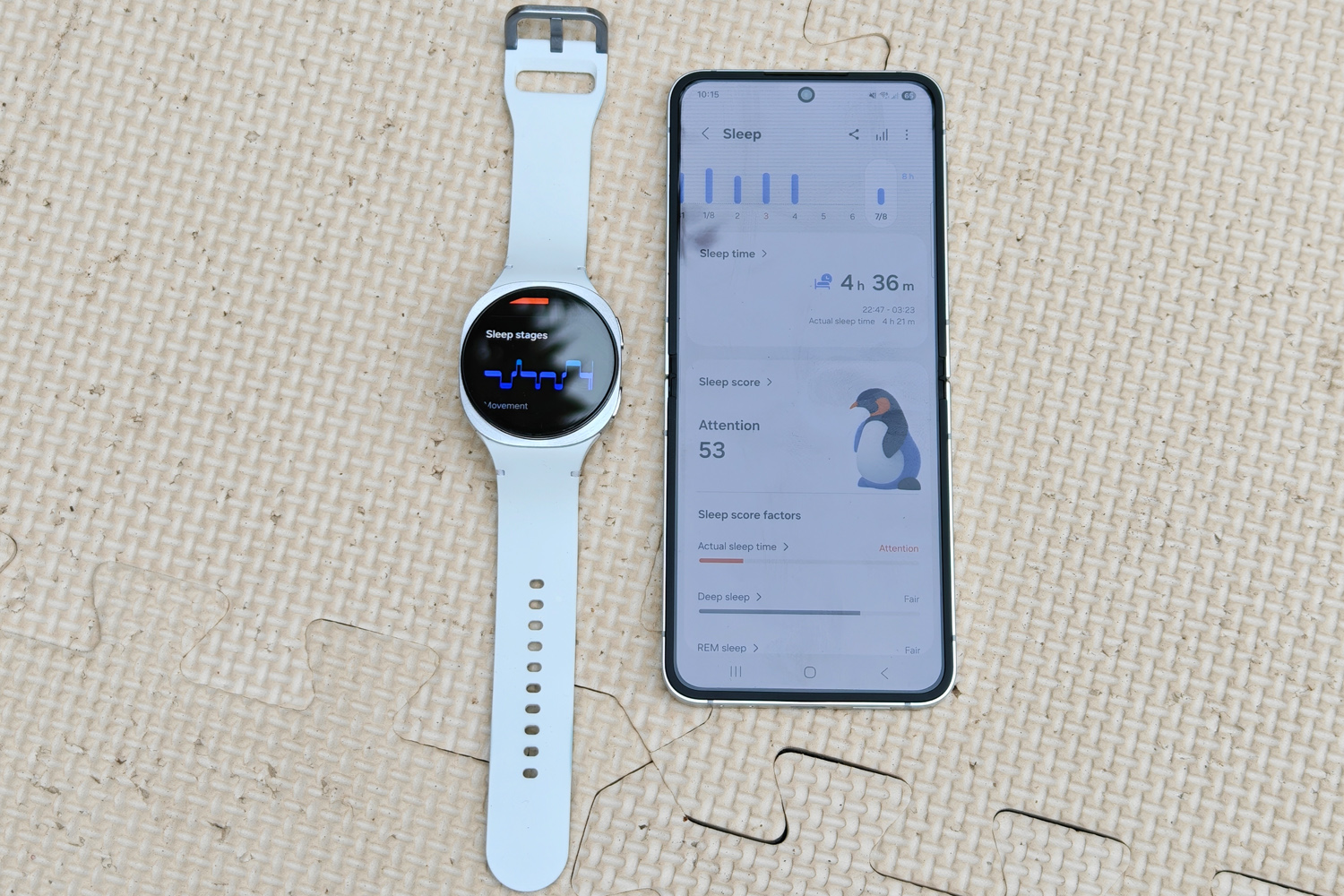
Credit: www.youtube.com
Avoiding Common Beginner Mistakes
- Assuming All Data Is Lost: If data is missing in the app, check the band directly first. Sometimes a manual sync solves the problem.
- Forgetting Permissions: After updates, some phones reset app permissions. Always double-check that Samsung Health can access necessary features.
- Ignoring Sleep Patterns: If you work night shifts or sleep at odd hours, the device might misinterpret your sleep. Set your preferred sleep window in Samsung Health if possible.
When To Contact Support
If you have tried all steps above and your Galaxy Fit 3 still does not record sleep, it may be a hardware fault. Contact Samsung Support or visit an authorized service center. Keep your purchase proof and describe your troubleshooting steps.
For more official troubleshooting, visit the Samsung Support page.
Frequently Asked Questions
Why Does My Galaxy Fit 3 Not Record Sleep Sometimes, But Works On Other Nights?
This usually happens if the device is not worn properly on certain nights, or if sync between the band and app is delayed. Try wearing the band snugly and syncing every morning.
Can I Track Naps With The Galaxy Fit 3?
The Galaxy Fit 3 may record naps longer than 30-60 minutes, but shorter naps are often missed. For best results, wear the band securely and avoid moving your arm during naps.
Will Resetting My Galaxy Fit 3 Erase My Sleep History?
A factory reset will erase all data stored on the band. However, if your sleep data has already synced to Samsung Health, it will remain in the app.
Why Is My Sleep Data Different Between The Band And The App?
Syncing may be delayed, or the app may not have updated yet. Try opening Samsung Health and manually syncing the band.
Can I Manually Add Or Edit Sleep Records In Samsung Health?
No, the Galaxy Fit 3 and Samsung Health do not allow manual edits to sleep records. Make sure your device is worn correctly each night to avoid missing data.
If you follow these steps, you can often fix sleep tracking problems with your Galaxy Fit 3. A few small changes in how you wear and use your device can make a big difference in the quality of your sleep data.
Remember to keep your device updated, sync regularly, and pay attention to how the band fits on your wrist. With the right habits, your Galaxy Fit 3 can become a reliable tool for better sleep and better health.