Many people today rely on fitness apps to count their steps. These apps help us stay active, track our progress, and reach health goals. But what happens when your fitness app is not tracking steps? The frustration is real. You take a long walk, open the app—and see almost no steps. For those aiming to live healthier, this can be discouraging.
If you are facing this problem, you are not alone. Millions use step tracking apps every day, and many experience the same issue. The good news is, most step tracking problems have clear causes and solutions. In this article, you will learn why step tracking can fail, how different devices count steps, and what you can do to fix the issue.
We’ll also look at common mistakes, how to get the most accurate results, and answer key questions at the end. Whether you use Android, iPhone, or a wearable, you’ll find practical advice here.
How Fitness Apps Track Steps
Before solving the problem, it’s important to know how step tracking works. Most fitness apps use sensors in your phone or wearable device. The most common is the accelerometer, a small chip that detects movement and changes in direction.
When you walk or run, your device senses the up-and-down motion. The app then uses this data to guess how many steps you take. Some devices use extra sensors, like the gyroscope or GPS, to make step counting more accurate. Wearables like smartwatches and fitness bands often do a better job than phones, because they are always attached to your body.
Fitness apps do not count steps perfectly. They use algorithms—sets of rules that look for patterns in your movement. These rules are not the same for every app. Some apps are more sensitive, and some ignore small movements to avoid counting fake steps.
Comparing Step Tracking Methods
Here is a look at how different devices and apps track steps:
| Device/App Type | Main Sensor Used | Accuracy (Typical) | Notes |
|---|---|---|---|
| Smartphone (App only) | Accelerometer | 70-90% | Needs to be carried while walking |
| Smartwatch/Fitness Band | Accelerometer + Gyroscope | 85-98% | Worn on wrist, more consistent |
| GPS-based Apps | GPS + Accelerometer | Varies | Better for distance, not steps |
As you can see, smartwatches and fitness bands usually give the best step tracking results. Phone apps work well, but only if you carry your phone every step.
Common Reasons Your Fitness App Is Not Tracking Steps
If your app is missing steps or not tracking at all, many possible causes exist. Here are the most common reasons:
1. Permissions Not Granted
Most apps need permission to access your device’s sensors. If you didn’t allow these permissions when you installed the app, it cannot track your steps.
- On Android, go to Settings > Apps > [App Name] > Permissions.
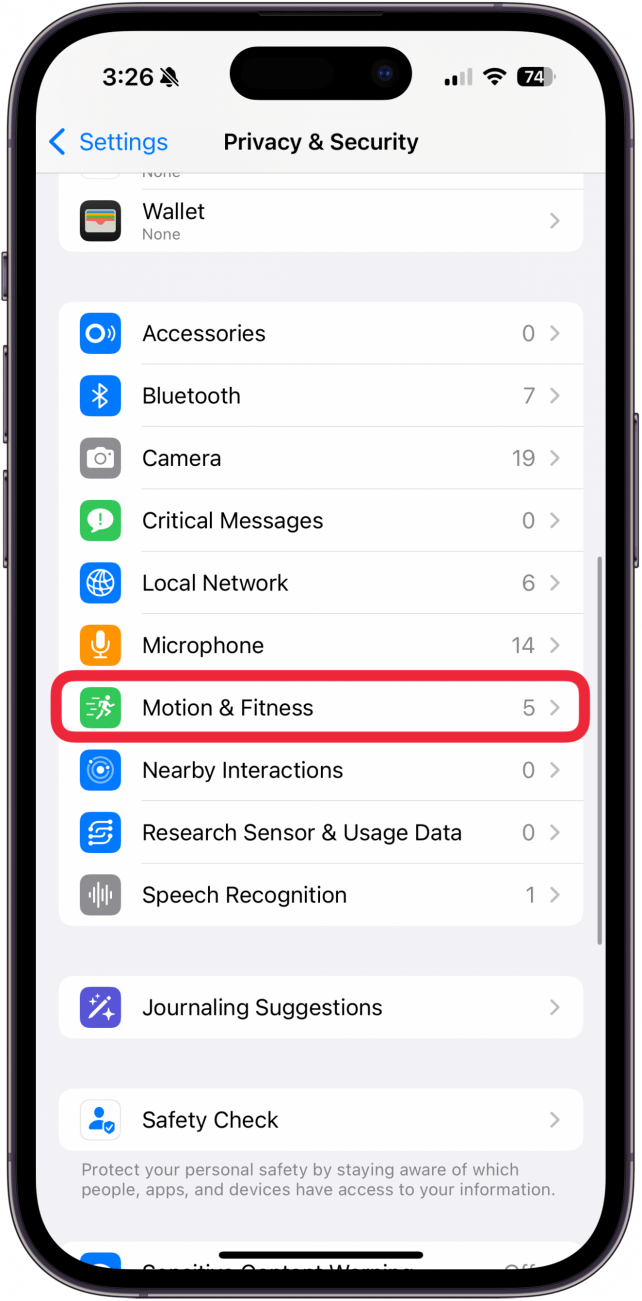
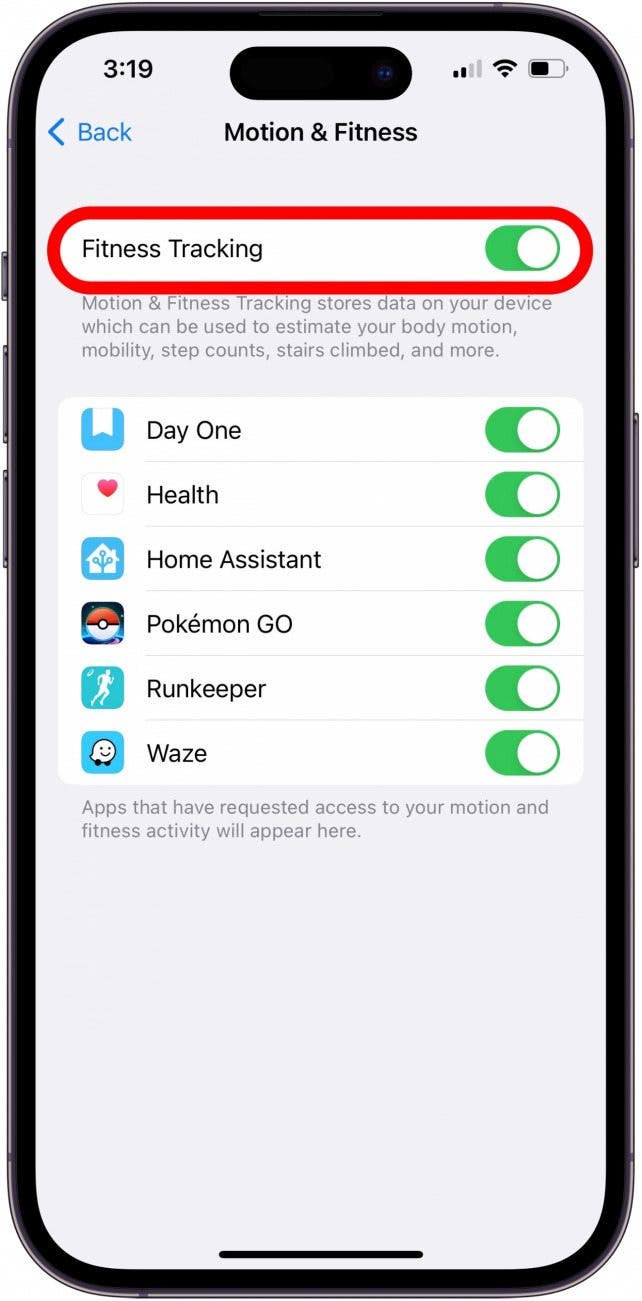
- On iPhone, check Settings > Privacy > Motion & Fitness.
2. Device Not Carried
A phone app can only track steps if you carry the device. Leaving your phone on a desk while you walk means no steps counted.
3. App Or Device Is Not Updated
Old versions of fitness apps or your phone’s operating system may have bugs. Updates often fix these problems.
4. Battery Optimization Settings
Some phones stop apps from running in the background to save battery. This can turn off step tracking.
- On Android, look under Battery or App Power Management.
- On iPhone, check Background App Refresh.
5. Sensors Are Blocked Or Malfunctioning
If your phone or wearable has a damaged sensor, or if it is blocked (by a thick case, for example), it may not record steps.
6. App Not Running In The Background
Some apps need to stay open in the background. If you close the app completely, step tracking might stop.
7. Wrong Wearing Position
Wearing a fitness band too loosely, or on your dominant hand, can affect accuracy. Phones in backpacks or purses may miss steps.
8. Low Movement Sensitivity
Some apps ignore slow or gentle movement. If you walk very softly, your steps may not be counted.
9. Multiple Apps Competing
If you use several fitness apps at once, they can interfere with each other. Data may be delayed or lost.
10. App-specific Bugs
Each app has its own bugs or quirks. Sometimes, a step counter simply does not work as it should, even if everything is set up correctly.
Troubleshooting: Step-by-step Solutions
When your fitness app is not tracking steps, follow these steps to identify and fix the problem. Start with the simplest fixes and move to more advanced checks.
1. Check Permissions
Open your device settings and make sure the app has access to Motion & Fitness, Physical Activity, or similar sensor permissions.
2. Update Your App And Device
Go to the app store and update your fitness app. Update your phone or wearable’s system software if updates are available.
3. Restart Your Device
Turn off your phone or wearable, then turn it back on. This can reset stuck sensors or apps.
4. Review Battery And Background Settings
- On Android, allow the app to run in the background and turn off battery optimization for the fitness app.
- On iPhone, enable Background App Refresh for your app.
5. Carry Your Device Correctly
Keep your phone in a pocket or bag close to your body. For wearables, make sure the band is snug but comfortable.
6. Test The Sensors
Many phones have a hidden menu or app for testing sensors. Search for “sensor test” in your app store, or check your device’s support page.
7. Reinstall The App
Delete the fitness app and install it again. This resets the app’s settings and can solve hidden problems.
8. Try A Different App
Install another trusted step tracking app. If the new app works, your old app may have a bug.
9. Check For Device Damage
If your phone or wearable has been dropped, the sensors may be damaged. Try using another device if possible.
10. Contact Support
If none of these solutions work, contact the app’s support team for help. Sometimes, only the developers can fix deeper bugs.
How Different Apps Handle Step Counting
Not all fitness apps count steps in the same way. Some are more accurate or offer more features. Popular apps include Google Fit, Apple Health, Samsung Health, Fitbit, Strava, and Pacer.
Here’s how some of the most used apps compare:
| App Name | Step Tracking Accuracy | Device Compatibility | Extra Features |
|---|---|---|---|
| Apple Health | High (on iPhone & Apple Watch) | iOS devices | Integrates with many apps |
| Google Fit | Medium-High | Android, Wear OS, iOS | Heart Points, Move Minutes |
| Samsung Health | High (on Samsung devices) | Android, Samsung devices | Sleep, stress, food logging |
| Fitbit | Very High (with Fitbit device) | Fitbit wearables, phones | Challenges, social features |
| Pacer | Medium | Android, iOS | Simple interface, groups |
| Strava | Medium (best for running) | Android, iOS, wearables | Social feed, GPS maps |
Some key insights:
- Apple Health and Samsung Health often give the best results when used with their own devices.
- Fitbit has very accurate step counting, but only if you use a Fitbit tracker.
- Google Fit is flexible, but accuracy depends on the device.
- Third-party apps like Pacer may be easier to use but often have fewer features or less accuracy.
Common Mistakes That Lead To Step Tracking Problems
Many people make simple mistakes that stop step counting from working well. Here are some to watch out for:
- Not carrying the device: If you leave your phone behind or take off your fitness band, no steps are recorded.
- Wearing the device incorrectly: A loose band, or a phone in a bag that swings, can cause missed steps.
- Not updating the app: Outdated apps can have bugs that are already fixed in new versions.
- Ignoring permissions: Denying sensor or background permissions stops step tracking.
- Closing the app completely: Some apps need to be open in the background.
- Using multiple fitness apps: Too many apps can fight for sensor data.
- Battery optimization: Aggressive battery saving can pause step tracking.
- Testing steps with unrealistic movements: Shaking your phone or waving your arm is not the same as walking. Apps may ignore these motions.
- Expecting perfect accuracy: Even the best trackers can be off by 5–10%. Don’t expect every step to be counted.
How To Get More Accurate Step Counts
If you want your step data to be as accurate as possible, follow these tips:
1. Use A Dedicated Wearable
Smartwatches and fitness bands are designed for tracking movement. They are more consistent than phones.
2. Wear Devices Properly
- Wear bands snugly above your wrist bone.
- Use your non-dominant hand for more accurate results.
- Keep your phone in a front pocket close to your body.
3. Keep Apps Updated
Install updates for your fitness app and device system software regularly. New versions often fix bugs and improve tracking.
4. Calibrate Your Device
Some apps and wearables let you set your stride length. Measure your average step and enter it for better accuracy.
5. Allow All Required Permissions
Don’t skip any sensor or motion permissions. Enable background activity and location if the app asks for it.
6. Avoid Unusual Movements
Carrying groceries, pushing a stroller, or riding in a car can confuse step counters. Try to walk naturally for best results.
7. Sync Regularly
If your wearable syncs with your phone, do it often. This keeps your data up to date and avoids lost steps.
8. Charge Your Devices
Low battery can disable sensors or background activity. Keep your phone and wearable charged.
9. Test With Real Walks
When checking accuracy, take a real walk and count steps yourself. Compare to the app’s number.
10. Choose The Right App For Your Needs
If step tracking is your main goal, pick an app known for good step counting, not just for running or cycling.
Credit: www.seebar-luzern.ch
When To Replace Your Device
Sometimes, hardware is the problem. If your phone or wearable is very old or damaged, its sensors may not work well. Sensors lose sensitivity over time, especially in devices that have been dropped or exposed to moisture.
Consider replacing your device if:
- Step counts are very low or zero, even after following all fixes.
- Sensor tests show errors or missing data.
- Other movement-based apps also fail to work.
- The device is more than 4–5 years old and has never been serviced.
Newer phones and wearables have better sensors and improved battery life. If step tracking is important to you, upgrading can make a big difference.
The Role Of Software Updates In Step Tracking
Many users forget that both apps and operating systems affect step tracking. Developers update their apps to fix bugs, add features, and improve accuracy. Phone makers also update their software, which can affect how sensors work.
- If you notice your app suddenly stops tracking steps after an update:
- Check if the new version requires new permissions.
- Look for settings that might have changed.
- Read recent user reviews for similar complaints.
- If step tracking improves after an update:
- Keep your app updated regularly for best performance.
Sometimes, updates can break features by mistake. If you are sure the latest update caused the problem, check for a rollback option, or contact support.
Privacy And Data Security In Fitness Apps
Step tracking apps collect sensitive data about your movements and daily habits. It’s important to know how your data is used and protected.
- Choose apps from reputable companies with clear privacy policies.
- Review permissions before installing. Only grant access to sensors and data needed for step tracking.
- Sync data with care: If your app uploads data to the cloud, check who can see your information.
- Delete unused apps to reduce your data risk.
Most popular apps, like Apple Health and Google Fit, have strong privacy settings. Still, always review what you are sharing, especially with third-party apps.
Alternatives To Step Counting
If your fitness app is not tracking steps and you can’t fix it, there are other ways to stay active and record your progress.
1. Use Gps Tracking
Apps like Strava or MapMyWalk use GPS to track distance and route. This is helpful for outdoor exercise, but not for steps indoors.
2. Log Activities Manually
Most apps let you enter walking, running, or cycling sessions by hand. It’s less precise but keeps you motivated.
3. Focus On Active Minutes
Some apps, like Google Fit, measure active minutes instead of steps. This can be a better way to track overall activity.
4. Use A Pedometer
A simple pedometer is a dedicated device for counting steps. They are cheap, easy to use, and don’t rely on phone sensors or apps.
The Psychology Of Step Tracking
Counting steps is not just about numbers. It’s a powerful way to motivate yourself to move more. Research shows that people who track their steps walk up to 27% more than those who do not use trackers. Setting a daily goal—like the popular 10,000 steps—gives you a clear target.
However, focusing too much on step numbers can also cause stress or obsession. If your tracker misses steps, remember the main goal is to be active, not just to hit a number. Enjoy your walks and celebrate your progress, even if the app is not perfect.
Real-world Examples: Troubleshooting In Action
Let’s look at two real examples:
Example 1: Jane’s Phone Misses Steps
Jane uses her iPhone to track steps with Apple Health. She notices her step count is much lower than expected after a long day at work.
- She checks her phone settings and sees Motion & Fitness permissions are off.
- Jane enables the permissions and restarts her phone.
- The next day, her step count matches her activity.
Example 2: Sam’s Fitness Band Not Counting
Sam wears a fitness band on his wrist, but the app shows no steps after a morning walk.
- He finds the band is very loose on his arm.
- Sam tightens the strap and wears it on his non-dominant wrist.
- The tracker now records steps correctly.
These examples show how small changes can fix big problems.
Step Tracking And Health: Why It Matters
Tracking steps is more than a numbers game. Regular walking is linked to lower risk of heart disease, diabetes, and mental health problems. The World Health Organization recommends at least 150 minutes of moderate exercise per week. Step tracking makes it easy to measure this goal.
Studies show people who use step trackers are more likely to keep moving and stay healthy. If your app is not tracking steps, fixing the problem can help you stick to your health goals and enjoy the benefits of an active lifestyle.
Comparing Wearable Brands For Step Tracking
If you are thinking about buying a new device just for step tracking, you might wonder which brand is best. Here is a quick comparison of popular wearables:
| Brand | Accuracy | Battery Life | Price Range (USD) |
|---|---|---|---|
| Fitbit | Very High | 5-10 days | 70–300 |
| Apple Watch | High | 18–36 hours | 200–800 |
| Garmin | High | 7–14 days | 100–400 |
| Xiaomi Mi Band | Medium-High | 14–20 days | 30–60 |
| Samsung Galaxy Fit | High | 7–11 days | 80–150 |
Fitbit and Garmin are top choices for long battery life and accuracy. Apple Watch is best for iPhone users who want more features, but needs charging often.
Non-obvious Insights For Better Step Tracking
Most users don’t realize these two important points:
- Step tracking is less accurate during certain activities. For example, pushing a shopping cart or stroller, or walking on soft surfaces, can cause undercounting. The tracker does not sense the typical arm swing.
- Short, frequent walks can be missed. Many apps ignore very brief activity periods (less than one minute) to avoid counting non-walking motion. If you take lots of tiny walks, not all will be recorded.
To improve accuracy, try carrying your device during all types of movement and check your app’s minimum step threshold setting, if available.
When To Seek Technical Help
If you have tried all solutions and your app still does not track steps, it’s time to get help.
- Contact the app developer: Use the “Help” or “Contact Us” section in the app.
- Check user forums: Others may have the same problem and offer fixes.
- Visit a service center: If you suspect hardware damage, have your device checked by professionals.
Major apps like Fitbit and Apple Health have active support teams who can investigate problems.
Credit: www.iphonelife.com
Additional Resources
If you want to learn more about how step tracking works, visit the Wikipedia page on pedometers. You’ll find details on the science behind step counting and its history.
Frequently Asked Questions
Why Is My Fitness App Not Tracking Steps At All?
The most common reasons are missing permissions, outdated apps, or the device not being carried. Check your app’s permissions, update to the latest version, and make sure you always carry your phone or wearable while walking.
How Can I Improve The Accuracy Of My Step Tracker?
Wear your device snugly, update your apps and system software, calibrate your stride length if possible, and avoid carrying your device in bags or on loose clothing. Dedicated wearables are usually more accurate than phones.
Can Step Tracking Apps Work Without An Internet Connection?
Yes, most step tracking is done with sensors inside your phone or wearable. However, some features, like syncing or backup, may need an internet connection.
Why Does My Step Count Differ Between Devices?
Different devices and apps use their own algorithms and sensors, so results can vary. Try to use the same device and app for tracking, and avoid running multiple trackers at the same time.
Are Fitness Apps Safe For My Privacy?
Most major fitness apps are safe if you use official versions and review their privacy settings. Only grant permissions needed for step tracking, and avoid sharing sensitive data with unknown third parties.
If your fitness app is not tracking steps, remember: most issues can be fixed with simple steps. Stay patient, follow the advice above, and soon you’ll be back on track—counting every step toward better health.
Credit: www.iphonelife.com