Many people trust their Apple Watch to record workouts, track health, and motivate them every day. But what happens when it suddenly stops recording your exercise? You might finish a long walk or an intense workout, only to find that your Apple Watch hasn’t logged it. This can be frustrating, especially if you rely on it for fitness goals or health monitoring. In this guide, you’ll learn why your Apple Watch might not record exercise, how to fix the problem, and some practical tips for accurate activity tracking.
Why Your Apple Watch May Not Record Exercise
When your Apple Watch doesn’t record your exercise, there isn’t just one cause. Several factors can interfere with workout detection and tracking. Understanding these common reasons will help you troubleshoot faster.
1. Wrist Detection Issues
Your Apple Watch uses sensors to detect if it’s on your wrist. If it can’t confirm contact with your skin—due to tattoos, loose fit, or sweat—it might pause activity tracking or not record at all.
2. Incorrect Workout Selection
Choosing the wrong workout type (for example, “Other” instead of “Outdoor Walk”) can affect how the watch counts activity. Some types require a minimum level of movement or heart rate to log as exercise.
3. Software Glitches
Old watchOS software can have bugs that prevent accurate tracking. A simple update often solves these issues.
4. Location And Sensor Problems
The watch relies on GPS and motion sensors for outdoor activities. If GPS is weak (indoors, dense city, or thick forest), your workout might not be recorded correctly.
5. Settings Conflicts
Sometimes, privacy or location settings block the watch from collecting the data it needs. If permissions are off, tracking won’t work.
6. Low Power Mode
In Low Power Mode, the Apple Watch may reduce tracking accuracy or skip logging exercise to save battery.
How The Apple Watch Tracks Exercise
To fix tracking issues, it helps to know how the watch records your movement. Here’s a quick look at how the Apple Watch measures exercise:
- Heart rate sensor: Measures your heart rate during exercise to confirm intensity.
- Accelerometer and gyroscope: Track your movement and position.
- GPS: Records distance and route for outdoor activities.
- Motion algorithms: Decide if your movement matches the chosen workout type.
If any sensor is blocked or data is missing, the watch might not count your activity.

Credit: www.youtube.com
Quick Fixes To Try First
Before diving into complex solutions, try these simple steps. They often resolve the problem quickly.
1. Restart Your Apple Watch
Turn off your watch, wait a few seconds, then turn it back on. This refreshes the system and clears temporary bugs.
2. Check The Fit
Make sure your watch is snug—not too loose, not too tight. The sensors should touch your skin.
3. Update Software
Go to the Watch app on your iPhone > General > Software Update. Install any available updates.
4. Re-select Workout Type
Double-check that you’re choosing the correct workout. For example, use “Outdoor Run” for running outside, not “Other. ”
5. Charge Your Watch
Low battery can limit sensor functions. Start your workout with at least 50% battery for best results.
Advanced Troubleshooting Steps
If basic fixes don’t help, move on to these steps. They address more complex causes.
Reset Calibration Data
Over time, your Apple Watch learns your walking and running style. If calibration data is off, tracking may fail. To reset:
- Open the Watch app on your iPhone.
- Go to Privacy > Reset Fitness Calibration Data.
- After resetting, calibrate again by taking a 20-minute outdoor walk or run with your iPhone.
Review Privacy And Location Settings
The watch needs location access for outdoor activities.
- On your iPhone, go to Settings > Privacy & Security > Location Services.
- Make sure Location Services is ON.
- Scroll to Apple Watch Workout and set it to “While Using.”
Unpair And Re-pair Your Apple Watch
If your watch still won’t record exercise, unpairing can fix software or sync issues.
- Open the Watch app > My Watch > All Watches.
- Tap the “i” next to your watch, then choose Unpair.
- Pair the watch again and restore from backup.
Check For Obstructions
Tattoos, heavy sweat, or lotion can block the sensors. Clean your wrist and the back of the watch before workouts.
Test With Different Workouts
Try starting a workout you don’t usually do. If it records, the problem may be tied to one type (like cycling or swimming).
Comparing Common Problems And Solutions
Here’s a quick comparison to help you identify your issue:
| Problem | How to Recognize | Best Solution |
|---|---|---|
| Wrist detection not working | Watch locks or pauses during exercise | Tighten band, clean sensors |
| Incorrect workout type | Exercise logged as less time or not at all | Choose correct workout before starting |
| GPS not working | No route or distance data in summary | Enable Location Services, update iOS/watchOS |
| Software bug | Random missing workouts | Restart, update, or re-pair watch |
Hidden Settings That Affect Exercise Recording
Some settings are easy to miss but can block accurate logging.
Motion & Fitness Settings
- Go to iPhone Settings > Privacy & Security > Motion & Fitness.
- Make sure both Fitness Tracking and Health are ON.
System Services
- In Location Services, scroll down to System Services.
- Turn on Motion Calibration & Distance.
Do Not Disturb And Focus Modes
These can sometimes pause tracking or prevent notifications during workouts. Make sure your Focus settings allow Activity tracking.
How To Calibrate Your Apple Watch
Calibration helps your watch learn your stride, pace, and movement style. Here’s how to do it:
- Go to an open, flat outdoor area with good GPS signal.
- Bring your iPhone with you (if you have Series 1 or 2).
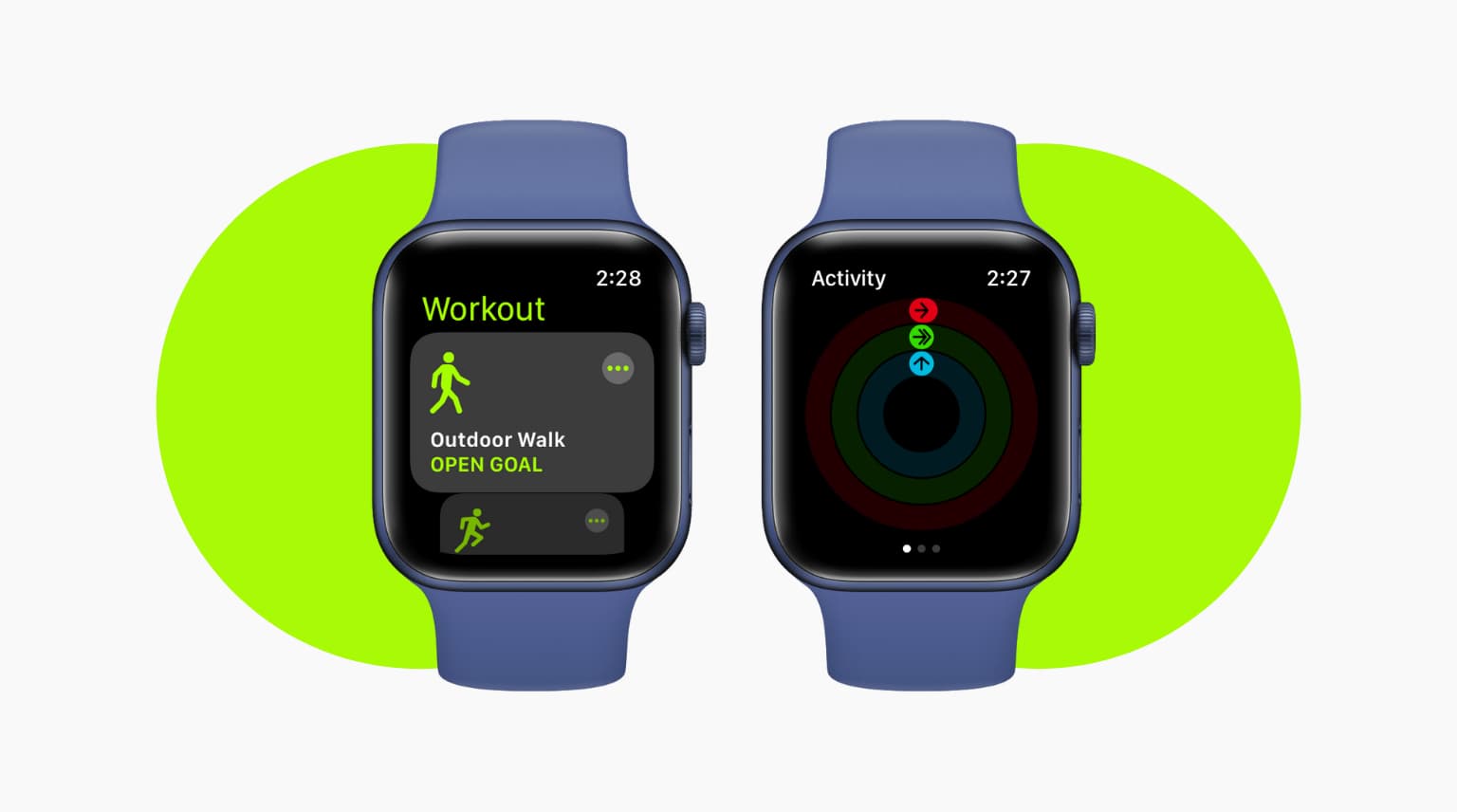
- Open the Workout app on your watch and select “Outdoor Walk” or “Outdoor Run.”
- Walk or run at your normal pace for at least 20 minutes.
This teaches your watch how you move, improving tracking accuracy.
Real-world Examples
Many users notice their Apple Watch misses exercise when:
- Walking indoors (less GPS data)
- Swimming (water can block sensors)
- Doing low-intensity activities (heart rate too low)
- Wearing the watch too loose or over clothing
Example:
Maria wore her Apple Watch loosely while gardening. After hours of work, her Activity rings did not move. When she tightened the strap and selected “Other” workout, her next gardening session was recorded.
Another case:
Tom ran in a city with many tall buildings. His Outdoor Run showed no route and only half the distance. He learned his Location Services were off, which blocked GPS data.
Comparing Apple Watch Models For Exercise Tracking
Not all Apple Watch models have the same sensors. Here’s a quick comparison of their tracking features:
| Model | Heart Rate Sensor | GPS | Swim Proof |
|---|---|---|---|
| Series 3 | Yes | Yes | Yes |
| Series 6 | Yes (advanced) | Yes | Yes |
| SE | Yes | Yes | Yes |
| Ultra | Yes (advanced) | Dual-frequency GPS | Yes (up to 100m) |
If you have an older model, you may notice less accurate tracking for some activities.
Common Mistakes When Tracking Exercise
Many users make simple mistakes that prevent accurate exercise logging:
- Not starting a workout manually: The watch auto-detects some activities, but it’s not perfect. Always start the workout from the Workout app.
- Ignoring watch placement: Wearing the watch on the wrong wrist, over clothing, or too loose affects tracking.
- Skipping software updates: Updates often fix sensor bugs.
- Not calibrating: New watches need a calibration walk/run for best results.
- Low battery: Starting a workout with low battery can end tracking early.

Credit: tradicao.pt
When To Contact Apple Support
If you’ve tried all troubleshooting steps and your Apple Watch still won’t record exercise, it might be a hardware issue. Sensor failure is rare, but possible. Visit an Apple Store or use the Apple Support app for help.
Extra Tips For Reliable Exercise Recording
- Clean your watch and skin before workouts, especially after sweating.
- Avoid wearing lotions or oils under the watch.
- Check for watchOS and iOS updates at least once a month.
- Restart your devices regularly to keep them running smoothly.
- Log workouts immediately—don’t wait until you’re partway through.
Credit: www.idownloadblog.com
Data Table: Apple Watch Features That Impact Exercise Tracking
| Feature | Impact on Tracking | How to Optimize |
|---|---|---|
| Wrist Detection | Stops logging if not detected | Keep sensors clean, strap snug |
| GPS Accuracy | Improves outdoor workout data | Stay in open areas, enable Location Services |
| Heart Rate Sensor | Measures intensity for Exercise ring | Start workout, keep watch in contact with skin |
| Motion Calibration | Improves accuracy of distance and pace | Calibrate with outdoor walks/runs |
Frequently Asked Questions
Why Doesn’t My Apple Watch Record All Of My Exercise?
Some exercise types, like slow walking or light stretching, may not meet the intensity needed for the watch to count as “exercise. ” Make sure you start the correct workout and move at a brisk pace.
How Do I Force My Apple Watch To Record An Activity?
Open the Workout app, choose the right workout type, and press Start. For activities not listed, use “Other” and the watch will use general movement and heart rate to log exercise.
Can Tattoos Affect Apple Watch Exercise Tracking?
Yes, dark tattoos or heavy ink can block the sensors on the back of the watch, causing missed exercise data. Try wearing the watch on an area with less ink or use a different wrist.
Does Low Power Mode Affect Exercise Tracking?
Low Power Mode can reduce sensor use and tracking accuracy. If you need full tracking, keep your watch charged and avoid using Low Power Mode during workouts.
Where Can I Find More Help If My Apple Watch Still Won’t Record Exercise?
Visit the official Apple Support page for detailed guides and contact options.
If your Apple Watch not recording exercise is a problem, try these steps and tips. Most issues are simple to fix, and soon you’ll be closing your rings and reaching your goals again. Remember, a few small changes to how you use and wear your Apple Watch can make a big difference for your fitness tracking.