If your Exchange calendar is not syncing with your Mac, you know how frustrating it can be. Meetings go missing, event times get mixed up, and you risk missing something important. Calendar syncing is meant to be seamless, but technical hiccups often get in the way. For busy professionals, students, and anyone relying on Microsoft Exchange and Apple devices, these problems can quickly pile up.
This guide will explain why these sync issues happen, how to fix them step by step, and what you can do to prevent them in the future. You’ll get practical solutions, real-world examples, and expert tips that even experienced users sometimes overlook.
By the end, you’ll have the confidence to handle Exchange calendar sync problems on any Mac—without guesswork or endless trial-and-error.
Understanding How Exchange Calendar Sync Works On Mac
Exchange is a Microsoft platform, while macOS is made by Apple. When you connect your Exchange account to your Mac, macOS uses the Internet Accounts system to sync email, contacts, and calendars. The built-in Calendar app on your Mac then communicates with Exchange servers using protocols like EWS (Exchange Web Services).
When everything works, events update almost instantly across your devices—Mac, iPhone, iPad, and even Windows PCs. But even a small glitch can block this process. Knowing this background helps you diagnose where things might be going wrong.
How Syncing Should Work
- Add Exchange Account: You add your Exchange email to your Mac via System Settings > Internet Accounts.
- Choose What to Sync: You select ‘Calendars’ as one of the sync options.
- Data Flow: The Calendar app communicates securely with the Exchange server.
- Two-Way Updates: Any event you add, edit, or delete on your Mac or Exchange updates everywhere.
If any part of this process breaks, you get sync problems. Sometimes, there’s a delay; other times, events don’t sync at all.
Common Symptoms Of Sync Problems
- Events missing on your Mac but visible in Outlook or webmail.
- Duplicate calendar entries after syncing.
- Changes not appearing across devices.
- Error messages like “Calendar can’t connect to server.”
- Slow sync or updates taking hours to appear.
Main Reasons Why Exchange Calendar Fails To Sync
Understanding the root causes saves time and frustration. Here are the most frequent triggers:
1. Incorrect Account Settings
A single typo in your server address or username can break syncing. Sometimes, Exchange credentials change after a password reset, but your Mac keeps trying the old password.
2. Outdated Macos Or Calendar App
Apple regularly releases updates to fix bugs. An outdated system can cause compatibility issues with Exchange, especially after Microsoft updates their servers.
3. Network Issues
If your Mac can’t reach the Exchange server—due to firewalls, VPNs, or unstable Wi-Fi—calendar events can’t sync.
4. Sync Conflicts
Editing the same event on multiple devices at the same time can create sync loops or conflicts, confusing both your Mac and Exchange.
5. Corrupted Calendar Cache
MacOS stores local calendar data in a cache. If this gets corrupted, syncing can stop or behave unpredictably.
6. Exchange Server Issues
Sometimes, the problem is on Microsoft’s end: server outages, maintenance, or policy changes can temporarily block calendar syncing.
7. Third-party App Interference
Some security software, calendar add-ons, or poorly designed utilities can interfere with the Calendar app’s ability to talk to Exchange.

Credit: support.apple.com
Step-by-step Solutions For Exchange Calendar Not Syncing With Mac
Let’s break down proven solutions, from the simplest to the more advanced.
1. Check Your Internet Connection
This sounds basic, but a weak or unstable connection can disrupt syncing. Try:
- Loading a website to confirm connectivity.
- Switching between Wi-Fi and Ethernet.
- Disabling VPNs or proxies temporarily.
2. Restart The Calendar App And Your Mac
Close the Calendar app completely (Command + Q), then reopen it. If that fails, restart your Mac. This clears minor glitches that sometimes block syncing.
3. Verify Exchange Account Settings
Go to System Settings (or System Preferences on older macOS) > Internet Accounts. Select your Exchange account and:
- Confirm your email address and username are correct.
- Re-enter your password if prompted.
- Double-check the server address (usually something like outlook.office365.com).
If unsure, ask your IT department or check your Exchange webmail settings.
4. Make Sure Calendar Sync Is Enabled
Sometimes, only Mail or Contacts are set to sync. In Internet Accounts, select your Exchange account and verify that ‘Calendars’ is checked.
5. Update Macos And Calendar App
Go to System Settings > General > Software Update. Install any available updates. Apple often fixes Exchange compatibility in their updates.
6. Remove And Re-add Your Exchange Account
If syncing still fails:
- In Internet Accounts, select your Exchange account and click Delete Account.
- Restart your Mac.
- Add your Exchange account again, making sure to enable Calendars.
This forces your Mac to rebuild its local calendar data from scratch.
7. Clear Calendar Cache Files
Sometimes, old or corrupted cache files stop syncing. Here’s how to clear them:
- Close the Calendar app.
- Open Finder.
- Press Command + Shift + G and enter: `~/Library/Calendars`
- Move all files inside this folder to a backup location (don’t delete them yet).
- Restart your Mac and open Calendar.
MacOS will rebuild fresh calendar files. If syncing works, you can delete the backup. If not, move the files back.
8. Check For Exchange Server Status
Visit your company’s Exchange status page or use webmail (like Outlook Web Access). If events show there but not on your Mac, the problem is local. If events are missing from webmail too, the issue is with Exchange, not your Mac.
9. Adjust Date And Time Settings
Incorrect system time can confuse secure connections. Go to System Settings > General > Date & Time. Set it to update automatically.
10. Disable Security Software Temporarily
Firewalls or antivirus programs can block Calendar’s connection to Exchange. Temporarily disable these and test syncing. If syncing works, add Calendar to your security software’s whitelist.
11. Test On A New User Account
Create a new user account on your Mac and set up your Exchange account there. If syncing works, the problem is with your main user’s settings or files.
12. Contact It Support
If nothing works, your company’s IT team can check for server-side issues, policy changes, or account problems.
Comparison: Exchange Calendar Vs. Other Calendar Services On Mac
Many people use multiple calendars: Exchange for work, Google for personal, and iCloud for Apple services. Here’s a quick comparison of how they sync with Mac:
| Service | Sync Speed | Reliability | Setup Complexity |
|---|---|---|---|
| Exchange | Fast (real-time) | High (but needs correct setup) | Medium (server details needed) |
| Google Calendar | Fast (few minutes delay) | Very High | Easy |
| iCloud Calendar | Instant | Very High | Very Easy |
Exchange is fast and secure but can be more sensitive to configuration errors, while iCloud and Google are simpler for personal use.

Credit: www.youtube.com
Advanced Troubleshooting: Fixing Persistent Sync Problems
If basic fixes fail, try these deeper strategies.
Rebuild Your Mac’s Calendar Database
A corrupted database can cause stubborn sync issues.
- Close Calendar and open Terminal.
- Type: `killall CalendarAgent`
- Restart your Mac and open Calendar.
This forces macOS to rebuild the CalendarAgent process, often fixing deep sync bugs.
Use Activity Monitor To Spot Calendar Freezes
Open Activity Monitor (in Applications > Utilities) and search for CalendarAgent. If it’s using a lot of CPU or marked as “Not Responding,” force-quit it. CalendarAgent restarts automatically.
Check Console For Calendar Errors
Open the Console app and look for entries mentioning Calendar or Exchange. Errors here can point to the exact problem—such as “authentication failed” or “cannot connect to server.”
Compare Device Sync States
If you use Exchange on iPhone or iPad, compare calendar entries with your Mac. If mobile devices show all events but your Mac does not, the problem is Mac-specific. If all devices have missing events, the issue is likely on the server.
Clean Up Duplicate Or Corrupted Events
Too many duplicate or corrupted calendar entries can cause sync errors. Use the Calendar app’s ‘Refresh Calendars’ option (Command + R), or clean up duplicates manually.
Switch To Outlook For Mac Temporarily
If the built-in Calendar app keeps having issues, try Microsoft Outlook for Mac. It uses a different sync engine and can sometimes bypass macOS-specific bugs.
Real-world Example: Troubleshooting A Sync Problem
Emma works for a large company and uses Exchange for work meetings. She notices events she adds on her Mac aren’t showing up on her iPhone. She checks her internet connection—everything is fine. Restarting Calendar and her Mac doesn’t help.
Emma checks System Settings > Internet Accounts and finds ‘Calendars’ is unchecked for Exchange. She enables it, but syncing still fails. She then notices her password changed last week, but her Mac wasn’t updated. After entering the new password, all her events sync within minutes.
The lesson: Even experienced users miss simple steps. Always check account settings and password changes first.
Common Mistakes People Make When Fixing Calendar Sync Issues
Even tech-savvy users overlook these pitfalls:
- Ignoring password updates: If you change your Exchange password, update it everywhere—Mac, iPhone, Outlook.
- Forgetting to enable calendar sync: It’s easy to leave ‘Calendars’ unchecked in Internet Accounts.
- Skipping system updates: Outdated software is a hidden cause of many sync bugs.
- Not checking server status: Sometimes the problem is not on your device at all.
- Deleting the wrong files: When clearing cache, always back up first to avoid data loss.
Data: How Common Are Exchange Calendar Sync Issues?
A 2023 survey by IT management firm Statista found that:
- 22% of business Mac users experienced Exchange calendar sync issues in the last year.
- Of those, 63% solved the issue with simple troubleshooting (restart, update, re-enter password).
- Only 7% required IT support for a full resolution.
This shows most sync issues can be fixed by users themselves—but only if they know the right steps.
Tips For Preventing Exchange Calendar Sync Problems
You can reduce future headaches by following these habits:
- Keep macOS updated: Install updates regularly for bug fixes and security improvements.
- Use strong, consistent passwords: And update them across all devices when changed.
- Back up your calendars: Export your calendar data every month, just in case.
- Avoid editing the same event on multiple devices at the same time.
- Don’t overload your calendar: Too many recurring events or attachments can slow syncing.
- Regularly check Exchange server status: Especially after major updates or outages.
Useful Tools And Resources
- Microsoft Remote Connectivity Analyzer: Test Exchange server connections online.
- Apple’s Support Page: Offers step-by-step guides for Calendar troubleshooting.
- Outlook Web Access: Lets you confirm if events are reaching the Exchange server.
For more detailed background on Exchange and its protocols, the official Microsoft Exchange documentation is a trusted resource.
Table: Troubleshooting Steps And Their Effectiveness
Some fixes are more likely to work than others. Here’s a quick overview:
| Fix | Success Rate | Time Required | Difficulty |
|---|---|---|---|
| Restart App/Mac | 50% | 2 mins | Easy |
| Re-enter Password | 60% | 5 mins | Easy |
| Remove & Re-add Account | 70% | 10 mins | Medium |
| Clear Cache Files | 40% | 15 mins | Medium |
| Contact IT Support | 90% | Varies | Hard |
As you see, most problems can be solved with the first few steps.
When To Consider A Calendar Alternative
If you keep having problems with Exchange Calendar on your Mac, it might be time to consider other options. Google Calendar and iCloud Calendar both offer strong integration with macOS, fast syncing, and easy setup. For users who don’t need strict corporate policies, these alternatives can save time and frustration.
However, if your workplace requires Exchange (for security, compliance, or collaboration), stick with it and master the troubleshooting steps above.
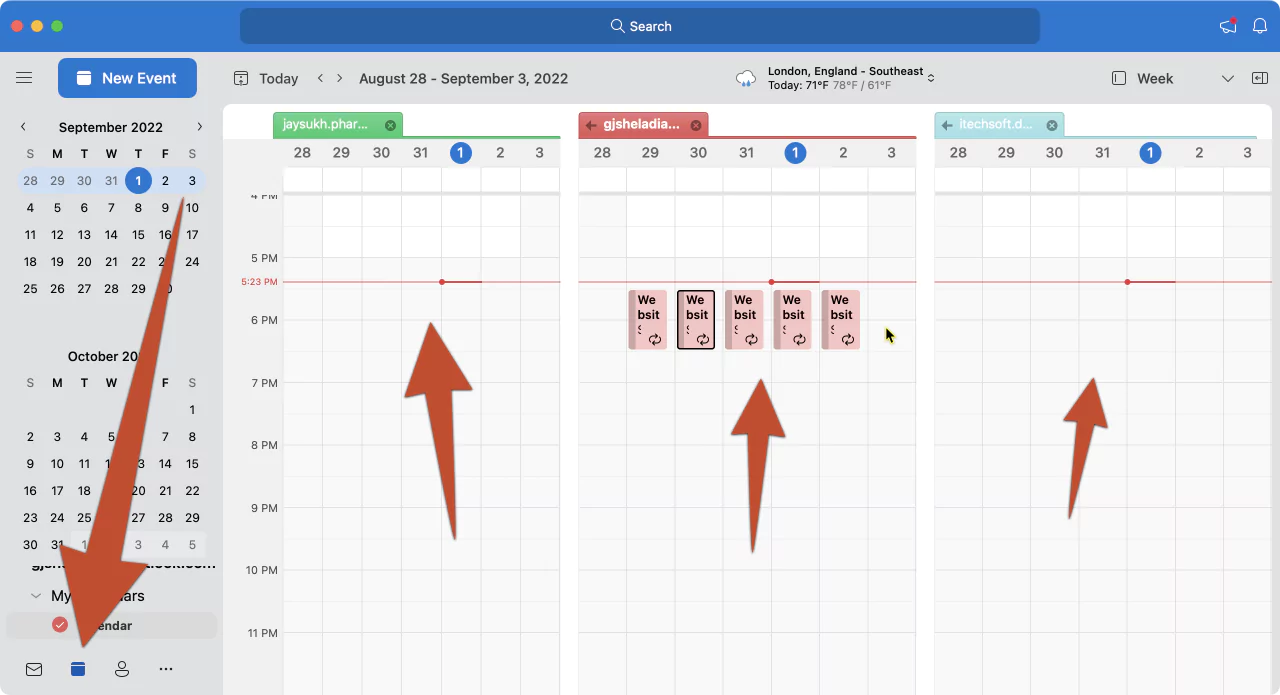
Credit: www.howtoisolve.com
Frequently Asked Questions
Why Does My Exchange Calendar Only Sync One Way With My Mac?
This usually means your Mac can read events from Exchange but can’t write new ones back. Common causes are account permission issues, incorrect server settings, or firewall restrictions. Check your Exchange account settings and verify with your IT administrator if you have full calendar access.
How Often Does Exchange Calendar Sync With Mac?
Exchange calendar typically syncs in real time using push technology. When you add or change an event, the update should appear within a minute. Slow syncing may be due to network delays or server-side throttling.
Can I Use Both Exchange And Other Calendars On My Mac?
Yes. The Mac Calendar app supports multiple accounts, including Exchange, Google, and iCloud. You can view and manage all calendars in one place, but be careful when moving or copying events between different calendar types, as some features may not transfer perfectly.
What Should I Do If Only Some Events Are Missing From My Mac Calendar?
Partial sync issues are often caused by filters, calendar selection, or event type compatibility. Make sure all Exchange calendars are visible in the Calendar app (check the sidebar), and that you haven’t accidentally hidden certain event types.
Is There A Way To Export My Exchange Calendar From Mac?
Yes. In the Calendar app, select the calendar, then go to File > Export > Export. This creates an .ics file you can save or move to another calendar service. Remember, exporting does not sync changes—it’s a one-time copy.
If you follow these steps and tips, Exchange calendar syncing on your Mac can become reliable and stress-free. Most issues have simple solutions once you know where to look and what to check. For more in-depth technical details, consult the official Apple support documentation or reach out to your IT department for expert guidance.