When your Exchange calendar stops syncing with your iPhone, daily life can quickly become chaotic. Meetings are missed, reminders vanish, and important events slip through the cracks. Many users face this frustrating issue, but with the right knowledge and guidance, you can solve it quickly. In this article, you’ll learn why Exchange calendar syncing fails, how to fix it, and how to keep your calendar reliable. Whether you use your iPhone for work or personal life, this guide will help you regain control of your schedule.
Understanding Exchange Calendar Syncing
The Microsoft Exchange calendar is widely used in businesses, schools, and organizations. It lets people share events, book meetings, and manage schedules across devices. When you add your Exchange account to your iPhone, it should sync your calendar automatically. This means any change made on your computer or web browser shows up instantly on your phone.
Syncing happens through a protocol called Exchange ActiveSync. This protocol allows your iPhone’s Mail app to communicate with Exchange servers. When it works, you can view, edit, and add events from anywhere. But syncing can break for many reasons, causing your calendar to become outdated or empty.
Common Reasons Why Exchange Calendar Won’t Sync
Before jumping into solutions, it helps to know the most frequent causes. Here are the main reasons Exchange calendars fail to sync with iPhones:
- Incorrect account settings: If your email, password, or server details are wrong, syncing fails.
- Poor internet connection: The iPhone needs a stable Wi-Fi or cellular network to update calendars.
- Outdated iOS software: Old iPhone software may not work well with Exchange.
- Exchange server issues: Sometimes, the problem is with Microsoft or your organization’s server.
- Sync settings disabled: Calendar syncing might be turned off accidentally.
- App or system glitches: Sometimes, bugs or temporary errors interrupt syncing.
Many users miss the fact that even small changes—like a password update—can break syncing. Also, organizational security policies may block certain devices, or limit calendar access. Understanding these factors helps you fix the issue faster.
Credit: helpdeskgeek.com
Initial Troubleshooting Steps
If your Exchange calendar is not syncing, start with these basic checks. Often, these simple steps solve the problem without needing advanced fixes.
1. Check Internet Connection
Make sure your iPhone has a stable internet connection. Open a web browser and try loading a page. If it’s slow or not working, calendar syncing will fail. Switch between Wi-Fi and cellular to see if it improves.
2. Restart Your Iphone
Restarting your device can clear minor bugs and refresh connections. Hold the power button, slide to turn off, then turn it back on. After restarting, open the Calendar app to check if events appear.
3. Verify Exchange Account Details
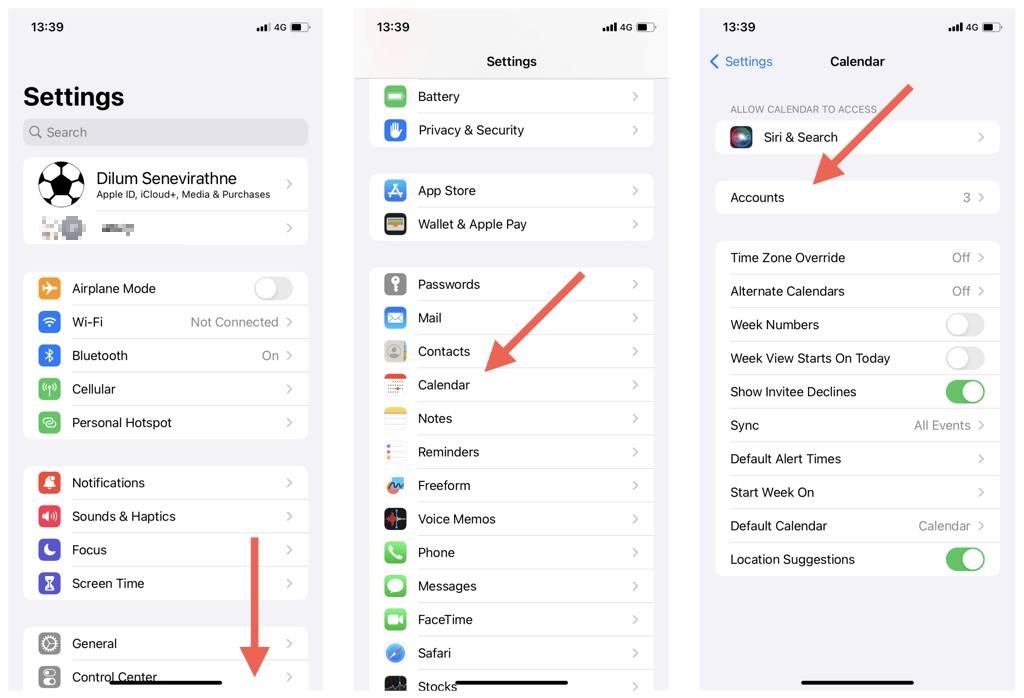
Go to Settings > Mail > Accounts. Select your Exchange account and check the email address, password, and server details. If you recently changed your password, update it on your iPhone.
4. Enable Calendar Sync
Inside your Exchange account settings, make sure Calendars is toggled on. If it’s off, your iPhone won’t sync the calendar.
5. Update Ios Software
Go to Settings > General > Software Update. Download and install the latest version. New updates often fix bugs related to calendar syncing.
6. Remove And Re-add Exchange Account
If none of the above work, remove your Exchange account from the iPhone and add it again. This resets the connection.
Advanced Solutions For Persistent Sync Issues
If basic troubleshooting doesn’t fix the issue, try these advanced steps. These are especially useful for users who rely on Exchange for work.
Check Exchange Server Status
Sometimes, the server itself has problems. Ask your IT department or check your organization’s status page. If the server is down, you’ll need to wait.
Configure Exchange Activesync Properly
ActiveSync is the protocol that controls calendar syncing. If it’s not set up correctly, syncing fails.
- Confirm that your Exchange account supports ActiveSync.
- If you use Exchange 2010 or newer, ActiveSync should be available.
- For older servers, check with your IT team.
Manage Device Security Policies
Some organizations limit syncing for security reasons. Your device may be blocked or restricted. Ask your IT administrator if your iPhone is allowed to sync calendars.
Review Sync Settings For Multiple Calendars
If you have several calendars, make sure the right one is enabled. Go to the Calendar app, tap Calendars at the bottom, and select your Exchange calendar.
Check App-specific Issues
Some users use third-party calendar apps. If you use apps like Outlook or Fantastical, make sure they are connected to your Exchange account. Sometimes, these apps require separate setup.
Compare Sync Settings Across Devices
If your calendar syncs on your computer but not your iPhone, compare settings side by side.
| Device | Sync Settings Location | Common Issues |
|---|---|---|
| iPhone | Settings > Mail > Accounts | Disabled calendar sync, wrong password |
| Windows PC | Outlook > Account Settings | Different time zone, outdated credentials |
| Mac | System Preferences > Internet Accounts | Sync interval too long, disabled calendar |
Matching settings across devices can highlight missed details.
Real-world Examples Of Exchange Calendar Sync Problems
To make things clearer, let’s look at examples from real users.
Example 1: A manager updates her Exchange password on her computer. She forgets to update it on her iPhone. Result: Calendar events stop syncing. Solution: Update password on the iPhone.
Example 2: An employee travels and connects to new Wi-Fi networks. The Exchange server blocks unknown IPs for security. Solution: Use a VPN or ask IT to whitelist the device.
Example 3: A student uses an old iPhone with iOS 12. The device doesn’t support new Exchange server protocols. Solution: Upgrade iOS or use web access.
These examples show how tiny changes can break calendar syncing. Always check for recent updates or changes.
How To Re-add Exchange Account Safely
Removing and adding your Exchange account is a common fix, but it must be done carefully. If you do it wrong, you may lose unsynced events.
Steps To Safely Remove And Re-add
- Backup your calendar: Before removing, export your events or write down important dates.
- Go to Settings > Mail > Accounts.
- Tap your Exchange account, then tap Delete Account.
- Restart your iPhone.
- Go back to Accounts, tap Add Account, and select Microsoft Exchange.
- Enter your email, password, and server details.
- Make sure Calendars is enabled.
- Wait a few minutes for syncing to finish.
What To Watch Out For
- If you have unsynced events, they may be lost when you delete the account.
- Double-check server details—mistakes block syncing.
- Use the correct domain and username as given by your organization.
Exchange Calendar Syncing: Data And Trends
Calendar syncing problems are common among iPhone users. According to a 2022 survey, about 12% of iPhone users with Exchange accounts face regular sync issues. Most problems are related to passwords or server outages.
| Problem Type | Percentage of Cases |
|---|---|
| Incorrect settings | 34% |
| Server downtime | 23% |
| iOS bugs | 19% |
| Security policies | 12% |
| App glitches | 12% |
Knowing these numbers helps you focus on the most likely causes first.
Comparing Exchange Calendar With Other Calendar Services
Sometimes, switching to another calendar service can solve persistent issues. Here’s how Exchange compares to Google Calendar and iCloud Calendar:
| Feature | Exchange Calendar | Google Calendar | iCloud Calendar |
|---|---|---|---|
| Business integration | Excellent | Good | Fair |
| Security | High | Medium | Medium |
| Sync reliability | Varies | Consistent | Consistent |
| Device support | Wide | Wide | Apple only |
Exchange Calendar is best for organizations, but syncing issues are more common. For users who need smoother syncing, Google Calendar and iCloud Calendar are good alternatives.
Credit: www.akruto.com
Practical Tips To Prevent Exchange Calendar Sync Issues
Staying ahead of problems is smarter than fixing them after they happen. Here are practical tips to avoid future syncing troubles:
- Keep iOS updated: New versions fix bugs and improve syncing.
- Regularly check account settings: Every few months, review your account details.
- Use strong, memorable passwords: Changing passwords often is good, but always update them everywhere.
- Monitor server status: Bookmark your organization’s server status page.
- Sync only necessary calendars: Too many calendars slow down syncing.
- Avoid third-party apps unless needed: Stick to the native Calendar app for best compatibility.
- Backup important events: Use iCloud or export options to save your calendar.
- Communicate with IT: If you’re in an organization, keep in touch with your IT team.
Many beginners miss the point that syncing is not just about technology—it’s also about good habits. Regular checks and backups make syncing problems much less likely.
When To Contact It Or Apple Support
If you’ve tried all solutions and your calendar still won’t sync, it’s time to get help. Here’s when you should contact professionals:
- The Exchange server is down or blocked.
- Your account is disabled or restricted.
- You see error messages you don’t understand.
- You lose access to work or school calendars.
IT departments can check server logs and device permissions. Apple Support can guide you through advanced device troubleshooting. Don’t hesitate to ask for help if syncing is critical to your work.
Credit: www.exchangemvp.org
Exchange Calendar Syncing And Security Concerns
Security is a major reason why Exchange calendar syncing breaks. Organizations protect sensitive data, so they use strict policies. If your iPhone doesn’t meet security requirements, syncing can be blocked.
- Device encryption: Some organizations require iPhones to be encrypted.
- Remote wipe: IT may want the ability to erase data remotely.
- Password strength: Weak passwords can trigger sync blocks.
Always follow your organization’s security rules. If you travel or use public Wi-Fi, use a VPN to protect your connection.
What To Do If You Still Can’t Sync
Some problems are stubborn. If nothing works, try these last steps:
- Factory reset: As a last resort, backup your device and do a factory reset. This erases all data, so be careful.
- Use web access: Log in to your Exchange calendar using a web browser. This lets you access events even if syncing fails.
- Switch devices: Try syncing with another iPhone or iPad. If it works, your original device has a deeper issue.
These steps are rarely needed, but they solve problems that basic troubleshooting can’t.
Frequently Asked Questions
Why Does My Exchange Calendar Show Some Events But Not All?
This usually happens because multiple calendars are enabled, or some events are saved locally on your device. Go to the Calendar app, tap Calendars, and check which calendars are active. Make sure all relevant Exchange calendars are selected.
How Often Does Exchange Calendar Sync With Iphone?
By default, Exchange calendar syncs every few minutes when your device is online. You can change the frequency in Settings > Mail > Accounts > Fetch New Data. Using Push gives real-time updates, while Fetch lets you set intervals.
Can I Sync Exchange Calendar With Multiple Devices?
Yes, you can sync your Exchange calendar with multiple iPhones, iPads, and computers. Just add your account to each device and enable calendar sync. If events don’t appear everywhere, check account details and sync settings.
Will I Lose Events If I Delete My Exchange Account On My Iphone?
If your events are stored on the Exchange server, you won’t lose them—they’ll return after you re-add the account. However, locally saved events (not synced to the server) will be lost. Always backup before deleting accounts.
Are Third-party Calendar Apps Better For Exchange Syncing?
Some apps, like Microsoft Outlook, offer extra features and more reliable syncing. But for most users, the native Calendar app works well. If you have persistent issues, trying an app like Outlook may help. For more information, visit Microsoft Support.
Finding the right solution for your Exchange calendar syncing issue can take patience, but it’s always possible. With the practical steps above, you can restore your calendar and keep your schedule running smoothly. Whether you’re an office worker, student, or busy parent, these fixes will help you stay organized and avoid missed appointments.