Most people depend on their iPhones to check email every day. It’s fast, easy, and part of daily life. But sometimes, your email stops syncing on your iPhone. You miss new messages, can’t send important replies, or your inbox doesn’t refresh. It’s frustrating, especially if you use your phone for work or important updates.
Email syncing problems are common, but the reasons can be confusing. Is it your iPhone, your email account, or something else? This guide explains why email might not sync on your iPhone, how to fix it, and what you can do to keep your email working smoothly. If you’re tired of waiting for new emails that never arrive, or you worry you’ll miss something important, you’re in the right place.
What Does “email Not Syncing” Mean?
Before fixing the problem, it’s important to understand what “email not syncing” actually means. When your email is syncing, your iPhone communicates with your email provider. It checks for new messages, downloads them, and updates your inbox. If you delete a message on your phone, it should also disappear from your inbox on other devices, like your computer.
But if email is not syncing, your iPhone’s Mail app is not updating with the latest emails. You might:
- Stop receiving new emails automatically
- See old messages, but not the latest ones
- Find emails in your webmail (like Gmail.com) but not on your iPhone
- Notice sent emails don’t appear in your Sent folder
- See error messages about your account
This problem can be temporary or last for days. It can affect all accounts or just one.
Common Causes Of Email Sync Issues On Iphone
Several things can stop your iPhone from syncing email. Here are the most frequent reasons:
1. Poor Internet Connection
Email needs a stable internet connection. Weak Wi-Fi, airplane mode, or mobile data issues can block syncing.
2. Wrong Account Settings
Incorrect passwords, server addresses, or security settings can prevent your email from working.
3. Outdated Ios Software
Older versions of iOS sometimes cause glitches with the Mail app.
4. Disabled Mail Fetch/push
Settings that control how often your iPhone checks for new email can prevent updates.
5. Email Provider Problems
Sometimes the issue is with Gmail, Yahoo, Outlook, or your company’s mail server.
6. App Glitches Or Bugs
The Mail app or third-party mail apps can freeze or crash.
7. Storage Space Limits
If your iPhone is almost full, it might not download new messages.
8. Background App Refresh Off
If this is disabled, the Mail app may not update unless you open it.
Some of these are easy to check. Others require a few steps to diagnose.
Credit: www.multcloud.com
Quick Checks Before Troubleshooting
Before you change settings, try these simple checks. Many sync problems are fixed in minutes.
- Restart your iPhone: Hold the power button, slide to power off, then turn it back on.
- Check your Internet: Open Safari and visit a website. If it loads, your connection works.
- Open your email provider’s webmail: Go to Gmail.com, Outlook.com, or your provider’s site. See if new messages are there.
- Look for error messages: In the Mail app, errors often appear at the bottom of your inbox.
A surprising number of issues are temporary, caused by a weak signal or minor glitch.
How Email Syncing Works On Iphone
Your iPhone can handle email in different ways, depending on the account type and your settings.
| Account Type | Sync Method | Typical Providers |
|---|---|---|
| IMAP | Syncs all mail folders across devices | Gmail, Yahoo, iCloud |
| Exchange/ActiveSync | Pushes updates instantly | Outlook, Office 365, Work/School mail |
| POP3 | Downloads only inbox, no sync after download | Some old providers |
- IMAP keeps emails synced across all your devices.
- Exchange/ActiveSync is often used by companies for real-time syncing.
- POP3 only downloads emails to one device, not recommended for most users.
Knowing your account type helps when you adjust settings or talk to support.
Step-by-step Solutions For Email Not Syncing
Let’s walk through proven ways to fix email sync problems on your iPhone.
1. Check Internet Connection
Your phone needs Wi-Fi or cellular data. Try these steps:
- Turn off airplane mode (Settings > Airplane Mode).
- Switch between Wi-Fi and cellular data to see if one works.
- Move closer to the Wi-Fi router.
- Restart your modem/router if you’re at home.
If you can browse the web but email won’t sync, continue to the next steps.
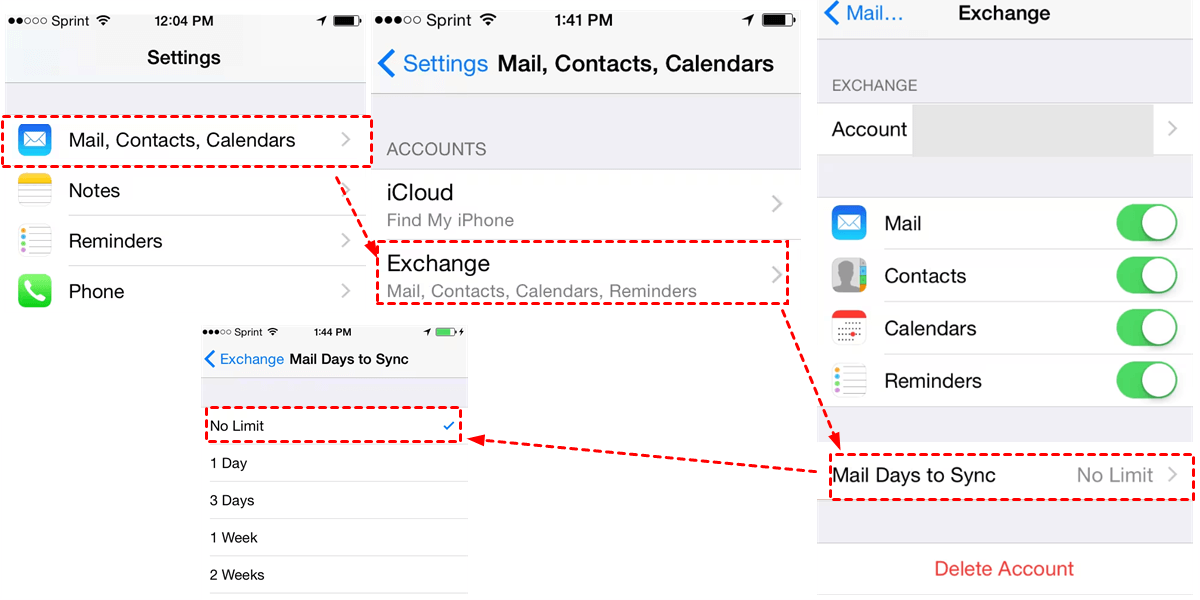
2. Make Sure Mail Is Enabled
Sometimes, Mail is accidentally turned off for your email account.
- Go to Settings > Mail > Accounts.
- Tap your email account.
- Make sure the switch next to Mail is ON (green).
If it’s off, turn it on and check if your inbox updates.
3. Update Ios To The Latest Version
Apple often fixes Mail bugs with software updates.
- Go to Settings > General > Software Update.
- Download and install any available updates.
- Restart your iPhone.
After updating, open Mail and see if emails sync.
4. Review Fetch And Push Settings
Your iPhone can “fetch” emails on a schedule, or “push” them instantly (if supported).
- Go to Settings > Mail > Accounts > Fetch New Data.
- Check that Push is ON for accounts that support it.
- For other accounts, choose how often to fetch: Every 15, 30 minutes, hourly, or manually.
Tip: For work accounts (Exchange), Push is usually best. For Gmail, Fetch works unless you use the Gmail app.
5. Re-enter Your Email Password
Sometimes, password changes or security updates cause sync issues.
- Go to Settings > Mail > Accounts.
- Tap your account, then tap Account again.
- Re-enter your password if prompted.
- Save changes and check your inbox.
If you see an error, double-check your password by logging in via web browser.
6. Remove And Re-add The Email Account
If syncing is still broken, try removing the account and adding it back.
- Go to Settings > Mail > Accounts.
- Tap the account, then Delete Account.
- Restart your iPhone.
- Go back to Accounts, tap Add Account, and enter your details.
This refreshes all settings and often fixes hidden errors.
7. Turn On Background App Refresh
For Mail to check for updates in the background:
- Go to Settings > General > Background App Refresh.
- Make sure it’s ON for Mail.
If it’s off, emails only sync when you open the app.
8. Check Storage Space
Low storage can block new emails from downloading (especially with attachments).
- Go to Settings > General > iPhone Storage.
- If you’re almost full, delete unused apps, photos, or files.
Try syncing mail again after freeing up space.
9. Reset Network Settings
If you’ve tried everything above, network settings may be corrupted.
- Go to Settings > General > Transfer or Reset iPhone > Reset > Reset Network Settings.
- Enter your passcode.
- Reconnect to Wi-Fi and test email.
Warning: This deletes Wi-Fi passwords, so have them handy.
10. Try A Different Email App
If Apple Mail won’t sync, try the official app from your provider (like the Gmail or Outlook app). If your email works there, the problem is likely with the Mail app, not your account.
Advanced Troubleshooting Steps
If your email still won’t sync, try these advanced options:
Check For Server Outages
Sometimes the problem is with your email provider, not your phone.
- Visit your provider’s status page (search for “Gmail status” or “Outlook status”).
- Check if other users report problems.
If there’s an outage, you’ll need to wait for them to fix it.
Double-check Server Settings
Manual setup can cause typos in server addresses or ports.
| Provider | Incoming Server | Outgoing Server | Port |
|---|---|---|---|
| Gmail (IMAP) | imap.gmail.com | smtp.gmail.com | 993/465 |
| Yahoo | imap.mail.yahoo.com | smtp.mail.yahoo.com | 993/465 |
| Outlook.com | imap-mail.outlook.com | smtp-mail.outlook.com | 993/587 |
- Verify these in Settings > Mail > Accounts > Account > Advanced.
- Make sure SSL is ON where required.
Contact Your Email Provider
For work or school accounts, contact your IT team. For personal email, try support pages or contact forms. Sometimes, accounts are blocked for security reasons or need settings updated.
Factory Reset As Last Resort
If nothing works and you can’t sync any email, a full reset may be needed. This erases your iPhone, so back up data first. Only do this if you’ve tried everything else.
Common Mistakes To Avoid
Many users repeat the same errors when trying to fix email syncing:
- Entering the wrong password multiple times (can lock your account)
- Not checking if the account works in webmail first
- Ignoring software updates
- Using POP3 instead of IMAP or Exchange
- Turning off notifications instead of fixing sync
- Forgetting to re-enable Mail after changes
Avoid these for faster results.
Why Do Email Sync Issues Seem Random?
Sometimes, your email syncs fine for weeks, then stops for no clear reason. This often happens because:
- Password changes elsewhere (webmail, other devices)
- IOS or app updates change settings
- Email provider changes security rules
- Temporary glitches in your home or mobile network
The key is to check all possible causes, not just one. Patience helps—sometimes, problems fix themselves after a few hours.
Imap Vs Pop3 Vs Exchange: Which Is Best For Sync?
Choosing the right account type matters for email syncing.
| Feature | IMAP | POP3 | Exchange |
|---|---|---|---|
| Syncs across devices | Yes | No | Yes |
| Push support (instant update) | Sometimes | No | Yes |
| Calendar/Contacts | No | No | Yes |
| Best for | Personal use, Gmail/Yahoo | Legacy systems | Work/school email |
IMAP is best for most users. POP3 is outdated and can cause syncing problems. Exchange is ideal for business accounts.
When To Use A Third-party Email App
Apple’s Mail app is good for most people, but sometimes a third-party app works better. Consider alternatives if:
- You need advanced features (snooze, smart sorting)
- Your account works fine on the provider’s app but not in Mail
- You want better notifications or more reliable syncing
Apps like Gmail, Microsoft Outlook, and Spark are popular. They often handle syncing differently and may fix problems the built-in app cannot.
How To Keep Email Syncing Smoothly In The Future
Once you fix the problem, you want to avoid it happening again. Here are tips for reliable email syncing:
- Keep iOS Updated: Install updates when available.
- Check Email Settings after Password Changes: Update your iPhone if you change your password elsewhere.
- Use IMAP or Exchange: Avoid POP3 for new accounts.
- Check Account Status: If you stop getting emails, log in via webmail to check for alerts.
- Free Up Space Regularly: Delete old files or apps to keep storage available.
- Don’t Ignore Small Errors: If you see a warning, fix it before it becomes a bigger issue.
Non-obvious Insights Most Beginners Miss
1. Background App Refresh Is Crucial
Many users think email will sync in the background no matter what. But if “Background App Refresh” is off for Mail, you won’t get new messages unless you open the app. Always check this setting.
2. Account Limits And Security Triggers
If you log in from too many devices, your provider may temporarily block syncing for security. Check your email via webmail for alerts about “unusual activity” or device limits.
These issues aren’t always obvious and can cause long delays in email syncing.

Credit: theitbros.com
When To Get Professional Help
If you’ve tried all the steps and email still won’t sync, especially for work accounts, it may be time to get support. Reasons to get help include:
- Repeated “Cannot Get Mail” or authentication errors
- Your account is locked or suspended
- You need access to work/school resources managed by IT
- No email app syncs, even after resets
Professional help can spot problems you can’t see, such as account restrictions or advanced security policies.
Reliable Sources For Further Reading
If you want to learn more about iPhone email setup and troubleshooting, Apple’s official support site is a trusted resource. Visit Apple Support for more details.
:max_bytes(150000):strip_icc()/001_make-iphone-mail-sync-more-all-or-less-mail-1172534-9d374ac0ab82410ab03f2776b17387d7.jpg)
Credit: www.lifewire.com
Frequently Asked Questions
Why Am I Not Receiving Emails On My Iphone But They Appear On My Computer?
Usually, your iPhone isn’t syncing with the server. Check your internet connection, account settings, and make sure the Mail app is enabled for your account. If you use POP3, emails may download to your computer and not show up elsewhere.
How Do I Know If My Email Is Set Up As Imap Or Pop3?
Go to Settings > Mail > Accounts > [Your Account] > Account > Advanced. Look for “IMAP” or “POP” under account type. IMAP is best for syncing across devices.
Does Turning Off Push Or Fetch Affect Battery Life?
Yes. Push uses more battery because it keeps a live connection. Fetch on a schedule (like every 30 minutes) saves battery but may delay new emails. Choose what works best for your needs.
What Does “cannot Get Mail” Mean In The Mail App?
This error means your iPhone can’t connect to your mail server. Causes include bad internet, wrong password, or server outages. Try reconnecting or checking your settings.
Are There Risks To Deleting And Re-adding My Email Account?
Usually, no. Your emails stay on the server unless you use POP3 (which may remove them from the server). Re-adding the account often fixes syncing issues without losing messages.
Staying connected to email is important for work and life. With the right steps, you can fix syncing problems quickly and avoid missing important messages. If you keep having trouble, don’t hesitate to reach out to your email provider or Apple for help.