Many people trust Dahua cameras to protect homes and businesses. These cameras are known for their advanced features, clear video, and reliability. But sometimes, users face a frustrating problem: Dahua camera not recording. When this happens, important video footage is lost, and your security is at risk. This article explains why Dahua cameras stop recording, how to fix it, and how to prevent it from happening again. Whether you use these cameras at home or work, you’ll find clear advice, practical steps, and useful insights.
Common Reasons Your Dahua Camera Stops Recording
Understanding why your camera is not recording is the first step toward a solution. Here are the most frequent reasons:
- Storage issues: If the hard drive or SD card is full, damaged, or not recognized, the camera cannot save new video.
- Power problems: Cameras need steady power. Power loss or unstable power can stop recording.
- Incorrect settings: Wrong recording schedules or disabled recording modes will prevent footage from being saved.
- Firmware bugs: Outdated or corrupted firmware can cause malfunctions.
- Connection errors: If the camera loses network or cable connection to the NVR/DVR, it may stop recording.
- Faulty hardware: Physical damage or aging parts can cause failures.
Many users overlook the importance of regular maintenance and checking system logs, which can help catch problems early.
Checking Storage: Is Your Camera Saving Footage?
Storage is the heart of any recording system. If the storage fails, so does your video history. Dahua cameras use SD cards, hard drives (HDDs), or network storage (NAS). Let’s compare the main storage types:
| Storage Type | Typical Use | Common Issues | Recommended Action |
|---|---|---|---|
| SD Card | Single cameras | Card full, not detected, corrupted | Reformat or replace card |
| Hard Drive (HDD) | NVR/DVR systems | Drive full, bad sectors, not initialized | Check health, replace if needed |
| Network Storage (NAS) | Large setups | Network errors, permission issues | Check network & sharing settings |
How To Check Your Storage
- Log into your Dahua system via web browser or app.
- Open the storage management or recording settings section.
- Look for messages such as “No HDD,” “SD card error,” or “Full.”
- For NVR/DVR, listen for clicking sounds or look for warning lights—these mean possible hard drive failure.
If storage is full, footage may not be overwritten if overwrite settings are off. Always enable overwrite mode for continuous recording.
Power Supply And Connection Issues
A camera cannot record if it is not powered. Even a short power cut can stop recording for minutes or hours.
What To Look For
- Camera offline: If you see a “camera offline” error, power could be the cause.
- Blinking or no lights: Most Dahua cameras have indicator lights. If these are off or blinking strangely, check power.
- Loose cables: Wiggling or loose connections can disrupt power and data.
Fixing Power Problems
- Check the power adapter and cable for damage.
- Test the camera with another power source.
- Use a UPS (Uninterruptible Power Supply) for critical systems.
- For PoE (Power over Ethernet) cameras, check the PoE switch or injector.
Many first-time users forget to check the fuse or breaker if multiple cameras lose power at once.
Camera Settings: Are You Recording The Right Way?
Dahua cameras offer different recording modes:
- Continuous: Records all the time
- Motion detection: Only records when movement is detected
- Schedule-based: Records at certain times
Incorrect settings often cause cameras to stop recording.
Steps To Check Your Settings
- Open your camera’s web interface or NVR settings.
- Go to Recording Schedule.
- Check if recording is set to “Enable.”
- Look for any gray (disabled) areas in the time grid.
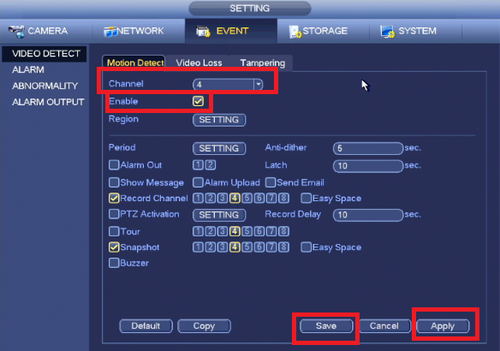
- Make sure motion detection is turned on if you use it.
- If using motion, adjust sensitivity and region to avoid missing events.
Non-obvious tip: If you have multiple users, someone may have changed settings accidentally.
Firmware And Software Updates
Outdated firmware can cause bugs, glitches, or security risks. Dahua releases regular updates to fix issues.
How To Update Firmware
- Visit the official Dahua support site.
- Find the latest firmware for your camera model.
- Download and follow the update instructions.
- After updating, reboot the camera or NVR.
Always back up your settings before updating. Some updates reset the camera to factory defaults.
Network Problems: Wired And Wireless Cameras
For IP cameras, a stable network is critical. If the camera drops off the network, it cannot send video to the NVR or app.
Wired Vs. Wireless Connection
| Connection Type | Strengths | Common Problems | Best For |
|---|---|---|---|
| Wired (Ethernet) | Stable, high-speed | Cable damage, loose connectors | Business, 24/7 recording |
| Wireless (Wi-Fi) | Flexible, easy to install | Weak signal, interference | Homes, small offices |
Tip: Always use a wired connection if possible for important cameras. Wi-Fi cameras are more likely to stop recording due to signal loss.
Network Troubleshooting Steps
- Ping the camera’s IP address from a computer.
- Restart the router, NVR, and camera.
- Check for IP address conflicts.
- Move Wi-Fi cameras closer to the router.
Hardware Problems: When Parts Go Bad
Cameras and recording devices are electronic products. Hard drives, SD cards, and even camera circuit boards can fail over time.
Signs Of Failing Hardware
- Frequent system reboots
- Clicking or beeping sounds from NVR/DVR
- Camera image freezes or goes black
- Error messages about disk or storage
If your camera or NVR is more than 4–5 years old, hardware failure becomes more likely.
What To Do
- Replace the hard drive or SD card if you see errors.
- Try the camera on another NVR or recorder.
- Contact Dahua support if under warranty.
- Consider upgrading old equipment for better reliability.
Special Cases: Motion Detection And Smart Features
Dahua cameras offer smart features like motion detection, tripwire, and intrusion detection. These features sometimes cause confusion:
- If motion detection is too sensitive, you get too many alerts and recordings.
- If not sensitive enough, you miss important events.
- If “record on motion” is not enabled, nothing will be saved.
Beginner mistake: Many users set up motion alerts but forget to enable motion-triggered recording in the NVR.
How To Fix Motion Recording Issues
- Enable both motion detection and motion recording.
- Adjust the detection area to cover only important zones.
- Test by walking through the detection area.
- Review logs to see if events are being triggered.
How To Prevent Recording Failures
It is always better to prevent problems than to fix them later. Here are practical tips to keep your Dahua system healthy:
- Check storage status monthly and clear old footage if needed.
- Update firmware every 6–12 months for bug fixes.
- Test power supplies and replace weak adapters.
- Review recording settings after any software update.
- Keep hardware cool and dust-free to avoid overheating.
- Label all cables for easy troubleshooting.
- Back up important footage to another location regularly.
Dahua Recording Troubleshooting Checklist
Use this quick checklist when your Dahua camera is not recording:
- Is the camera powered on?
- Are cables and connections secure?
- Is storage healthy and not full?
- Are recording settings correct (schedule, mode)?
- Is the firmware up to date?
- Is the network working (for IP cameras)?
- Is hardware (SD card/HDD) in good condition?
- Are smart features (motion, tripwire) set up properly?
Credit: www.youtube.com
Real-world Example: Office Security System
A small office had four Dahua cameras connected to an NVR. One camera stopped recording at night. After checking, the problem was a full hard drive—the NVR was set not to overwrite old footage. By enabling overwrite mode and deleting unneeded video, recording resumed. The office also set up email alerts for storage errors to catch future problems quickly.
Comparing Dahua Recording Solutions
Dahua offers different ways to record video. Here’s a quick comparison:
| Solution | Max Cameras | Storage Type | Best For |
|---|---|---|---|
| Standalone Camera w/ SD Card | 1 | SD Card | Small areas, remote locations |
| NVR System | 4–64+ | HDD | Homes, offices, businesses |
| Cloud Storage | Varies | Internet/cloud | Mobile access, backup |
Insight: Many users rely only on local storage. Using both local and cloud saves footage even if a thief steals the recorder.

Credit: www.youtube.com
When To Call For Professional Help
Some issues require expert attention, especially:
- Multiple cameras fail at once
- Repeated hard drive errors
- Physical damage to camera or recorder
- No improvement after trying the above steps
Contact a qualified installer or Dahua support. They have special tools to diagnose deeper problems and can quickly replace faulty parts.
Frequently Asked Questions
Why Is My Dahua Camera Not Showing Up On The Nvr?
If your camera does not appear, check the network connection, power supply, and camera compatibility with the NVR. Make sure both devices are on the same network and have the latest firmware. IP address conflicts can also cause this problem.
How Do I Enable Continuous Recording On Dahua Cameras?
Log in to your camera or NVR. Go to Record Schedule and set all time blocks to “Continuous.” Save your settings. If you use motion detection, ensure that “Motion” is selected as well.
What Should I Do If My Dahua Nvr Says ‘no Hdd’?
This means the hard drive is not detected. Check cables, power off and restart the NVR, and try another SATA port. If the problem continues, the drive may be faulty. Replace it with a compatible hard drive.
Can I Use Any Sd Card In My Dahua Camera?
Not all SD cards are suitable. Use a high-endurance microSD card rated for surveillance, with the recommended capacity (usually 32GB–256GB). Avoid cheap or unknown brands as they may fail quickly.
Where Can I Find Official Dahua Firmware Updates?
You can download official updates from the Dahua Support Center. Always match the firmware to your exact camera model to prevent errors.
Keeping your Dahua camera recording is critical for security. By understanding common causes and taking regular preventive actions, you can avoid most recording failures. Remember, even small oversights—like storage settings or loose cables—can make a big difference. Regular checks and updates will keep your system reliable, so you never miss an important moment.
Credit: dahuawiki.com