Many people trust their CCTV systems to keep homes and businesses safe. But sometimes, you check your cameras and find they are not recording. One common reason is a hard drive full problem. If your CCTV isn’t recording because the hard drive is full, you could miss important events. This article explains why this happens, how to fix it, and how to prevent it in the future. You’ll learn practical steps, common mistakes, and useful tips to keep your CCTV running smoothly.
Why Cctv Stops Recording When Hard Drive Is Full
CCTV systems record video footage and store it on a hard drive. When the hard drive is full, the system cannot save new footage unless it deletes old files or makes space. Most CCTV systems are designed to overwrite old recordings automatically, but sometimes this feature is not enabled or fails.
How Recording Works
CCTV cameras usually save videos in small files, divided by time (e.g., 5 minutes each). These files go on the hard drive. Once the drive’s storage limit is reached, two things can happen:
- The system stops recording new footage.
- The system overwrites old files with new recordings.
The behavior depends on your settings and the software version.
Common Reasons For Hard Drive Full Error
- Overwrite not enabled: Many systems have a setting to overwrite old files when the drive is full. If this is off, recording stops.
- Recording settings too high: High resolution or frame rate uses more space. If you record in HD or with many cameras, the drive fills fast.
- Hard drive too small: If your drive is small, it cannot store much footage.
- Too many cameras: More cameras mean more data. The drive fills quicker.
- Faulty hard drive: Sometimes, the drive has bad sectors and cannot save new files, even if space looks available.
Signs Your Cctv Hard Drive Is Full
Knowing the signs helps you act before you lose important footage. Here are some indicators:
- Recording stopped message on the monitor
- No recent footage when you review recordings
- Drive full warning in system settings
- CCTV app alerts on your phone
- Missing days or hours in playback history
If you see these signs, check your hard drive immediately.

Credit: www.youtube.com
How To Check Hard Drive Status
You can check your CCTV hard drive in several ways. The method depends on your system:
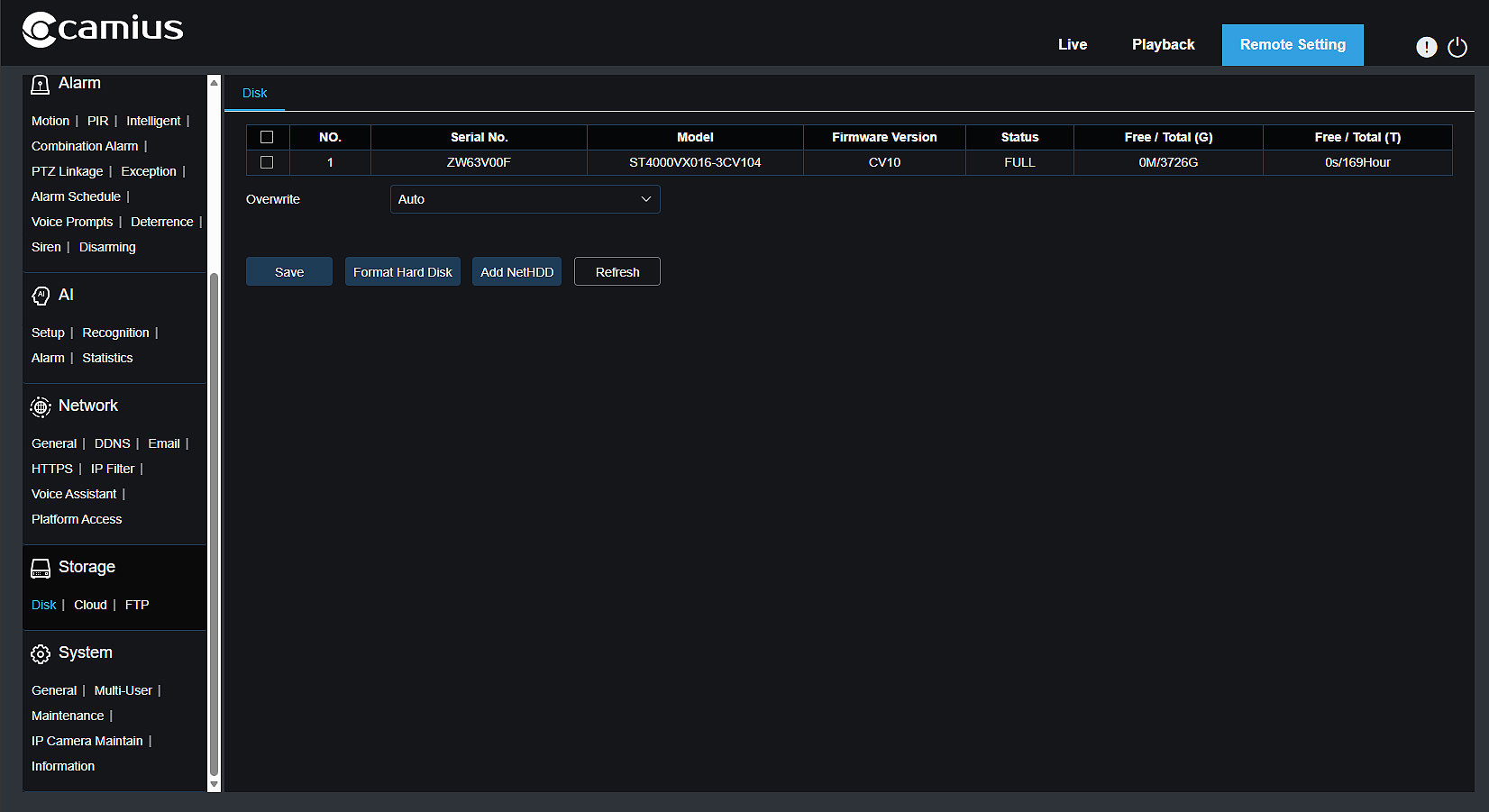
- On-site DVR/NVR screen: Most systems have a menu where you can see storage status.
- Mobile app: Some CCTV apps show hard drive usage and alerts.
- Web interface: Log in on a computer and check the storage section.
- Physical inspection: Listen for strange noises from the drive. Sometimes, a clicking sound means the drive is failing.
Here’s a quick comparison of checking methods:
| Method | Easy for Beginners | Shows Storage % | Shows Errors |
|---|---|---|---|
| DVR/NVR Menu | Yes | Yes | Yes |
| Mobile App | Yes | Sometimes | Sometimes |
| Web Interface | No | Yes | Yes |
| Physical Inspection | No | No | Yes |
How To Fix Cctv Not Recording Due To Hard Drive Full
If your CCTV stopped recording because the hard drive is full, don’t panic. You can fix it by following these steps.
1. Enable Overwrite Function
Most DVRs or NVRs have an overwrite setting. This allows the system to delete old files and save new ones. Here’s how to enable it:
- Go to your CCTV menu (usually called ‘Storage’ or ‘Recording’)
- Find ‘Overwrite when full’ or similar option
- Turn it ON
- Save changes and restart your system
2. Delete Old Footage Manually
If overwrite is not available, you can delete files yourself:
- Go to the playback or storage menu
- Select old recordings
- Delete files you don’t need
- Make sure you leave enough space for future recordings
3. Upgrade Your Hard Drive
If your drive is too small, consider buying a larger one. Choose a surveillance-grade hard drive because they are made for constant recording. Here’s a quick guide:
| Drive Size | Days of Storage (4 Cameras, HD) | Suitable for |
|---|---|---|
| 1TB | 7-10 days | Home |
| 2TB | 14-20 days | Small Business |
| 4TB | 30-40 days | Large Business |
4. Adjust Recording Settings
Reducing resolution, frame rate, or recording hours can help save space. For example:
- Change from 1080p to 720p
- Lower frame rate from 30fps to 15fps
- Set cameras to record motion only instead of 24/7
Even small changes can double your storage time.
5. Replace Or Repair Faulty Hard Drive
If your drive has errors, replace it. Signs of failure include clicking noises, slow performance, or repeated errors. Use a new surveillance hard drive and follow your DVR/NVR’s instructions to install it.
Preventing Hard Drive Full Issues
It’s better to prevent problems than fix them later. Here’s how to keep your CCTV running:
- Check storage weekly: Make it a habit to check your hard drive at least once a week.
- Enable overwrite always: Never turn this setting off unless you need to keep all old footage.
- Use motion recording: Recording only when motion is detected saves a lot of space.
- Upgrade storage as needed: If your business grows, add more storage.
- Keep backup copies: For important footage, use cloud storage or external drives.
- Update system software: New versions often fix bugs related to recording and storage.
Here’s a table showing the impact of motion recording vs continuous recording:
| Recording Mode | Storage Used (per day, per camera) | Recommended For |
|---|---|---|
| Continuous | 20GB | High-risk areas |
| Motion Only | 3GB | Low-traffic areas |
Hidden Problems Beginners Often Miss
Many new users overlook some key issues:
- Hidden system files: Some CCTV systems use space for logs or system files. These can fill up the drive even if you see enough space for videos.
- Multiple partitions: Drives may have separate areas for different types of data. Sometimes, the video partition is full but others are not.
- Firmware bugs: Old firmware can cause errors, such as not overwriting files even when the option is enabled. Always update your system.
These hidden problems can stop recording even if the drive looks healthy.
Real-life Example
A small shop owner installed four HD cameras with a 1TB hard drive. After two weeks, the cameras stopped recording. The owner checked the system and found the overwrite setting was off. By enabling overwrite and switching to motion recording, the shop could store four weeks of footage instead of two.
The owner also upgraded to a 2TB drive later for extra security.
Choosing The Right Hard Drive For Cctv
When buying a hard drive for CCTV, don’t just pick any model. Surveillance drives are built for 24/7 operation and last longer. Look for these features:
- High endurance: Designed for continuous writing
- Noise reduction: Less vibration and sound
- Error recovery: Handles bad sectors better
- Capacity: Choose based on number of cameras and recording quality
Here are some popular brands:
- Western Digital Purple
- Seagate SkyHawk
- Toshiba S300
Always check compatibility with your DVR/NVR.
Common Mistakes To Avoid
- Using regular hard drives: They fail faster and may not handle constant recording.
- Ignoring storage warnings: If your system shows alerts, fix them fast.
- Leaving overwrite off: This stops recording when the drive is full.
- Recording at highest quality always: This uses space quickly.
- Not checking drive health: Drives wear out over time.
Avoiding these mistakes will keep your CCTV running without interruption.
How Often Should You Check Your Cctv Storage?
For most homes and businesses, check your storage at least once a week. If you have many cameras or high security needs, check daily. Some systems can send alerts when space is low. Set up these alerts if possible.
Credit: www.camius.com
When To Call A Professional
If you cannot fix recording problems, call a CCTV technician. They can:
- Diagnose drive failures
- Upgrade storage safely
- Set up automatic backups
- Update firmware
Sometimes, software bugs or hardware faults need expert help.
Useful External Resource
For deeper technical details about surveillance hard drives, visit Wikipedia: Hard Disk Drive.

Credit: us.amazon.com
Frequently Asked Questions
Why Does My Cctv Stop Recording When The Hard Drive Is Full?
CCTV stops recording because there is no space to save new files. If overwrite is off or fails, the system will not delete old files and cannot record new footage.
How Can I Make My Cctv Record Longer?
Reduce video quality, lower frame rate, and use motion-only recording. Upgrade to a larger hard drive if possible. Enable overwrite to keep recording without manual deletes.
Is It Safe To Delete Old Cctv Footage?
Yes, it’s safe if you don’t need the old files for security or legal reasons. Always check before deleting. Some systems let you back up footage before removal.
What Type Of Hard Drive Is Best For Cctv?
Surveillance-grade drives are best. They are built for constant writing and last longer than regular drives. Choose a drive size based on your recording needs.
Can I Use Cloud Storage For Cctv?
Some CCTV systems support cloud storage. This saves footage online and frees up local hard drive space. Check your system’s compatibility and costs before switching.
Keeping your CCTV system recording is critical for safety. By understanding how hard drive space affects recording, checking your settings regularly, and using the right hardware, you can avoid missing important events. Take action before problems happen, and your CCTV will stay reliable for years.