If you use both a Mac and an iPhone, keeping your calendar in sync is essential. Whether you’re tracking work events, family appointments, or reminders, a disconnected calendar can lead to missed meetings and confusion. Apple’s ecosystem is famous for seamless integration, but sometimes, your Calendar on Mac not syncing with iPhone becomes a frustrating issue. This guide dives deep into why this problem happens, how to fix it, and what you can do if syncing still fails. You’ll discover practical steps, expert tips, and details that most basic guides miss, all explained in simple, clear English.
Why Calendars Stop Syncing Between Mac And Iphone
When calendars won’t sync, it feels like technology is working against you. Many users assume the problem is just a bad internet connection, but that’s only one possibility. There are several reasons why your Mac and iPhone calendars lose sync:
- ICloud account issues — If your devices use different accounts, syncing will fail.
- Network problems — Weak Wi-Fi or cellular data can block calendar updates.
- Calendar settings mismatch — Incorrect sync settings in Calendar or iCloud.
- Outdated software — Older versions of macOS or iOS may not support newer sync methods.
- System bugs — Sometimes, Apple’s software has glitches.
- Third-party app conflicts — Apps that use calendar data can sometimes interfere.
Most guides mention only the first three, but many users ignore third-party apps and software bugs. These two are non-obvious insights that often lead to missed troubleshooting steps.
Step-by-step Solutions: Fixing Calendar Sync Issues
You want your calendars to match instantly. Let’s walk through proven steps, starting from simple checks to advanced fixes. Each step is explained simply, with practical advice and examples.
1. Check Apple Id Consistency
Both your Mac and iPhone must use the same Apple ID for iCloud syncing.
- On iPhone: Go to Settings > [Your Name]. Check the Apple ID email.
- On Mac: Go to System Settings (or System Preferences) > Apple ID. Compare the email shown.
If the emails don’t match, sign out and sign in with the same account. This step is often skipped by beginners, but it’s critical.
2. Confirm Icloud Calendar Is Enabled
Your devices need iCloud Calendar turned on.
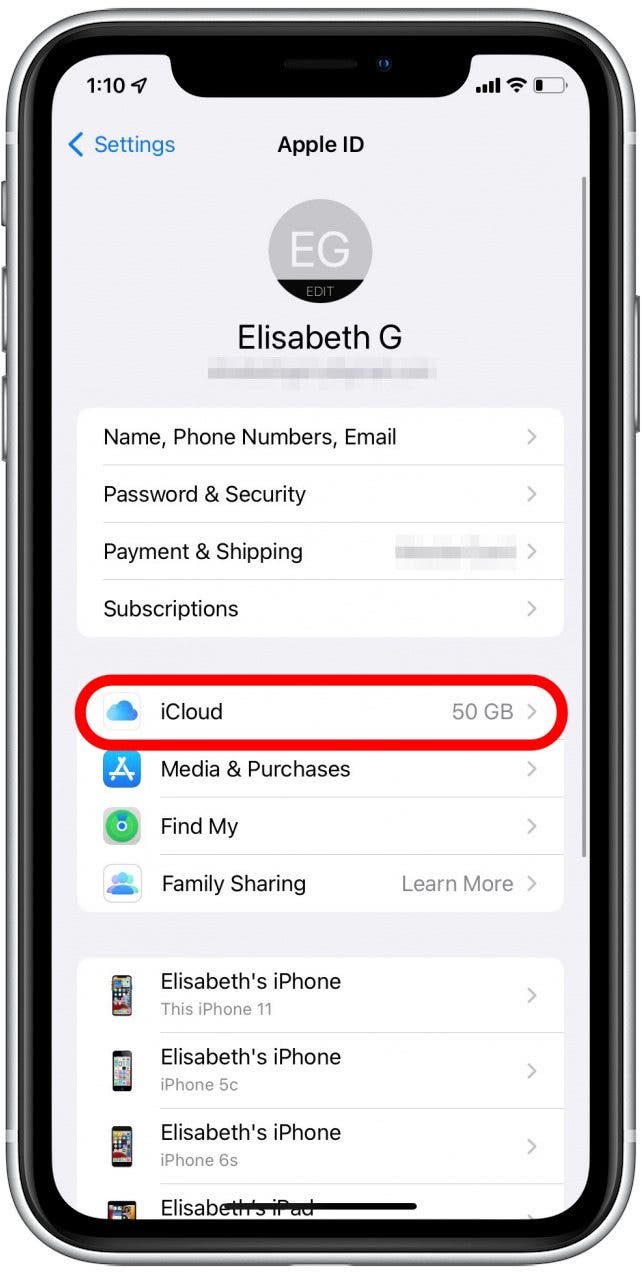
- On iPhone: Settings > [Your Name] > iCloud > Toggle on “Calendars”.
- On Mac: System Settings > Apple ID > iCloud > Tick “Calendars”.
If you use other calendar services (Google, Outlook), make sure you’re checking the right calendar account.
3. Test Your Internet Connection
Syncing relies on a good internet connection. Try loading a website on both devices. If pages load slowly or not at all, fix your connection first. Sometimes, public Wi-Fi blocks syncing. Try switching to cellular data.
4. Update Macos And Ios
Older software can block syncing. Update both devices:
- On iPhone: Settings > General > Software Update.
- On Mac: System Settings > General > Software Update.
Most users overlook this step, assuming updates are only for security. In reality, updates often fix calendar bugs.
5. Restart Both Devices
Restarting clears temporary glitches. Power off your iPhone and Mac, then turn them on again. This simple trick solves many syncing problems.
6. Force Calendar Sync
If nothing works, force a sync:
- On iPhone: Open Calendar app, pull down to refresh.
- On Mac: Open Calendar, click “View” > “Refresh Calendars”.
7. Check Calendar App Settings
Sometimes, settings inside the Calendar app cause trouble.
- On Mac: Open Calendar > Preferences > Accounts. Make sure iCloud is listed and enabled.
- On iPhone: Calendar > Calendars > Ensure iCloud calendars are checked.
8. Remove And Re-add Icloud Account
If syncing still fails, remove iCloud from one device, then re-add it.
- On iPhone: Settings > [Your Name] > Sign Out. Sign in again.
- On Mac: System Settings > Apple ID > Sign Out. Sign in again.
This step resets syncing and often fixes persistent issues.
9. Disable Third-party Apps Temporarily
Apps like Fantastical, BusyCal, or even some productivity tools can block calendar sync. Temporarily disable or uninstall them, then test syncing. If syncing works, the app is interfering. Reinstall carefully, checking app permissions.
10. Contact Apple Support If All Else Fails
If you’ve tried everything, reach out to Apple Support. Sometimes, advanced issues need help from Apple’s experts.

Credit: www.youtube.com
Comparing Calendar Sync Methods
Apple offers several ways to sync calendars. Understanding these helps you choose the best method for your needs.
| Sync Method | Devices Supported | Speed | Reliability |
|---|---|---|---|
| iCloud | Mac, iPhone, iPad | Instant | High |
| Google Calendar | All devices | 1-2 minutes | Medium |
| Manual Export/Import | Mac, iPhone | Delayed | Low |
Most users prefer iCloud because it’s fast and reliable for Apple devices. Google Calendar is good for mixed device setups. Manual export/import is rarely used and not recommended.
Common Problems And How To Recognize Them
Knowing exactly what’s wrong helps you fix issues faster. Here are signs and symptoms for each problem:
- Events missing on one device: Usually a sync issue, not a calendar app problem.
- Duplicate events: Often caused by multiple calendar accounts enabled.
- Calendar not updating after changes: Check internet connection and refresh manually.
- Error messages in Calendar app: Usually a sign of account conflicts or software bugs.
If you see these symptoms, follow the troubleshooting steps above. Beginners often mistake duplicate events as a syncing problem, but it’s usually about accounts.
Advanced Fixes For Persistent Sync Problems
Sometimes, the basic steps are not enough. Here are advanced ways to fix persistent issues:
Reset Calendar Data On Both Devices
This step is for users who tried everything else.
- On Mac: Open Calendar > Preferences > Accounts. Remove iCloud account, restart Mac, re-add iCloud.
- On iPhone: Settings > [Your Name] > iCloud > Toggle off Calendars, restart, toggle on.
This resets calendar sync and clears hidden bugs.
Use Activity Monitor To Check Background Processes (mac Only)
If calendar won’t sync, sometimes background processes are stuck.
- Open Activity Monitor.
- Search for “CalendarAgent”.
- If it’s not running, restart Mac. If it’s using too much CPU, quit process and restart.
Many guides skip this step, but it’s a non-obvious insight for tech-savvy users.
Check Apple System Status
Sometimes, Apple’s servers have outages. Visit Apple System Status to see if iCloud Calendar is down. If there is an outage, wait for Apple to fix it.
Data Table: Symptoms, Causes, And Solutions
To make troubleshooting easier, here’s a quick reference:
| Symptom | Possible Cause | Recommended Solution |
|---|---|---|
| Event missing on iPhone | iCloud sync off, network issue | Enable iCloud, check connection |
| Duplicate events | Multiple accounts enabled | Disable extra accounts |
| Calendar not updating | App needs manual refresh | Pull down to refresh, update software |
| Error message | Account conflict, software bug | Sign out/in, update OS |

Credit: support.apple.com
Tips For Reliable Calendar Syncing
Here are practical tips to keep your calendars syncing smoothly:
- Use one calendar account — Mixing accounts (Google, iCloud, Outlook) can cause conflicts.
- Keep software updated — New features and bug fixes are often released.
- Check sync settings regularly — Sometimes updates reset settings.
- Avoid public Wi-Fi for syncing — Some networks block calendar data.
- Limit third-party calendar apps — Use Apple’s built-in Calendar for best results.
Real-life Examples: Calendar Sync Scenarios
Understanding real-life situations helps you see how solutions work.
- Example 1: Sarah uses a Mac at work and an iPhone at home. Her work calendar events don’t appear on her phone. She discovers her Mac uses a work Apple ID, while her iPhone uses her personal ID. By signing into the same Apple ID on both, her calendars sync instantly.
- Example 2: Mike has multiple calendars enabled—iCloud, Google, and Outlook. He sees duplicate events. After disabling Google and Outlook calendars, only the correct events appear.
- Example 3: Lisa updates her iPhone but forgets to update her Mac. Calendar events stop syncing. After updating macOS, syncing resumes.
These examples show that small mistakes can cause big problems. Checking IDs, accounts, and software versions is key.
Credit: www.iphonelife.com
How Calendar Sync Works: Technical Insight
To better understand syncing, here’s a simple explanation. Apple’s Calendar uses iCloud to store data on servers. When you add an event on your Mac, iCloud sends the data to your iPhone (and vice versa) over the internet. If something blocks this process—wrong account, bad connection, outdated software—syncing fails.
Syncing happens every few seconds or minutes. You don’t need to manually update unless there’s a problem. Knowing this helps you troubleshoot faster.
Comparing Calendar Apps: Built-in Vs Third-party
Many users try third-party calendar apps. Here’s a comparison:
| App | Sync Reliability | Features | Price |
|---|---|---|---|
| Apple Calendar | Excellent | Basic, integrates with iCloud | Free |
| Fantastical | Good | Advanced reminders, natural language input | Paid |
| Google Calendar | Medium | Cross-platform, color coding | Free |
Apple Calendar is best for syncing between Mac and iPhone. Third-party apps offer more features, but sometimes cause sync issues.
Mistakes To Avoid When Troubleshooting
Many users repeat mistakes that make syncing harder:
- Ignoring account mismatch: Always check Apple ID first.
- Failing to update software: Updates fix bugs.
- Overusing third-party apps: Stick to Apple’s built-in Calendar for reliability.
- Not refreshing manually: Sometimes, you need to pull down to refresh.
- Assuming all events should sync: Only iCloud calendars sync automatically. Other calendars may need manual steps.
Avoid these mistakes for faster fixes.
When To Use Google Calendar Instead
If you have Android devices or use Google services at work, Google Calendar may be better. It syncs across platforms, but isn’t as fast as iCloud for Apple devices. You can add Google Calendar to your Mac and iPhone, but check sync settings carefully.
For mixed device families or companies, Google Calendar is a good option. For pure Apple users, stick with iCloud.
How To Export And Import Calendars (if All Else Fails)
If syncing fails completely, you can export your calendar and import it manually.
- On Mac: Calendar > File > Export > Export.
- On iPhone: No direct export, but you can use third-party apps.
- Import on Mac: Calendar > File > Import.
- Import on iPhone: Use apps like Calendars by Readdle.
Manual export/import is rarely needed, but useful if you switch accounts or devices.
Staying Safe: Protecting Calendar Data
Syncing involves sending data over the internet. Here are safety tips:
- Use strong passwords for your Apple ID.
- Turn on two-factor authentication.
- Avoid public Wi-Fi for sensitive calendar updates.
- Check for phishing emails asking for Apple ID info.
Apple encrypts calendar data, but user mistakes can expose information.
What To Do If You See Sync Errors Repeatedly
If you get frequent error messages, try these:
- Update software.
- Sign out and sign in to iCloud.
- Disable and re-enable calendar sync.
- Remove third-party calendar apps.
- Contact Apple Support.
Persistent errors may be a sign of deeper issues.
Frequently Asked Questions
Why Does My Calendar Show Different Events On Mac And Iphone?
Most likely, your devices are using different Apple IDs or calendar accounts. Check that both use the same Apple ID and iCloud calendar. Also, make sure both devices have the latest software updates.
Can I Sync Calendars Without Using Icloud?
Yes, you can use Google Calendar or other services, but syncing is slower and less reliable between Mac and iPhone. Manual export/import is possible, but not practical for daily use.
Are Third-party Calendar Apps Safe For Syncing?
Most apps like Fantastical and BusyCal are safe, but they can sometimes block iCloud sync or cause duplicate events. If you have trouble, try disabling these apps temporarily.
How Often Does Icloud Calendar Sync?
iCloud Calendar syncs almost instantly whenever you make changes. If you don’t see updates, try pulling down to refresh or check your internet connection.
What Should I Do If Calendar Sync Works Only Sometimes?
Intermittent syncing is usually caused by network issues or software bugs. Make sure both devices are on a stable network and updated. If problems continue, try signing out and back in to iCloud.
Keeping your calendar on Mac and iPhone in sync is important for staying organized. Most issues are easy to fix with the steps above, but don’t forget to check for hidden causes like account mismatch or third-party apps. With patience and careful troubleshooting, you can enjoy seamless calendar updates and avoid missed appointments. If you ever need extra help, Apple Support is always available. For more technical details, visit Apple Support.
Your calendar should work for you, not against you. With the right approach, syncing problems become a thing of the past.