Many people enjoy using Samsung TVs for smart features like apps and streaming. But sometimes, you try to download an app—and nothing happens. This problem can be frustrating, especially when you want to watch your favorite show or try a new app. If your Samsung TV app not downloading, you are not alone. It happens to many users, and there are practical ways to fix it.
This guide will help you understand why apps won’t download, what you can do to solve the issue, and how to prevent it in the future. We will look at common causes, step-by-step solutions, and some expert advice. By the end, you will feel confident handling this issue without needing technical help.
Why Apps Won’t Download On Samsung Tv
When you press “Install” on the app store, you expect the app to appear quickly. But sometimes, nothing happens, or you see error messages. There are several reasons for this problem, and knowing them helps you find the right fix.
Network Issues
Internet connection is the most common reason. Smart TVs need stable, fast internet to download apps. If the Wi-Fi signal is weak or disconnected, the app won’t download. Sometimes, even if your phone or laptop works, the TV’s connection may be different.
Insufficient Storage
Most Samsung TVs have limited internal storage. If you already have many apps, pictures, or saved data, there may not be enough space for new apps. The TV does not always warn you before reaching this limit.
Software Glitches
Like any device, TVs can have software bugs. Sometimes, the system gets stuck, and cannot install new apps, even if everything else seems fine.
Outdated Firmware
Samsung releases firmware updates to fix problems and add features. If your TV’s software is old, it may not support new apps or may have bugs stopping downloads.
Region Restrictions
Some apps are only available in certain countries. If your TV is set to the wrong region, or if you travel, the app may not appear in the store, or downloading may fail.
Samsung Account Problems
To download apps, you need a Samsung account. If your account is not signed in, or there is a problem with it, downloads will not work.
Unsupported Tv Models
Newer apps may not support old TV models. If your TV is several years old, some apps may not be compatible, even if you see them in the store.
Temporary Server Issues
Samsung’s servers sometimes go offline or have maintenance. When this happens, downloads may fail for everyone until the server is back.
Example: Netflix Not Downloading
Imagine you want to download Netflix. You press Install, but nothing happens. Maybe the TV shows a loading screen for a long time, or gives an error code. This is a typical case, and the solution depends on which of the above problems is causing it.
Step-by-step Solutions: Fixing App Download Problems
Now that you know the causes, let’s look at practical steps to solve them. Try these methods in order—they work for most users.
1. Check Your Internet Connection
First, make sure your TV is online.
- Go to Settings > General > Network > Network Status.
- If the TV says “Connected,” test by opening YouTube or a browser.
- If not connected, restart your router and TV.
- Try switching from Wi-Fi to wired Ethernet if possible.
Tip: If your connection speed is low, apps may fail to download. Run a speed test (you can use your phone or laptop) and aim for at least 5 Mbps for smooth downloads.
2. Free Up Storage Space
If your TV is full, new apps cannot be added.
- Go to Settings > Support > Device Care > Manage Storage.
- Delete unused apps, photos, or files.
- Restart the TV after cleaning.
Samsung TVs usually have only 2–8 GB of storage. Even a few large apps can fill it quickly.
3. Restart The Tv
A simple restart fixes many glitches.
- Turn off the TV using the remote.
- Unplug it from power for 30 seconds.
- Plug it back in and turn on.
This clears temporary software errors and refreshes the system.
4. Update Tv Firmware
Outdated software can block downloads.
- Go to Settings > Support > Software Update > Update Now.
- If an update is available, install it.
- After updating, restart the TV.
Firmware updates often fix bugs and add compatibility for new apps.
5. Check Samsung Account Status
- Go to Settings > General > System Manager > Samsung Account.
- Make sure you are signed in.
- If not, log in or create a new account.
- If you see errors, log out and log in again.
Sometimes, an account bug stops downloads. Re-signing can fix it.
6. Change Region Settings
If the app is not available in your region, you need to change settings.
- Go to Settings > General > System Manager > Location.
- Set the correct country.
- Restart the TV.
Note: Changing region may remove some apps and add others. Choose carefully.
7. Clear App Store Cache
Sometimes, the Smart Hub (Samsung app store) gets stuck.
- Go to Settings > Support > Device Care > Self Diagnosis > Reset Smart Hub.
- Enter your TV PIN (default is 0000).
- After reset, try downloading again.
Resetting Smart Hub can solve many app download issues.
8. Check Tv Model Compatibility
Some apps require newer TVs.
- Look up your TV model number (Settings > Support > About This TV).
- Check the app’s requirements online.
If your TV is too old, you may not be able to download certain apps. Consider alternative ways, like streaming devices.
9. Try Downloading At A Different Time
Sometimes, Samsung’s servers are busy or under maintenance. Wait a few hours and try again. This often solves temporary issues.
10. Factory Reset (last Resort)
If nothing else works, reset the TV.
- Go to Settings > Support > Self Diagnosis > Reset.
- Enter PIN and confirm.
Warning: This removes all apps and settings. Only use as a last option.
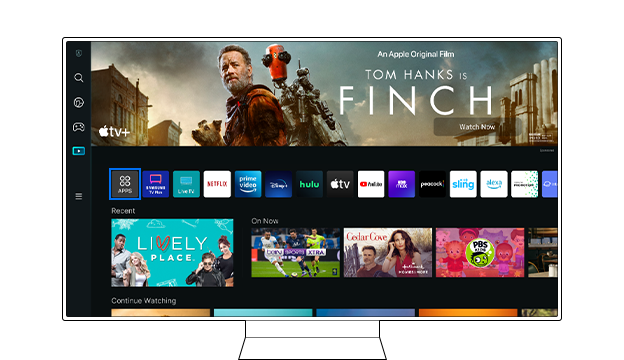
Credit: www.samsung.com
Comparing Common Causes And Solutions
Here is a simple table to compare the most frequent reasons apps won’t download, and the best solutions for each.
| Problem | How to Check | Best Solution |
|---|---|---|
| Network Issues | Network Status in Settings | Restart router, check speed |
| Storage Full | Manage Storage menu | Delete unused apps |
| Software Glitch | Random app errors | Restart TV, reset Smart Hub |
| Outdated Firmware | Software Update menu | Update firmware |
| Region Restriction | App missing in store | Change region |
| Account Problems | Samsung Account settings | Re-sign in |
| Unsupported TV Model | Model number check | Check app requirements |
Preventing App Download Issues
Solving the problem is good, but preventing it is even better. Here are some expert tips to avoid app download failures on your Samsung TV.
Keep Your Tv Firmware Updated
Samsung releases updates several times a year. Always install them as soon as possible. Updates fix bugs and make the TV more stable.
Manage Storage Regularly
Check your TV’s storage every few months. Delete apps you don’t use. This keeps space available for new apps.
Use Stable Internet
If possible, connect your TV with an Ethernet cable. Wired connections are faster and more reliable than Wi-Fi. If you use Wi-Fi, place your router close to the TV, and avoid walls or interference.
Sign In To Samsung Account
Set your TV to auto-sign-in. This avoids account issues that block downloads.
Check App Compatibility
Before you try to download, search for your TV model and the app online. This prevents wasted time on apps not supported by your TV.
Avoid Unofficial Apps
Use only apps from the official Samsung Smart Hub. Unofficial apps may not work, or can cause other problems.
Example: Smart Hub Reset Success
A user tried everything but could not download Disney+. Resetting Smart Hub fixed the issue, and the app appeared in the store. This shows that sometimes, a simple reset solves complex problems.
Data: How Common Is This Problem?
Samsung TVs are very popular. According to Statista, Samsung had about 19% of global TV market share in 2023. With millions of users, even a small percentage having download issues means many affected people.
A survey from Reddit’s r/SamsungTV forum found:
- About 12% of users had app download issues at least once.
- Most problems were caused by network or storage.
- 70% of users fixed the problem without professional help.
These numbers show it is a common but solvable issue.
Advanced Troubleshooting
If basic steps do not work, try these advanced methods.
Reset Network Settings
Some network bugs need a reset.
- Go to Settings > General > Network > Reset Network.
- Reconnect Wi-Fi or Ethernet.
Use Dns Settings
Sometimes, changing DNS speeds up downloads.
- Go to Settings > Network > Expert Settings > DNS Settings.
- Set DNS to 8.8.8.8 (Google’s DNS).
Update Apps Manually
If an app is stuck, update it manually.
- Go to Apps > My Apps > Update.
- Update all apps.
Check For Tv Software Errors
Some TVs show error codes. Search the code online for specific solutions.
Contact Samsung Support
If all else fails, contact Samsung’s official support. They can diagnose issues remotely or advise next steps.
Comparing Samsung Tv App Download To Other Brands
How does Samsung compare to other smart TVs? Here’s a table showing app download issues by brand, based on user forums and surveys.
| Brand | Common Download Issues | Typical Solutions |
|---|---|---|
| Samsung | Network, storage, firmware | Restart, update, reset Smart Hub |
| LG | App store bugs, region settings | Reset, update firmware |
| Sony | Android TV glitches | Clear cache, update software |
| TCL | Roku account issues | Re-sign in, restart |
Samsung’s issues are similar to other brands, but Smart Hub resets are more common.
Real User Experiences
Understanding real stories helps you see what works in practice.
- Case 1: A user tried to download Spotify. The app wouldn’t install. They checked storage and found only 200 MB free. After deleting two unused apps, Spotify downloaded instantly.
- Case 2: Another user’s YouTube app was missing. The TV was set to the wrong region after a move. Changing the country in settings brought YouTube back.
- Case 3: Someone tried everything, but apps wouldn’t download. They contacted Samsung support, who found a hidden software bug. A remote firmware update solved the problem.
These stories show that most issues can be fixed with simple steps, but sometimes expert help is needed.
Non-obvious Insights
Many beginners overlook these points:
- Smart Hub updates: Samsung occasionally updates the Smart Hub itself. If you skip this, apps may not download, even if TV firmware is updated.
- Hidden files: Sometimes, storage is full because hidden files (like old app data) remain after uninstalling. Running Device Care or doing a Smart Hub reset clears these.
- Account synchronization: If you change your Samsung account password elsewhere (like on a phone), the TV may need you to re-sign in. Otherwise, downloads silently fail.
These insights can save time and avoid confusion.
When To Consider External Streaming Devices
If your Samsung TV cannot download apps due to age or compatibility, you may consider using an external device:
- Amazon Fire TV Stick
- Roku
- Apple TV
These devices offer their own app stores and can work even on older TVs. The cost is usually $30–$150, depending on features.
Comparison: Built-in Vs External App Download
| Method | App Availability | Ease of Use | Cost |
|---|---|---|---|
| Samsung TV Built-in | Limited by model/region | Simple, integrated | Free (if compatible) |
| External Streaming Device | Wide selection | Requires extra remote | $30–$150 |
External devices are a good solution for older TVs or when app support is limited.

Credit: www.youtube.com
How To Keep Your Tv Running Smoothly
Here are some expert habits to keep your TV in top shape:
- Schedule firmware checks monthly.
- Delete apps you haven’t used in the last 3 months.
- Restart your TV weekly.
- Use strong passwords for your Samsung account.
- Keep your router firmware updated.
These steps prevent many common problems before they start.
Useful Resources
If you want more details, Samsung’s official support page has guides and troubleshooting tips. You can visit the Samsung Support for help.

Credit: help.pbs.org
Frequently Asked Questions
Why Can’t I Find Certain Apps In The Samsung Tv App Store?
Some apps are restricted by region or TV model. If your country or model doesn’t support the app, it won’t appear in the store. Try changing region settings or check app compatibility.
What Should I Do If My Tv Says “insufficient Storage”?
Delete unused apps or files. Go to Device Care and manage storage. If storage is still full after deleting, try resetting Smart Hub to clear hidden data.
Will Factory Resetting My Tv Erase Everything?
Yes, factory reset removes all apps, settings, and accounts. Only use it as a last option. Back up any important settings before resetting.
How Often Should I Update My Tv’s Firmware?
Update firmware whenever a new version is available. Usually, Samsung releases updates a few times a year. Keeping firmware updated prevents many app download issues.
Can I Use External Devices If My Tv Can’t Download Apps?
Yes, devices like Fire Stick, Roku, or Apple TV let you install apps independently. They plug into your TV and offer their own app stores, which work even if your Samsung TV app downloads fail.
Solving app download issues on your Samsung TV can be simple or complex, depending on the cause. With the steps above, you can usually fix the problem yourself, saving time and money. Regular maintenance and smart habits will keep your TV running smoothly, so you can enjoy all your favorite apps without trouble.