If you own an Epson L3110 or Epson L3150 printer, you know how useful these devices can be for home or office printing. But when a blinking light shows up on your printer, it can stop your work and leave you confused. Is it a small issue, or something serious? Many users face this, and solving the problem is not always easy. Understanding what the blinking lights mean, and how to fix them, can save you time, money, and frustration. This article will walk you through the meanings, causes, and solutions for blinking lights on both the L3110 and L3150 models.
Why Do Epson L3110 And L3150 Lights Blink?
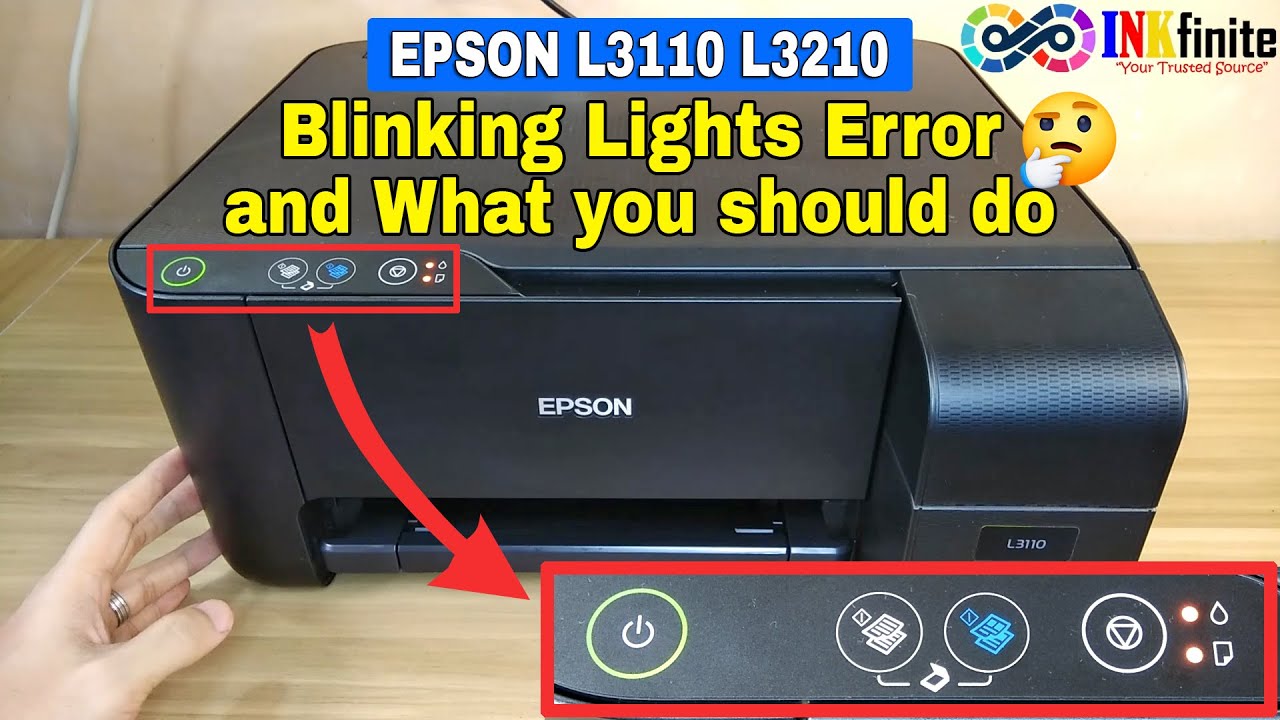
Printers use blinking lights to communicate. When you see a blinking power light, ink light, or paper light, the printer is trying to tell you something is wrong or needs attention. The most common reasons are:
- Paper jams
- Low or empty ink tanks
- Carriage problems
- Waste ink pad issues
- Incorrect installation
Each light pattern has a specific meaning. Understanding these signals is the first step toward a solution.
Types Of Blinking Light Patterns And What They Mean
Power Light Blinking
If the power light is blinking, it means the printer is processing a job, warming up, or resetting. This is normal if it stops after a few seconds. If it keeps blinking, there may be a problem.
Ink Light Blinking
A blinking ink light means an ink tank is low, empty, or not recognized. Sometimes, the ink tank sensor may fail, or the tank is not seated correctly.
Paper Light Blinking
The paper light blinks if there is a paper jam, no paper, or the paper is not loaded properly. It can also indicate a problem with the paper feed mechanism.
Both Ink And Paper Lights Blinking Alternately
When both lights blink in an alternating pattern, this often signals a more serious problem, such as a waste ink pad issue. The printer may stop working until the problem is fixed.
Credit: www.youtube.com
Causes Of Blinking Lights On Epson L3110 And L3150
Several issues can trigger blinking lights. Below are the most common causes and why they happen:
- Paper Jam: Torn or stuck paper inside the printer blocks movement and triggers blinking.
- Low or Empty Ink: The printer senses low ink and warns you to refill.
- Cartridge Not Detected: If an ink tank is not properly installed, or the sensor is faulty, the light blinks.
- Waste Ink Pad Full: When the pad that collects unused ink is full, the printer locks to prevent spills.
- Cover Open: If the top cover is not closed properly, the printer will blink and refuse to print.
- Firmware or Software Error: Sometimes, an internal error can cause lights to blink unexpectedly.
- Obstructions: Foreign objects inside the printer can cause errors and blinking lights.
Step-by-step Solutions For Each Blinking Light Scenario
1. Power Light Blinking Continuously
If the power light keeps blinking:
- Wait for one minute. Sometimes, the printer is initializing.
- If it continues, unplug the printer for 2 minutes, then reconnect.
- Check for any error messages on your computer.
- Try reinstalling the printer driver.
Non-obvious insight: Many users overlook the importance of waiting after unplugging. The printer’s internal memory needs time to reset.
2. Ink Light Blinking
For a blinking ink light:
- Check ink levels. Refill any tank that is low or empty.
- Remove and reinstall the ink tanks to ensure they are seated properly.
- Clean the ink sensor gently with a dry cotton swab.
- Run the Epson Status Monitor software to check for specific ink errors.
Non-obvious insight: Sometimes, air bubbles can block ink flow after refilling. Running a printhead cleaning cycle can help restore proper detection.
3. Paper Light Blinking
If the paper light blinks:
- Open the printer and carefully remove any stuck paper.
- Make sure the paper is loaded correctly in the tray.
- Check for small scraps of paper or dust inside the rollers.
- Restart the printer after clearing the jam.
Tip: Use good-quality, flat paper. Curled or damp paper often causes jams.
4. Both Ink And Paper Lights Blinking Alternately
This often means the waste ink pad is full:
- The printer is programmed to stop working when the waste pad is near its limit.
- You can reset the waste ink counter using software like the Epson Adjustment Program.
- If possible, replace or clean the waste ink pad.
Warning: Ignoring waste ink pad warnings can cause ink to leak inside the printer.
5. All Lights Blinking
If all lights blink together:
- This usually signals a firmware or hardware malfunction.
- Unplug the printer, wait, and restart.
- If the problem returns, contact Epson support.
How To Reset Epson L3110 And L3150 Printers
If blinking lights won’t go away after solving the main issue, a reset can help. Here’s how:
- Turn off the printer and unplug it.
- Hold down the power button for 30 seconds.
- Plug the printer back in and turn it on.
- If the issue remains, use the Epson Adjustment Program to reset internal counters.
Note: Download the Epson Adjustment Program only from trusted sources to avoid malware.
Comparison Of Blinking Patterns And Solutions
Below is a quick reference for blinking patterns and their fixes.
| Blinking Pattern | Possible Cause | Recommended Solution |
|---|---|---|
| Power light blinking | Processing or error | Wait/reset |
| Ink light blinking | Low/empty ink | Refill/reset ink tank |
| Paper light blinking | Paper jam/no paper | Clear jam/reload paper |
| Both lights alternating | Waste ink pad full | Reset counter/change pad |
| All lights blinking | Firmware error | Restart/contact support |

Credit: www.reddit.com
Preventing Blinking Light Problems
To avoid future blinking light errors:
- Always use the correct paper type and size.
- Keep the printer clean, especially the rollers and ink tank area.
- Refill ink before it runs completely dry.
- Run regular nozzle checks and printhead cleanings.
- Do not turn off the printer while it is printing or cleaning.
Practical tip: Place the printer on a stable, dust-free surface. Vibrations and dust can cause paper feed problems and sensor errors.
Epson L3110 Vs L3150: Blinking Light Differences
Both printers are similar, but there are small differences:
| Feature | Epson L3110 | Epson L3150 |
|---|---|---|
| Blinking Light Patterns | Mostly same as L3150 | Same, with extra alerts for Wi-Fi |
| Wireless Status Light | No wireless light | Blinks for network issues |
| Reset Method | Manual and software | Manual, software, and via app |
Example: On the L3150, a blinking Wi-Fi light can mean a network connection problem, which the L3110 does not have.
What To Avoid When Fixing Blinking Lights
Many users make mistakes that can make things worse:
- Forcing jammed paper out can damage the rollers.
- Using cheap, non-Epson ink can cause sensor errors and clogs.
- Ignoring blinking lights for too long can lead to bigger failures.
- Downloading unofficial reset programs can harm your printer or computer.
If in doubt, check the official Epson support page or trusted tech forums.
When To Call For Professional Help
If you cannot fix the blinking light after trying these steps:
- The printer refuses to print.
- There is an internal hardware error.
- The waste ink pad needs replacement, but you lack tools or skills.
Professional repair may cost more, but it can save your printer from serious damage.
Cost Of Typical Repairs
Repair costs can vary:
| Issue | DIY Cost | Professional Service Cost |
|---|---|---|
| Paper jam | Free | $10–$25 |
| Ink refill | $5–$20 | $15–$30 |
| Waste ink pad reset | Free–$10 | $20–$50 |
| Sensor replacement | $10–$30 | $40–$70 |
Fact: Most blinking light problems can be solved at home for little or no money if you follow the right steps.
Frequently Asked Questions
Why Do Both The Ink And Paper Lights Blink Together On My Epson L3110?
This usually means the waste ink pad is full. The printer has stopped to prevent ink overflow. You need to reset the waste ink counter and, if possible, clean or replace the pad.
Can I Use Third-party Ink To Fix Blinking Ink Lights?
It is possible, but not recommended. Third-party ink can cause sensor problems, clog the printhead, and may void your warranty. Always use Epson-approved ink for best results.
How Often Should I Clean My Epson L3110 Or L3150 To Prevent Blinking Lights?
Clean the outside every week and the inside (rollers, ink area) every 1–2 months. Regular cleaning prevents jams and sensor errors that cause blinking lights.
What Is The Safest Way To Reset The Waste Ink Pad Counter?
The Epson Adjustment Program is a common tool, but only download it from trusted sites. Follow on-screen steps carefully. If unsure, contact Epson support or a local technician.
Where Can I Find Official Help For Epson Blinking Light Problems?
Visit the official Epson support page for guides, downloads, and contact options.
Solving blinking light issues on your Epson L3110 and L3150 does not have to be stressful. With the right knowledge and a careful approach, you can get your printer working again—and avoid future problems. Always pay attention to what your printer is telling you, act quickly, and use trusted solutions for the best printing experience.

Credit: www.reddit.com