It’s easy to take your computer’s clock for granted—until it goes wrong. If you’ve noticed that the time on your Windows PC is not syncing correctly, you’re not alone. This issue can lead to confusion, missed meetings, or even problems connecting to online services. While it might seem like a small detail, time synchronization is essential for security, productivity, and a smooth computing experience. Let’s explore why your Windows time may drift out of sync, how to fix it, and what you can do to prevent future problems.
Why Accurate Time Matters In Windows
A computer’s clock is about much more than just showing you the correct hour. Many parts of Windows, as well as websites and apps, rely on precise timekeeping. Here’s why accurate system time is so important:
- Security: Many security systems, including SSL certificates, depend on your PC clock. If your time is off, you might see error messages or fail to connect securely.
- File Management: File timestamps help you know when documents were created or edited.
- Network Services: Logging in to servers, accessing emails, or using cloud services often requires clocks to be in sync.
- Scheduled Tasks: Windows and many apps use the clock to run tasks and reminders at the right moment.
Even a few minutes’ difference can cause trouble. If your Windows time is not syncing, it’s wise to fix it quickly.
How Windows Time Sync Works
Windows uses a built-in service called Windows Time Service (W32Time) to keep your clock accurate. It connects to internet time servers (NTP servers) to check and update the local time. Here’s a basic overview:
- Your PC checks its time against a trusted server (like time.windows.com).
- If there’s a difference, Windows updates the clock.
- This usually happens automatically once a week or when you start your PC.
If time is not syncing, something has interrupted this process.
Common Reasons Time Is Not Syncing
Understanding why Windows time sync fails can save you hours of frustration. Here are the most frequent causes:
1. Internet Connection Issues
If your PC is offline or your firewall blocks time servers, syncing will fail. Sometimes, security software or network settings block the NTP protocol needed for time updates.
2. Wrong Time Server Settings
Windows may be set to use a server that’s unreliable or offline. If the default server doesn’t respond, your clock won’t update.
3. Disabled Windows Time Service
The Windows Time Service may be turned off accidentally or by another program. Without it, syncing cannot happen.
4. Cmos Battery Problems
Every PC has a small battery (CMOS battery) that keeps the clock running when the computer is off. If this battery fails, the clock resets each time you reboot.
5. Incorrect Time Zone
If your time zone is wrong, your computer may show the wrong time even if syncing works.
6. Corrupted System Files
Sometimes, damaged Windows files can interfere with time services.
7. Group Policy Or Registry Issues
Advanced settings in Windows can block time syncing, especially on work computers managed by an IT department.
Quick Checks Before Troubleshooting
Before you dig into advanced fixes, a few simple checks can reveal the cause:
- Make sure your PC is connected to the internet.
- Double-check your time zone and daylight saving settings.
- Restart your computer to see if it fixes the issue.
- If you use VPN software, try turning it off for a moment.
These steps solve many basic syncing problems.
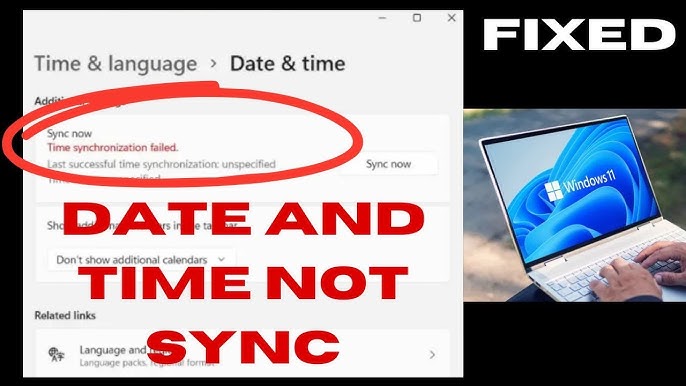
Credit: www.youtube.com
Step-by-step Solutions For Time Not Syncing
Let’s walk through the most effective ways to fix time sync problems on Windows. You don’t need to try every method—start with the simplest and move to the next if needed.
1. Manually Sync Time In Windows
Windows lets you force a time update. Here’s how:
- Right-click the clock in the bottom-right corner.
- Click Adjust date/time.
- Scroll down and click Sync now under “Synchronize your clock”.
If this works, your problem may be temporary.
2. Check And Change The Time Server
If the default time server doesn’t respond, switch to a reliable one:
- Go to Settings > Time & language > Date & time.
- Click Additional clocks or Date, time, & regional formatting (depending on your Windows version).
- Click Internet Time tab > Change settings.
- Choose a different server, such as time.nist.gov.
- Click Update now.
Here’s a quick comparison of popular public NTP servers you can use:
| Server Address | Operated By | Reliability | Location |
|---|---|---|---|
| time.windows.com | Microsoft | Good (default) | Global |
| time.nist.gov | NIST (US) | Excellent | United States |
| pool.ntp.org | Community | Very Good | Worldwide |
Switching to a different server often fixes stubborn sync issues.
3. Restart The Windows Time Service
If the service is stopped, your clock can’t sync. To restart it:
- Press Windows + R, type `services.msc`, and press Enter.
- Find Windows Time in the list.
- Right-click and select Restart.
- Set the Startup type to Automatic.
This ensures the service starts every time you boot up.
4. Replace The Cmos Battery
If your clock resets every time you turn off your computer, the CMOS battery may be dead. Signs of a failing battery include:
- Time and date reset after shutdown.
- BIOS/UEFI settings are lost.
- Unusual error messages at startup.
Replacing the battery is simple but requires opening your computer case. If you’re not comfortable with hardware, seek help from a professional.
5. Fix Time Zone And Daylight Saving Settings
Windows must know your location to set the correct time. To check:
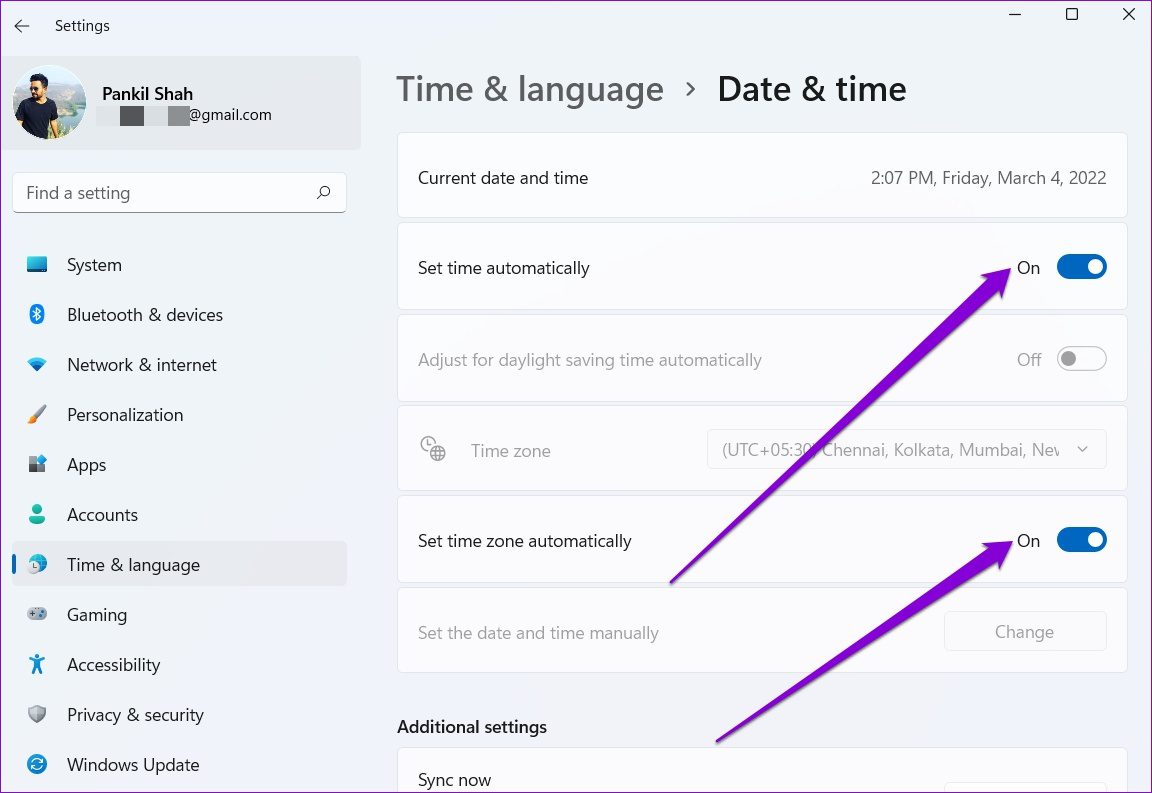
- Open Settings > Time & language > Date & time.
- Verify your time zone matches your location.
- Turn on Set time zone automatically if available.
If daylight saving time has recently changed, toggle Adjust for daylight saving time automatically.
6. Run System File Checker
Corrupt system files can break time sync. To fix:
- Open Command Prompt as administrator.
- Type `sfc /scannow` and press Enter.
This scans and repairs system files.
7. Adjust Firewall Or Security Settings
If your firewall blocks NTP, syncing fails. Add Windows Time Service or port 123 (UDP) to your firewall’s allowed list. Consult your security software’s help if you need details.
8. Use Task Scheduler To Force Time Sync
You can set up Windows to sync more often. Here’s how:
- Open Task Scheduler.
- Create a basic task to run `w32tm /resync` at your chosen interval.
- Set it to run as SYSTEM with highest privileges.
This method is helpful if you travel often or change networks.
Advanced Troubleshooting For Persistent Issues
If the above steps don’t help, you may have a deeper problem. These advanced techniques can solve tough cases.
Edit Registry Settings
Caution: The Windows Registry is powerful but risky. Back up your data before editing.
- Press Windows + R, type `regedit`, and press Enter.
- Navigate to: `HKEY_LOCAL_MACHINESYSTEMCurrentControlSetServicesW32TimeTimeProvidersNtpClient`
- Check that the Enabled value is set to 1.
Setting this to 1 ensures NTP is active. If you’re unsure, seek expert help.
Check Group Policy Settings
On work or school PCs, Group Policy may control time sync.
- Press Windows + R, type `gpedit.msc`, and press Enter.
- Go to Computer Configuration > Administrative Templates > System > Windows Time Service.
- Review and adjust settings as needed.
If options are locked, contact your IT admin.
Re-register Windows Time Service
Sometimes, the service needs to be reset:
- Open Command Prompt as administrator.
- Type these commands one by one:
net stop w32time
w32tm /unregister
w32tm /register
net start w32time
This unregisters and re-registers the service.
Update Your Bios/uefi Firmware
Old or buggy firmware can affect the system clock. Check your PC or motherboard manufacturer’s website for BIOS updates. Follow instructions carefully, as a failed update can cause other issues.
How To Tell If Time Sync Is Working
After making changes, it’s important to confirm that your clock is staying accurate. Here are some ways to check:
- Watch the clock for a few hours—does it drift?
- Open Command Prompt and type `w32tm /query /status` to view sync info.
- Use a reliable website, like time.gov, to compare with your PC’s clock.
If your time holds steady over days, syncing is working.
Real-world Examples
Let’s look at two short case studies that show how these problems appear in daily life.
Case 1: Remote Work Frustration
Ana, a project manager, found her Zoom meetings were always off by a few minutes. She was using a company laptop from home. After checking, her time zone was set incorrectly due to travel. Once she set the correct zone and forced a sync, the problem vanished.
Case 2: Security Warnings On Websites
Raj kept seeing security warnings when browsing. His PC’s clock was five minutes slow, which broke SSL certificate checks. Switching to time.nist.gov as the sync server fixed the issue immediately.
Both cases show that even small time errors can have big effects.
Comparing Time Sync On Windows Versions
Not all versions of Windows handle time sync the same way. Here’s a quick reference to help you know what to expect:
| Windows Version | Default Time Sync | Manual Sync Option | Time Zone Automation |
|---|---|---|---|
| Windows 10 | Enabled | Yes (Settings) | Yes |
| Windows 11 | Enabled | Yes (Improved UI) | Yes |
| Windows 7/8 | Enabled | Yes (Control Panel) | No |
| Windows Server | Often managed by admin | Yes (Admin tools) | Varies |
If you use an older version, manual adjustment is more important.
Preventing Future Time Sync Problems
Once your clock is correct, you want to keep it that way. Here’s how to avoid repeat issues:
- Keep Windows Updated: Updates include fixes for time services.
- Maintain Internet Access: Even occasional disconnections can cause drift.
- Check Your Battery: Replace the CMOS battery every few years, especially on older PCs.
- Avoid Suspicious Software: Malware can change system settings, including time.
- Review Security Software: Make sure your firewall allows time sync.
One non-obvious tip: If you often move between time zones, consider setting your clock to UTC (Coordinated Universal Time) and rely on apps to show local time. This prevents confusion when traveling.

Credit: www.ninjaone.com
What Beginners Often Miss
Many users try to fix the time by simply changing the clock manually. While this works for a moment, it doesn’t solve the root issue. If sync is broken, the time will drift again soon. Always check the sync status after any change.
Another common mistake is ignoring the CMOS battery. If your clock resets after every shutdown, replacing the battery is essential. It’s a cheap and simple fix that’s often overlooked.
When To Seek Professional Help
If you’ve tried all the steps above and your time still will not sync, it may be time to call in a professional. This is especially true if:
- Your PC is part of a managed network (school or work).
- You see error messages in BIOS/UEFI.
- Updates or registry fixes don’t help.
A tech expert can check for deeper hardware or software faults.
Trusted Sources For Further Reading
If you want to learn more about how Windows handles time, or need more technical details about NTP and time protocols, you can visit the official Microsoft documentation or the Wikipedia page on NTP.
Frequently Asked Questions
Why Does My Windows Pc Keep Losing Time After I Shut It Down?
This usually means your CMOS battery is failing. The CMOS battery keeps the system clock running when your computer is off. Replacing it should fix the problem.
Is It Safe To Change The Time Server In Windows?
Yes, switching to a trusted server like time.nist.gov or pool.ntp.org is safe and often helps with syncing issues. Just be sure to use reputable servers.
Can Time Sync Issues Affect My Internet Or Apps?
Absolutely. Many apps and websites rely on accurate time for security and syncing. If your clock is off, you may see login errors, security warnings, or syncing problems.
How Often Does Windows Sync The Time Automatically?
By default, Windows checks the time once a week. You can force a sync manually or set up more frequent syncing using Task Scheduler if you need higher accuracy.
What Should I Do If My Clock Is Always A Few Minutes Wrong, Even After Syncing?
Double-check your time zone and daylight saving settings. If those are correct, try switching to a different time server or check for software or hardware issues.
When your Windows PC’s time is not syncing, it can cause more trouble than you might expect. With the right steps, most problems are simple to fix. By understanding how Windows time sync works and following the solutions above, you can keep your clock accurate and your computer running smoothly.
If you ever feel stuck, don’t hesitate to reach out for expert help. Accurate time is a small detail that makes a big difference in your digital life.
Credit: www.guidingtech.com