When you record videos on your iPhone or iPad, you expect them to appear across all your Apple devices. That’s the promise of iCloud—your files, photos, and videos always available, always synced. But sometimes, videos refuse to sync. You wait, refresh, and even restart, but your videos just don’t show up on your iPad, Mac, or iCloud.com. This problem is common and frustrating. If you rely on iCloud for backing up memories or sharing content, delayed or missing videos can feel like a disaster.
This guide will help you understand why iCloud not syncing videos happens, and show you practical ways to fix it. We’ll cover everything you need to know, from the basics to advanced solutions. You’ll learn how iCloud works, common mistakes people make, and what to do when your videos stay stuck. Whether you’re new to Apple devices or have used them for years, this article is written for clear understanding. Let’s solve your iCloud video syncing issues for good.
How Icloud Syncs Videos: What Actually Happens
ICloud is more than just storage—it’s a complex system that links your devices and keeps your files up to date. When you record a video, iCloud tries to upload it to Apple’s servers and then sync it across your devices.
But video syncing uses more storage and bandwidth than photos or documents, so it’s more likely to run into problems.
Icloud Photos And Videos: The Core Process
When you turn on iCloud Photos, your device automatically uploads every photo and video to iCloud. This upload happens in the background, usually when your device is connected to Wi-Fi and charging. The video gets stored on Apple’s servers, and your other devices download it.
Key Factors Affecting Video Sync
- File size: Videos are large, especially in 4K or HD.
- Internet speed: Slow Wi-Fi or poor cellular connection delays uploads.
- Device storage: If your device is low on space, iCloud may pause syncing.
- ICloud storage: If your iCloud account is full, videos won’t sync.
- Battery level: Syncing may pause if your device is not charging.
- Settings: Incorrect iCloud or Photos settings can block syncing.
Most users don’t realize that iCloud only syncs when all these factors are right. If one step fails, videos stay stuck.
Common Reasons Why Icloud Doesn’t Sync Videos
Many issues can cause iCloud video syncing problems. Here are the most frequent:
1. Insufficient Icloud Storage
If you’re out of space, new videos won’t upload. Even a few large videos can fill up the free 5GB plan.
2. Poor Internet Connection
Videos require stable, fast Wi-Fi. Weak signals cause uploads to pause or fail.
3. Device Not Charging
ICloud prefers to sync when plugged in. If you’re on battery power, syncing slows down or stops.
4. Icloud Photos Not Enabled
If the feature is off, videos stay on your device.
5. Low Device Storage
When your iPhone or iPad is nearly full, iCloud stops syncing to prevent errors.
6. Video Format Issues
Rarely, unsupported formats or corrupted files block syncing.
7. Apple System Outages
Sometimes, iCloud servers have issues—check Apple’s System Status page.
8. Outdated Ios Or Macos
Older software versions may have bugs or incompatibilities.
9. Incorrect Date And Time Settings
If your device’s clock is wrong, iCloud may refuse to sync.
10. Multiple Apple Ids
Using different Apple IDs on devices confuses iCloud.
Most users overlook storage limits, battery status, or software updates. Checking these often solves the problem.
Diagnosing Icloud Video Sync Issues
Before fixing, you need to identify the real cause. Follow these steps:
Step 1: Check Icloud Storage
Open Settings > [your name] > iCloud > Manage Storage.
If you see a warning or your storage is nearly full, this is the main issue.
Step 2: Test Your Internet Connection
Try uploading a small video. If it pauses, run a speed test.
Anything below 10 Mbps upload speed can delay video syncing.
Step 3: Review Device Settings
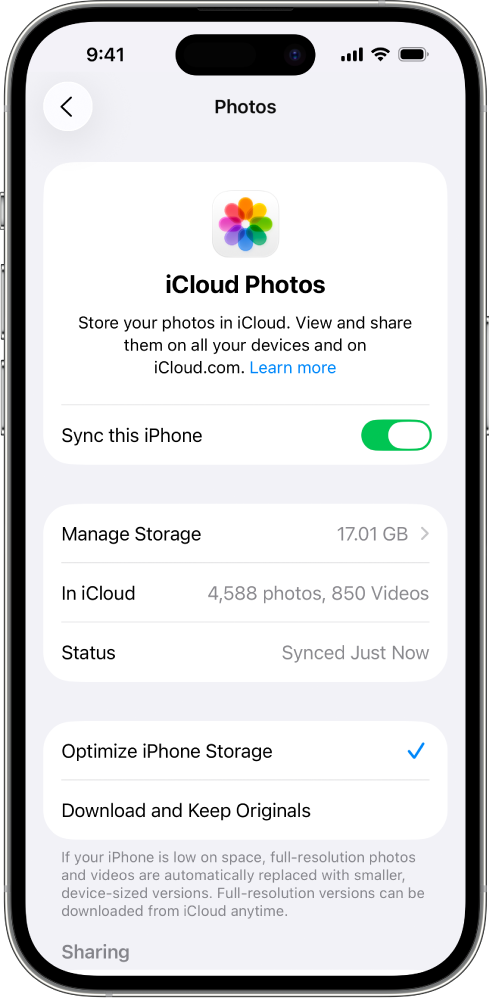
Go to Settings > Photos and confirm iCloud Photos is enabled.
Check if “Optimize iPhone Storage” is turned on—it can affect how videos sync.
Step 4: Look For Software Updates
Go to Settings > General > Software Update.
If an update is available, install it.
Step 5: Check Apple System Status
Visit Apple’s System Status page to see if iCloud is having issues.
apple System Status
Step 6: Confirm Date And Time
Go to Settings > General > Date & Time.
Turn On “set Automatically.”
Step 7: Check Apple Id Consistency
Make sure all your devices use the same Apple ID for iCloud.
These steps help find the root cause instead of guessing. Many beginners skip checking storage or system status.
How To Fix Icloud Not Syncing Videos
Once you know the cause, follow these fixes. Each solution targets a specific problem.
Solution 1: Free Up Icloud Storage
Delete old files, photos, or videos you no longer need.
Go to iCloud > Manage Storage > Photos > Delete Items.
Consider upgrading your plan if needed.
| Plan | Storage | Monthly Cost (USD) |
|---|---|---|
| Free | 5 GB | $0 |
| Basic | 50 GB | $0.99 |
| Standard | 200 GB | $2.99 |
| Premium | 2 TB | $9.99 |
Solution 2: Improve Your Internet Connection
Switch to a strong Wi-Fi network.
Avoid uploading on cellular data, especially with large videos.
Move closer to your router or reset it if needed.
Solution 3: Charge Your Device
Plug your device into power.
ICloud syncs faster when charging.
Solution 4: Enable Icloud Photos
Go to Settings > Photos > iCloud Photos and turn it on.
Solution 5: Clear Device Storage
Delete unused apps, old photos, or files.
Go to Settings > General > iPhone Storage.
Free up at least 2 GB for smooth syncing.
Solution 6: Convert Unsupported Videos
If a video won’t sync, try converting it to a standard format (like. mov or. mp4).
Use Apple’s built-in editing tools or a trusted third-party app.
Solution 7: Wait For System Outages To Resolve
If Apple’s servers are down, you can only wait.
Check system status regularly.
Solution 8: Update Your Device
Install the latest iOS or macOS update.
Updates fix bugs and improve iCloud reliability.
Solution 9: Set Date And Time Automatically
Wrong date can block syncing.
Turn on “Set Automatically” in Date & Time settings.
Solution 10: Use The Same Apple Id
Make sure every device uses the same account.
Go to Settings > [your name] and compare across devices.
These solutions cover nearly every cause. Beginners often miss checking video format, device storage, or system outages.
Advanced Troubleshooting For Persistent Issues
Sometimes, basic fixes don’t work. Here are advanced steps:
Restart Your Devices
Turn off and restart your iPhone, iPad, or Mac.
This clears temporary bugs and resets iCloud connections.
Sign Out And Sign In To Icloud
Go to Settings > [your name] > Sign Out.
Restart your device, then sign back in.
Reset Network Settings
Go to Settings > General > Reset > Reset Network Settings.
This clears Wi-Fi passwords, so reconnect after.
Force Sync With Icloud
Open Photos, scroll to the bottom, and pull down to refresh.
On Mac, open Photos and select “Photos” > “Preferences” > “iCloud” > “Sync Now. ”
Check Video Metadata
Rarely, corrupted metadata blocks syncing.
Edit the video slightly (trim 1 second) and save it again.
Use Icloud.com For Manual Upload
Go to iCloud. com, log in, and upload the video manually.
This bypasses device-specific syncing issues.
Compare Icloud Sync Speed
Some users notice that videos sync faster on Wi-Fi than on cellular.
Here’s a comparison:
| Connection Type | Average Sync Speed (HD Video) | Reliability |
|---|---|---|
| Home Wi-Fi | 2-5 minutes | High |
| Public Wi-Fi | 5-15 minutes | Medium |
| Cellular Data | 10-30 minutes | Low |
Contact Apple Support
If all else fails, contact Apple Support.
They can check your account and device for unique problems.
Preventing Future Icloud Video Sync Issues
It’s easier to prevent problems than to fix them. Here’s how:
1. Monitor Your Icloud Storage
Set reminders to check storage monthly.
2. Update Your Devices Regularly
Software updates fix bugs and improve syncing.
3. Back Up Important Videos Elsewhere
Use external drives or another cloud service for double protection.
4. Avoid Recording Huge Videos Unless Necessary
Large files take longer to sync and fill storage quickly.
5. Keep Your Devices Charged And Connected
Syncing works best with power and Wi-Fi.
6. Review Your Settings After Major Updates
Sometimes updates reset preferences.
7. Don’t Mix Apple Ids On One Device
Stick to one account per device for smoother syncing.
These habits reduce stress and keep your videos safe.
Credit: support.apple.com
Real-life Examples: Icloud Video Sync Problems
Let’s look at some real stories to understand the issue better.
Example 1: Family Vacation Videos
A user recorded several 4K videos during a family trip. After returning home, only some videos synced to her Mac. She checked iCloud storage and found it nearly full. After deleting old files and restarting her devices, all videos appeared.
Example 2: School Project On Ipad
A student filmed a project on an iPad, but the video wouldn’t sync to his iPhone. He realized iCloud Photos was not enabled on the iPad. Turning it on solved the problem.
Example 3: Business Meeting Recording
An executive recorded a meeting on iPhone but couldn’t access the video on her MacBook. She discovered her device was not charging during the upload. Plugging in the phone allowed the video to sync.
Example 4: Large Video Upload Failure
A video editor tried to sync a 3GB video file. It stuck for hours. Checking internet speed showed upload rates below 2 Mbps. Switching to faster Wi-Fi fixed the issue.
Example 5: Corrupted Video File
A user’s video never appeared in iCloud. Trimming the video by 1 second and saving it as a new file allowed syncing.
These examples show that most issues are simple but often missed by beginners.
Comparing Icloud With Other Cloud Services For Video Sync
How does iCloud stack up against alternatives? Here’s a quick comparison:
| Service | Free Storage | Video Sync Speed | Ease of Use |
|---|---|---|---|
| iCloud | 5 GB | Medium | High |
| Google Photos | 15 GB | Medium | High |
| Dropbox | 2 GB | High | Medium |
| OneDrive | 5 GB | Medium | Medium |
ICloud is easy for Apple users, but Google Photos offers more free space and similar speed. Dropbox is fastest but offers less free storage.

Credit: www.youtube.com
Non-obvious Tips For Smooth Icloud Video Sync
Many users miss these advanced ideas:
1. Turn Off “low Power Mode”
This mode can pause iCloud syncing to save battery.
2. Use “optimize Storage” Carefully
This feature saves space but may delay local downloads.
If you want instant access on every device, turn it off.
3. Avoid Editing Videos During Syncing
Editing a video while it’s uploading can cause errors.
These tips help avoid hidden problems most guides ignore.
Frequently Asked Questions
Why Does Icloud Take So Long To Sync Videos?
Videos are large files and need fast, stable internet. ICloud also prefers syncing when devices are charging and connected to Wi-Fi. If storage is low or your connection is weak, syncing slows down.
Can I Force Icloud To Sync Videos Faster?
You can speed up syncing by plugging your device into power, connecting to strong Wi-Fi, and closing other apps. Also, use “Sync Now” options in Photos on Mac.
What Happens If My Icloud Storage Is Full?
New videos won’t upload. You’ll see warnings in Settings. Delete old files or upgrade your storage plan to resume syncing.
Are Certain Video Formats Not Supported By Icloud?
Most Apple-friendly formats like. mov and. mp4 work fine. Rare formats or corrupted files may fail to upload. Convert videos if needed.
Is Icloud The Best Choice For Syncing Videos?
ICloud is excellent for Apple users and easy to use. But if you need more free space or cross-platform support, consider Google Photos or Dropbox. Each has strengths and weaknesses.
Solving iCloud not syncing videos is often simple, but it requires careful checks and the right fixes. By understanding how iCloud works and following these steps, you’ll keep your videos safe and accessible everywhere. If you ever get stuck, remember to check storage, internet, and settings first—most problems can be solved quickly. And with these tips, you’ll avoid the common mistakes that block syncing for so many users.

Credit: www.reddit.com