When your Kate Spade smartwatch app suddenly stops working, it’s more than a small frustration. For many users, the smartwatch is not just a fashion statement—it’s a digital companion. It tracks your health, gives you notifications, and helps organize your day. If the app fails, your watch loses much of its power. But why does this happen, and what can you do about it?
In this guide, you’ll discover why the Kate Spade smartwatch app might not work, what common issues users face, and how to fix most problems yourself. With real examples, up-to-date solutions, and practical advice, this article will help you get your smartwatch app running smoothly again.
Whether you’re new to smartwatches or have used them for years, you’ll find simple steps and expert insights to solve your app problems.
Why The Kate Spade Smartwatch App Matters
The Kate Spade smartwatch, powered by Wear OS or proprietary software, is designed for both style and function. But the real magic happens in the companion app. The app connects your watch to your phone, letting you:
- Receive calls, texts, and app notifications on your wrist
- Track steps, heart rate, and other health data
- Change watch faces and customize settings
- Sync calendar events and reminders
If the app isn’t working, your smartwatch becomes little more than a regular watch. You might miss important alerts, lose track of your health stats, or find your watch stuck on the default face.
Many users report problems such as the app not opening, failing to sync, or crashing during setup. Others notice their watch disconnects from their phone, or updates won’t install. These issues can happen on both Android and iOS devices, but the causes and fixes might differ.
Common Problems With The Kate Spade Smartwatch App
Understanding the typical issues can save time when troubleshooting. Here are the most reported problems by Kate Spade smartwatch users:
- App won’t open: The app crashes at launch or stays stuck on the loading screen.
- Sync issues: Data from the watch (like steps or notifications) doesn’t appear in the app.
- Connection drops: The watch keeps disconnecting from your phone, even when close by.
- Notifications not received: Your watch doesn’t show new texts, calls, or app alerts.
- Update failures: The app or watch can’t install new updates or gets stuck updating.
- App freezes or slows down: The app becomes unresponsive or takes long to load.
- Pairing problems: The watch and phone can’t connect during setup or after a reset.
While some issues are simple, others need a step-by-step approach. Let’s break down the main causes before moving to the best solutions.
Credit: www.alibaba.com
Why The App Stops Working: The Main Causes
There isn’t just one reason why the Kate Spade smartwatch app might fail. Problems can come from the app, your phone, the watch, or even outside factors like Bluetooth interference.
Outdated App Or Watch Software
Many issues happen because the app or watch software is not updated. Developers fix bugs and add features through updates. If you skip these, your watch and app might not work together well.
Phone Compatibility Problems
Not every phone works perfectly with every smartwatch. If your phone’s operating system is too old (or too new), or if you have a custom Android or iOS version, the app may not function as expected.
Bluetooth And Connection Issues
The app connects your watch and phone using Bluetooth. If Bluetooth is off, unstable, or interfered with by other devices, syncing problems are common.
App Cache Or Data Corruption
Over time, apps store files and data to make things faster. But sometimes, these files get corrupted. This can cause crashes, freezing, and syncing issues.
Permissions Not Enabled
The app needs certain permissions to access notifications, contacts, and other features. If you deny these (or the phone resets them), the app can’t function fully.
Server Outages Or Service Changes
Sometimes the problem is not on your end. The Kate Spade app (especially when powered by Wear OS or a third-party provider) may be affected by server outages, discontinued services, or changes in supported features.
Hardware Problems
Rarely, the smartwatch or phone hardware may be damaged, causing connection or syncing issues.
Quick Fixes For Kate Spade Smartwatch App Problems
Before you dive into advanced troubleshooting, try these quick solutions. These steps often solve the most common issues in minutes.
- Restart your phone and watch: A simple restart can refresh Bluetooth and clear minor glitches.
- Check Bluetooth settings: Make sure Bluetooth is enabled and the watch is paired with your phone.
- Update the app and watch firmware: Visit the App Store or Google Play to update the app. Check the watch for system updates.
- Charge your devices: Low battery can cause connection drops. Keep both devices at least 50% charged during troubleshooting.
- Close and reopen the app: Sometimes, simply swiping the app closed and reopening it clears freezes or crashes.
If these steps don’t help, it’s time to look deeper.
Step-by-step Troubleshooting For The App Not Working
Let’s walk through more advanced solutions, organized by problem type. Use the sections that match your issue.
The App Won’t Open Or Crashes
If the app won’t launch or crashes immediately, it’s likely a software or data problem.
- Clear app cache and data: On Android, go to Settings > Apps > Kate Spade app > Storage. Tap “Clear Cache” and “Clear Data.” On iOS, uninstall and reinstall the app.
- Reinstall the app: Delete the app, restart your phone, then download it again from the official store.
- Check for updates: Make sure your phone’s operating system is up to date. Developers sometimes require the latest OS for stability.
Watch And App Won’t Sync
If steps, notifications, or other data don’t sync, check both devices.
- Force sync: Open the app and look for a “Sync” or “Refresh” button. Tap it to force data transfer.
- Check permissions: The app needs access to notifications, location, and other features. In your phone settings, make sure all necessary permissions are enabled.
- Forget and re-pair the watch: In Bluetooth settings, “forget” the Kate Spade watch, then re-pair it through the app.
Connection Drops Or Fails
If your watch keeps disconnecting, it can be due to Bluetooth range or interference.
- Stay close: Keep your watch and phone within 10 feet (3 meters) during setup and troubleshooting.
- Turn off other Bluetooth devices: Other wireless devices can interfere. Try turning them off while pairing.
- Reset network settings: On your phone, reset Bluetooth and Wi-Fi settings (note: this will disconnect all saved devices).
Notifications Not Appearing
Missing calls, texts, or app alerts is often a permissions issue.
- Check app permissions: In phone settings, make sure the Kate Spade app can access notifications.
- Enable notifications in the app: Open the app, go to settings, and enable all desired notification types.
- Check “Do Not Disturb”: Make sure both the watch and phone are not set to silent or DND mode.
Updates Won’t Install
If the app or watch can’t update:
- Connect to Wi-Fi: Updates are often large and need a strong connection.
- Free up space: Make sure there’s enough storage on both phone and watch.
- Try updating at a different time: Sometimes, servers are overloaded. Wait and try again later.
Advanced Solutions: When Basic Fixes Don’t Work
For stubborn problems, these advanced steps can help.
Factory Reset The Smartwatch
A factory reset erases all data and settings from the watch, restoring it to “like new” condition.
- On the watch, go to Settings > System > Disconnect & Reset.
- Confirm the reset, then set up the watch again using the app.
Warning: You’ll lose all personal data (health stats, customizations) on the watch.
Reinstall The Kate Spade App On A Clean Phone
Sometimes, background processes or old data cause issues. Try installing the app on a different phone to see if the problem is with your device.
- Install the app on another phone (borrow from a friend or family member).
- Pair the watch and test basic functions.
- If it works, the issue is with your original phone (often due to OS version, settings, or app conflicts).
Contact Customer Support
If you’ve tried everything, reach out to Kate Spade customer support or the watch’s manufacturer. Have your watch model, phone model, app version, and a description of the problem ready.
Pro tip: Take screenshots of error messages or issues. This helps support staff diagnose the problem faster.
Credit: www.ebayinc.com
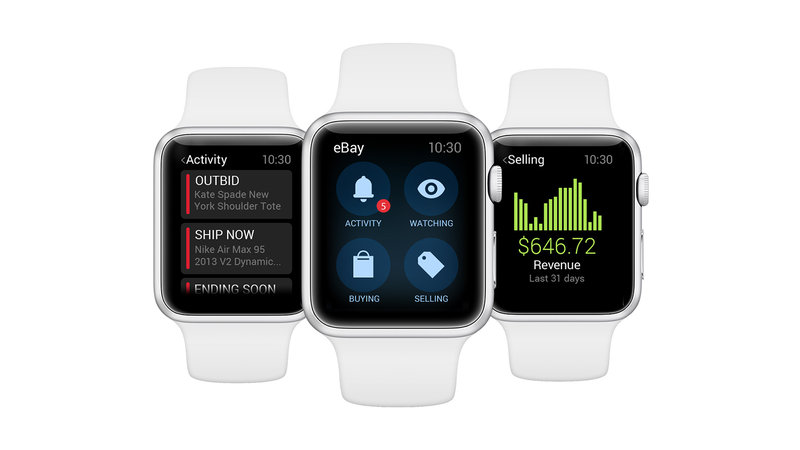
Comparing Kate Spade With Other Smartwatch Apps
It’s useful to see how Kate Spade’s app compares to other smartwatch companion apps in terms of stability, features, and support.
| Feature | Kate Spade App | Apple Watch App | Samsung Galaxy Wearable |
|---|---|---|---|
| iOS & Android Support | Yes | iOS only | Yes |
| Custom Watch Faces | Yes (limited) | Yes (more options) | Yes |
| Health Tracking | Basic | Advanced | Advanced |
| Stability | Moderate | High | High |
| Support/Updates | Occasional | Frequent | Frequent |
Insight: The Kate Spade app is functional but less robust than Apple or Samsung’s options. Updates and support are less frequent, which can lead to more issues over time.
Preventing Future App Problems
Once your app is working, follow these tips to avoid issues later:
- Update regularly: Check for app and watch firmware updates monthly.
- Keep your phone’s OS updated: Major app features can break if you use outdated software.
- Limit background apps: Too many apps running can slow syncing or cause crashes.
- Check permissions after phone updates: New phone updates can reset app permissions.
- Charge devices nightly: Low battery can cause random disconnects or failed syncing.
What Most Users Miss: Non-obvious Insights
Even careful users sometimes miss these advanced tips:
- Third-party app conflicts: Some security, battery-saving, or cleaning apps can block the smartwatch app’s background processes. Try disabling these if you have persistent problems.
- Regional restrictions: Features like Google Assistant or payment apps may not work in all countries, even if the app installs. Always check feature availability for your region.
- Wear OS vs. Proprietary OS: Some Kate Spade watches use Wear OS, others use a custom system. Solutions can differ depending on the underlying software.
- Bluetooth profile mismatch: Not all Bluetooth versions are equal. If your phone uses a very new or very old Bluetooth version, pairing issues are more likely.
When To Upgrade Or Replace Your Watch
If your Kate Spade smartwatch app frequently fails and updates don’t help, it might be time to consider an upgrade. Here’s a comparison of when to fix vs. replace:
| Situation | Fix | Replace |
|---|---|---|
| Minor sync or notification issues | ✔️ | |
| App or watch unsupported | ✔️ | |
| Physical damage | ✔️ | |
| Software bugs after update | ✔️ | |
| Device more than 4 years old | ✔️ |
Real-world Example: Fixing A Common App Issue
Let’s look at a real situation. Sarah, a Kate Spade smartwatch owner, noticed her watch stopped syncing steps and notifications after a phone update. She tried restarting both devices and checking Bluetooth, but nothing worked.
Sarah’s breakthrough came when she:
- Went to phone settings and saw the app’s permissions were reset after the update.
- Re-enabled notification and location permissions for the Kate Spade app.
- Cleared the app’s cache, then restarted her phone.
After these steps, syncing returned to normal. The problem wasn’t with the watch—it was a hidden permission reset.
Lesson: Always check app permissions after any phone OS update or major app update.
What If The App Is Discontinued?
Many Kate Spade smartwatches rely on Fossil Group software or Wear OS. If the app is discontinued, options are limited, but you may still get basic features:
- The watch should still show the time and basic fitness data.
- Some third-party apps can take over basic notification functions (but not advanced features).
- For full functionality, you may need to switch to a supported smartwatch brand.
If you’re unsure, check the official Kate Spade or Fossil support pages for the latest information.
External Resources For Further Help
For complex issues or recent changes, the official Wear OS site has troubleshooting guides and user forums. You can visit the Wear OS Help Center for more details.
Frequently Asked Questions
Why Does My Kate Spade Smartwatch App Keep Crashing On My Phone?
The app may crash due to outdated software, corrupted app data, or phone compatibility issues. Try updating both the app and your phone’s OS. If that doesn’t help, clear the app’s cache and data, or reinstall the app. Some users also find that other apps (like battery savers) interfere with the Kate Spade app’s operation.
How Can I Get Notifications To Show Up On My Kate Spade Smartwatch?
First, make sure the app has notification permissions in your phone’s settings. Then, check that notifications are enabled within the app itself. Also, ensure that Bluetooth is always on and that your watch is paired. If you recently updated your phone, double-check that permissions weren’t reset during the process.
My Kate Spade Smartwatch Won’t Pair With My Phone. What Should I Do?
Start by restarting both devices. Make sure Bluetooth is enabled and that both devices are fully charged. If the watch appears in your Bluetooth list but won’t connect, “forget” the device and try pairing again through the app. If you’re using a new phone, ensure it meets the app’s compatibility requirements.
Is The Kate Spade Smartwatch App Compatible With All Phones?
No. The app works best with recent versions of Android and iOS. Some older phones, or those with highly customized operating systems, may not be fully compatible. Always check the official compatibility list before buying a smartwatch or after a major phone update.
What Should I Do If The App Is Discontinued Or Unsupported?
If the app is no longer supported, you’ll have limited options. The watch will still work as a basic timepiece. Some features may continue to function using third-party apps, but you won’t get updates or new features. Consider switching to a different smartwatch brand if full functionality is important to you.
Credit: www.cosmetiqueasia.com
Final Thoughts
A non-working Kate Spade smartwatch app is frustrating, but in most cases, you can solve the problem with a few targeted steps. Start with quick fixes, then follow detailed troubleshooting if the issue continues. Remember to keep your devices updated, check permissions, and watch for app or OS compatibility. If all else fails, customer support or a device upgrade may be your best path.
With these solutions and tips, you can enjoy your Kate Spade smartwatch’s features without missing a beat. Stay proactive with updates and permissions, and your watch will remain a stylish and smart companion for years to come.