When you’re deep into a Baldur’s Gate 3 adventure, the last thing you want is to lose progress because Steam Cloud isn’t syncing. For many, the promise of cloud saves means freedom: you can switch devices, reinstall your PC, or play at a friend’s place and always pick up where you left off. But when Steam Cloud doesn’t work, it can feel like you’re back in the early 2000s—worried about lost files and starting from scratch.
If you’ve found yourself frustrated by the “Bg3 Steam Cloud Not Syncing” issue, you’re not alone. Many players encounter sync errors, missing saves, or confusing pop-ups. In this guide, you’ll learn exactly why this happens, how to fix it, and what you can do to avoid future headaches.
Whether you’re a technical pro or just getting started with PC gaming, you’ll find practical, clear steps here. Let’s make sure your journey in Baldur’s Gate 3 is as smooth as possible.
What Is Steam Cloud And Why Does It Matter For Baldur’s Gate 3?
Steam Cloud is a service from Valve that stores your game data (like save files and settings) on remote servers. This means your progress is backed up online, not just on your PC. For a massive RPG like Baldur’s Gate 3, which can take over 100 hours to finish, this is essential protection.
When Steam Cloud works, you never worry about losing progress after reinstalling Windows, switching computers, or playing on a Steam Deck. Your save files follow you. However, when syncing fails, it can block you from loading your latest character, cause errors at launch, or even overwrite progress.
That’s why understanding and fixing sync issues is so important.
Common Reasons For Steam Cloud Not Syncing In Bg3
Several issues can cause Steam Cloud to stop syncing for Baldur’s Gate 3. Let’s break down the three most frequent causes, with real examples and practical context.
1. Internet Connection And Steam Server Problems
Steam Cloud relies on an active internet connection. If your PC can’t reach Steam’s servers, syncing will fail. Sometimes, this is due to your own connection dropping, but it could also be a Steam-wide outage.
For example, if you’re playing offline or with a weak Wi-Fi signal, you might see a warning like “Steam was unable to sync your files. ” Also, Steam occasionally has maintenance windows or unexpected downtime. During those periods, even the best internet connection won’t help.
2. Conflicts Between Local And Cloud Saves
This problem happens when your local files don’t match the ones stored in the cloud. It can occur if you play Baldur’s Gate 3 on two devices before both have synced, or if the game crashes and corrupts a save file.
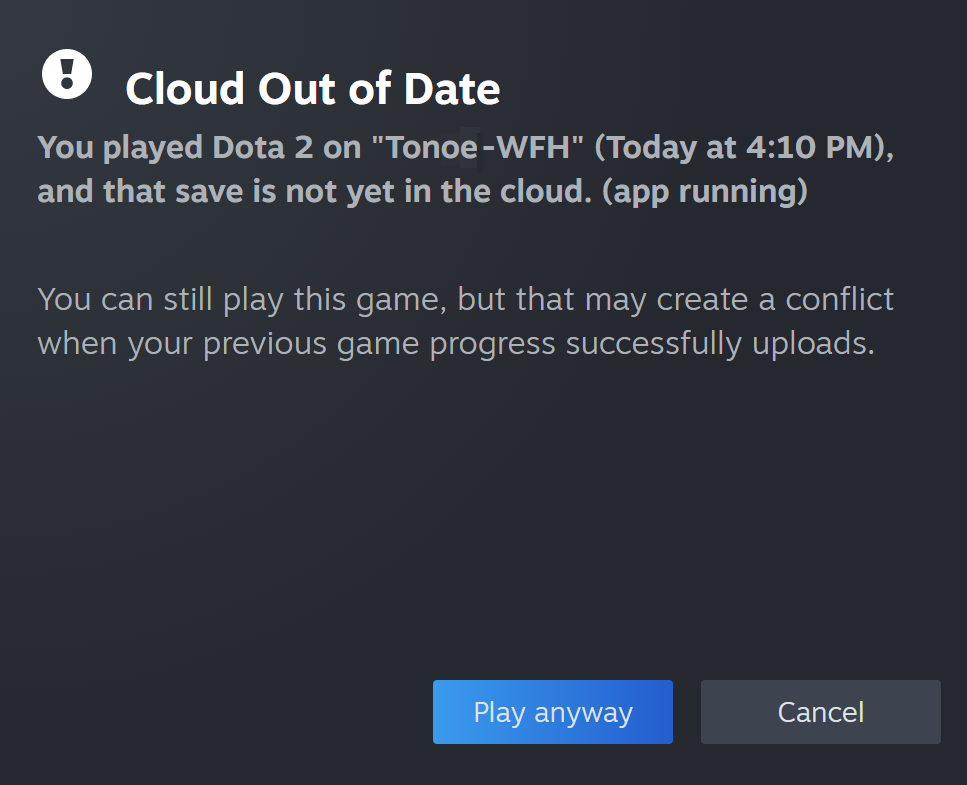
Steam will often pop up a message: “Steam Cloud Conflict – Your local and Steam Cloud files conflict.” Choosing the wrong option here can lead to lost progress. Many players panic at this stage, but the right choice depends on which save is more recent.
3. File Corruption Or Game Update Issues
Game updates sometimes change how save files work. If Baldur’s Gate 3 receives a big patch, older saves may not sync correctly. Similarly, if a save file becomes corrupted—maybe due to a crash or power loss—Steam Cloud may refuse to upload it.
You might notice missing saves, or the game might refuse to load your last session.
How To Diagnose Steam Cloud Sync Issues In Baldur’s Gate 3
Before you can solve the problem, you need to know exactly what’s wrong. Here’s how to check.
- Check for Error Messages: When launching Baldur’s Gate 3, pay attention to any pop-up warnings about cloud sync. “Steam was unable to sync your files” or “Cloud conflict” messages contain useful clues.
- Visit Steam’s Server Status Page: Go to Steam Status to see if there are any widespread outages. If servers are down, wait until they’re back up.
- Inspect Your Save Files: Navigate to your save folder (usually C:Users[YourName]AppDataLocalLarian StudiosBaldur’s Gate 3PlayerProfilesPublicSavegamesStory). Compare the files here with what appears in the Steam Cloud (find this under Steam > Settings > Cloud).
- Try a Different PC: If you have access to another computer, log into Steam and check if your BG3 saves appear there. Missing saves on the second device mean a sync problem.
Step-by-step Fixes For Bg3 Steam Cloud Not Syncing
Let’s walk through practical solutions, from basic to advanced. These methods are proven to resolve most syncing issues for Baldur’s Gate 3.
1. Basic Troubleshooting Steps
- Restart Steam: Close Steam completely and reopen it. Sometimes, the sync process just needs a reset.
- Check Your Internet Connection: Make sure you’re online and your connection is stable. Test with a speed test or by loading websites.
- Restart Your Computer: This clears temporary glitches that can block Steam Cloud.
2. Force A Steam Cloud Resync
If restarting doesn’t work, you might need to force Steam to re-sync your files:
- Go Offline: In Steam, click “Steam” > “Go Offline,” then restart Steam.
- Go Online Again: Click “Steam” > “Go Online” and restart Steam once more.
- Launch Baldur’s Gate 3: Steam should attempt to sync your files. Watch for errors.
- Manual Sync: Right-click Baldur’s Gate 3 in your Steam library, select “Properties,” go to the “Updates” tab, and ensure “Enable Steam Cloud synchronization” is checked.
3. Resolve Local Vs. Cloud Save Conflicts
When Steam shows a conflict, you’ll have two options: “Download to this machine” or “Upload to the cloud.”
- If you want your current PC’s progress, choose “Upload to the cloud.”
- If you want to keep the cloud version (for example, if you played on another device), choose “Download to this machine.”
Tip: Always back up your save files before making a choice. Copy the whole Savegames folder to your desktop so you can restore lost progress if something goes wrong.
4. Check For File Corruption And Repair Game Files
Corrupted files can break syncing. Here’s how to fix them:
- Right-click Baldur’s Gate 3 in your Steam library.
- Click “Properties,” then go to the “Local Files” tab.
- Click “Verify integrity of game files.” Steam will check for problems and fix them.
Note: This process doesn’t check your save files, just the game’s installation. Still, it often helps because game updates sometimes cause sync issues.
5. Update Steam And Baldur’s Gate 3
Sometimes, bugs in the game or Steam client cause sync failures. Keeping everything updated is critical.
- For Steam: Click “Steam” > “Check for Steam Client Updates.”
- For Baldur’s Gate 3: Updates usually download automatically, but you can force a check by right-clicking the game > “Properties” > “Updates.”
6. Manually Backup And Restore Your Saves
If all else fails, you can manually back up your BG3 save files. This doesn’t fix Steam Cloud, but it prevents data loss.
- Go to your save folder: C:Users[YourName]AppDataLocalLarian StudiosBaldur’s Gate 3PlayerProfilesPublicSavegamesStory
- Copy all files to a safe location (like an external drive or cloud storage).
- To restore, copy them back to the same folder.
Non-obvious insight: Sometimes, Steam Cloud has a file size limit (usually 100MB per game). If your saves are very large (from lots of playtime or mods), they may not sync. Check the size of your Savegames folder and delete old saves if needed.
Credit: help.steampowered.com
Comparing Steam Cloud Vs. Local Saves
To help you decide which method to use, here’s a side-by-side look at the pros and cons.
| Feature | Steam Cloud | Local Saves |
|---|---|---|
| Automatic Backup | Yes | No |
| Access Across Devices | Yes | No |
| Risk of Data Loss | Low (if working) | Medium/High |
| Manual Control | Limited | Full |
| Speed | Depends on internet | Instant |
Pro tip: For important games like Baldur’s Gate 3, use both. Rely on Steam Cloud for convenience, but back up your saves manually every few weeks.
How Baldur’s Gate 3 Handles Save Files
Understanding how BG3 manages saves can help you troubleshoot problems faster.
- The game creates automatic saves at key moments (like before big fights).
- You can also make manual saves (recommended before risky choices).
- Save files are stored in the Story folder, and each file is unique to your character and playthrough.
Non-obvious insight: Mods can change how saves work. If you’ve installed mods and Steam Cloud won’t sync, try disabling mods and seeing if the problem resolves.
Preventing Future Sync Issues
Once your saves are safe, you’ll want to avoid repeat problems. Here’s how:
- Don’t Play on Two PCs at Once: Always close BG3 and allow Steam Cloud to sync before switching devices.
- Watch for Steam Notifications: If you see a sync error, resolve it right away instead of ignoring it.
- Limit the Number of Saves: Hundreds of save files can slow syncing and hit file size limits. Delete old ones you no longer need.
- Avoid Sudden Shutdowns: Don’t turn off your PC or force-quit Steam during a sync.
Case Study: Real-world Example
Let’s look at a common scenario:
Anna plays Baldur’s Gate 3 on her desktop, then switches to her gaming laptop. She forgets to close the game on her desktop and starts playing on her laptop. When she returns to her desktop, she sees a Steam Cloud conflict.
Not sure what to do, she chooses to keep the desktop version and loses hours of progress.
What went wrong? Anna didn’t let Steam Cloud finish syncing before switching devices. To avoid this, always close the game and wait for the Steam Cloud icon (a spinning sync symbol) to finish before logging in elsewhere.

Credit: www.reddit.com
Advanced Tips For Tech-savvy Users
If you’re comfortable with file management and want more control, try these advanced tactics:
- Move Save Files Between PCs Manually: Copy the entire Savegames folder to a USB stick or cloud service (like Google Drive) and transfer it yourself.
- Use Symbolic Links: Advanced users can set up symbolic links to store save files in a custom location, even outside the default AppData folder.
- Monitor the Steam Cloud Log: Steam creates logs in its installation folder (look for logs/cloud_log.txt). Reading these can give you technical clues if syncing fails.
Comparing Sync Errors And Fixes
Here’s a look at common error messages and what they mean.
| Error Message | Likely Cause | Recommended Fix |
|---|---|---|
| “Steam was unable to sync your files” | Internet or server problem | Check connection, restart Steam |
| “Cloud conflict” | Different saves on local/cloud | Choose which save to keep, back up first |
| Missing saves | File size limit or corruption | Delete old saves, verify game files |
| Game won’t load save | Outdated save after update | Update BG3, check for mod conflicts |
Credit: www.reddit.com
How Steam Cloud Sync Works Behind The Scenes
Steam Cloud doesn’t instantly upload every change. Here’s a simplified breakdown:
- When you close Baldur’s Gate 3, Steam checks for changed files in your Savegames folder.
- It uploads these to the cloud, as long as there’s enough space and no errors.
- On a new device, Steam downloads the latest saves before you launch the game.
- Sync happens only when Steam is online and you’re logged in.
Important: If you play offline, changes will sync only once you reconnect to the internet. If something blocks the upload (like a firewall), files stay local.
What If Steam Cloud Is Not Enough?
Steam Cloud is convenient but not perfect. If you want full peace of mind:
- Use third-party backup tools. Apps like GameSave Manager can automatically back up and restore saves for many games, including Baldur’s Gate 3.
- Consider using cloud storage (like Dropbox or Google Drive) as a secondary backup.
For more about how Steam Cloud works, see the official Steam Support FAQ.
Frequently Asked Questions
Why Are My Baldur’s Gate 3 Saves Missing After Reinstalling Windows?
If you reinstalled Windows and didn’t back up your saves, but Steam Cloud was enabled, your saves should reappear after you log in and install BG3 again. If they don’t, check if Steam Cloud is enabled and see if there were any sync errors during installation.
Can I Recover Lost Saves If Steam Cloud Failed To Sync?
Sometimes, yes. Look in your local Savegames folder for recent files. If you made a manual backup, restore from there. If both local and cloud saves are missing, recovery is difficult. Regular backups help avoid this problem.
How Do I Know Which Save Is Newer In A Steam Cloud Conflict?
Steam usually shows timestamps for each save. Choose the one with the most recent date and time. If you’re unsure, back up both versions before deciding.
Does Steam Cloud Work With Mods In Baldur’s Gate 3?
Steam Cloud will sync your save files, but if your saves rely on mods, you need the same mods installed on every PC. Otherwise, saves might not work or could become corrupted.
What Is The Maximum File Size For Steam Cloud Saves?
Steam Cloud has a per-game limit (usually 100MB). Baldur’s Gate 3 saves can be large, so if you reach this limit, Steam will stop syncing. Delete old saves or back them up elsewhere to free space.
The world of Baldur’s Gate 3 is too rich to risk losing progress. Understanding how Steam Cloud works—and what to do when it doesn’t—gives you control and peace of mind. With these strategies, you’re ready to enjoy your adventure, knowing your journey is safely stored.