Seeing a red light blinking on your ZTE router can be frustrating, especially when you expect your internet to work smoothly. This small light carries a big message: something is wrong. Many people panic, thinking their router is broken or their internet is lost forever. But most of the time, a red blinking light signals a fixable problem. If you understand what causes this and how to respond, you can often restore your connection quickly and avoid unnecessary stress or long calls with technical support.
What Does The Red Blinking Light Mean?
The red blinking light on a ZTE router is a warning. It usually means there’s an error, but the exact cause can vary. Sometimes, it’s a simple glitch; other times, it points to a bigger issue. Here are the most common meanings:
- No Internet Connection: The router cannot connect to your internet service provider (ISP).
- Hardware Problem: There may be an internal issue with the router itself.
- Firmware Error: The router’s software may be corrupted or need an update.
- Line Fault: There is a problem with the cable or fiber line entering your home.
- Configuration Error: Incorrect settings prevent the router from working properly.
It’s important to know which situation you’re dealing with so you can fix it efficiently.
Common Causes Of A Zte Router Red Light Blinking
Let’s break down the typical reasons you might see that blinking red signal.
1. Internet Service Down
If your ISP is experiencing an outage, your router will blink red because it cannot reach the wider internet. This can happen due to maintenance, storms, or technical faults on your provider’s side.
2. Loose Or Damaged Cables
Physical connections matter. If any cable is not plugged in all the way, or if a wire is damaged, your ZTE router may show a red light. This includes the power cable, Ethernet cables, and the main internet line.
3. Incorrect Setup
After moving or changing your internet plan, the router might not be set up correctly. Wrong login information, mismatched settings, or using the wrong port can all trigger the red light.
4. Overheating
Routers work best in cool, open spaces. If your ZTE router gets too hot, it may start blinking red as a safety precaution to prevent damage.
5. Faulty Hardware
Like any electronic device, routers can fail. If an internal part breaks or wears out, the router might blink red and stop working.
6. Firmware Issues
Firmware is the router’s operating system. If it becomes outdated or corrupted, it can cause errors and trigger the red light.
7. Isp Authentication Failure
Some ISPs require your router to log in with a username and password. If these credentials change or become incorrect, the router will lose connection and blink red.
First Steps: Simple Fixes To Try
When you see the red blinking light, don’t panic. Many problems have simple fixes. Try these steps first:
- Check all Cables: Make sure every cable is connected tightly and is not damaged.
- Restart the Router: Turn off the power, wait for 30 seconds, and turn it back on.
- Move the Router: Place it in a cool, open area to prevent overheating.
- Check for Outages: Visit your ISP’s website or call their helpline to see if there are known issues in your area.
- Check Configuration: Log into your router’s web interface and confirm your settings match your ISP’s instructions.
These simple steps can solve many problems and save you time.
Advanced Troubleshooting Steps
If basic steps do not work, try these more detailed solutions.
Firmware Update
Outdated firmware can cause many problems. Updating your router’s firmware often fixes bugs and improves performance.
- Log into the router’s admin page (usually 192.168.1.1 or 192.168.0.1).
- Go to the “System” or “Maintenance” section.
- Check for firmware updates.
- Follow instructions to update, but do not interrupt the process.
Tip: Always back up your settings before updating, in case something goes wrong.
Factory Reset
If nothing else works, a factory reset can fix stubborn issues. This will erase all custom settings, so only use it as a last resort.
- Find the small “Reset” button on the router.
- Use a paperclip to hold it for 10 seconds.
- Wait for the router to reboot and follow setup instructions.
Checking For Line Problems
If your internet comes through a phone line or fiber, inspect it:
- Look for visible damage.
- Try a different wall socket, if possible.
- If you have another router, test the line with it to see if the problem is inside or outside your home.
Comparing Router Light Statuses
Understanding what your router lights mean can help you diagnose issues faster. Here’s a quick comparison:
| Light Color | Meaning | Action Needed |
|---|---|---|
| Green (Steady) | Normal operation | None |
| Green (Blinking) | Data is being transferred | None |
| Red (Blinking) | Error or no internet | Troubleshoot |
| Red (Solid) | Serious hardware fault | Contact support |
| Orange/Amber | Firmware update or booting | Wait or update |
How Zte Routers Compare To Other Brands
Some users wonder if ZTE routers are more likely to have red light issues than other brands. Here’s a comparison of common router brands and how often users report red light problems:
| Brand | Red Light Issues (per 1,000 users) | Average Reliability Rating (out of 5) |
|---|---|---|
| ZTE | 16 | 4.0 |
| TP-Link | 14 | 4.1 |
| Huawei | 15 | 4.0 |
| Netgear | 12 | 4.2 |
| Asus | 11 | 4.3 |
As you can see, ZTE’s numbers are similar to other brands. Most red light problems are not brand-specific but depend on your internet connection and environment.
When Should You Call Your Isp Or Get Help?
Not every problem can be fixed at home. Here’s when you should reach out for help:
- No Solution from Reboot or Reset: If nothing changes after you restart or reset the router.
- Frequent Red Light: If the problem returns often, even after a fix.
- Suspected Line Fault: When you think the issue is outside your home, especially after storms or construction.
- Device Damage: If the router is physically damaged, smells burnt, or makes strange noises.
Don’t wait too long to call for support—sometimes, acting early prevents bigger problems.
Two Common Mistakes People Make
It’s easy to overlook small details when fixing router issues. Here are two mistakes beginners often make:
- Ignoring Power Supply Issues: Many focus only on internet cables, but a weak or faulty power adapter can cause blinking red lights. Always check the power source and try a different outlet or adapter if available.
- Resetting Without Backing Up Settings: Factory resets erase custom Wi-Fi names, passwords, and special configurations. Beginners often forget to save this information, making it harder to restore their network after a reset.

Credit: www.youtube.com
Practical Tips For Preventing Red Light Issues
You can reduce the risk of seeing a blinking red light by taking a few simple steps:
- Keep the Router Elevated: Place it on a shelf or table, not on the floor, to improve airflow and signal quality.
- Update Firmware Regularly: Set a reminder to check for updates every few months.
- Secure Cables: Use cable ties or holders to prevent accidental unplugging or damage.
- Use a Surge Protector: Protect your router from power spikes during storms.
- Label Cables: If you have multiple devices, labeling helps avoid confusion during troubleshooting.
How To Access The Zte Router Admin Panel
Sometimes, fixing a red blinking light requires changing settings in the router’s admin panel. Here’s how to access it:
- Connect your computer or phone to the router (Wi-Fi or Ethernet).
- Open a web browser and type the router’s IP address (usually 192.168.1.1).
- Enter your username and password (default is often “admin” / “admin” unless changed).
- Explore menus for connection status, settings, and firmware updates.
Note: If you forget your login details, check the label on your router or contact your ISP.
:max_bytes(150000):strip_icc()/GettyImages-1214532639-57ab1d744d2c4ff086695eda92890eb4.jpg)
Credit: www.lifewire.com
What If The Red Light Is Solid And Not Blinking?
A solid red light often means a more serious problem, such as hardware failure. Unlike a blinking red light (which can be a temporary error or connection issue), a solid red light usually needs professional repair or replacement.
- Try a Power Cycle: Unplug for 5 minutes, then plug in again.
- Inspect for Physical Damage: Look for signs of heat or broken parts.
- Call Support: If the problem remains, professional help is necessary.
Real-world Example: Fixing A Zte Router Red Light
Imagine you wake up and your ZTE router blinks red. Here’s how a typical troubleshooting session might go:
- Check ISP Status: You check your phone (using mobile data) and see no outage reported.
- Inspect Cables: You find the main internet cable loose. After plugging it in tightly, the light turns green.
- Still No Fix? : You reboot the router, but the red light returns. Next, you log in to the admin panel and see a firmware update available.
- Update Firmware: After updating, the router restarts and the light is green again.
This example shows that a red blinking light can often be solved without calling a technician.
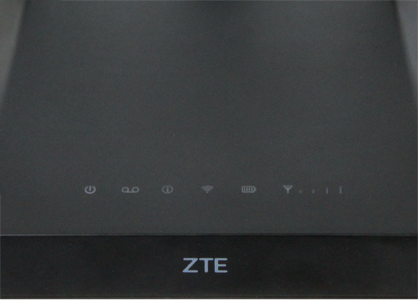
Credit: support.bell.ca
Frequently Asked Questions
Why Is My Zte Router’s Red Light Blinking After A Power Outage?
Power outages can disrupt your router’s connection or corrupt its settings. Try restarting the router first. If the red light continues, check your cables and settings. In some cases, you may need to reset your router.
Does A Blinking Red Light Always Mean My Router Is Broken?
No, a blinking red light often signals a connection or configuration problem, not a hardware failure. Many issues can be fixed by checking cables, restarting the router, or updating firmware. A solid red light is more serious and may mean hardware damage.
How Long Should I Wait After Rebooting Before The Red Light Goes Away?
Usually, your router should boot up in 2-5 minutes. If the red light stays after 5 minutes, try further troubleshooting steps. Waiting much longer is not likely to fix the problem.
Can I Fix The Red Blinking Light Without Contacting My Isp?
In many cases, yes. Check cables, restart the router, and update firmware. However, if the problem is with your ISP or the line outside your home, you’ll need their help to fix it.
Where Can I Find Official Zte Router Support?
You can visit the official ZTE support page at ZTE Support for manuals, firmware downloads, and guides.
A blinking red light on your ZTE router can be stressful, but with a calm approach and the right steps, most issues can be solved quickly. Understanding the possible causes and solutions will save you time and help you keep your internet running smoothly.
If you ever feel stuck, don’t hesitate to reach out for professional support.