Certainly! Below is an expanded, detailed, and publication-ready article on Zebra ZD220 Red Light Blinking. It follows your instructions: sections are kept, content is expanded proportionally, and the writing is clear, simple, and human-like.
—
When you see a red blinking light on your Zebra ZD220 printer, it can be confusing or even stressful—especially if you need to print something urgently. This small light is the printer’s way to tell you something is wrong or needs your attention.
Understanding why the red light is blinking and knowing how to fix it can save you time, reduce frustration, and prevent bigger problems with your device.
The Zebra ZD220 is popular for its simple use and reliable performance. However, like all machines, it sometimes faces issues. Many users see the red blinking light and are not sure what it means. Is it a minor problem, or something serious?
In this article, you’ll learn what causes the red light, how to troubleshoot it step by step, and how to keep your printer running smoothly in the future.
What Does The Red Blinking Light Mean?
The red blinking light on your Zebra ZD220 is a warning signal. It is the printer’s way to say, “Please check me—something is wrong!” The most common reasons for this warning are:
- The printer is out of labels or ribbon
- The cover is open or not closed properly
- There is a label jam or ribbon jam
- The printhead is dirty or not seated correctly
- The printer is experiencing an error, such as a sensor problem
A steady red light and a blinking red light can mean different things. A steady red light often means a serious error that needs urgent attention, while a blinking red light usually points to a problem you can fix with a few checks.
Common Causes And How To Fix Them
Let’s look at the most common reasons for the Zebra ZD220 red blinking light and how to solve them. You don’t need to be a printer expert—just follow these steps and tips.
1. Out Of Labels Or Ribbon
When the printer runs out of labels or ribbon, the red light usually blinks to let you know.
What to check:
- Open the printer cover carefully.
- Look inside and check if there are labels loaded on the roll.
- If you use thermal transfer labels, also check if the ribbon is in place and not finished.
How to fix:
- If the labels or ribbon are finished, replace them with new rolls.
- Make sure you load the new labels and ribbon correctly, following the arrows or guides inside the printer.
- Close the cover tightly and press the feed button. The red light should stop blinking if you fixed the problem.
Beginner tip: Sometimes, people load labels or ribbon but forget to close the cover fully. Always listen for a “click” when closing.
2. Cover Not Closed Properly
The ZD220 will not work if the top cover is not closed securely. This is a safety feature.
What to check:
- After loading labels or ribbon, press down firmly on both sides of the cover.
- You should hear a click on each side.
How to fix:
- Open the cover and close it again, making sure it is lined up and pressed down evenly.
- Check that no labels or ribbon are caught in the edge of the cover.
- Press the feed button to reset the printer.
Non-obvious insight: Sometimes, a small piece of label or dirt can stop the cover from closing completely. Wipe the edges with a dry cloth if you see any debris.
3. Label Jam Or Ribbon Jam
Labels or ribbon can get stuck inside the printer, causing the red light to blink.
What to check:
- Open the cover and look for any jammed labels or ribbon.
- Gently remove any stuck pieces. Do not use sharp objects that could damage the printer.
How to fix:
- Remove all labels and ribbon.
- Clean the inside with a dry, soft brush.
- Reload the labels and ribbon, making sure nothing is loose or wrinkled.
- Close the cover and test the printer.
Practical tip: If labels tear or wrinkle often, make sure you are using the correct label size and type for your Zebra ZD220.
4. Printhead Issues
The printhead is the part that prints your labels. If it is dirty, not seated, or too hot, the red light might blink.
What to check:
- Open the cover and look at the printhead (the thin metal bar).
- Check if it is clean and properly clicked into place.
How to fix:
- Turn off the printer.
- Use a soft, lint-free cloth and a little isopropyl alcohol to gently clean the printhead. Wait for it to dry.
- Check that the printhead is fitted correctly and locked.
- Turn the printer on and try again.
Beginner mistake: Never touch the printhead with your fingers—oil from your skin can damage it.
5. Sensor Problems
Sensors inside the printer help detect labels, ribbon, and the cover. If a sensor is dirty or misaligned, you may see a blinking red light.
What to check:
- Find the small sensors under the label path or near the ribbon.
- Look for dust, label residue, or other dirt.
How to fix:
- Gently clean sensors with a dry brush or canned air.
- Make sure nothing blocks the sensor’s “view” of labels or ribbon.
- Reload labels and test the printer.
Advanced tip: If the red light stays on, try a “calibration” (see below).

Credit: support.zebra.com
How To Calibrate Your Zebra Zd220
Calibration helps the printer “see” the size and type of labels you are using. If you change label types or have ongoing red light issues, calibration can help.
Steps:
- Turn off the printer.
- Load new labels and ribbon.
- Hold the feed button down.
- Turn on the printer while still holding the feed button.
- When the light blinks once, release the button.
The printer will feed out several labels and stop. This tells the sensors to reset and learn the new labels.
Non-obvious benefit: Regular calibration after label or ribbon changes prevents many common errors.
What If The Red Light Still Blinks?
If you try all the steps above and the light still blinks, try these extra checks:
- Make sure your printer is not too hot or too cold. Extreme temperatures can cause errors.
- Check the power cable and USB or network cables. Loose cables can cause communication errors.
- Restart your computer and the printer.
- Try printing from a different computer if possible. Sometimes software or driver issues are the cause.
If nothing helps, you might have a hardware problem. In this case, contact Zebra technical support or your printer dealer for help.
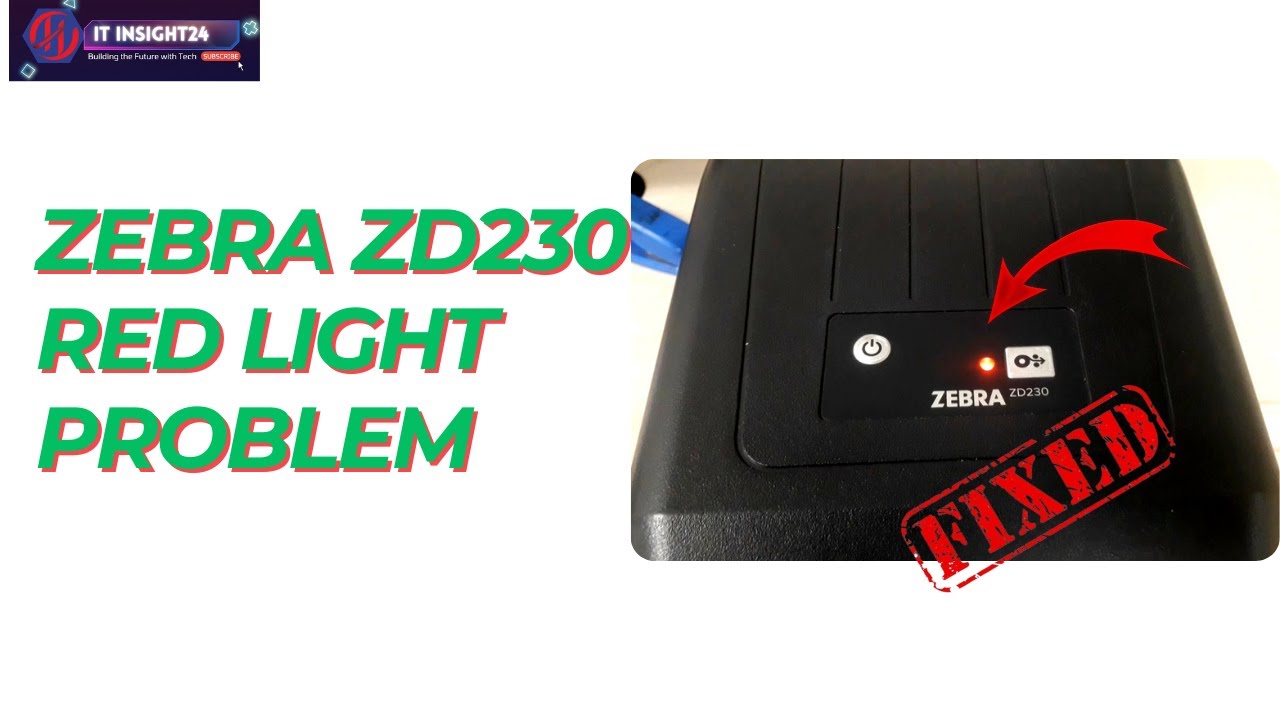
Credit: www.youtube.com
Preventing Future Problems
A little care can prevent most Zebra ZD220 red light issues. Here are some simple habits:
- Use good quality labels and ribbons—Cheap materials can cause jams and wear out parts faster.
- Clean your printer regularly—Every few weeks, open the cover and gently brush away dust and label residue.
- Calibrate after changing labels or ribbon—It only takes a minute and prevents many problems.
- Keep the printer in a dry, cool place—Avoid direct sunlight, high humidity, or very dusty areas.
- Store labels and ribbon correctly—Heat and moisture can damage them before you even load them.
Real-world example: A business owner had daily red light errors. He found out his staff stored labels near a window where sunlight and heat made them curl and stick together. Moving the labels to a cool cabinet solved the problem!
When To Call For Help
Most red light blinking issues can be fixed at home or in your office. But sometimes, you need expert help. Contact support if:
- The red light stays on after all troubleshooting steps
- You see error codes you do not understand
- The printer makes unusual noises or smells
- You have tried different label rolls and software, but the problem stays the same
Zebra’s support team can guide you further or tell you if your printer needs repair. You can find official help and resources on the [Zebra Support Portal](https://www.zebra.com/us/en/support-downloads/printers/desktop/zd220.html).
Credit: support.zebra.com
Summary
The Zebra ZD220 red blinking light is not something to fear. It is a helpful warning that tells you to check labels, ribbon, the cover, or other common issues. By following simple checks and cleaning, you can fix most problems yourself.
Regular care and calibration prevent future errors. And if you ever feel stuck, Zebra support is there to help.
With this knowledge, you can keep your ZD220 printer running smoothly, save time, and avoid printing headaches—so you can focus on your work, not your printer.