You open the YouTube app, expecting to watch your favorite videos, but suddenly, nothing loads. The screen freezes, or maybe you see an error message. For millions of people, the YouTube app not working is a frustrating experience. Whether you use YouTube for learning, entertainment, or connecting with others, an app failure can disrupt your routine. Many users wonder why this happens, what causes it, and how to fix it. This guide dives deep into the reasons behind these issues and offers solutions you can trust. From basic troubleshooting to advanced fixes, you’ll find everything you need to get YouTube running smoothly again.
Common Symptoms When Youtube App Isn’t Working
Problems with the YouTube app can appear in several ways. Recognizing these symptoms helps you find the right solution faster.
- Videos won’t load: Sometimes, the app opens but videos don’t play or buffer endlessly. This can happen even when thumbnails appear but tapping a video just leads to a spinning wheel.
- App crashes: The app suddenly closes, often right after opening or during playback. Occasionally, you might see the app freeze before closing, or it may restart itself.
- Error messages: Messages like “Something went wrong” or “Playback error” pop up. Some users also see “Cannot connect to server” or “Video unavailable.”
- Blank screen: The app shows a black or white screen and does nothing. This can occur after an update or when switching accounts.
- No sound: Videos play, but there’s no audio. Sometimes, the sound cuts out only for certain videos, which can be confusing.
- Login issues: You can’t sign in to your account or your account gets logged out. You may also get prompts to re-enter your password repeatedly.
- App won’t open: Tapping the icon doesn’t launch the app at all. In rare cases, you see the splash screen but nothing else happens.
- Slow performance: The app runs very slowly, making it hard to browse or watch videos. Loading thumbnails, switching tabs, and opening playlists can take much longer than usual.
These symptoms can also overlap. For instance, a slow app may eventually crash, or a blank screen may later show an error message. Being aware of these signs means you can quickly find the correct fix and avoid unnecessary steps.
Why Is The Youtube App Not Working?
Understanding the root causes is key to solving the issue. Here are the most common reasons why the YouTube app stops working:
1. Internet Connection Problems
YouTube needs a stable and fast internet connection. If your Wi-Fi or mobile data is weak or unstable, videos won’t load, and the app may not work at all.
- Slow speeds: YouTube requires at least 1 Mbps for smooth playback; HD videos need even more. If you’re on a slow connection, videos may buffer or not play at all.
- Intermittent connection: Frequent disconnects can cause the app to crash or freeze. Sometimes, switching between Wi-Fi and data can trigger loading errors.
- Network restrictions: Public Wi-Fi may block streaming apps to save bandwidth. Some workplaces and schools limit YouTube for productivity reasons.
An often-missed detail: If you’re connected to Wi-Fi but don’t have internet (for example, your router is down), the app may show a blank screen or “No connection” errors.
2. Outdated App Version
Running an old version of the YouTube app can lead to compatibility issues. Updates often fix bugs and improve performance.
- Missing features: New updates add important functions. For example, older app versions may not support new video formats or playback controls.
- Security vulnerabilities: Older apps are more exposed to bugs and hacking. YouTube frequently updates its app to block security risks and patch known problems.
Beginners often forget to check for app updates, especially if they don’t use auto-update. This simple step can solve many persistent issues.
3. Device Compatibility Issues
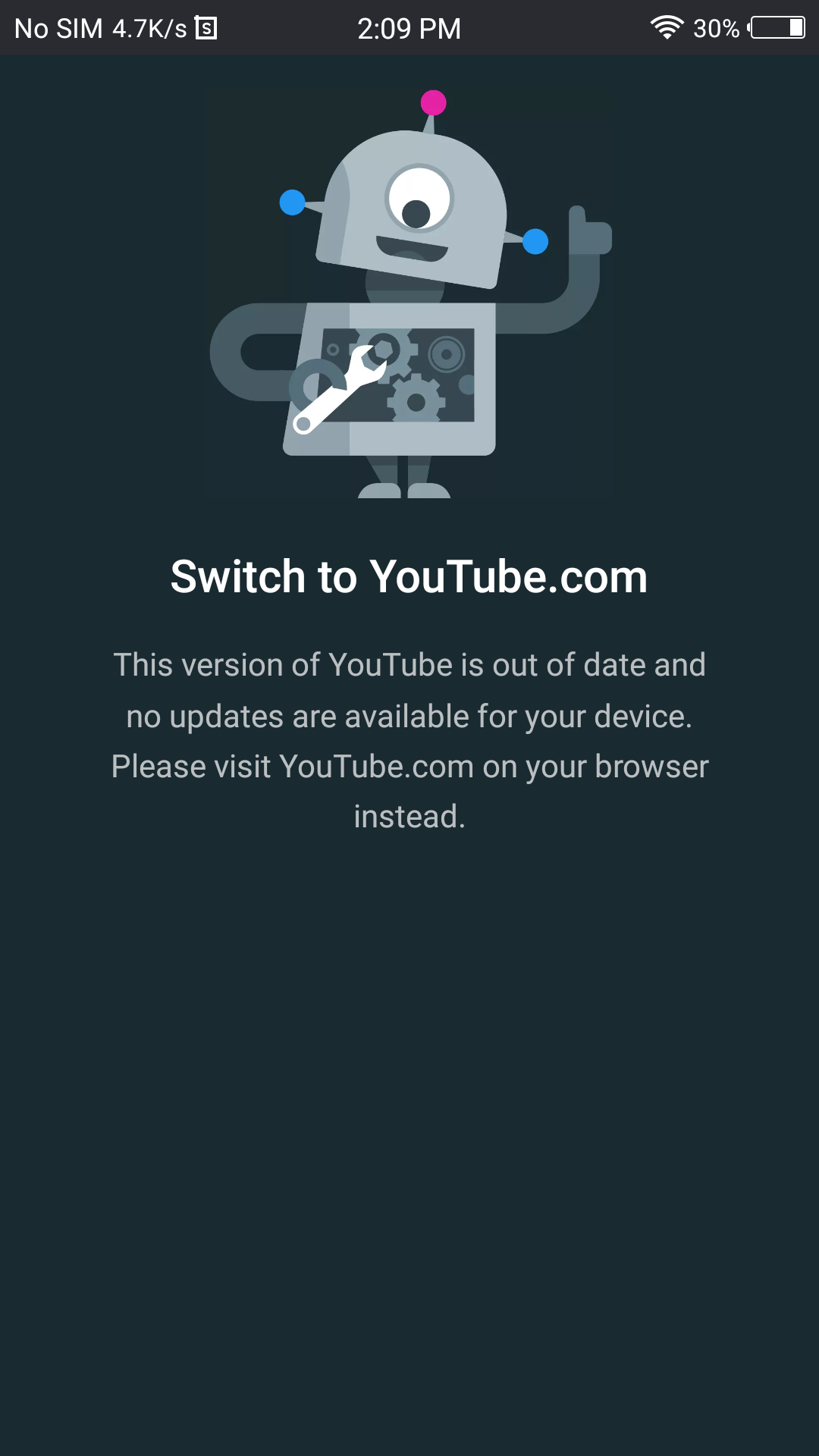
Some devices, especially older models, may not support the latest version of YouTube. This can lead to crashes or blank screens.
- Operating system too old: YouTube needs Android 5.0+ or iOS 11+ for best performance. If your device is below these versions, the app may not install or work properly.
- Insufficient RAM: Devices with less than 2 GB RAM may struggle. Background apps can further reduce available memory, causing YouTube to lag or crash.
A hidden factor: Some budget phones use customized versions of Android, which can cause app compatibility problems.
4. App Cache And Data Problems
The YouTube app stores temporary files (cache) to speed up loading. Sometimes, this data gets corrupted.
- Corrupted cache: Causes videos not to load or app to crash. Even a small corruption can block normal app functions.
- Too much stored data: Can slow down the app. Over time, cached files pile up and make the app sluggish.
Clearing cache is a quick fix, but many users don’t know how to do it or forget to try this step.
5. Server-side Issues
Sometimes, the problem is on YouTube’s end. Outages, maintenance, or server overloads can make the app temporarily unavailable.
- Global outages: Affect millions of users at once. YouTube’s servers sometimes go offline for short periods, especially during major events.
- Regional downtime: Sometimes, only certain countries are affected. This is more common during updates or when local internet providers have issues.
It’s easy to overlook server issues, but checking outage reports can save time and prevent unnecessary troubleshooting.
6. Software Conflicts
Apps running in the background or security software can interfere with YouTube.
- Antivirus apps: May block certain functions. Some security apps wrongly identify YouTube as a threat or block its internet access.
- VPNs and proxies: Can cause login or playback errors. If your VPN is set to a region where YouTube is restricted, you may see “Video unavailable” or similar errors.
A practical tip: If you recently installed a new security or privacy app, check if it’s affecting YouTube.
7. Incorrect Settings
Wrong settings on your device, such as date and time or permissions, can prevent YouTube from working.
- Date/time mismatch: Causes login issues. YouTube checks your device’s clock for security reasons.
- Disabled permissions: App can’t access storage or microphone. Some features, like uploading or recording, may not work if permissions are off.
Always enable automatic date/time and review app permissions regularly.

Credit: www.youtube.com
Quick Fixes For Youtube App Not Working
If you want fast solutions, start with these basic steps. Often, they resolve most issues.
- Restart your device: A simple reboot clears temporary glitches. This also refreshes your memory and closes background apps.
- Check your internet connection: Switch between Wi-Fi and mobile data to see if the problem is network-related. Sometimes, toggling airplane mode on and off helps.
- Update the YouTube app: Go to the Play Store or App Store, find YouTube, and tap “Update.” Updates fix bugs and improve compatibility.
- Clear cache and data: In your device settings, clear app cache and storage for YouTube. This step is especially helpful for repeated crashes.
- Check for device updates: Make sure your phone’s operating system is current. System updates often include improvements for app performance.
- Sign out and sign back in: Logging out then logging in again can reset app issues. This is useful if you see login or account errors.
- Disable VPN or proxy: Turn these off and try opening YouTube again. If you must use a VPN, try changing to a different region.
- Check YouTube server status: Visit sites like Downdetector to see if YouTube is down.
If these steps don’t work, move to advanced troubleshooting.
Advanced Troubleshooting Steps
If basic fixes don’t work, try these advanced solutions. They address less obvious problems.
Update Device Firmware
Sometimes, your phone’s system software needs updating to support the latest apps.
- Go to settings, find “Software Update,” and install any available updates.
- This solves compatibility issues and security bugs. If your device is very old, you may need to check for custom ROMs or unofficial updates.
Reinstall The Youtube App
Deleting and reinstalling the app removes corrupted files and restores default settings.
- Uninstall YouTube.
- Restart your device.
- Download the app again from the Play Store or App Store.
This is especially useful if you’ve tried clearing cache but the app still fails.
Adjust App Permissions
YouTube needs access to certain device functions, like storage and microphone.
- Go to settings > apps > YouTube > permissions.
- Enable all recommended permissions.
If you use features like uploading or live streaming, check camera and microphone access.
Reset Network Settings
If network problems persist, reset your device’s network settings.
- This clears Wi-Fi passwords, Bluetooth connections, and VPN settings.
- After reset, reconnect to Wi-Fi and try YouTube again.
Some users don’t realize that network resets also fix hidden problems with DNS and IP addresses.
Free Up Device Storage
Low storage can cause apps to malfunction.
- Delete unused apps and files.
- Aim for at least 500 MB free for smooth app performance.
A tip: Check for large video files or old downloads you no longer need.
Check For Device Restrictions
Some devices have parental controls or restricted modes.
- Go to settings > “Digital Wellbeing” or “Parental Controls.”
- Disable restrictions and try YouTube again.
Restrictions sometimes block video playback or prevent login.
Use Youtube In Browser
If the app won’t work, try opening youtube. com in your phone’s browser.
- This helps you access videos until the app issue is fixed.
- Using Incognito mode in the browser can also solve login or playback issues.
Comparing Youtube App Problems On Android Vs Ios
YouTube app issues differ between Android and iOS devices. Here’s a comparison:
| Problem | Android | iOS |
|---|---|---|
| App crashes | Common due to varied devices and OS versions | Less frequent, mostly on older devices |
| Update issues | Play Store delays updates on some devices | App Store updates are usually faster |
| Cache problems | Can clear cache directly | No cache clear option; must reinstall app |
| Permissions | More granular control over app permissions | Permissions are simpler, but harder to adjust |
| Device compatibility | Supports more device types, leading to issues | Fewer device types, more stable |
Android users often face more issues due to the wider variety of devices and software versions. IOS users usually have fewer problems, but when issues happen, they’re harder to fix without reinstalling the app. Another difference is that Android allows more user control over settings, while iOS is more locked down, making troubleshooting less flexible.
Data: How Common Is The Youtube App Not Working Issue?
Millions of people use YouTube daily, and app problems are widespread. Here are some stats:
- Over 2.5 billion active users: YouTube is the most-used video platform globally.
- App store reviews: Roughly 12% of YouTube app reviews mention bugs or crashes. This rate increases during major app updates.
- Peak outage times: Most YouTube outages happen during evening hours (6–9 PM local time). This is when internet traffic is highest.
- Regional differences: Countries with slower internet see more app failures. For example, rural areas and developing countries report more loading issues.
Here’s a breakdown of common causes by percentage, based on user reports:
| Cause | Percentage of Reports |
|---|---|
| Internet issues | 35% |
| App bugs/updates | 25% |
| Device compatibility | 20% |
| Cache/data problems | 10% |
| Server outages | 10% |
Most problems come from internet issues, followed by app bugs and device compatibility. It’s worth noting that during big events (like live streams or major updates), server outages spike.
Credit: support.google.com
When Youtube App Not Working Means Something Bigger
Sometimes, persistent YouTube app problems signal deeper issues with your device or network.
- Device aging: If apps often fail, your phone may be too old or need repair. Battery issues and overheating can also affect app performance.
- Network instability: Frequent app failures could mean your Wi-Fi or mobile data is unreliable. Try resetting your router or contacting your provider.
- Malware or virus: Apps behaving strangely might be caused by malware. Signs include pop-ups, ads, or other apps failing.
If YouTube isn’t working, check if other apps also fail. If so, consider resetting your phone or contacting support. Running a malware scan may help, especially if you notice odd behavior across multiple apps.
Real-life Examples: Users Facing Youtube App Problems
Hearing about real cases helps you understand how to approach your own issue.
Example 1:
Maria, from Brazil, noticed YouTube wouldn’t load videos on her Android phone. She switched to mobile data, and the app worked fine. The problem was her home Wi-Fi, not the app. A router restart fixed her Wi-Fi and solved the issue.
Example 2:
James, in the US, kept seeing a blank screen after updating his iPhone. He deleted and reinstalled the YouTube app, which fixed the issue. Later, he found that several apps needed updating after his iOS upgrade.
Example 3:
Sanjay, from India, got repeated “Playback error” messages. He cleared the app cache and storage, then restarted his phone. YouTube worked again. He also learned that clearing cache monthly prevents similar errors.
Example 4:
Alina, in Germany, found YouTube wouldn’t open at all. She checked Downdetector and saw YouTube was down worldwide. Waiting a few hours solved her problem. She realized that checking outage sites first can save time.
These examples show that most issues can be solved with basic troubleshooting, but sometimes you need to wait or dig deeper. Often, the cause is simple, but knowing what to check first saves frustration.

Credit: www.youtube.com
Tips To Prevent Youtube App Problems
Avoiding future issues saves time and frustration. Here are practical tips:
- Keep your app updated: Enable auto-updates in the Play Store or App Store. Updates fix bugs before they become major problems.
- Maintain device health: Restart your phone regularly and keep storage clear. This helps all apps run smoothly.
- Check network quality: Use fast Wi-Fi or reliable mobile data. If possible, avoid public Wi-Fi for streaming.
- Avoid using VPNs unless necessary: VPNs can cause login and playback errors. If you use a VPN, choose a region where YouTube works well.
- Use supported devices: Upgrade your device if it’s more than 5 years old. Newer devices handle updates better and run apps more smoothly.
- Monitor app permissions: Make sure YouTube has access to storage and microphone. If permissions change after updates, recheck them.
- Be aware of outages: Before troubleshooting, check if YouTube is down for everyone. Outage sites can save you time if the issue is not yours.
A bonus tip: Regularly clear cache and unused downloads to keep your app fast.
Youtube App Not Working: Step-by-step Solutions For Different Errors
Different errors need unique fixes. Here’s a guide for common error messages:
“something Went Wrong”
- Check internet connection.
- Restart the app.
- Update the app.
- Also, check if the device’s date/time is correct.
“playback Error”
- Clear app cache and data.
- Switch networks.
- Reinstall YouTube.
- Sometimes, switching video quality helps.
“cannot Connect To Server”
- Check network settings.
- Disable VPN/proxy.
- Reset network settings.
- Ensure your device is not in Airplane mode.
“no Sound On Videos”
- Check device volume and mute settings.
- Restart device.
- Update app.
- Try playing videos with headphones to rule out speaker issues.
“app Crashes On Launch”
- Clear cache/data.
- Update device firmware.
- Reinstall YouTube.
- Remove other apps that may conflict, like security apps.
Comparing Youtube App Vs Youtube In Browser
Sometimes, using YouTube in a browser is a good workaround. Here’s how they compare:
| Feature | YouTube App | YouTube Browser |
|---|---|---|
| Offline viewing | Possible (with Premium) | Not available |
| Background play | Premium feature | Possible with browser tricks |
| Notifications | Yes | No |
| Performance | Faster, optimized | Depends on browser speed |
| App integration | Works with other apps | Limited |
The app is better for offline viewing and notifications, but the browser is useful when the app fails. If you only need to watch videos and don’t need extra features, the browser is a good backup.
Non-obvious Insights Most Beginners Miss
Many people overlook these advanced tips:
- App conflicts: Background apps, especially security software, can block YouTube. Try closing all other apps before troubleshooting. Sometimes, battery saver modes interfere with streaming.
- Date/time settings: If your device’s date and time are wrong, YouTube may refuse to load. Always enable automatic date/time. This is an easy fix that’s often ignored.
- Regional app versions: Some devices come with regional YouTube apps that may not work everywhere. Download the global version if possible. Devices bought abroad may require app changes for local compatibility.
- Account sync issues: If you use multiple Google accounts, syncing problems can cause YouTube errors. Try switching accounts or re-syncing Google services.
When To Contact Support
If you’ve tried all solutions and YouTube still doesn’t work, it’s time to seek help.
- Device manufacturer support: For hardware or software issues.
- YouTube Help Center: For account and app problems. Their guides cover many advanced fixes.
- Carrier support: For network-related issues.
Always have your device details, app version, and error messages ready when contacting support. This speeds up troubleshooting and helps experts assist you better.
Frequently Asked Questions
Why Does Youtube App Keep Crashing?
The YouTube app crashes mainly due to outdated software, corrupted cache, or device compatibility issues. Updating the app, clearing cache/data, or reinstalling usually fixes it.
Can Slow Internet Cause Youtube App Problems?
Yes. Slow or unstable internet is the top reason for videos not loading or buffering endlessly. Try connecting to faster Wi-Fi or switching to mobile data.
How Do I Clear Cache On Youtube App?
On Android, go to settings > apps > YouTube > storage, tap “Clear Cache.” On iOS, you must uninstall and reinstall the app to clear cache.
What Should I Do If Youtube Is Down For Everyone?
If YouTube is down worldwide, wait until the service is restored. You can check outage status on sites like Downdetector.
Is Youtube App Better Than Using Youtube In Browser?
The YouTube app offers smoother performance, offline viewing, and notifications. The browser is a good alternative when the app fails, but lacks some features.
Getting YouTube back to normal doesn’t have to be complicated. Most problems can be solved with simple fixes, but knowing advanced steps helps when things get tough. Keep your app and device updated, check your internet, and don’t hesitate to seek support if needed.
With the right approach, you’ll be watching your favorite videos again in no time.