If you use You Need a Budget (YNAB), you know how important it is for your bank accounts to sync smoothly. Most people rely on automatic bank syncing to keep their budgets accurate and up-to-date. But what happens when YNAB stops syncing with your bank? Transactions go missing. Balances don’t match. You lose trust in your numbers and budgeting becomes stressful, not helpful.
This is a common problem, but it’s fixable. Whether you’re new to YNAB or have used it for years, understanding why syncing fails—and how to get it working again—saves you time and worry. We’ll look at the main causes, share practical solutions, and give you tips to prevent syncing issues in the future.
How Ynab Syncs With Banks
YNAB connects to your bank accounts using third-party providers, mainly Plaid and Finicity. These companies build secure connections between YNAB and thousands of banks. When you add an account for direct import, YNAB uses these services to log in to your bank and fetch recent transactions.
There are two main types of syncing:
- Direct Import (automatic): YNAB pulls new transactions and account balances from your bank, usually every few hours.
- Manual Import: You download a file (like CSV or OFX) from your bank and upload it to YNAB.
Most people prefer automatic syncing because it’s faster and less work. But it also depends on many moving parts—your bank, the third-party connection, your device, and YNAB’s servers. If any step fails, syncing breaks.
Why Ynab May Not Sync With Your Bank
There isn’t one single reason why YNAB not syncing with bank happens. In fact, there are several, and sometimes multiple causes work together. Here are the most common:
- Bank Security Updates: Banks often change their login systems or add new security features (like two-factor authentication). If Plaid or Finicity hasn’t updated their connection, syncing can break.
- Bank Outages: If your bank’s website or mobile app is down, YNAB can’t pull your data.
- Changed Credentials: If you update your password or username at your bank, YNAB’s connection becomes invalid.
- Multi-Factor Authentication Issues: Some banks require a code from your phone or email every time you log in. This can block automatic syncing.
- Account Lockouts: Too many failed login attempts can temporarily lock your account.
- Outdated YNAB or Browser: Using an old version of the app or a browser can cause compatibility problems.
- Third-Party Provider Problems: Sometimes Plaid or Finicity have their own outages or bugs.
- Unsupported Account Types: Not all banks or account types (like business accounts) are supported.
- Geographical Restrictions: Some US banks may not support connections from outside the country, or vice versa.
Non-obvious Causes Beginners Overlook
- Pending Transactions: Some banks delay posting transactions, so they don’t appear in YNAB until cleared.
- Bank Mergers: If your bank merges with another, account numbers and online systems often change, breaking the sync.

Credit: www.reddit.com
How To Fix Ynab Not Syncing With Bank
The good news: most syncing issues can be fixed without contacting support. Here’s a step-by-step guide to get things working again.
1. Check Ynab’s Status
Before you do anything, visit the YNAB Status Page. If YNAB or their bank connection provider is having an outage, you can’t fix it yourself. Wait until they resolve the problem.
2. Update Your Bank Login
If you recently changed your bank password or enabled extra security, update your credentials in YNAB:
- Go to the affected account in YNAB.
- Click “Edit Account” or the gear/settings icon.
- Choose “Update Login” and enter your new credentials.
3. Reauthorize The Connection
Some banks force you to re-approve YNAB’s access every 90 days (or after security changes):
- In YNAB, look for a prompt to “Reauthorize” or “Reconnect” your account.
- Follow the steps—this may involve getting a code by SMS or email.
- Finish the process and try syncing again.
4. Remove And Re-add The Account
If updating doesn’t work:
- Remove the bank account from YNAB.
- Add it again using “Add Account” and select “Link Account.”
- This can refresh stale connections.
Note: Removing the account from YNAB does NOT delete your bank account or your YNAB data. Your existing transactions stay in your budget.
5. Check For Bank Or Provider Outages
Visit your bank’s website and log in directly. If you see any errors or downtime messages, that’s likely the cause.
You can also check Plaid’s status at Plaid Status for broader connection issues.
6. Try Manual Import
If all else fails, download your transactions from your bank’s website and upload them into YNAB. This keeps your budget up-to-date while waiting for syncing to return.
7. Contact Ynab Support
If you’ve tried everything and syncing still fails, reach out to YNAB’s support team. Include:
- Your bank name
- The type of account
- Any error messages you see
- Steps you’ve already tried
They can escalate the issue to their connection provider or give you a workaround.
Comparing Ynab Syncing And Other Budget Apps
How does YNAB’s syncing compare to other popular budgeting tools? The table below shows a snapshot of syncing reliability, supported banks, and manual import options for top apps:
| App | Automatic Sync | Supported Banks | Manual Import | Sync Reliability |
|---|---|---|---|---|
| YNAB | Yes (Plaid/Finicity) | ~12,000 (mainly US) | Yes | High, but some outages |
| Mint | Yes (Intuit) | ~16,000 | No | Moderate |
| EveryDollar | Yes (Plaid) | ~12,000 | No | High |
| Personal Capital | Yes (Yodlee) | ~13,000 | No | Moderate |
Insight: YNAB’s manual import feature is a key backup that some competitors lack. If syncing fails, you’re not stuck.
Common Error Messages In Ynab (and What They Mean)
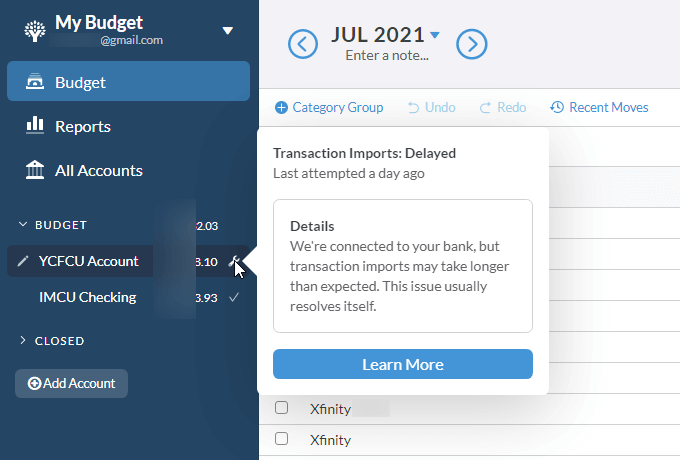
When YNAB can’t sync your bank, it usually shows an error message. Understanding these helps you know what to do next.
- “Credentials Are Out of Date”: Your username or password changed. Update login in YNAB.
- “Bank Requires Action”: Your bank wants you to approve a login (often due to multi-factor authentication).
- “Bank Not Supported”: YNAB (or its provider) doesn’t support your bank or account type.
- “Connection Unavailable”: The bank’s website or YNAB’s provider is down.
- “Account Locked”: Too many failed login attempts. Reset your password at your bank, then update YNAB.
Non-obvious tip: Sometimes an error may clear itself after a few hours, especially for temporary outages.
How To Prevent Syncing Issues
While you can’t control everything, there are steps you can take to reduce syncing headaches:
- Avoid Changing Passwords Too Often: If you must, update them in YNAB immediately.
- Enable Text or Email Alerts at Your Bank: This way, you’ll know if your account is locked or if there’s suspicious activity.
- Log In to Your Bank Monthly: This keeps your online access active and prevents timeouts.
- Use Supported Account Types: Check YNAB’s support page to see if your bank and account type are supported.
- Stay Updated: Use the latest version of YNAB and your web browser.
- Know Your Bank’s Rules: Some banks only allow connections from US IP addresses or have strict multi-factor authentication.
- Back Up With Manual Import: Even if you prefer automatic, know how to download and upload files in case you need to.
Table: Steps To Troubleshoot Ynab Sync Issues
Here’s a quick reference guide to walk you through fixing syncing problems:
| Step | Action | Expected Result | Time Needed |
|---|---|---|---|
| 1 | Check YNAB & Bank Status | Know if it’s a wider outage | 1-2 min |
| 2 | Update Bank Credentials | Reconnect to your bank | 3-5 min |
| 3 | Reauthorize Connection | Fixes security-related issues | 2-4 min |
| 4 | Remove & Re-Add Account | Refreshes the connection | 5-7 min |
| 5 | Manual Import | Keeps budget up-to-date | 5-10 min |
Manual Import: A Reliable Backup
Many users feel frustrated when automatic syncing fails. But manual import is a safe, reliable alternative. Here’s how to do it:
- Log in to your bank’s website.
- Download your recent transactions as a CSV, OFX, or QFX file.
- Open YNAB, go to your account, and choose “Import File.”
- Select your file and follow the prompts.
Tip: YNAB is smart about avoiding duplicates. If you import the same transaction twice, it warns you and helps you clean up.
Some experienced budgeters actually prefer manual import. It makes you review every transaction, which helps you spot fraud or mistakes quickly.
What If My Bank Is No Longer Supported?
Sometimes, YNAB or their providers lose support for a bank—even for months. In these cases:
- Contact your bank and request support for third-party connections (Plaid/Finicity).
- Use manual import to keep your budget updated.
- Consider switching to a more widely supported bank if automatic syncing is critical for you.
Real-world example: In 2021, Capital One changed their security systems, breaking many third-party connections for months. Users had to rely on manual import until support returned.
Security Concerns: Is Ynab Safe When Sync Fails?
Many users worry about security if syncing breaks. Here’s what you need to know:
- YNAB never stores your bank login details. These are encrypted and passed to Plaid/Finicity.
- No one at YNAB can access your bank account.
- When syncing fails, your data is still safe. You just lose the convenience of automatic import.
- Manual import does not expose your banking credentials.
If you ever see unexpected activity in your bank account, contact your bank immediately and change your password.
Credit: helpdeskgeek.com
How Often Does Ynab Sync With Banks?
YNAB usually syncs every 4–12 hours, but timing depends on your bank and the provider. Some banks only allow syncing once a day. Others may delay transactions for security reasons. You can force a sync by clicking “Import” in your account, but even then, the latest data may not be available yet.
Interesting fact: Banks in the US are required to post transactions within 1–2 business days, but pending transactions can take longer, especially on weekends or holidays.
Ynab Syncing For Non-us Banks
Most direct import connections are US-only. If you use a non-US bank:
- Automatic syncing may not be available.
- Manual import is your best option.
- Some European and Canadian banks are slowly being added, but progress is slow.
Check YNAB’s official list to see if your bank is supported. If not, manual import is the only reliable method.
Ynab Mobile App Syncing
The YNAB mobile app relies on the same syncing process as the web app. However, you may see differences if:
- Your mobile device has poor internet access.
- You’re using an old app version.
- There are background data restrictions on your device.
Always keep your app updated and refresh your data if you notice missing transactions.
Table: Typical Syncing Problems And Who Can Fix Them
It helps to know which problems you can solve and which need help from others.
| Problem Type | Who Fixes It | Approx. Wait Time | Notes |
|---|---|---|---|
| Outdated Credentials | You | Minutes | Update in YNAB |
| Bank Outage | Bank | Hours to days | Wait for bank to resolve |
| Provider Outage | Plaid/Finicity | Hours | Check provider status |
| Unsupported Bank | YNAB/Provider | Days to months | Use manual import |
| Multi-Factor Issues | You/Bank | Minutes | Reauthorize connection |
Advanced Tips: Power User Strategies
If you want maximum reliability, try these less obvious methods:
- Set a Weekly Import Reminder: Even if you use automatic sync, check for missed transactions every week.
- Keep a Separate Emergency Fund Account: Use a widely supported bank for your emergency fund, so it’s always up-to-date.
- Download Transactions Monthly: Even if syncing works, save a backup file. If you ever switch apps, you’ll have your history.
Many advanced users keep a manual spreadsheet backup, especially if they have complex finances.
When To Switch Budgeting Tools
If you’re constantly fighting with syncing problems, it’s reasonable to consider other apps. But remember:
- YNAB’s budgeting method is unique, and many alternatives have similar syncing issues.
- Try manual import for a few months before switching.
- Review your must-have features (automatic sync, mobile app, reporting, etc. ).
YNAB remains one of the most trusted tools for taking control of your money, even if syncing sometimes fails.

Credit: www.reddit.com
Frequently Asked Questions
Why Does Ynab Sync Break More Often With Some Banks?
Some banks update their security systems often or use aggressive multi-factor authentication. These changes can break connections with third-party apps like YNAB more frequently.
Can I Use Ynab Without Automatic Syncing?
Yes. You can always use manual import. Download your transactions from your bank and upload them to YNAB. Many users actually prefer this method for accuracy.
Will I Lose My Budget If I Remove And Re-add A Bank Account?
No. Removing an account from YNAB only disconnects the bank link. Your existing transactions and budget categories remain unless you choose to delete them.
How Long Do Syncing Issues Usually Last?
Minor issues can resolve in minutes or hours (like credential errors). Larger problems, like bank outages or provider changes, can last days or even weeks.
Where Can I Get Updates About Ynab Syncing Problems?
Check YNAB’s official status page and their support site for the latest updates. You can also visit Plaid Status for third-party connection updates.
Budgeting should make life simpler, not harder. If your YNAB not syncing with bank problem feels overwhelming, remember: you have options. Most issues are temporary, and manual import is always there as a backup. With a bit of patience and the right steps, you’ll keep your budget accurate and your mind at ease.