Many people trust Xiaomi cameras to keep their homes and offices safe. These smart devices promise clear footage, easy access through your phone, and peace of mind. But sometimes, you might notice your Xiaomi camera is not recording as it should. This problem can be stressful, especially if you rely on your camera for security. If you are facing this situation, you are not alone—and you can fix it with the right steps.
This guide will help you understand why your Xiaomi camera is not recording, show you practical solutions, and explain how to keep your camera working smoothly in the future. You will also find common mistakes to avoid, data about Xiaomi camera reliability, and a FAQ section to answer the questions most users ask.
Whether you use a Mi Home Security Camera, Yi Camera, or another Xiaomi model, you will find helpful advice here.
Why Xiaomi Cameras Stop Recording
When a Xiaomi camera fails to record, the cause is often technical. But sometimes, it’s a simple setting or overlooked detail. Here are the most common reasons:
- Full or faulty SD card: Xiaomi cameras usually record to a microSD card. If the card is full, damaged, or not inserted properly, the camera will not save new footage.
- Incorrect camera settings: If “recording” or “motion detection” is turned off in the app, the camera will not capture video.
- Network problems: Some Xiaomi cameras need a good Wi-Fi connection for cloud recording or remote access.
- Firmware issues: Outdated or buggy camera software can cause recording to stop.
- Power supply problems: If your camera loses power, even for a second, recording may stop and not restart automatically.
- App or account errors: Sometimes, a problem with the Mi Home app or your Xiaomi account can interrupt recording.
Many users miss the fact that not all Xiaomi cameras support continuous recording by default. Some only record when they detect motion, which can be confusing if you expect 24/7 footage.
Checking The Basics First
Before you dive into advanced troubleshooting, check these simple things. They often solve the problem:
- Power connection: Make sure the camera’s power adapter is plugged in securely and the cable is not damaged.
- Status light: Most Xiaomi cameras show a solid or blinking light when working. If the light is off, the camera may not have power.
- App notifications: Sometimes, the Mi Home app will warn you if there’s a problem with the camera or SD card.
- SD card placement: Remove and reinsert the card to ensure good contact.
- Restart the camera: Unplug the device for 10 seconds, then plug it back in.
A surprising number of “not recording” issues are fixed by these simple checks.
Credit: www.mi.com
Sd Card Issues And Solutions
The SD card is the heart of local video storage. If it fails, your Xiaomi camera will not record.
Common Sd Card Problems
- Card is full and cannot overwrite old videos
- Card is not formatted correctly
- Card is low-quality or counterfeit
- Card has physical damage or data corruption
- Card is not supported (wrong type or size)
How To Fix Sd Card Problems
- Check compatibility: Most Xiaomi cameras work best with Class 10 microSD cards up to 64GB or 128GB. Larger cards may not function correctly.
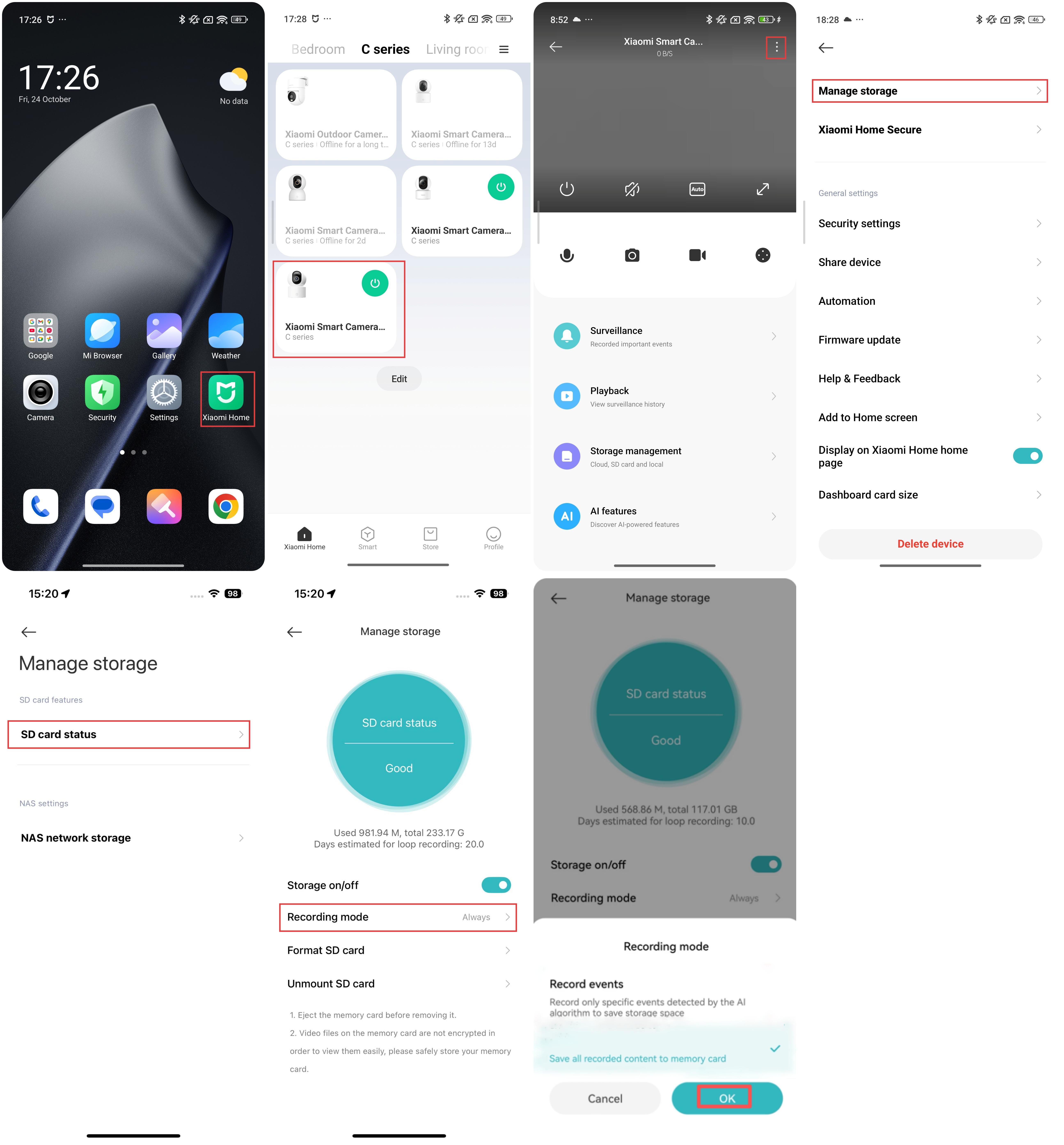
- Format the card: Use the Mi Home app to format the card inside the camera. This erases all data but makes it ready for new recordings.
- Try a different card: Use a known good card to see if the problem is with the camera or the card itself.
- Inspect for damage: Look for scratches, cracks, or bent contacts.
- Buy genuine cards: Counterfeit SD cards are common online. Stick to trusted brands like SanDisk or Samsung.
Below is a comparison of microSD cards commonly used in Xiaomi cameras:
| Brand | Capacity | Class/Speed | Average Price | Reliability |
|---|---|---|---|---|
| SanDisk Ultra | 32–128GB | Class 10/U1 | $8–$20 | High |
| Samsung EVO Select | 32–128GB | Class 10/U3 | $9–$22 | High |
| Kingston Canvas | 32–128GB | Class 10/U1 | $7–$18 | Medium |
Tip: Always format a new SD card in the camera before using it.
Camera Settings That Affect Recording
Xiaomi cameras offer many settings in the Mi Home app or Yi Home app. The wrong setting can stop recording without you realizing it.
Key Settings To Check
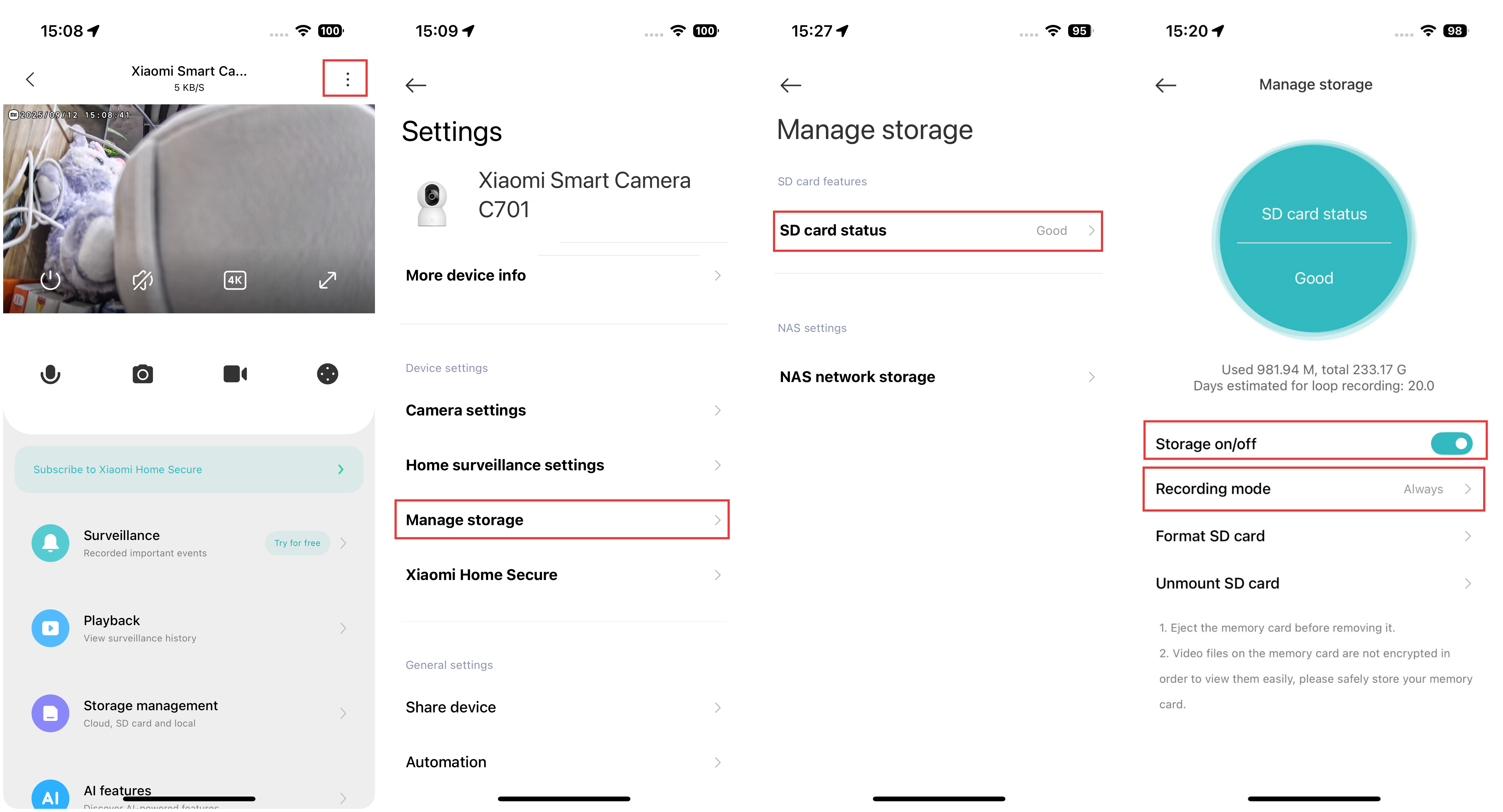
- Recording Mode: Choose between continuous recording and motion-triggered recording.
- Motion Detection: If turned off, the camera will not save clips when there is movement.
- Recording Schedule: Some cameras allow you to set times when recording is active.
- Storage Management: Make sure overwrite is enabled if you want the camera to keep recording when the SD card is full.
Here is a comparison of recording modes:
| Recording Mode | Storage Use | Best For | Missed Footage Risk |
|---|---|---|---|
| Continuous | High | 24/7 Security | Very Low |
| Motion-Triggered | Low | Home Use, Saving Space | Medium (if motion not detected) |
| Scheduled | Medium | Business Hours, Custom Needs | High (outside set times) |
Non-obvious insight: Some users do not realize that Xiaomi cameras may reset recording settings after a firmware update. Always double-check your preferences after updating.

Credit: www.youtube.com
Network And App Problems
If your Xiaomi camera uses cloud recording or if you access it remotely, network issues may prevent saving videos.
How To Check Network Status
- Test your Wi-Fi with another device in the same location.
- Open the Mi Home app and see if the camera is “online.”
- Check if live view works—if not, the camera is probably offline.
Solutions For Network-related Recording Issues
- Move the camera closer to the router or use a Wi-Fi extender.
- Restart your router and the camera.
- Update your router firmware if available.
- Disable VPNs or firewalls that might block the camera’s connection.
If the camera supports both SD card and cloud recording, losing internet will not affect local storage. But cloud events will not be saved until the connection returns.
Firmware And Software Glitches
Firmware is the camera’s internal software. Bugs or outdated versions can cause recording to fail.
How To Update Xiaomi Camera Firmware
- Open the Mi Home app and select your camera.
- Look for a firmware update option in the settings.
- Follow instructions to update; do not unplug the camera during the update.
Important: After updating, restart the camera and check that all settings are correct.
Common Software Mistakes
- Not updating the app regularly
- Using an old phone OS that is not fully compatible
- Installing unofficial apps
Non-obvious insight: Sometimes, uninstalling and reinstalling the Mi Home app solves hidden bugs that stop recording.
Credit: www.mi.com
Power Supply Troubles
A camera that loses power—even briefly—can stop recording. If the power comes back, it might not restart recording automatically.
Signs Of Power Issues
- The camera’s status light blinks or turns off
- You hear the camera reboot often
- Video clips are missing during known power cuts
How To Fix Power Problems
- Use the original power adapter that came with your Xiaomi camera.
- Check the cable for damage or loose connections.
- Plug into a stable power source, not overloaded extension cords.
- For outdoor cameras, protect the power supply from rain and dust.
Below is a comparison of power adapters:
| Adapter Type | Voltage/Amps | Compatibility | Reliability |
|---|---|---|---|
| Original Xiaomi | 5V/2A | All Xiaomi cameras | Very High |
| Generic Brand | 5V/1A–2A | Some models | Medium |
| Old Phone Charger | 5V/1A | Not recommended | Low |
When To Reset Or Contact Support
If you’ve tried everything above and the camera still will not record, try a factory reset. This erases all settings and returns the camera to its original state.
How To Reset Your Xiaomi Camera
- Locate the reset button (usually a small hole).
- Use a paperclip to press and hold for 10–15 seconds.
- Set up the camera again in the Mi Home app.
If a reset does not solve the issue, contact Xiaomi support. Provide details such as camera model, firmware version, and a description of the problem. This helps the support team assist you faster.
Preventing Future Recording Problems
Once your Xiaomi camera is recording again, these tips will help you avoid future problems:
- Use high-quality SD cards and replace them every 1–2 years.
- Check the camera’s recording status in the app once a week.
- Enable notifications for SD card or recording errors.
- Keep the firmware and app updated.
- Place cameras where the Wi-Fi signal is strong.
- Use the original power adapter and cable.
Xiaomi Camera Reliability: What The Data Says
According to a 2023 survey by Statista, Xiaomi ranks among the top five smart camera brands in global shipments. Most users rate reliability as “good” or “very good,” but about 7% report issues with recording, usually due to SD card or app errors.
A recent study found that SD card failure accounts for nearly 60% of lost footage cases in home security cameras, not just Xiaomi. This highlights the importance of using quality cards and checking them regularly. For more details on smart camera trends, see this Statista report.
Frequently Asked Questions
Why Is My Xiaomi Camera Not Saving Videos Even Though It Shows Live Footage?
If you see live video but no recordings, the SD card is likely full, faulty, or not detected. Check the storage status in the Mi Home app, and try formatting or replacing the card.
Can I Use Any Microsd Card With My Xiaomi Camera?
No, not all cards work. Use a Class 10 or UHS-1 card from a known brand. Avoid cards larger than the camera’s supported size (usually 64GB or 128GB).
How Do I Know If My Xiaomi Camera Is Recording?
Open the Mi Home app and select your camera. Look for a “recording” icon or check the playback section for saved video clips. Some cameras blink an LED when recording.
Will My Xiaomi Camera Record Without Wi-fi?
Most Xiaomi cameras record to the SD card without Wi-Fi, but you cannot view footage remotely or use cloud recording. Only local storage will work during a network outage.
What Should I Do If My Xiaomi Camera Keeps Stopping Recording After A Few Days?
This often means the SD card is wearing out or the app settings are being reset. Format the card, check the recording schedule, and update firmware and app to the latest version.
Getting your Xiaomi camera recording again is usually a matter of checking a few key points—power, SD card, settings, and updates. With these steps, you can trust your camera to keep watching over what matters most.