When you play games on your PC using the Xbox app, you expect your cloud saves to sync smoothly. This lets you switch from one device to another and pick up your game right where you left off. But sometimes, these saves do not sync as they should. You may find progress missing, or games failing to load your latest data. For many gamers, this is more than a small problem—it can mean hours of lost effort or even a ruined gaming experience.
This guide dives deep into the causes of Xbox PC cloud saves not syncing and how to fix them. You’ll find practical solutions, learn about the technology behind cloud saves, and get tips to avoid these issues in the future. Whether you are a casual gamer or a serious player, understanding this topic can save you time and frustration.
How Xbox Pc Cloud Saves Work
To solve sync problems, it helps to understand how Xbox cloud saves actually function. When you play a compatible Xbox game on your PC, the game creates a save file with your progress. This file is stored both locally (on your computer) and in the Microsoft cloud. Syncing occurs in the background, often when you start or close the game, or when you log in to your Xbox account.
The system uses your Microsoft account to tie your saves to your profile. This means you can continue your game on another PC, or even on an Xbox console, as long as the game supports cross-save. The cloud keeps a copy of your most recent save, and the Xbox app checks for updates each time you play.
But this system depends on several things working together:
- A stable internet connection
- The latest version of the Xbox app and Windows
- Correct account sign-in
- Proper permissions and enough cloud storage space
If any part of this chain fails, your saves might not sync.
Common Signs Your Cloud Saves Aren’t Syncing
Sometimes, cloud save issues are obvious—your progress is missing, or you get error messages. Other times, the signs are subtle. Here are the most common ways you’ll notice a sync problem:
- “We couldn’t sync your data with the cloud” error message
- Game progress missing when switching devices
- Long delays when loading or saving a game
- The Xbox app asks you to choose between local or cloud saves
- Achievement progress not updating
- Saves revert to an earlier point after restarting the game
If you see any of these, it’s a sign that your cloud sync is not working as it should.
Main Causes Of Xbox Pc Cloud Saves Not Syncing
Many things can block or break the save syncing process. Here are the most common causes:
1. Internet Connection Problems
Cloud syncing cannot work without a stable connection. If your PC disconnects while a game is saving, the update may fail. Slow or interrupted networks can also cause partial uploads, leaving your cloud save out of date.
2. Xbox App Or Windows Out Of Date
Both the Xbox app and Windows OS need to be current. Outdated software often has bugs or compatibility issues that block syncing.
3. Microsoft Account Issues
If you are not signed in, signed in with the wrong account, or there’s an authentication issue, the Xbox app cannot match your local and cloud saves.
4. Game Not Fully Closed
Some games sync only when you exit the game fully. If you put your PC to sleep or just close the window, the sync process might not finish.
5. Local Save Conflicts
If your local save is different from the cloud save—perhaps from playing offline—Xbox might not know which to use. This can create repeated prompts and sync failures.
6. Insufficient Cloud Storage
Rare but possible: Your Microsoft cloud storage for game saves can fill up, especially if you play many large games.
7. Corrupted Save Files
If a save becomes corrupt, the app may refuse to upload it, or uploads may fail without a clear message.
8. Firewall Or Antivirus Blocking
Sometimes, security software blocks the Xbox app’s connection to the cloud, stopping saves from uploading or downloading.
9. Game Not Supported
Not all games on Xbox for PC support cloud saves. Some older or indie games rely only on local storage.
Fixes For Xbox Pc Cloud Saves Not Syncing
If you’re facing this problem, don’t panic. Most issues can be solved with the right steps. Try these fixes, starting with the simplest:
1. Check Your Internet Connection
- Make sure your PC is online and the connection is stable.
- Restart your router or switch to a wired connection if possible.
- Test other online apps to confirm the internet is working.
2. Update The Xbox App And Windows
- Open the Microsoft Store and check for updates to the Xbox app.
- Go to Windows Settings > Update & Security > Windows Update. Install any pending updates.
- Restart your PC after updating.
3. Sign Out And Back Into Your Microsoft Account
- Open the Xbox app, click your profile, and sign out.
- Close the app, then reopen and sign back in.
- Make sure you use the same account as before.
4. Close Games Properly
- Always exit games using the in-game menu, not just the X button.
- Wait a few seconds after closing to let the save upload.
- Avoid putting your PC to sleep while a game is running.
5. Resolve Save Conflicts
Sometimes you’ll see a message asking you to pick a local or cloud save. Here’s how to handle it:
- If you played most recently on your current device, pick local.
- If you switched PCs or want your latest progress, pick cloud.
- If unsure, back up your local save before choosing.
6. Free Up Cloud Storage
- Go to Settings > System > Storage in the Xbox app.
- Delete old or unused save files.
- Check your overall Microsoft storage at onedrive.live.com to see if you’re close to the limit.
7. Check For Corrupted Save Files
- Look for error messages about corrupt data.
- If you suspect corruption, move the save file to another folder and let the app create a new one.
- Some games have “repair” features in their settings.
8. Adjust Firewall And Antivirus Settings
- Add the Xbox app to your firewall’s allowed list.
- In your antivirus, mark the Xbox app as a trusted application.
- Avoid disabling your security software; adjust permissions instead.
9. Confirm Game Supports Cloud Saves
- Check the game’s page in the Microsoft Store for “Cloud Saves” support.
- Some titles, especially older ones, do not support the feature.
10. Use The Xbox App’s Repair Tool
- In Windows Settings, go to Apps > Xbox > Advanced options.
- Click “Repair” or “Reset”.
- This can fix hidden app errors.
11. Sync Manually When Possible
- Some games let you trigger a manual sync from their menus.
- Use this if available, especially after fixing other issues.
12. Contact Xbox Support
- If all else fails, visit the official Xbox support page for help.
- Provide details, including error messages and what fixes you tried.
Example: Real-world Sync Error And Fix
Imagine you play Forza Horizon 5 on your laptop at home. You reach Level 20. Later, you start the game on your work PC and notice you’re back at Level 18. You realize your cloud save did not sync.
You check your laptop and see it was offline the last time you closed the game. After connecting to Wi-Fi, you launch Forza, close it properly, and wait a few seconds. Now, when you open the game on your work PC, Level 20 appears.
The simple act of reconnecting and closing the game fully triggered the sync.
This example shows that many sync problems come from missed uploads due to network or app state.
Comparing Xbox Cloud Saves To Other Platforms
How does Xbox’s cloud save system stack up against other gaming platforms like Steam and PlayStation? Here’s a comparison:
| Feature | Xbox PC | Steam Cloud | PlayStation Plus |
|---|---|---|---|
| Supported Games | Most Xbox app games | Most Steam games | PS4/PS5 games (with subscription) |
| Manual Sync Option | Rarely | Sometimes | Yes |
| Automatic Sync | Yes | Yes | Yes |
| Subscription Needed | No | No | Yes (for cloud saves) |
| Cross-Platform Sync | Some games | No | No |
Xbox offers free cloud saves for most games, but not all titles or features are consistent. PlayStation requires a subscription, and Steam offers robust support but less cross-platform sync.

Credit: www.reddit.com
Data: How Common Are Cloud Save Issues?
Actual data on Xbox PC cloud save issues is limited, but user forums give insight. According to a 2023 survey by TrueAchievements, about 12% of Xbox PC users reported at least one major sync issue in the past year. Most cases were tied to network problems or app bugs, not cloud storage limits.
Another forum analysis found that Forza Horizon 5 and Halo Infinite were among the most common games cited for sync problems, likely due to their large player bases and frequent updates.
Preventing Future Cloud Save Sync Problems
Avoiding sync issues is easier than fixing them. Here are some best practices:
- Keep your Xbox app and Windows updated
- Check your network before starting or closing games
- Log out and in if you switch PCs often
- Wait a few seconds after closing games
- Back up important saves manually if possible (especially for big RPGs)
- Check for support before buying games if cloud saves matter to you
A common mistake: people close laptops or put PCs to sleep the moment a game ends. This can cut off the sync process, leaving your progress behind.
Advanced Troubleshooting Steps
If basic fixes do not work, try these advanced solutions.
Clearing The Xbox App Cache
- Close the Xbox app fully.
- Go to C: Users[YourName]AppDataLocalPackagesMicrosoft.XboxApp_8wekyb3d8bbweLocalCache
- Delete the contents of the LocalCache folder.
- Reopen the Xbox app.
Resetting The Xbox App
- Go to Windows Settings > Apps > Xbox > Advanced options.
- Click “Reset”. This logs you out and clears app data.
- Log back in and check if sync works.
Manually Backing Up Save Files
Some Xbox PC games store saves in C:Users[YourName]Saved Games or DocumentsMy Games. You can copy these folders to another location as a backup. If you lose a cloud save, you can restore it manually.
Checking For Background Processes
Background apps or downloads (like Windows Update or other game launchers) can slow or disrupt syncing. Pause heavy downloads or close other launchers when troubleshooting.
Xbox Cloud Save Support Policy
Microsoft promises that cloud saves will be available for most games in the Xbox app, but not all. The company recommends always ensuring your device is online and your apps are current for best results. If a title does not support cloud saves, this should be noted on its store page.
For official guidance, visit the Xbox Support Cloud Saves FAQ.

Credit: www.reddit.com
Real-world Tips From Experienced Gamers
Some practical advice goes beyond the official guides. Here are two insights many beginners miss:
- Always check for duplicate saves: Sometimes, you’ll see two saves with similar times. Picking the wrong one can overwrite progress. Check file sizes and last played dates carefully.
- Cloud saves may not sync offline: If you play on a device that is offline for a long time, cloud sync may break. Make a habit of connecting to the internet before and after long sessions.
Sample Scenario: Fixing A Sync Loop
Suppose you keep getting a “choose your save” prompt every time you launch a game, even after picking one. This is often due to a failed upload or a corrupted local save. The fix:
- Back up both the local and cloud saves (if possible).
- Delete the local save.
- Relaunch the game to force a download from the cloud.
- If the problem repeats, contact Xbox support with logs.
How To Tell If Your Save Synced
To check if your cloud save uploaded correctly:
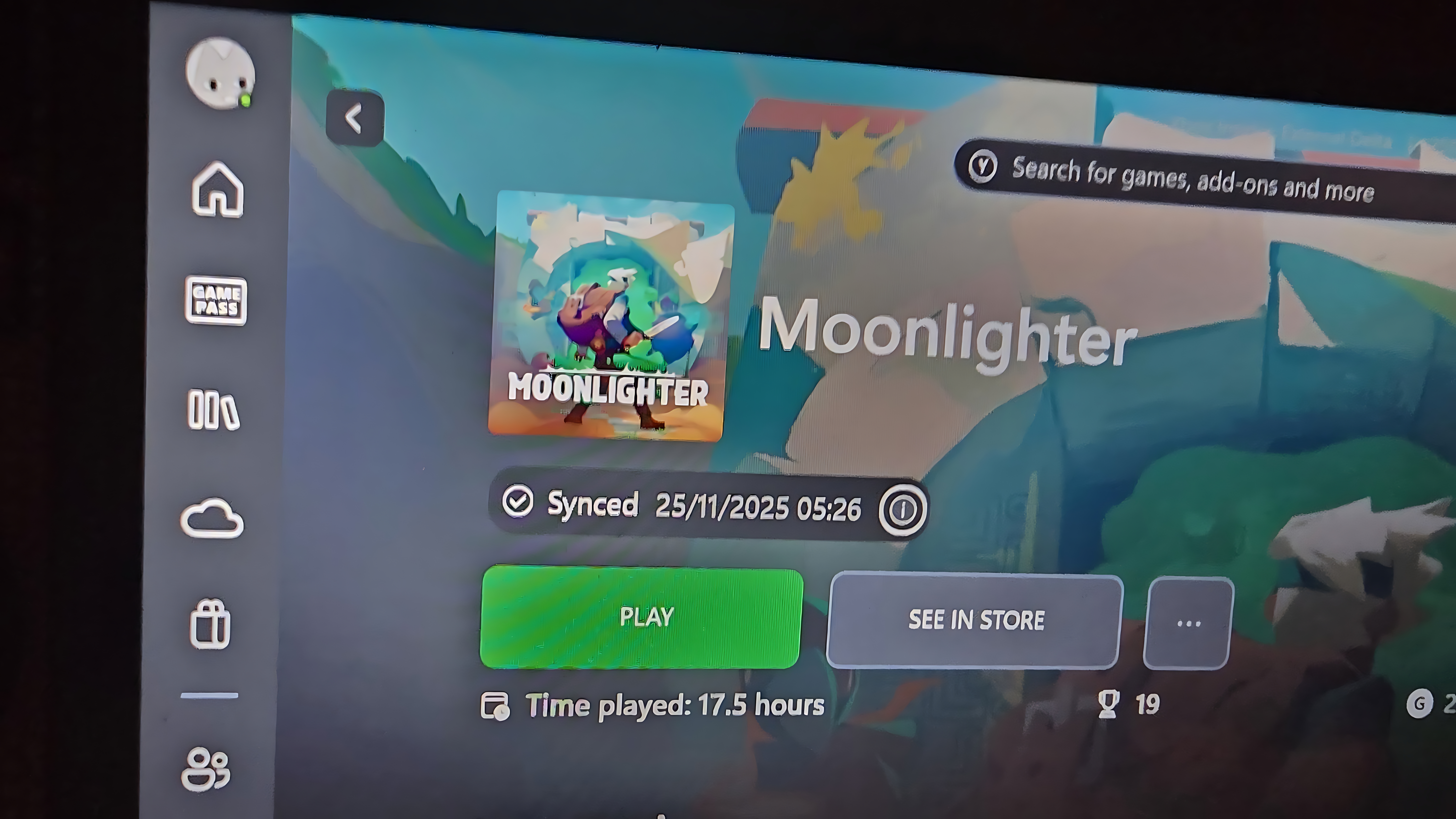
- Look for a “Last synced” message in the Xbox app or in-game menus.
- Check your other device to see if the latest progress appears.
- Some games log sync activity in their save folders—look for updated timestamps.
If in doubt, try restarting both the game and the Xbox app, then check again.
Data Table: Common Xbox Pc Cloud Save Error Messages
Here’s a quick reference for the most frequent error messages and what they mean.
| Error Message | Likely Cause | Suggested Fix |
|---|---|---|
| “We couldn’t sync your data with the cloud” | Network issue or app bug | Check internet, restart app |
| “Choose which save to use” | Local/cloud conflict | Pick latest, back up data |
| “Save file corrupted” | Damaged save file | Replace or repair save |
| “Cloud storage full” | Storage exceeded | Delete old saves |
Credit: www.windowscentral.com
Frequently Asked Questions
Why Are My Xbox Pc Cloud Saves Not Updating On Another Device?
This often happens if your first device did not upload the latest save to the cloud. Make sure the original device is online, open the game, and close it properly to trigger a sync. Then, start the game on the new device.
Can I Force A Cloud Save Sync On Xbox Pc?
Most games sync automatically, but some have a manual sync option in the game’s settings. If not, closing and reopening the game while connected to the internet usually forces a sync.
What Happens If I Pick The Wrong Save During A Conflict?
Choosing the wrong save (local or cloud) can overwrite your latest progress. It’s smart to back up your save files before making a choice if you’re unsure which is newest.
Are All Xbox Pc Games Supported By Cloud Saves?
No, not all games support cloud saves. Most major titles do, but some indie or older games do not. Always check the Microsoft Store listing for your game to confirm.
Does My Xbox Game Pass Subscription Affect Cloud Saves?
No, you do not need Game Pass for cloud saves on the Xbox app for PC. Cloud saves are free for supported games; Game Pass only affects game access, not save syncing.
Xbox cloud save syncing is a great feature, but it’s not perfect. Knowing how it works and what to do when things go wrong can save you a lot of stress. Keep your apps updated, watch for error messages, and always back up important progress.
With these tips, you can enjoy your games without worrying about losing your hard-earned progress.