If you love recording your gameplay or sharing quick clips from your favorite PC games, Xbox Game Bar is a popular and easy tool. But nothing is more frustrating than hitting record—and nothing happens. Many Windows users struggle with the Xbox Game Bar not recording, and the reasons are not always obvious. If you’re facing this issue, don’t worry. This guide covers all the main causes, practical fixes, and smart troubleshooting tips, even for less experienced PC users.
What Is Xbox Game Bar?
Xbox Game Bar is a built-in feature in Windows 10 and Windows 11. It helps users capture screenshots, record gameplay, and access widgets without leaving their game or app. You open it by pressing Win + G. The Game Bar works with most PC games and many applications, making it a favorite for gamers, streamers, and even teachers creating tutorials.
But sometimes, you might find that the record button is grayed out, the shortcut doesn’t work, or your clips are empty. Understanding why is the first step to solving the problem.
Common Reasons Xbox Game Bar Is Not Recording
There are several reasons why the Xbox Game Bar might not record. Here are the most common ones:
- Game Bar is disabled in Windows settings.
- Your graphics drivers are outdated or incompatible.
- The app or game does not support recording.
- Background processes are interfering.
- Storage space is low.
- Windows is not up to date.
- Conflicting software like other overlay tools is running.
- Privacy or permission settings block recording.
Let’s break down these issues and how you can fix them.

Credit: www.youtube.com
How To Fix Xbox Game Bar Not Recording
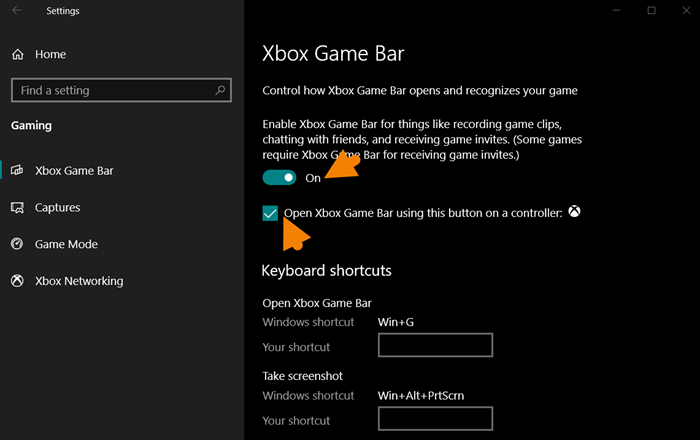
1. Check If Game Bar Is Enabled
Sometimes, Xbox Game Bar is turned off by accident. To check:
- Press Win + I to open Settings.
- Go to Gaming > Xbox Game Bar.
- Make sure “Open Xbox Game Bar using this button on a controller” is turned on.
- Toggle Record game clips, screenshots, and broadcast using Game Bar to On.
If it’s off, you won’t be able to record anything.
2. Update Graphics Drivers
Outdated or incompatible graphics drivers often cause recording issues. Both NVIDIA and AMD release regular driver updates for better compatibility.
- For NVIDIA: Download the latest drivers from the official NVIDIA website.
- For AMD: Visit the AMD support page for updates.
- For Intel: Use the Intel Driver & Support Assistant.
After updating, restart your PC and try recording again.
3. Check App Or Game Compatibility
Not all apps or games support Xbox Game Bar recording. For example, you cannot record Windows desktop, File Explorer, or some DRM-protected games. If you’re trying to record something unsupported, the record button won’t work.
Here’s a comparison of supported and unsupported scenarios:
| Scenario | Recording Possible? |
|---|---|
| Full-screen DirectX 12 game | Yes |
| Windowed browser (Chrome, Edge) | Yes |
| Windows desktop/File Explorer | No |
| Some video streaming apps (Netflix) | No |
Tip: Try opening a different game or app to see if recording works there.
4. Free Up Storage Space
If your disk is almost full, Xbox Game Bar may fail to save recordings. Check your capture folder:
- Default location: C:Users[YourName]VideosCaptures
- Delete old clips or move them to another drive.
- Empty the Recycle Bin.
Non-obvious insight: Windows sometimes reserves a small space for system files. Even if you see a few GB left, you might still run into storage issues for new video clips.
5. Check Background Processes And Overlays
Other overlay tools (like Discord overlay, NVIDIA GeForce Experience, Steam Overlay, or OBS) can conflict with Xbox Game Bar. Try closing these apps and recording again.
Here’s a quick comparison of common overlays and their impact:
| Overlay/App | Known Issues with Game Bar? |
|---|---|
| Discord Overlay | Sometimes |
| GeForce Experience | Often |
| Steam Overlay | Rarely |
| OBS Studio | Often |
Non-obvious insight: Even some RGB lighting software or hardware monitoring tools can cause conflicts. Temporarily disabling these can help diagnose the issue.
6. Adjust Privacy And Permissions
Windows privacy settings can block apps from accessing your microphone or screen.
- Go to Settings > Privacy > Microphone.
- Make sure Allow apps to access your microphone is on.
- Scroll to Xbox Game Bar and make sure it’s allowed.
Also, check Settings > Privacy > Captures to verify permissions.
7. Update Windows
Keeping Windows updated can fix recording problems. Xbox Game Bar is tightly integrated with Windows, so updates often improve stability.
- Go to Settings > Update & Security > Windows Update.
- Click Check for updates and install all available updates.
- Restart your PC.
8. Reset Or Repair Xbox Game Bar
If nothing works, you can reset the app:
- Go to Settings > Apps > Apps & features.
- Search for Xbox Game Bar.
- Click Advanced options.
- Choose Repair or Reset.
Repair keeps your data; Reset wipes app data but often fixes stubborn bugs.
9. Reinstall Xbox Game Bar
If the app is corrupted, uninstall and reinstall it:
- Open PowerShell as Administrator.
- Run:
`get-appxpackage Microsoft.xboxgamingoverlay | Remove-appxpackage`
- Visit Microsoft Store, search for Xbox Game Bar, and reinstall.
10. Change Recording Settings
Sometimes, settings like recording quality or frame rate are set too high for your hardware.
- Open Xbox Game Bar (Win + G).
- Click Settings > Capturing.
- Lower video quality or frame rate.
- Try turning off background recording if your PC is slow.
11. Run Windows Troubleshooter
Windows includes troubleshooters for common problems:
- Go to Settings > Update & Security > Troubleshoot.
- Select Additional troubleshooters > Video Playback.
- Follow instructions.
12. Test With Another User Account
Corrupted user profiles can block recording. Try creating a new user account:
- Go to Settings > Accounts > Family & other users.
- Add another user and sign in.
- See if Xbox Game Bar works there.
If it does, your main account has a profile issue.
Advanced Troubleshooting
If you’ve tried everything above and Xbox Game Bar still doesn’t record, it’s time for deeper checks.
Check For Group Policy Restrictions
Some editions of Windows (like Pro or Enterprise) may have group policies that block Game Bar.
- Press Win + R, type `gpedit.msc`, and press Enter.
- Go to Computer Configuration > Administrative Templates > Windows Components > Windows Game Recording and Broadcasting.
- Make sure Enables or disables Windows Game Recording and Broadcasting is set to Not Configured or Enabled.
If set to Disabled, Game Bar features won’t work.
Registry Editing (for Advanced Users)
Incorrect registry edits can harm your system. Only try this if you’re comfortable.
- Press Win + R, type `regedit`, and press Enter.
- Navigate to:
`hkey_current_usersoftwaremicrosoftwindowscurrentversiongamedvr`
- Make sure AppCaptureEnabled and GameDVR_Enabled are set to 1.
Check Hardware Requirements
Not all PCs support Game Bar recording, especially older hardware. Minimum requirements include:
- Windows 10 version 17763.0 or higher
- Modern Intel, AMD, or NVIDIA GPU with hardware encoding (e.g., NVENC, AMD VCE, Intel QuickSync)
If your PC is below these specs, you may need third-party tools.

Credit: learn.microsoft.com
Alternative Solutions If All Else Fails
If Xbox Game Bar still won’t record, consider these alternatives:
- OBS Studio: Free and powerful, supports many formats and customizations.
- NVIDIA ShadowPlay: For NVIDIA GPU users, offers high-performance game recording.
- AMD ReLive: For AMD graphics cards, similar to ShadowPlay.
- Bandicam or Fraps: Simple, reliable, but some features need payment.
These tools are not built into Windows, but they offer more control and features. For many users, switching to a third-party app solves stubborn recording issues.
Prevention Tips And Best Practices
- Keep Windows and drivers up to date.
- Don’t run multiple overlay apps at the same time.
- Check storage space before long recording sessions.
- Close background apps that use a lot of CPU or RAM.
- Adjust Game Bar settings for your hardware (lower quality if needed).
If you consistently have problems, consider using an alternative app as your main recorder and keep Xbox Game Bar as a backup.
When To Seek Professional Help
If your PC has deeper issues, like hardware failures or persistent Windows errors, you might need expert help. Signs you should call a technician:
- Frequent blue screen crashes when recording.
- Game Bar and other recorders all fail to capture video.
- Problems started after a major hardware change.
Summary Table: Common Fixes Vs. Problems
This chart matches the main problems with their best solutions:
| Problem | Best Fix |
|---|---|
| Record button grayed out | Enable Game Bar in Settings |
| Recording fails to start | Update graphics drivers |
| Clips not saved | Free up storage space |
| No audio in recordings | Check privacy & microphone settings |
| Conflicting overlays | Close other overlay apps |
Final Thoughts
Xbox Game Bar is a handy tool for quick screen recordings and sharing gameplay moments. But when it stops working, it can be confusing, especially with so many possible causes. By following the troubleshooting steps above, most users can solve the problem without needing advanced skills.
Remember, check the basics first, then move to more advanced fixes if needed. And if all else fails, there are excellent free alternatives you can try.
If you need official guidance or want to check for the latest updates, the Xbox Game Bar support page is a good place to start.
Frequently Asked Questions
Why Does Xbox Game Bar Say “can’t Record Right Now”?
This message often appears if you’re trying to record something unsupported, like the desktop, or if another app is using the graphics card. Try recording a different game or close other recording apps.
How Do I Change Where Xbox Game Bar Saves Recordings?
Go to Settings > Gaming > Captures. Under Captures location, you can change the folder. Make sure the new location has enough free space.
Why Is There No Sound In My Xbox Game Bar Recordings?
Check if the microphone and game sound are enabled in Game Bar settings. Also, check Windows privacy settings to make sure Xbox Game Bar can access your microphone.
Can I Use Xbox Game Bar On Windows 7 Or 8?
No, Xbox Game Bar only works on Windows 10 and Windows 11. For older systems, use third-party apps like OBS Studio.
Is Xbox Game Bar Good For Professional Streaming?
Xbox Game Bar is good for quick clips and simple streams. For professional streaming, apps like OBS Studio or XSplit offer more features and customization.
Credit: recorder.itopvpn.com