When your Viber messages are not syncing, it can feel frustrating and confusing. You might miss important updates, group chats, or even personal conversations. For many people, Viber is not just for chatting with friends but also for work, family, and international communication. If your messages do not appear on all your devices or seem delayed, it can quickly turn into a bigger problem.
Understanding why this happens is the first step to fixing it. Sometimes, the problem is with your internet connection, while other times, it’s because of outdated app versions, device settings, or even Viber’s own servers. In this article, you’ll discover the common reasons for Viber message syncing issues and learn practical steps to solve them.
We’ll also cover advanced troubleshooting, practical examples, and answer frequent questions. By the end, you’ll know how to keep your Viber chats flowing smoothly across all devices.
What Does “viber Messages Not Syncing” Mean?
When people say their Viber messages are not syncing, they usually notice that:
- Messages sent or received on one device (like their phone) do not show up on another (like their tablet or PC).
- Some messages are delayed or missing.
- Group chats are out of order or incomplete.
- Notifications appear, but the actual messages do not.
Viber allows you to use the same account on your phone and desktop, so syncing is important for a seamless experience. If syncing fails, you lose that convenience and may miss key information. This problem is more common than many users think, especially for those who use Viber across different devices or travel between networks.
Why Do Viber Messages Fail To Sync?
Many factors can disrupt Viber message syncing. Here are the main causes:
- Unstable Internet Connection: Weak or unreliable Wi-Fi or mobile data is the most frequent reason. If one device goes offline, Viber cannot send or receive new messages until it reconnects.
- Outdated App Version: Viber updates often include bug fixes and improvements. Running old versions may cause syncing errors.
- Device Time and Date Settings: If your devices are set to different time zones or have incorrect system times, Viber may have trouble aligning message histories.
- Account Verification Issues: Viber requires your account to be verified with a phone number. Problems here can stop syncing.
- Corrupted App Data or Cache: Sometimes, saved files or temporary data become corrupted, blocking proper syncing.
- Viber Server Problems: Although rare, Viber’s servers can experience outages. This affects users worldwide and is outside your control.
- App Settings and Permissions: Disabled notifications, background data restrictions, or app-specific permissions can prevent syncing.
- Multiple Device Limitations: Viber officially allows only one mobile device (phone) per account. Desktop and tablet syncing have extra steps and limits.
A key insight: Many users forget that background app refresh must be enabled for smooth syncing, especially on iOS devices. And, even if one device works well, the other device’s settings may silently block updates.

Credit: www.youtube.com
How Viber Syncing Works: A Simple Explanation
To understand syncing, picture Viber as a mail service. When a message arrives, Viber’s servers send copies to all devices linked to your account. Each device checks in with the server to ask, “Any new mail for me? ” If the check fails, you miss messages.
- Your main device (usually your phone) is the central hub.
- Secondary devices (like a PC or tablet) act as mirrors, showing your chats but depending on the phone for updates.
- If the main device is offline or unverified, secondary devices cannot fetch new messages.
This means that even if your computer is online, it still needs your phone to be connected to Viber’s servers for real-time syncing.
Here’s a visual overview:
| Device | Role | Needs for Syncing |
|---|---|---|
| Phone | Main | Internet, verified account, latest app |
| Desktop | Secondary | Phone online, Internet, paired device |
| Tablet | Secondary | Phone online, Internet, paired device |
Common Signs Your Viber Is Not Syncing Properly
You might not always realize there is a syncing issue. Watch for these signs:
- New messages show on one device but not others.
- You get notifications, but when you open the app, messages are missing.
- Group chats do not update or show old content.
- Calls work, but texts do not appear.
- Unread message counts are wrong.
If you see any of these, it’s time to troubleshoot.
Basic Fixes To Try First
Before diving into advanced solutions, try these simple steps. They solve most Viber syncing problems:
- Check Your Internet: Make sure both devices (phone and desktop/tablet) have a strong, stable connection. Switch between Wi-Fi and mobile data to test.
- Update Viber: Go to the App Store (iOS) or Google Play Store (Android) and install the latest version. Updates fix many hidden bugs.
- Restart Devices: Turn your phone and computer/tablet off, then back on. This clears temporary glitches.
- Log Out and Back In: On your secondary device (like your PC), log out of Viber and log in again. This forces a fresh sync.
- Force Close and Reopen App: On mobile, swipe away Viber from your recent apps and reopen it.
- Check Time and Date Settings: Set both devices to automatic time and date.
- Test on Wi-Fi and Mobile Data: Sometimes, one network blocks Viber traffic. Test both to see if the problem is network-specific.
These steps fix about 70% of common syncing issues, especially if you haven’t updated your app in a while.
Advanced Troubleshooting For Viber Syncing Issues
If basic steps do not work, you need deeper solutions. Each fix targets a different cause.
1. Clear App Cache And Data
On Android:
- Go to Settings > Apps > Viber > Storage.
- Tap Clear Cache and then Clear Data.
- Open Viber and log in again.
On iOS, you must uninstall and reinstall the app to clear data.
Warning: Clearing data logs you out and may delete unsaved messages.
2. Re-verify Your Phone Number
- Open Viber.
- Go to Settings > Account > Viber Backup and Restore.
- Check that your phone number is correctly registered.
- If you see errors, follow prompts to re-verify.
This often solves hidden account problems.
3. Re-link Secondary Devices
- On your phone, open Viber.
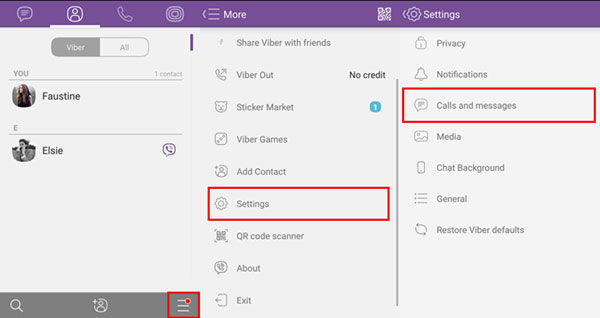
- Go to More > Settings > Account > Desktop and Tablets.
- Remove the linked device (PC or tablet).
- On the secondary device, open Viber and scan the QR code to reconnect.
This refreshes the sync link.
4. Allow Background Data And Notifications
- On Android: Settings > Apps > Viber > Data usage. Allow background data and remove data restrictions.
- On iOS: Settings > Viber > Background App Refresh. Turn it on.
Many users miss this step, which is critical, especially on iPhones.
5. Check App Permissions
Viber needs permissions to access contacts, notifications, and background activity.
- Go to your device’s Settings > Apps > Viber > Permissions.
- Make sure all needed permissions are enabled.
Without these, Viber cannot sync messages correctly.
6. Test With A Second Account
If nothing works, create a new Viber account (even temporarily) on a different phone. See if syncing works. If it does, the problem is specific to your main account. Contact Viber support for help.
7. Check For Server Outages
Visit Viber’s official Twitter or DownDetector to see if others report syncing problems. If there’s a server issue, wait—it’s not your fault.
Credit: www.mobikin.com
Viber Syncing On Desktop Vs Mobile: Key Differences
Viber’s syncing behavior changes depending on your device:
| Feature | Mobile (Phone) | Desktop/Tablet |
|---|---|---|
| Can send/receive all messages? | Yes | Yes, but needs phone online |
| View full chat history? | Yes | Partial (only after pairing) |
| Can use without phone? | Yes | No (requires phone verification) |
| Message backup/restore | Yes (Google Drive/iCloud) | No direct backup, but can see messages synced from phone |
A practical insight: On desktop, you only see messages from the time you first linked the device. Earlier chat history does not sync automatically. Many users do not know this and think something is broken.
How To Prevent Viber Syncing Issues
Prevention is easier than repair. Here’s what you can do to keep Viber syncing trouble-free:
- Keep Apps Updated: Install updates as soon as they arrive.
- Maintain Good Internet: Avoid switching networks too often or using unstable Wi-Fi.
- Enable Background Refresh and Data: On all devices, allow Viber to run in the background.
- Sync Regularly: Open Viber on all devices at least once per day.
- Backup Chats: Use Viber’s built-in backup to Google Drive (Android) or iCloud (iOS).
Pay attention to device notifications asking for permission updates or battery optimization—these can silently block syncing if ignored.

Credit: www.wikihow.com
Real-world Examples Of Viber Syncing Problems
Let’s look at a few scenarios:
- Traveling Abroad: Anna connects to Viber on her laptop in a hotel, but her phone’s SIM card is not active. Her laptop does not sync new messages. Solution: Connect her phone to Wi-Fi so it can talk to Viber’s servers.
- Office Desktop: Michael uses Viber at work on his PC. At home, his phone is off to save battery. Messages sent to his PC are delayed until he turns his phone on again.
- App Update Delay: Priya waits weeks to update Viber. After updating, dozens of old messages suddenly appear, showing that syncing was stalled.
A common mistake is assuming Viber syncs like WhatsApp or Telegram. Unlike those apps, Viber’s desktop version is not fully independent—it relies on the phone to stay active.
When To Contact Viber Support
If you’ve tried all the steps above and messages still do not sync, reach out to Viber’s official support team. Give them details:
- Device types and operating systems
- Viber app versions
- What troubleshooting you’ve already done
- Whether the problem is on mobile, desktop, or both
For urgent business or work needs, this can save time. Visit the official Viber support page at Viber Help Center for more.
Comparing Viber Syncing With Other Messaging Apps
How does Viber’s syncing compare to apps like WhatsApp, Telegram, or Signal? Here’s a quick look:
| App | Multi-Device Sync | Full Chat History on New Device | Main Device Needed? |
|---|---|---|---|
| Viber | Yes (with limits) | No (only after pairing) | Yes |
| Yes (recently improved) | Partial (last 1-2 months) | No (after linking, works independently) | |
| Telegram | Yes (cloud-based) | Yes (full history) | No |
| Signal | Yes (with pairing) | No (only from pairing point) | Yes |
Telegram stands out for true cloud syncing. Viber and Signal depend more on your main device, which can lead to more syncing issues if your phone is offline.
Useful Tips For Smooth Viber Experience
- Avoid Battery Saver Modes: These can block Viber from running in the background.
- Don’t Use Task Killers: Apps that “clean memory” often close Viber, breaking sync.
- Check for App Conflicts: VPNs or security apps may block Viber’s connection.
- Log Out Before Selling a Device: If you switch phones, log out of Viber to avoid future syncing confusion.
- Regularly Test Sync: Send a message from one device and check another—especially after updates.
Many users overlook battery and security settings, which are silent blockers for syncing.
Frequently Asked Questions
Why Are My Viber Messages Not Appearing On My Desktop?
This is usually because your phone is offline, Viber is not updated, or the desktop app is not properly linked. Make sure your phone is connected to the internet and Viber is running. Try relinking your desktop app through your phone’s Viber settings.
Will Reinstalling Viber Delete My Messages?
On your phone, reinstalling Viber may delete unsaved messages unless you have a recent backup. On desktop, messages that have already synced will reappear after you log in, but older unsynced messages may be lost. Always back up before reinstalling.
Can I Sync Viber Messages Between Two Phones?
Viber does not support using one account on two phones at the same time. You can use your account on a phone plus desktop or tablet, but not two phones. Attempting to do so can break syncing and may lead to account issues.
How Do I Know If Viber’s Servers Are Down?
Check social media or websites like Downdetector. If many users report problems at the same time, it’s likely a server issue. In this case, wait for Viber to fix it.
Why Do Some Messages Sync But Not All?
Sometimes, only recent messages sync. Older messages (before you linked a new device) will not appear on desktop or tablet. Also, if your phone was offline when a message arrived, it might not have synced to other devices. Logging out and back in can help refresh the sync.
Final Thoughts
Viber message syncing is vital for people who use multiple devices or rely on Viber for work and family. While most issues have simple solutions—like updating the app or checking your internet—some require deeper fixes. The key is to keep your devices updated, give Viber the right permissions, and understand how its syncing system works. If you follow the steps in this guide, you’ll solve most problems without stress. And if you ever get stuck, Viber support or community forums can offer extra help. Smooth syncing means you never miss a moment, no matter where you are or which device you use.